
1. Introduction
Thank you for choosing the NHOPEEW Android Radio for your Jeep Cherokee (2013-2018). This advanced in-dash navigation system features an 8-core processor, 4GB RAM, 64GB ROM, a 10.1-inch IPS touchscreen, and integrated CarPlay/Android Auto. This manual provides detailed instructions for installation, operation, maintenance, and troubleshooting to ensure optimal performance and user experience.
2. Product Overview
The NHOPEEW Android Radio is designed to enhance your driving experience with a range of features:
- Powerful Performance: Equipped with an 8-core Qualcomm Snapdragon chip, 4GB RAM, and 64GB ROM for fast, smooth operation and ample storage.
- Vivid Display: A 10.1-inch 1280*720P IPS touchscreen offers excellent clarity, responsiveness, and visuals.
- Enhanced Cooling: Integrated cooling fans prevent overheating during extended use, ensuring longevity.
- 3D Car Model Showcase: Explore an interactive 3D model of your vehicle directly on the screen.
- Customizable Interface: Personalize UI colors, homepage apps, and widgets to match your preferences.
- Superior Audio: DSP Hi-Res technology and Bluetooth 5.1 provide crystal-clear, high-resolution audio and stable connectivity.
- Advanced Connectivity: Built-in 5G/WiFi for seamless internet access and precise GPS tracking for navigation.
- Smartphone Integration: Supports both wireless and wired CarPlay and Android Auto for easy access to navigation, calls, messages, and music.

Image: Overview of the NHOPEEW Android Radio's key features and interface.
3. Setup and Installation
3.1 Compatibility Check
This unit is compatible with Jeep Cherokee models from 2013 to 2018. Please compare your vehicle's center console with the product images to ensure compatibility. If your vehicle has a large-screen high-end version, contact customer support for a compatible wiring harness.

Image: Comparison of the Jeep Cherokee dashboard before and after installing the NHOPEEW Android Radio.
3.2 Package Contents
Verify that all components are present in the package:
- Car Radio Unit
- Power Cable
- CANBUS Decoder
- Backup Camera
- Radio Antenna
- GPS Antenna
- USB Cables
- Installation Tool
- RCA Cables

Image: Diagram showing the dimensions of the head unit and a comprehensive list of included accessories.
3.3 Wiring Instructions
Follow these guidelines for proper wiring. Professional installation is recommended.
- Connect the main power cable harness to the vehicle's wiring. Ensure all connections are secure.
- For Jeep Renegade vehicles, ensure connection to the specified power interface.
- Connect the GPS antenna and position it for optimal signal reception.
- Connect the radio antenna.
- If installing the backup camera, refer to the specific wiring diagram below.

Image: Detailed wiring diagram showing various connections for the head unit.
3.3.1 Reversing Camera Wiring
Important: The reversing input must be plugged in even if the reversing camera is not used.
- Connect the red wire (1) to the positive pole of the car's reversing light.
- Connect the black wire (2) to the negative pole of the car's reversing light.
- The white plug must be connected to the radio to receive Bluetooth and WiFi signals.
- No need to connect wires (3) and (4) as the reversing trigger is controlled by the stereo.

Image: Diagram illustrating the correct wiring for the reversing camera.
4. Operating Instructions
4.1 Power On/Off
The unit will power on automatically when the vehicle's ignition is turned on. To manually turn off the screen, press the power button (if available) or use the screen-off option in the settings.
4.2 CarPlay and Android Auto
The unit supports both wireless and wired CarPlay and Android Auto for seamless smartphone integration.
4.2.1 Wireless/Wired Connection Steps
- Connect with Phone: Ensure your phone's Bluetooth and Wi-Fi are enabled.
- Open Bluetooth Settings: On your phone, go to Bluetooth settings.
- Find Monitor's Bluetooth: Search for and select the car stereo's Bluetooth name.
- Turn on CarPlay/Android Auto: Follow the prompts on your phone and the car stereo to enable CarPlay or Android Auto.
- Connection Succeeded: Once paired, CarPlay or Android Auto will launch automatically.
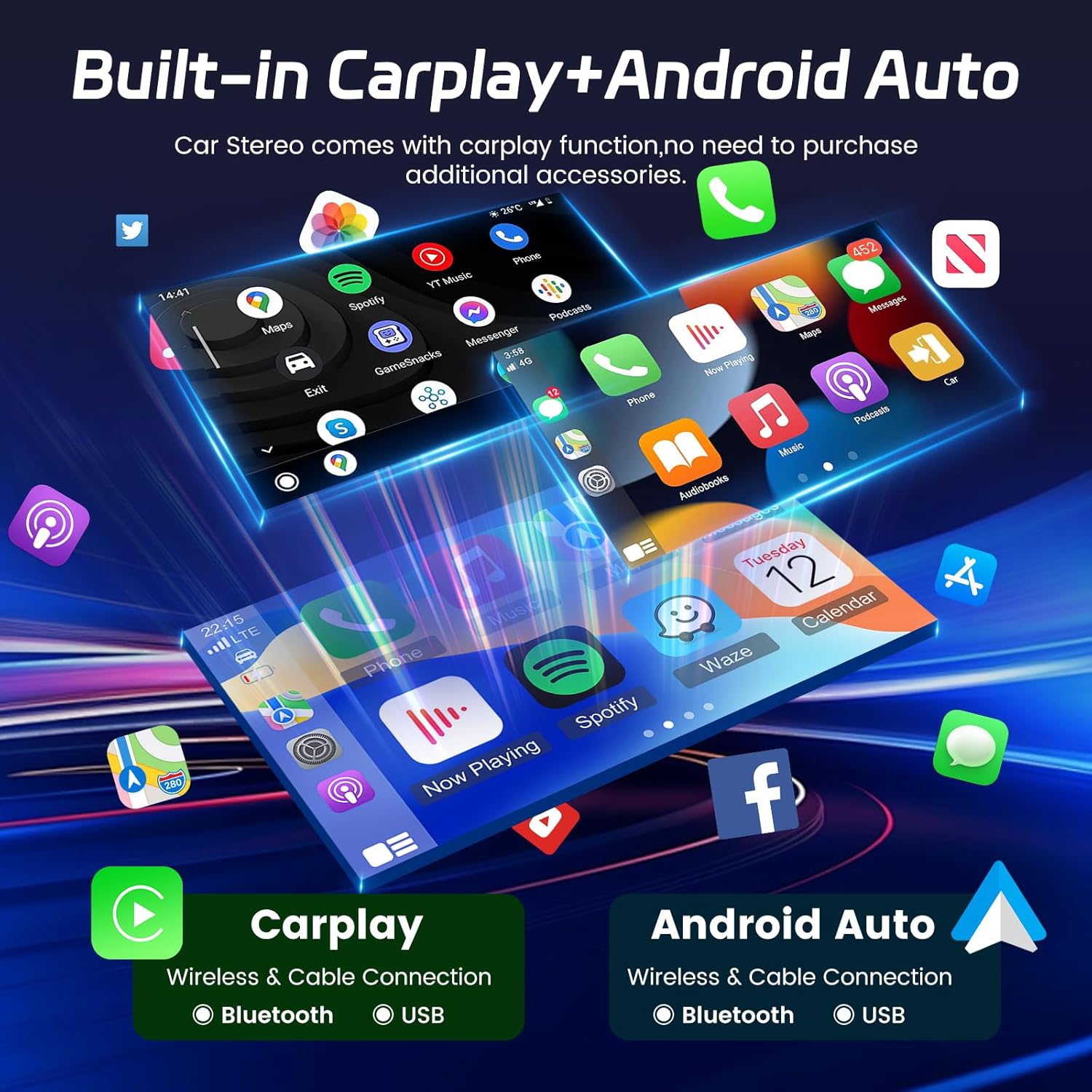
Image: Display showing the integrated CarPlay and Android Auto interfaces on the head unit.

Image: Step-by-step visual guide for connecting to CarPlay and Android Auto.
4.3 GPS Navigation and WiFi
The unit features built-in GPS for accurate navigation and WiFi for internet connectivity.
- GPS: Access pre-installed navigation apps or download your preferred ones from the app store. The system provides accurate positioning and route guidance.
- WiFi: Connect to a mobile hotspot or available WiFi networks for online features, app downloads, and streaming.

Image: Display showing GPS navigation and various apps utilizing WiFi connectivity.
4.4 Bluetooth 5.1
Connect your smartphone via Bluetooth 5.1 for hands-free calling, music streaming, and access to phone contacts.
- Enable Bluetooth on your phone and the car stereo.
- Search for available devices on your phone and select the car stereo's Bluetooth name.
- Confirm the pairing code on both devices.
- Once connected, you can make/receive calls, play music, and sync contacts.

Image: Screenshots demonstrating Bluetooth 5.1 features, including calling and music playback.
4.5 DSP Hi-Res Audio
Experience enhanced audio quality with the Digital Sound Processor (DSP) Hi-Res technology. Access the DSP settings to fine-tune sound parameters, including equalization, balance, and sound field effects, for a personalized listening experience.

Image: Visual representation of DSP audio processing and Bluetooth connectivity for advanced sound quality.

Image: Interface showing the DSP settings for adjusting sound delays, equalization, and other audio parameters.
4.6 Custom UI and Homepage
Personalize your user interface and homepage layout:
- UI Color Customization: Adjust system-wide UI colors, including font and interface colors, to match your aesthetic preferences.
- Homepage Customization: Arrange your favorite apps and widgets on the homepage for quick access and an efficient dashboard.

Image: Various customizable homepage layouts, including split view, card theme, and wallpaper options.

Image: Gallery of different UI themes available for selection, demonstrating various color schemes and layouts.
4.7 3D Car Model Showcase
The 3D car model showcase feature allows you to view a detailed, interactive 3D model of your vehicle on the screen. You can rotate, zoom, and customize the view to appreciate your car's design.

Image: Screenshot of the 3D car model dynamic effect on the head unit's display.

Image: Interface for customizing the 3D car model's appearance and dynamic effects.
4.8 Split Screen and Picture-in-Picture (PIP)
Utilize the split-screen function to run two applications simultaneously, or use the Picture-in-Picture (PIP) mode to watch videos while navigating or using other apps.

Image: Display showing the capability to run three applications simultaneously in a split-screen layout.

Image: Example of Picture-in-Picture (PIP) video playback alongside other applications.
4.9 FM/RDS Radio
Access the built-in FM/RDS radio tuner to listen to your favorite stations. The RDS (Radio Data System) feature provides additional information like station name and song title where available.

Image: User interface for the FM/RDS radio, showing frequency tuning and station presets.
4.10 Mirror Link Connection
Mirror Link allows you to display your smartphone's screen directly on the car stereo. This feature supports both Android and iOS devices via WiFi or USB.
- Open Phone's WiFi: On your phone, open WiFi settings and connect to the car stereo's WiFi hotspot.
- Start Carlink Connection: Launch the Carlink app on the car stereo.
- Click "Connect": On your phone, click the "Connect" button in the synchronized pop-up.
- Enter Pairing Code: Enter the correct 6-digit pairing code displayed on your phone.
- Connection Succeeded: Your phone screen will now be mirrored on the car stereo.

Image: Step-by-step visual guide for establishing a Mirror Link connection with a smartphone.
5. Maintenance
5.1 Cooling System
The unit is equipped with efficient cooling fans to maintain optimal operating temperature and extend product lifespan. You can set a warning value for temperature or volume. If this value is exceeded, the system will activate the fan to prevent overheating.

Image: Diagram illustrating the internal cooling fan and airflow within the head unit.

Image: Graph comparing the temperature performance with and without the cooling fan, highlighting its effectiveness.
5.2 General Care
- Clean the screen regularly with a soft, lint-free cloth. Avoid abrasive cleaners.
- Keep the unit free from dust and debris.
- Avoid exposing the unit to extreme temperatures or direct sunlight for prolonged periods.
6. Troubleshooting
If you encounter issues, refer to the following common troubleshooting steps:
| Problem | Possible Solution |
|---|---|
| Unit does not power on | Check power cable connections. Ensure vehicle ignition is on. Verify fuses. |
| No sound | Check speaker wiring. Verify volume settings. Ensure correct audio source is selected. |
| GPS signal lost or inaccurate | Ensure GPS antenna is properly connected and has a clear view of the sky. |
| Bluetooth/WiFi connection issues | Restart both the car stereo and your mobile device. Re-pair the devices. Check network settings. |
| Touchscreen unresponsive | Restart the unit. Ensure the screen is clean and free of obstructions. |
| System lag or freezing | Close unnecessary background applications. Perform a system restart. |
If problems persist after attempting these solutions, please contact NHOPEEW customer support for further assistance.
7. Specifications
| Feature | Detail |
|---|---|
| Brand | NHOPEEW |
| Model Name | A7285A4134H1MI2 |
| Compatible Vehicle Type | Jeep Cherokee 2013-2018 |
| Screen Size | 10.1 inches |
| Display Type | IPS |
| Resolution | 1280*720P |
| Operating System | Android 15 |
| CPU | 8 Core Qualcomm Snapdragon Chip |
| Memory (RAM) | 4GB |
| Storage (ROM) | 64GB |
| Connectivity | Bluetooth 5.1, Wi-Fi (5G/WiFi), GPS |
| Special Features | Wireless/Wired CarPlay & Android Auto, DSP Hi-Res Audio, Cooling Fans, 3D Car Model Showcase, Customizable UI |
| Included Components | Car radio, power cable, CANBUS, backup camera, radio antenna |
8. Warranty and Support
8.1 Warranty Information
This NHOPEEW product comes with a 2-Year Manufacturer Warranty from the date of purchase. This warranty covers defects in materials and workmanship under normal use. It does not cover damage caused by improper installation, accident, misuse, abuse, unauthorized modifications, or natural disasters.
8.2 Customer Support
For technical assistance, warranty claims, or any questions regarding your NHOPEEW Android Radio, please contact our customer support team. Refer to your purchase documentation or the NHOPEEW official website for contact details.


