
1. Introduction
The DecoCraft Smart Mini Projector is designed to provide versatile entertainment and viewing experiences. This portable home theater projector features WiFi and Bluetooth connectivity, supporting native 1080P resolution and compatible 4K playback. It offers a large projection size of up to 130 inches, making it suitable for various environments including bedrooms, living rooms, and office spaces. With HDMI, USB, and AV ports, it connects to a wide range of devices. This manual provides essential information for the proper use and care of your projector.
2. Product Overview
2.1 Package Contents
- DecoCraft Smart Mini Projector (Normal Projector)
- Remote Control
- Power Adapter
- User Manual (this document)
2.2 Projector Components and Ports
Familiarize yourself with the projector's physical features and connection ports.
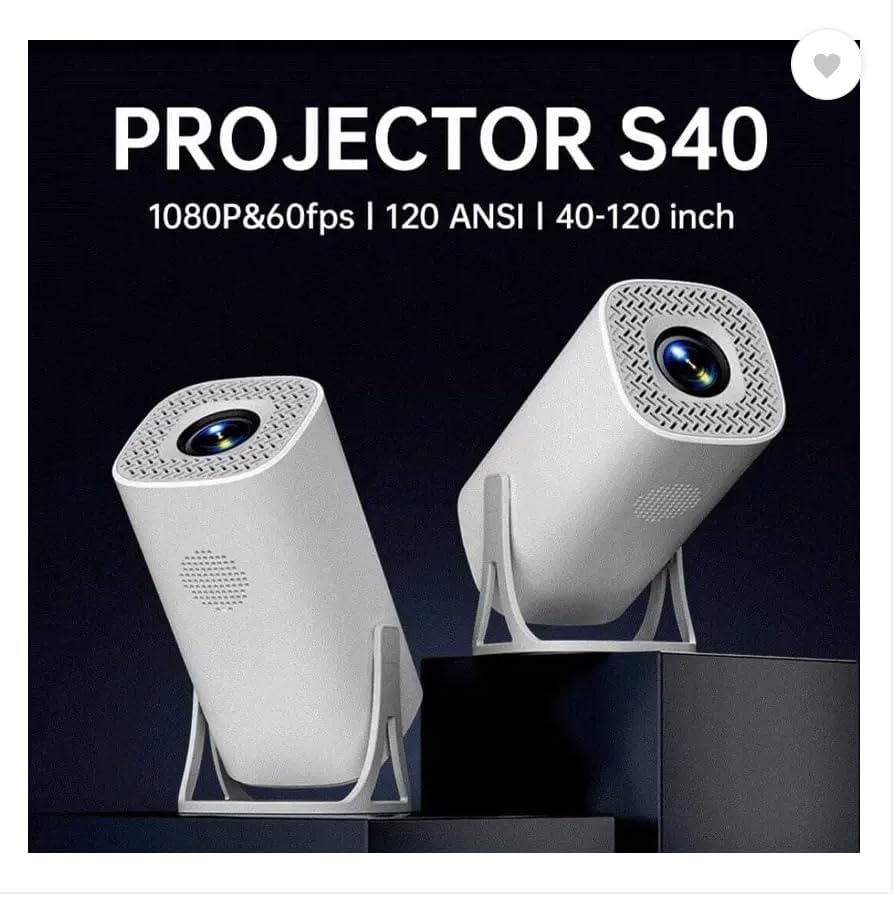
Image 1: Projector Dimensions and Ports. This image illustrates the physical dimensions of the projector (approximately 204mm height, 103mm width, 93mm depth) and highlights the various input/output ports located on the rear panel. These include AUX, HDMI, USB, and IR receiver.
- Lens: Located at the front, projects the image.
- Power Input: For connecting the power adapter.
- HDMI Port: Connects to devices like laptops, gaming consoles, TV sticks.
- USB Port: Connects to USB drives for media playback.
- AV Port: Connects to older devices using an AV cable.
- AUX Port: For audio output to external speakers or headphones.
- IR Receiver: Receives signals from the remote control.
- Focus Ring/Keystone Adjustment: (If manual) Adjusts image clarity and shape. This model features Auto Screen Alignment.
3. Setup
3.1 Placement
Position the projector on a stable, flat surface. Ensure there are no obstructions blocking the lens or the ventilation vents. For optimal viewing, project onto a smooth, light-colored wall or a projector screen.
- Projection Distance: The projector supports a minimum throw distance of 0.4 meters and a maximum of 3 meters.
- Image Size: The maximum recommended image size is 60 inches, though it can project up to 130 inches. Adjust distance for desired screen size.
3.2 Power Connection
- Connect the power adapter to the projector's power input port.
- Plug the power adapter into a suitable electrical outlet.
- The projector will typically enter standby mode.
3.3 Initial Power On and Adjustment
- Press the power button on the projector or the remote control to turn it on.
- The projector features Auto Screen Alignment (Auto Keystone), which automatically adjusts the image shape for a rectangular display.
- If manual focus is needed, gently rotate the focus ring around the lens until the image is clear.
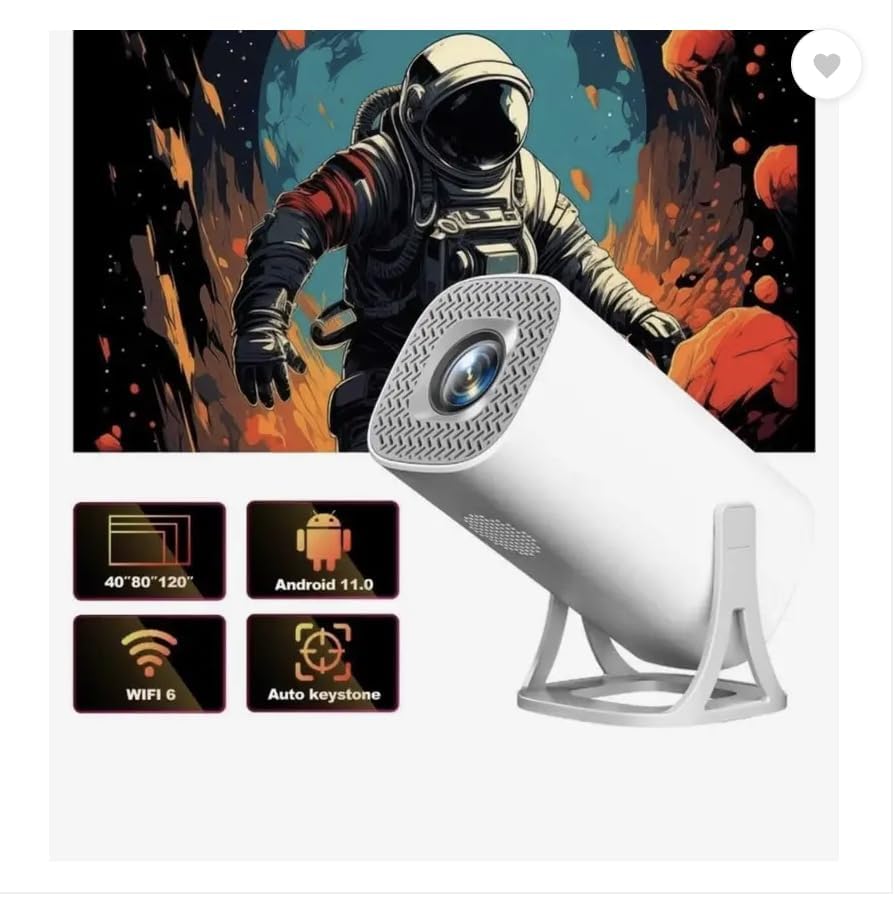
Image 2: Key Features. This image highlights the projector's capabilities, including support for 40-120 inch projection, Android 11.0 operating system, WiFi 6 connectivity, and Auto Keystone correction for automatic screen alignment.
4. Operating Instructions
4.1 Power On/Off
- To Power On: Press the power button on the projector or the remote control.
- To Power Off: Press the power button again. Confirm shutdown if prompted.
4.2 Input Source Selection
Use the "Source" button on the remote control to cycle through available input options (HDMI, USB, AV, Screen Mirroring).
4.3 Connecting Devices
- HDMI: Connect a laptop, gaming console, TV stick, or set-top box using an HDMI cable. Select HDMI as the input source.
- USB: Insert a USB drive into the USB port. The projector's media player will typically open, allowing you to browse and play media files.
- AV: Connect older devices like DVD players using an AV cable. Select AV as the input source.
- Bluetooth: Pair Bluetooth-enabled devices such as external speakers for enhanced audio. Navigate to the Bluetooth settings in the projector's menu.
- WiFi (Screen Mirroring): The projector supports wireless screen projection from compatible mobile phones and tablets.
Refer to your device's screen mirroring instructions (e.g., Miracast, AirPlay) and connect to the projector's WiFi network or mirroring function.

Image 3: Wireless Screen Projection. This image illustrates the projector's ability to mirror content wirelessly from mobile phones and tablets, as well as supporting wired HDMI connections for laptops and other devices, providing a large screen experience.
4.4 Android 11 Platform
The projector runs on an Android 11.0 operating system, providing access to various streaming applications and content.

Image 4: Android 11 Interface. This image shows the projector's interface, powered by the Android 11 platform, with various streaming applications such as Netflix and YouTube visible, indicating access to a wide range of online video content.
- Navigation: Use the remote control to navigate the Android interface.
- App Access: Download and use streaming applications (e.g., Netflix, YouTube) directly on the projector via WiFi.
- Settings: Access system settings for network configuration, display adjustments, and other preferences.
5. Maintenance
5.1 Cleaning the Lens
Use a soft, lint-free cloth or a lens cleaning wipe specifically designed for optical surfaces. Gently wipe the lens to remove dust or smudges. Avoid using abrasive materials or harsh chemicals.
5.2 Ventilation
Ensure the projector's ventilation vents are clear of dust and obstructions. Proper airflow is crucial to prevent overheating and prolong the projector's lifespan. Do not block the vents during operation.
5.3 Storage
When not in use, store the projector in a cool, dry place, away from direct sunlight and extreme temperatures. If storing for an extended period, consider using a protective cover to prevent dust accumulation.
5.4 Light Source Life
The projector's light source has an estimated operating life of 4000 hours. This is a general guideline, and actual lifespan may vary based on usage conditions.
6. Troubleshooting
If you encounter issues with your projector, refer to the following common problems and solutions:
| Problem | Possible Cause | Solution |
|---|---|---|
| No Power | Power cable not connected; Power outlet faulty. | Ensure power cable is securely connected. Try a different power outlet. |
| No Image | Incorrect input source; Device not connected; Lens cap on. | Select the correct input source (HDMI, USB, AV). Check cable connections. Remove lens cap. |
| Blurry Image | Out of focus; Incorrect projection distance. | Adjust the focus ring. Reposition the projector to an appropriate distance. |
| No Sound | Volume too low; Muted; External speakers not connected/selected. | Increase volume. Unmute. Check audio output settings and external speaker connections. |
| Cannot Connect to WiFi/Bluetooth | Incorrect password; Out of range; Device compatibility. | Verify WiFi password. Ensure devices are within range. Check device compatibility. |
If the problem persists after trying these solutions, please contact customer support.
7. Specifications
| Feature | Detail |
|---|---|
| Brand | Generic |
| Model Name | Normal Projector |
| Display Type | LCD |
| Native Resolution | 1920 x 1080 (1080p Full HD) |
| Maximum Display Resolution | 1080p Full HD Pixels (4K compatible) |
| Lumens | 3300 Lumen |
| Connectivity Technology | Bluetooth, WiFi |
| Hardware Connectivity | USB, HDMI, AV |
| Special Feature | Auto Screen Alignment |
| Operating System | Android 11.0 |
| Recommended Uses | Business, Education, Gaming, Home Cinema |
| Form Factor | Portable |
| Control Method | Remote |
| Light Source Operating Life | 4000 Hours |
| Minimum Throw Distance | 0.4 Metres |
| Maximum Throw Distance | 3 Metres |
| Maximum Image Size | 60 Inches (up to 130 inches supported) |
| Item Dimensions (L x W x H) | Approx. 204mm H x 103mm W x 93mm D |
| Item Weight | 0.45 Kilograms |
| Box Contents | Normal Projector |
Note: Specifications are subject to change without prior notice.
8. Warranty and Support
8.1 Product Warranty
This product is eligible for a 10-day replacement policy from the date of purchase, as per the seller's terms.
An optional Onsitego 1 Year Extended Warranty may be available for purchase separately. Please refer to the product listing or contact your retailer for details on extended warranty options.
8.2 Customer Support
For technical assistance, troubleshooting beyond this manual, or warranty claims, please contact the manufacturer, DecoCraftCreationsIN, or your point of purchase.
- Manufacturer: DecoCraftCreationsIN
- Model: Normal Projector
- ASIN: B0H1GTR28R


