
1. Introduction
The SYMIK RC35 Universal Bluetooth Remote Control is designed for seamless operation of various action cameras and smartphones. This remote offers broad compatibility with Insta360, GoPro, and DJI action cameras, as well as most iOS, Android, and HarmonyOS smartphones. It provides convenient control over essential camera functions from a distance, enhancing your shooting experience.

Image: The SYMIK RC35 remote control shown alongside several compatible action cameras and smartphones, illustrating its universal compatibility.
2. Package Contents
Verify that all items are present in your package:
- SYMIK RC35 Remote Control x 1
- Long Wristband x 1
- Short Wristband x 1
- User Manual x 1
3. Product Overview
The SYMIK RC35 remote control features a compact design with intuitive buttons and an LED indicator for status updates.

Image: A detailed diagram of the SYMIK RC35 remote control, highlighting its various components and buttons for easy identification.
- Power Button: Used to turn the remote on/off and wake devices.
- Mode Button: Used to switch between different operating modes (e.g., Insta360 GPS Remote mode, Insta360 Mini Remote mode).
- Shutter / Record Button: Used to capture photos or start/stop video recording.
- USB-C Charging Port: For charging the remote control.
- Textured Anti-Slip Pad: Provides a secure grip.
- Multi-Color Light Indicator: Displays pairing status, battery level, and recording status.
- Wrist Strap Mounting Holes: Points for attaching wrist straps.
- Lanyard Hole: For attaching a lanyard (not included).
- Wrist Strap (Long)
- Wrist Strap (Short)
LED Indicator Guide
The multi-color LED indicator provides visual feedback on the remote's status:

Image: A visual guide explaining the different colors and flashing patterns of the SYMIK RC35's LED indicator, detailing its meaning during use and charging.
- During Use:
- Slow Flashes Ice Blue: Pairing with camera (Battery > 10%).
- Slow Flashes Yellow: Pairing with camera (Battery ≤ 10%).
- Solid Ice Blue: Successfully paired with camera.
- Blinks Ice Blue Once Every 4s: Successfully paired with camera (in standby power-saving mode).
- Slow Flashes Red: Recording a video.
- Display Battery Level (Press Power Button when turning on):
- Show Green for 3s: Battery > 10%.
- Show Yellow for 3s: Battery ≤ 10%.
- During Charging:
- Solid Red: Charging.
- Solid Green: Fully charged.
4. Setup and Pairing
Follow these steps to pair your SYMIK RC35 remote control with your camera or smartphone.
General Pairing Procedure
- Ensure your camera or smartphone's Bluetooth is enabled and in pairing mode. Refer to your device's manual for specific instructions.
- On the SYMIK RC35 remote, press and hold the Mode Button for 3 seconds during power-on to enter forced pairing mode. The LED indicator will flash.
- Select the SYMIK remote from the Bluetooth device list on your camera or smartphone to complete the pairing process.
- Once successfully paired, the remote will automatically reconnect to the last paired device when both are powered on.
Insta360 Camera Specific Pairing Modes
The SYMIK RC35 remote can operate in two modes to simulate different Insta360 remotes: "Insta360 GPS Remote" mode and "Insta360 Mini Remote" mode. Select the correct mode based on your Insta360 camera model.
- Insta360 GPS Remote Mode (Rapid Flashes Purple): Compatible with DJI Osmo360, Action 6/5 Pro/4, Insta360 X5/X4 Air/X3/X2, Ace Pro2/Pro/Ace, ONE R/RS, GO 3/3S. (Note: This mode name does not imply GPS functionality in the remote.)
- Insta360 Mini Remote Mode (Rapid Flashes Green): Compatible with GoPro HERO 13/12/11/10/9/8, MAX2/MAX, Insta360 X6/X5/X4 Air/GO Ultra.
To switch between these modes, double-click the Mode Button on the remote. Ensure the remote is in the correct mode before attempting to pair with your Insta360 camera. For example, the Insta360 X6 camera requires the "Insta360 Mini Remote" mode.

Image: A comprehensive chart detailing the compatibility of the SYMIK RC35 remote control with different models from Insta360, GoPro, DJI, and various smartphones, indicating which functions are supported for each.
Video: Demonstrates the pairing and operation of the SYMIK RC35 remote control with an Insta360 camera, including mode switching and basic controls.
Video: Illustrates the pairing and functional use of the SYMIK RC35 remote control with a GoPro camera, showcasing photo and video capture.
Video: Shows how to pair and operate the SYMIK RC35 remote control with a DJI camera, demonstrating various control features.
5. Operating Instructions
The SYMIK RC35 remote control provides multi-function control for your connected devices.
Basic Functions
- Power On/Off: Press and hold the Power Button to turn the remote on or off.
- Capture Photos: In photo mode, press the Shutter / Record Button once to take a photo.
- Record Videos: In video mode, press the Shutter / Record Button once to start recording. Press again to stop recording.
- Switch Modes: Press the Mode Button to cycle through photo, video, or other available modes on your camera.
- Mark Highlights: Some cameras support marking highlights during video recording. Refer to your camera's manual for compatibility.
- Toggle Screen: For compatible cameras, the remote may toggle the screen on/off.
One-Press Wake and Auto-Reconnect
Once paired, the remote can wake your camera from sleep or off mode with a single press of the Shutter / Record Button. The remote will automatically reconnect to the last paired device, eliminating the need to navigate Bluetooth menus.
Video: Provides a general overview of the SYMIK Universal Bluetooth Remote Control, demonstrating its key features and ease of use across different devices.
6. Battery Information and Charging
The SYMIK RC35 remote control is equipped with a rechargeable Lithium-Ion battery.
Charging
- Connect the remote to a 5V/100mA USB-C power source using a USB-C cable (not included).
- The LED indicator will show a Solid Red during charging and turn Solid Green when fully charged.
- A full charge takes approximately 2 hours.
Battery Life
The remote offers extended battery life:
- Up to 120 hours of continuous standby/use when tested with iPhone and Insta360 cameras.
- Approximately 60–96 hours of use with GoPro or Android devices, depending on usage.
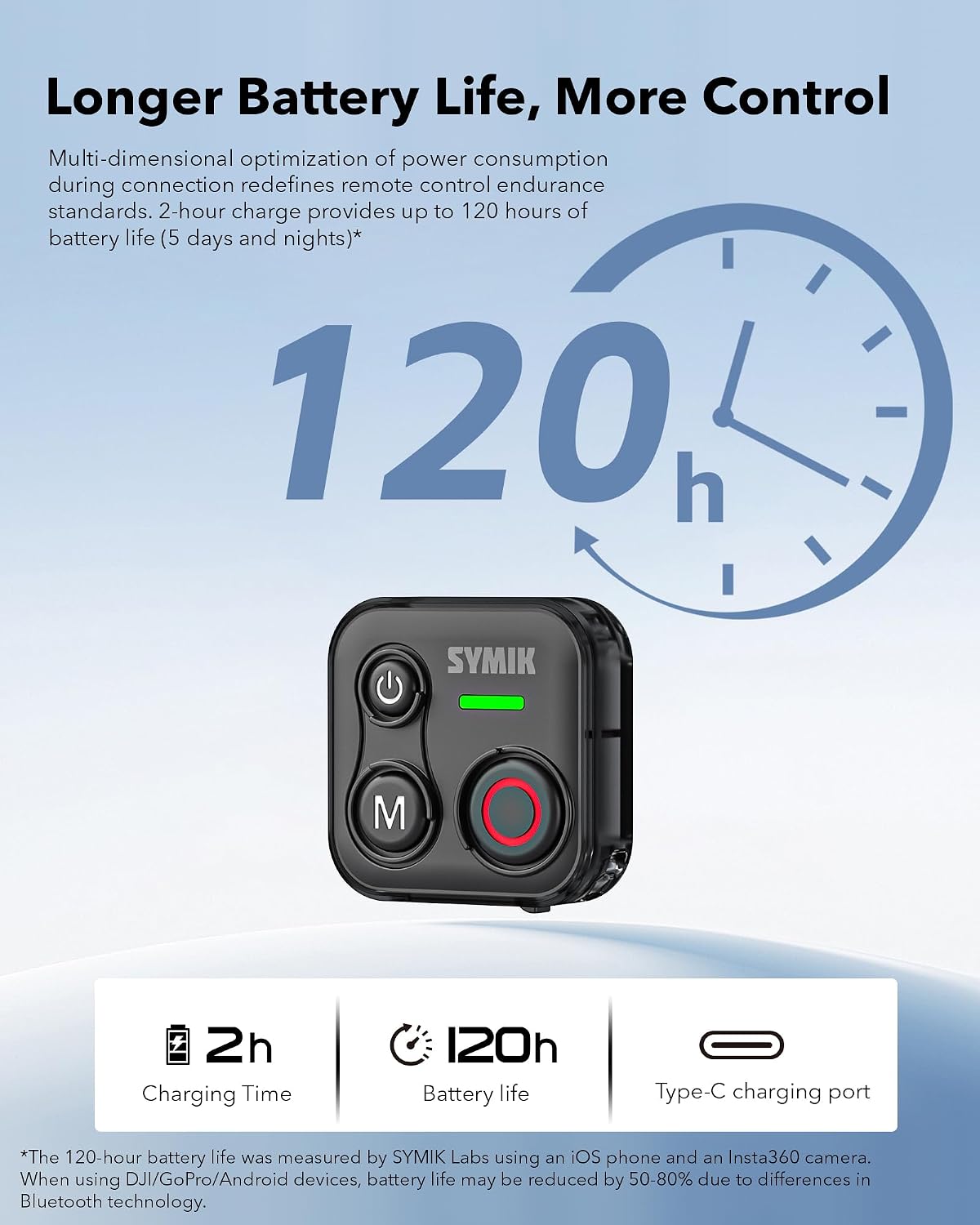
Image: The SYMIK RC35 remote control displayed with icons indicating its 2-hour charging time, 120-hour battery life, and USB-C charging port.
7. Mounting Options
The SYMIK RC35 is designed for versatile mounting to suit various shooting scenarios.
- The included long and short wrist straps allow for horizontal or vertical wearing on your wrist.
- The remote can also be mounted on bike handlebars, selfie sticks, steering wheels, fishing rods, ski poles, or backpack straps using the wrist straps or a lanyard (lanyard not included).

Image: A collage of images demonstrating the versatile mounting options for the SYMIK RC35 remote, such as vertical and horizontal binding, wearing on the wrist, attaching to a bicycle, steering wheel, or selfie stick.

Image: The SYMIK RC35 remote control held in a hand to highlight its compact and portable design, with examples of it being worn on a wristband and attached via a lanyard.
8. Splash Resistance
The SYMIK RC35 remote control features a sealed USB-C port with a silicone cover, providing resistance against rain and splashes.
- It is suitable for use in light rain, seaside trips, waterfall sightseeing, and surfing.
- Important: The remote is not designed for submersion in water. If it gets wet from heavy rain or splashes, dry it promptly and thoroughly before continued use.

Image: The SYMIK RC35 remote control worn on a wrist, with water droplets on its surface, illustrating its splash-resistant design. A close-up shows the silicone plug for the USB-C charging port.
9. Troubleshooting
If you encounter issues with your SYMIK RC35 remote control, refer to the following common solutions:
- Remote Not Pairing:
- Ensure your camera or smartphone's Bluetooth is active and in pairing mode.
- For Insta360 cameras, verify that the remote is in the correct mode ("Insta360 GPS Remote" or "Insta360 Mini Remote") for your specific camera model. Double-click the Mode Button to switch modes.
- Press and hold the Mode Button for 3 seconds during power-on to force the remote into pairing mode.
- Some smartphones may require additional steps for initial pairing; consult your phone's Bluetooth settings.
- Remote Not Responding:
- Check the remote's battery level using the LED indicator (press the Power Button briefly). Recharge if the battery is low.
- Ensure the remote is within the effective Bluetooth range (up to 230 feet/70 meters in open areas).
- Confirm that the remote is still paired with your device. If not, re-pair it.
- Water Exposure:
- If the remote has been exposed to water, ensure it is thoroughly dried before attempting to use or charge it. Do not immerse the remote in water.
- Compatibility Issues:
- Always verify the remote's compatibility with your specific camera model before use. Refer to the compatibility chart in Section 4.
10. Specifications
Detailed technical specifications for the SYMIK RC35 Universal Bluetooth Remote Control:

Image: A diagram illustrating the physical dimensions and key technical specifications of the SYMIK RC35 remote control, including product name, compatible products, USB-C input, battery capacity, charging time, battery life, product materials, weight, size, and package contents.
| Brand | SYMIK |
| Model Number | RC35 |
| Connectivity Technology | Bluetooth 5.1 |
| Maximum Range | 230 feet (70 meters) |
| Battery Type | Lithium-Ion (1 included) |
| Battery Capacity | 120mAh |
| Charging Time | 2 hours |
| Battery Life | Up to 120 hours (continuous standby/use) |
| Item Weight | 20 g (0.71 Ounce) |
| Item Dimensions (L x W x H) | 1.46" x 1.46" x 0.79" (37mm x 37mm x 20mm) |
| Special Features | Lightweight, Rechargeable, Splash Resistance, Universal, Wearable |
| Compatible Devices | DJI Osmo 360, Action 6, Action 5 Pro, Action 4, GoPro Mission 1/Pro, Hero 13-8, MAX2, MAX, Hero Mini, Insta360 X6, X5, X4/X4 Air, X3, ONE X2, ONE RS, ONE R, Ace Pro2, Ace, GO Ultra, GO 3S, GO 3, iOS, Android, HarmonyOS smartphones |
11. Warranty and Support
Warranty Information
The SYMIK RC35 Universal Bluetooth Remote Control comes with a 1-year warranty from the date of purchase. This warranty covers manufacturing defects and ensures the product functions as intended under normal use. Please retain your proof of purchase for warranty claims.
Customer Support
For further assistance, technical support, or warranty inquiries, please visit the official SYMIK website or contact SYMIK customer service through the retailer where the product was purchased. Detailed contact information can typically be found on the product packaging or the SYMIK brand store online.