
1. Introduction
This manual provides detailed instructions for the setup, operation, and maintenance of your SUNGOOYUE 16-Key 3-Knob Programmable Keyboard. This USB wired keypad is designed for customization, offering enhanced control for gaming, programming, design work, and general productivity tasks through its programmable keys and rotary knobs.
Please read this manual thoroughly before using the device to ensure proper functionality and to maximize your user experience.
2. Package Contents
Verify that all items are present in your package:
- 1 x SUNGOOYUE 16-Key 3-Knob Programmable Keyboard
- 1 x USB Cable (Type-A to Type-C)
- 1 x User Manual (Printed)

Image: The programmable keyboard, its USB cable, and the included user manual.
3. Product Overview
The SUNGOOYUE programmable keyboard features 16 customizable keys and 3 rotary knobs, designed for versatile input and control. The device is constructed with durable aluminum alloy knobs, ABS acrylic keycaps, and a sturdy housing.
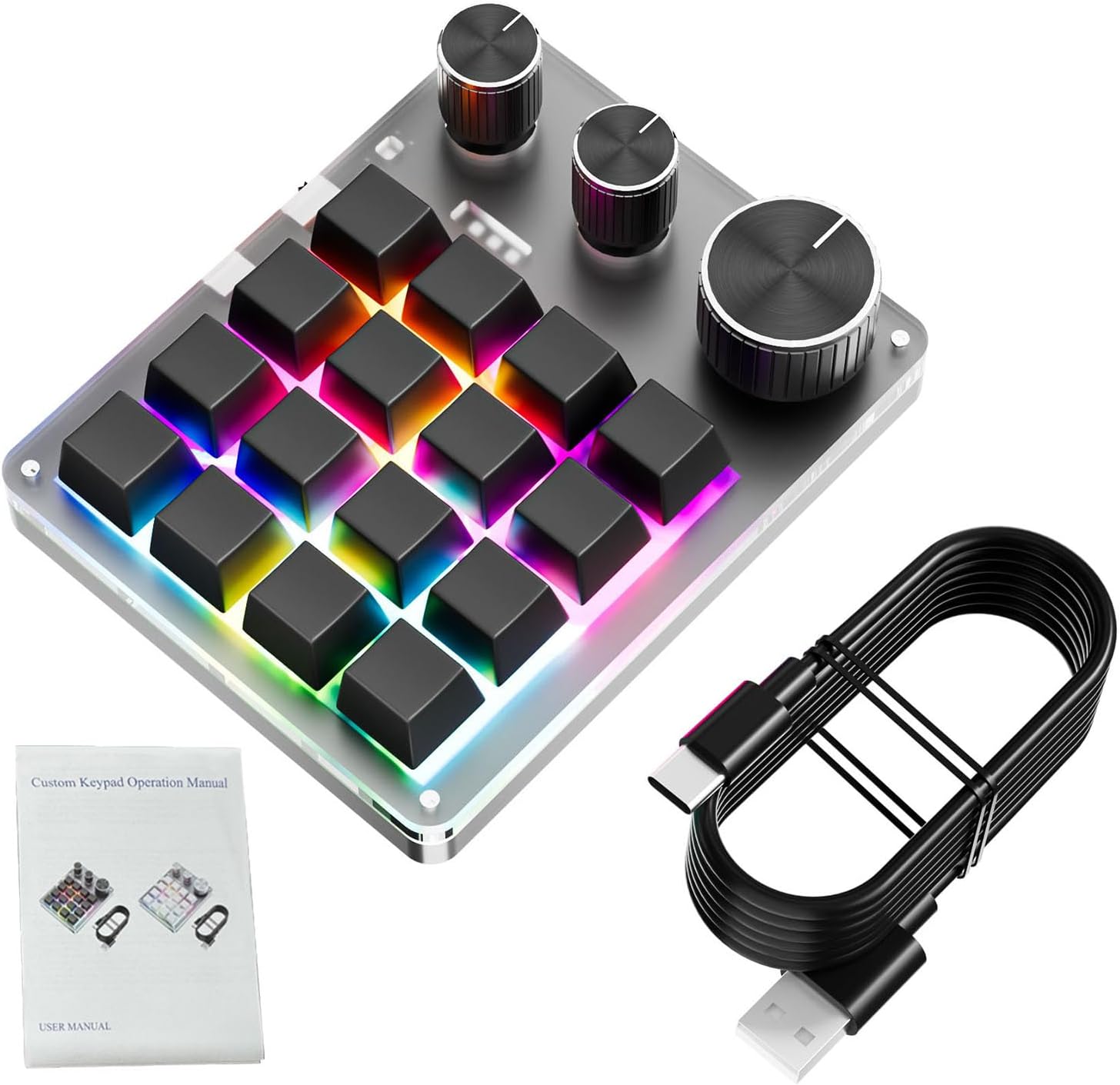
Image: Top-down view of the programmable keyboard, highlighting the 16 keys and 3 knobs.
3.1. Key Features
- 16 Programmable Keys: Each key can be assigned a custom function, macro, or shortcut.
- 3 Customizable Rotary Knobs: Ideal for volume control, scrolling, zooming, or other real-time adjustments.
- USB Wired Connectivity: Ensures stable and responsive performance.
- Durable Construction: Features aluminum alloy knobs and ABS acrylic keycaps for longevity.
- Compact Design: Measures approximately 132x105x34.5mm, suitable for various workspaces.
4. Setup Instructions
The SUNGOOYUE programmable keyboard offers plug-and-play convenience, requiring no complex driver installations for basic functionality. For full customization, dedicated software is required.
4.1. Connecting the Keyboard
- Locate the USB-C port on the programmable keyboard.
- Connect one end of the provided USB cable (USB-C) to the keyboard.
- Connect the other end of the USB cable (USB-A) to an available USB port on your computer.
- The keyboard should be recognized by your operating system automatically.
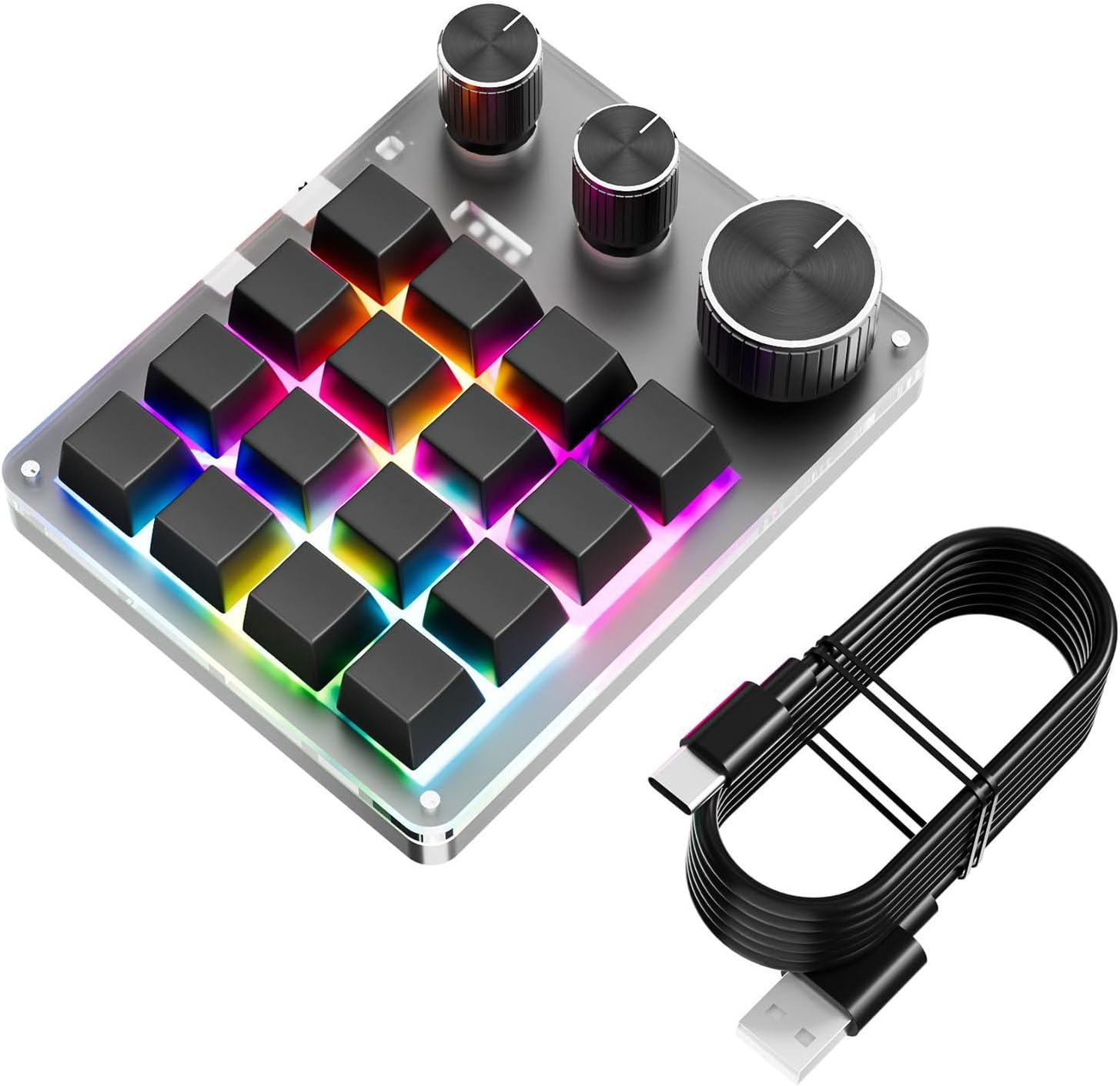
Image: The programmable keyboard connected to a USB cable, illustrating the connection process.
4.2. Software Installation (for Customization)
To unlock the full customization capabilities of your keyboard, you will need to install the intuitive programming software. Please refer to the printed user manual or the manufacturer's website for the software download link and installation instructions.
- Download the software from the official SUNGOOYUE support page.
- Follow the on-screen prompts to complete the installation.
- Launch the software to begin customizing your keys and knobs.
5. Operating Instructions
This section details how to program and utilize the keys and knobs on your SUNGOOYUE programmable keyboard.
5.1. Programming Keys
- Ensure the programming software is installed and running on your computer.
- Within the software interface, select the key you wish to program.
- Choose from available functions such as:
- Single key press (e.g., 'A', 'Enter')
- Keyboard shortcuts (e.g., Ctrl+C, Alt+F4)
- Macros (a sequence of key presses)
- Media controls (Play/Pause, Next Track)
- Application launch
- Website opening
- Assign the desired function or macro to the selected key. The keyboard supports up to 18 consecutive input characters for macros.
- Save your changes within the software. The new configuration will be stored on the keyboard's internal memory.
5.2. Programming Knobs
The three rotary knobs can be programmed for various real-time controls:
- Open the programming software.
- Select one of the three knobs for customization.
- Assign functions for:
- Rotation clockwise (e.g., Volume Up, Scroll Up, Zoom In)
- Rotation counter-clockwise (e.g., Volume Down, Scroll Down, Zoom Out)
- Pressing the knob (e.g., Mute, Play/Pause, Reset Zoom)
- Save your settings.
The programmable nature of this device allows for different profiles to be created and switched, optimizing your workflow across various applications.
6. Maintenance
Proper care and maintenance will extend the lifespan of your programmable keyboard.
6.1. Cleaning
- Disconnect the keyboard from your computer before cleaning.
- Use a soft, dry, lint-free cloth to wipe the surface of the keyboard and knobs.
- For stubborn dirt, slightly dampen the cloth with water or a mild, non-abrasive cleaner. Avoid excessive moisture.
- Do not use harsh chemicals, solvents, or abrasive materials, as these can damage the finish.
- Use compressed air to remove dust and debris from between the keys.
6.2. Storage
When not in use, store the keyboard in a cool, dry place away from direct sunlight and extreme temperatures.
7. Troubleshooting
If you encounter issues with your programmable keyboard, refer to the following common solutions:
| Problem | Possible Cause / Solution |
|---|---|
| Keyboard not recognized by computer. |
|
| Keys/Knobs not performing assigned functions. |
|
| Intermittent connection or unresponsive input. |
|
8. Specifications
| Feature | Detail |
|---|---|
| Brand | SUNGOOYUE |
| Model Name | SUNGOOYUEzu17c65igt-11 |
| Connectivity Technology | USB Wired |
| Keyboard Description | Mechanical |
| Number of Keys | 16 |
| Number of Knobs | 3 |
| Compatible Devices | Laptop, Desktop PC |
| Material | ABS + Acrylic + Aluminum (knobs) |
| Dimensions (L x W x H) | Approximately 132 x 105 x 34.5 mm |
| Input Characters Supported (Macro) | Up to 18 consecutive characters |
9. Warranty Information
This SUNGOOYUE product is covered by a manufacturer's warranty for 90 days from the date of purchase. This warranty covers defects in materials and workmanship under normal use. It does not cover damage caused by accident, misuse, abuse, unauthorized modification, or external causes.
Please retain your proof of purchase for warranty claims.
10. Support
For further assistance, technical support, or to download the latest programming software, please visit the official SUNGOOYUE website or contact their customer service.
You can also visit the SUNGOOYUE Store on Amazon for product information and updates.