
1. Setup and Installation
Follow these steps to correctly set up your Canon MegaTank MAXIFY GX2020 printer for the first time.
1.1 Unpacking the Printer
- Remove Packaging: Carefully remove the printer from its box. Remove all protective tapes, films, and packing materials from the exterior and interior of the printer.
- Check Contents: Verify that all accessories are present, including power cord, ink bottles, print heads, and documentation.
1.2 Initial Power On
- Connect Power: Plug the power cord into the printer and then into a wall outlet.
- Power On: Press the power button. The printer will initiate its startup sequence.
- Language Selection: Follow the on-screen prompts to select your preferred language and region.
1.3 Ink Filling
- Open Ink Tank Cover: Open the ink tank cover located on the front or side of the printer.
- Open Tank Caps: Open the cap for each color ink tank (Black, Cyan, Magenta, Yellow).
- Fill Tanks: Align the nozzle of the corresponding ink bottle with the inlet of the ink tank and slowly pour the ink. The bottles are designed to stop filling automatically when the tank is full.
- Close Caps: Close all ink tank caps and the ink tank cover securely.
- Initial Ink Charge: The printer will perform an initial ink charge. This process may take several minutes. Do not turn off the printer during this time.
1.4 Paper Loading
- Open Paper Tray: Pull out the paper cassette or open the rear paper feeder.
- Load Paper: Load paper with the print side facing up (for rear feeder) or down (for cassette). Adjust the paper guides to fit the paper size snugly.
- Close Tray: Close the paper cassette or rear paper feeder.
- Register Paper Size: Confirm the paper size and type on the printer's display when prompted.
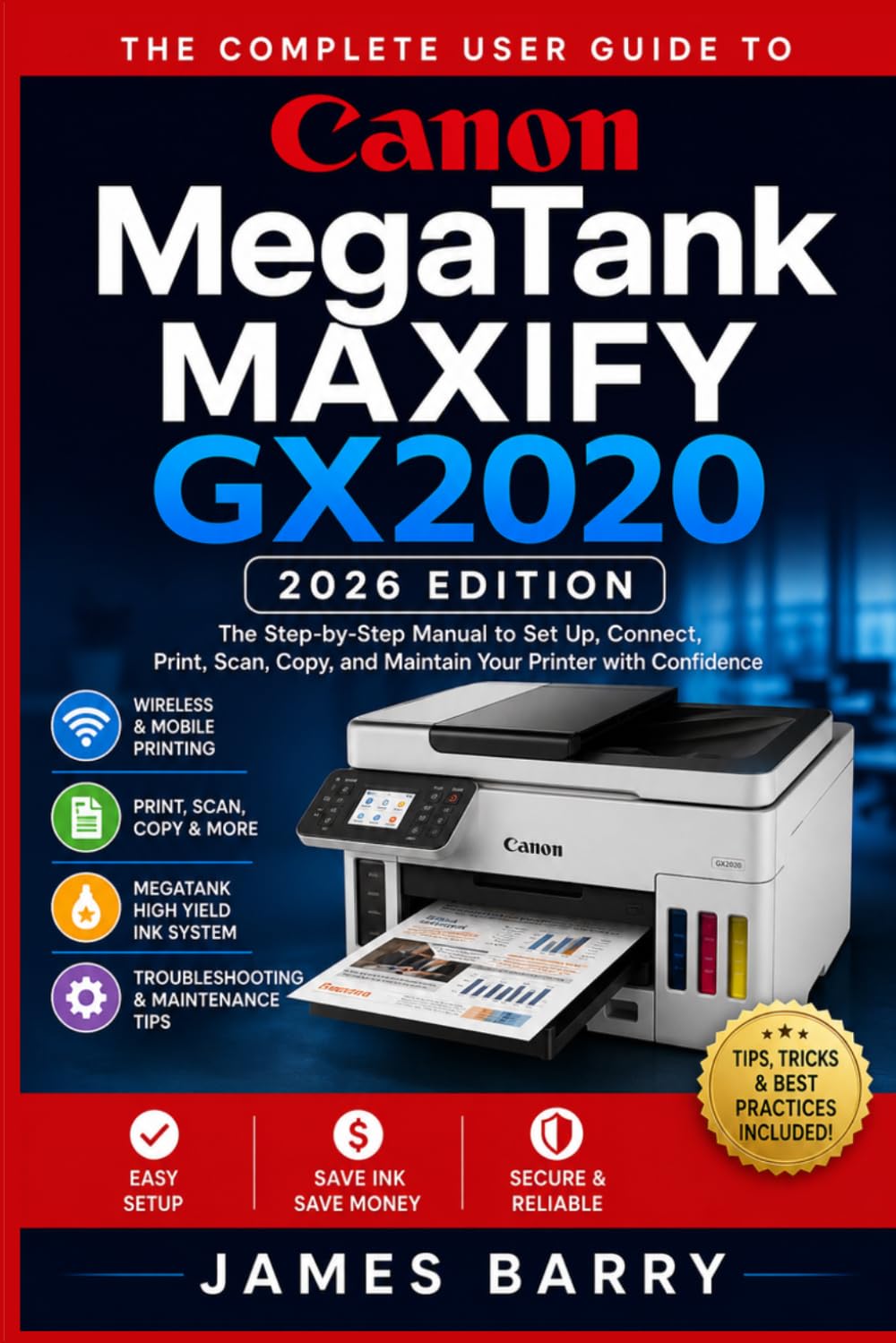
Illustrative image of the Canon MegaTank MAXIFY GX2020 printer. This image shows the general appearance of the printer, highlighting its compact design and front-facing controls.
2. Operating Instructions
Learn how to connect your printer and perform various functions such as printing, scanning, and copying.
2.1 Connecting Your Printer
2.1.1 Wi-Fi Connection
- Access Settings: On the printer's operation panel, navigate to Setup > Device Settings > LAN settings > Wireless LAN setup.
- Select Method: Choose Standard setup or WPS (Wi-Fi Protected Setup).
- Network Selection: For Standard setup, select your Wi-Fi network from the list and enter the password. For WPS, follow the instructions on the printer and your router.
- Confirmation: Once connected, the Wi-Fi indicator on the printer will light up, and a confirmation message will appear on the screen.
2.1.2 USB Connection
- Install Drivers: Before connecting, install the printer drivers on your computer from the provided CD-ROM or Canon's official website.
- Connect Cable: Connect one end of a USB cable (Type-B) to the USB port on the back of the printer and the other end (Type-A) to your computer.
- Printer Detection: Your computer should automatically detect the printer and complete the driver installation.
2.1.3 Mobile Device Connection
- Download App: Download the Canon PRINT Inkjet/SELPHY app from your device's app store.
- Connect to Network: Ensure your mobile device is connected to the same Wi-Fi network as your printer.
- Add Printer: Open the app and follow the instructions to add your GX2020 printer.
2.2 Printing
2.2.1 Standard Printing
- Open Document: Open the document or image you wish to print on your computer or mobile device.
- Select Print: Go to File > Print (or the equivalent option in your application).
- Choose Printer: Select Canon GX2020 series from the list of available printers.
- Adjust Settings: Configure print settings such as paper size, media type, print quality, and number of copies.
- Initiate Print: Click Print.
2.2.2 Duplex Printing (Two-Sided)
- Access Print Dialog: Follow steps 1-3 for standard printing.
- Enable Duplex: In the print settings, look for an option like Two-sided printing or Duplex printing and enable it.
- Select Binding Edge: Choose the binding edge (long-edge or short-edge stapling) as required.
- Print: Click Print. The printer will automatically print on both sides of the paper.
2.3 Scanning
- Place Document: Place the document face-down on the scanner glass or face-up in the Automatic Document Feeder (ADF).
- Start Scan: From the printer's operation panel, select Scan. Alternatively, use the Canon PRINT Inkjet/SELPHY app or a scanning utility on your computer.
- Configure Settings: Select scan destination (computer, cloud, email), document type (photo, document), resolution, and color mode.
- Execute Scan: Press the Start button on the printer or the scan button in the software.
2.4 Copying
- Place Document: Place the document face-down on the scanner glass or face-up in the ADF.
- Select Copy: On the printer's operation panel, select Copy.
- Adjust Settings: Choose the number of copies, paper size, copy quality, and other options like 2-sided copy or reduction/enlargement.
- Start Copy: Press the Start button (usually Black or Color).
3. Maintenance
Regular maintenance ensures optimal performance and extends the lifespan of your Canon MegaTank MAXIFY GX2020 printer.
3.1 Cleaning the Printer
- Exterior Cleaning: Wipe the exterior of the printer with a soft, damp, lint-free cloth. Avoid abrasive cleaners.
- Scanner Glass: Clean the scanner glass with a soft cloth and a non-abrasive glass cleaner.
- Interior Cleaning: Refer to the printer's display for prompts to clean the paper feed rollers or other internal components if print quality issues arise.
3.2 Ink Tank Maintenance
- Monitor Ink Levels: Regularly check ink levels through the printer's display or the Canon PRINT app. Refill tanks before they run completely empty to prevent air from entering the system.
- Use Genuine Ink: Always use genuine Canon ink bottles to ensure optimal print quality and prevent damage to the print heads.
3.3 Print Head Alignment and Cleaning
- Nozzle Check: If print quality degrades (e.g., streaks, missing colors), perform a nozzle check from the printer's maintenance menu.
- Print Head Cleaning: If the nozzle check pattern is incomplete, perform a print head cleaning. There are standard and deep cleaning options.
- Print Head Alignment: If prints are misaligned, perform a print head alignment from the maintenance menu.
4. Troubleshooting
Refer to this section for solutions to common issues you might encounter with your printer.
| Problem | Solution |
|---|---|
| Printer is not turning on. | Ensure the power cord is securely connected to both the printer and a working electrical outlet. Test the outlet with another device. |
| Printer is offline or not detected. | Check Wi-Fi connection (ensure printer and device are on the same network). For USB, ensure the cable is connected and drivers are installed. Restart both printer and computer. |
| Poor print quality (streaks, faded colors). | Perform a nozzle check, then print head cleaning. If issues persist, perform a deep cleaning. Ensure ink tanks are adequately filled. |
| Paper jams. | Carefully remove any jammed paper following the instructions on the printer's display or in the manual. Ensure paper is loaded correctly and not overloaded. |
| Error message on display. | Note the error code or message and refer to the printer's on-screen help or Canon's support website for specific solutions. |

Rear view of the Canon MegaTank MAXIFY GX2020 printer, showing connectivity ports and power input.
5. Specifications
Key technical specifications for the Canon MegaTank MAXIFY GX2020 printer.
| Feature | Detail |
|---|---|
| Model Name | Canon MegaTank MAXIFY GX2020 |
| Functions | Print, Scan, Copy |
| Ink Type | Pigment-based (Black), Dye-based (Color) - MegaTank System |
| Connectivity | Wi-Fi, USB |
| Duplex Printing | Automatic (supported for certain paper sizes) |
| Paper Capacity | Varies by paper tray/feeder (e.g., 100 sheets rear tray, 250 sheets cassette) |
| Dimensions (W x D x H) | Approx. 6 x 0.31 x 9 inches (Note: Dimensions provided are for the reference manual, actual printer dimensions may vary) |
| Weight | Approx. 6.7 ounces (Note: Weight provided is for the reference manual, actual printer weight may vary) |
| ISBN-13 (Reference Manual) | 979-8195655105 |
6. Warranty and Support
Your Canon MegaTank MAXIFY GX2020 printer comes with a standard manufacturer's warranty. Please refer to the warranty card included with your product for specific terms and conditions.
For technical support, driver downloads, or additional resources, please visit the official Canon support website or contact Canon customer service.
- Online Support: Visit Canon's Official Support Website
- Customer Service: Refer to your regional Canon website for local contact numbers.