
1. Introduction
This manual provides essential information for setting up, operating, and maintaining your Samsung ViewFinity S7 (S70H) 27-inch High-Resolution Monitor. Please read this manual thoroughly before using the product to ensure safe and optimal performance.
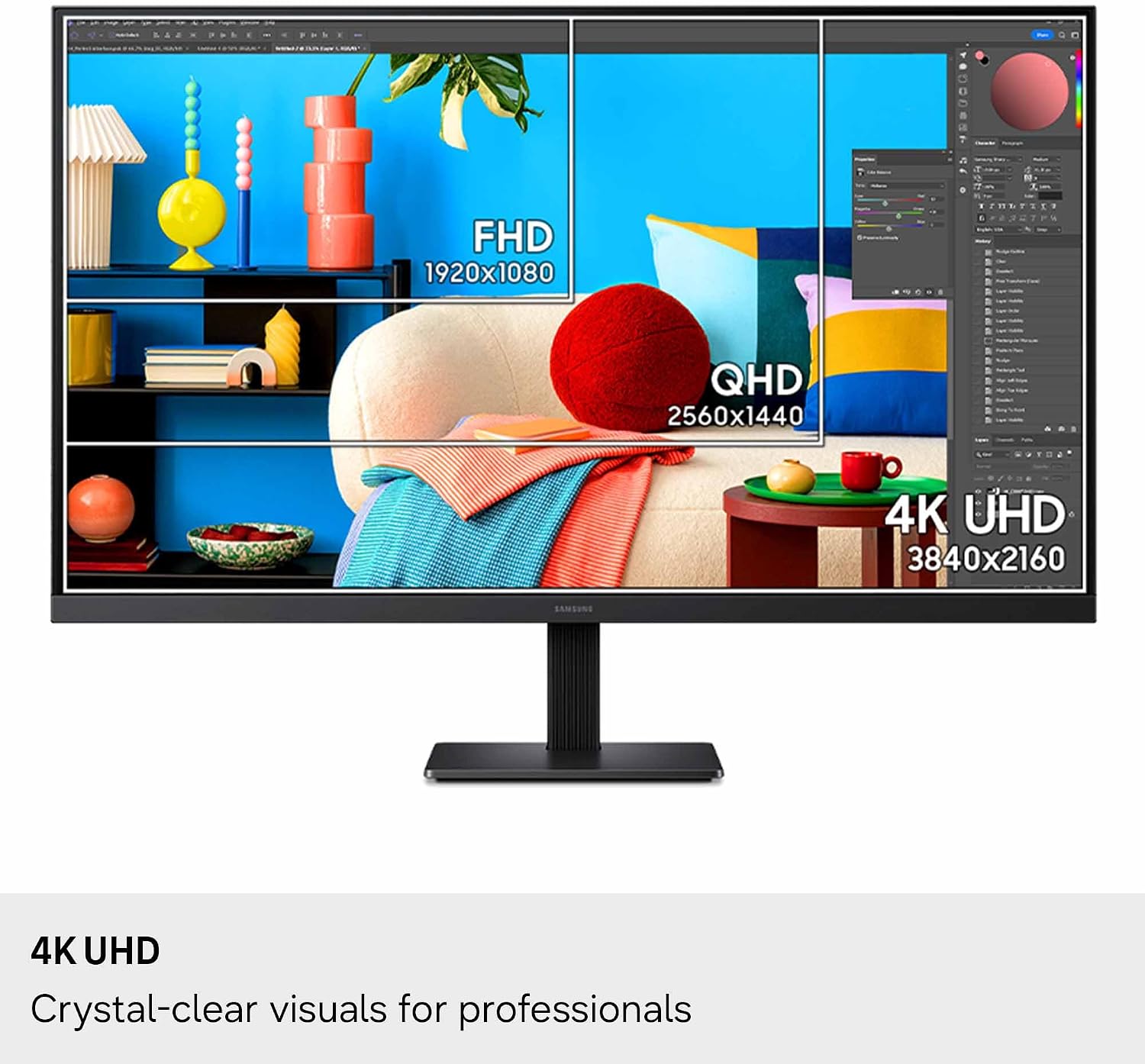
Image 1.1: Front view of the Samsung ViewFinity S7 (S70H) 27-inch monitor, showcasing its slim bezels and stand.
2. What's in the Box
Verify that all components are present in the package:
- Samsung ViewFinity S7 (S70H) Monitor
- Power Cable
- HDMI Cable
- DisplayPort (DP) Cable
- Monitor Stand (Base and Neck)
- Quick Setup Guide
- Warranty Card

Image 2.1: Visual representation of the monitor components and included accessories, along with key dimensions.
3. Setup
3.1 Assembling the Stand
- Place the monitor screen face down on a soft, clean cloth to prevent scratches.
- Attach the stand neck to the back of the monitor until it clicks into place.
- Attach the stand base to the stand neck and secure it with the captive screw.
- Carefully lift the monitor and place it on a stable, flat surface.

Image 3.1: The Samsung ViewFinity S7 monitor fully assembled with its stand, ready for connection.
3.2 Connecting to a Computer
The monitor supports HDMI and DisplayPort connections.
- Ensure both the monitor and your computer are powered off.
- Connect one end of the HDMI or DisplayPort cable to the corresponding port on your computer.
- Connect the other end of the cable to the HDMI IN or DP IN port on the back of the monitor.
- Connect the power cable to the monitor's DC 19V input and then plug it into a power outlet.
- Power on your computer, then power on the monitor.

Image 3.2: Detailed view of the monitor's rear input ports, including DisplayPort (DP IN), HDMI, Service, Headphone Out, and Power.
Note: If no image appears, ensure the correct input source is selected on the monitor using the OSD (On-Screen Display) menu.
4. Operating the Monitor
4.1 Power On/Off and Basic Controls
The monitor typically has a power button and a joystick-style button for navigating the OSD menu, usually located on the back or bottom right of the monitor.
- Power On/Off: Press the power button.
- OSD Menu: Press the joystick button to open the menu. Move the joystick to navigate and press to select.
4.2 Display Settings and Features
4.2.1 4K UHD Resolution
The ViewFinity S7 (S70H) features a 4K UHD (3840x2160) resolution, providing exceptional detail and clarity. Ensure your computer's display settings are configured to this resolution for the best visual experience.

Image 4.1: Visual comparison demonstrating the increased detail and screen space offered by 4K UHD resolution compared to FHD and QHD.
4.2.2 HDR10 Support
HDR10 optimizes contrast and color accuracy, delivering darker blacks and brighter highlights. For HDR content, ensure HDR is enabled in your operating system's display settings and that your content source supports HDR10.

Image 4.2: Illustrates the enhanced color depth and contrast provided by HDR10 technology compared to standard dynamic range (SDR).
4.2.3 Eye Saver Mode and Flicker-Free Technology
To reduce eye strain during prolonged use, activate Eye Saver Mode via the OSD menu. This mode minimizes blue light emissions. The monitor also features flicker-free technology to prevent screen flickering, further enhancing viewing comfort.

Image 4.3: Demonstrates the effect of Eye Saver Mode, reducing blue light and screen flickering for improved eye comfort.
4.2.4 Wide Viewing Angle
The IPS panel technology provides a 178° wide viewing angle, ensuring consistent brightness and color accuracy from various viewing positions. This is beneficial for collaborative work or when viewing the screen from an off-center position.

Image 4.4: Illustrates the benefit of a wide viewing angle, maintaining image quality even when viewed from the side.
4.3 Samsung Display Manager
The Samsung Display Manager software provides easy access to advanced features directly from your desktop. This includes split-screen setup, brightness adjustment, KVM (Keyboard, Video, Mouse) switching, Picture-in-Picture (PIP)/Picture-by-Picture (PBP) modes, and precise color calibration. Download the software from the official Samsung website.
5. Maintenance
- Cleaning the Screen: Gently wipe the screen with a soft, lint-free cloth. For stubborn marks, lightly dampen the cloth with water or a specialized screen cleaner (do not spray directly onto the screen).
- Cleaning the Cabinet: Use a soft, dry cloth to wipe the monitor's casing.
- Avoid Harsh Chemicals: Do not use alcohol, benzene, thinners, or other abrasive cleaners, as they can damage the monitor's surface.
- Ventilation: Ensure the monitor's ventilation slots are not blocked to prevent overheating.
- Power Off When Not in Use: Turn off the monitor when not in use for extended periods to conserve energy and prolong its lifespan.
6. Troubleshooting
| Problem | Possible Cause | Solution |
|---|---|---|
| No image on screen |
|
|
| Image is blurry or distorted |
|
|
| Screen flickering |
|
|
| Colors appear incorrect |
|
|
7. Specifications
| Feature | Detail |
|---|---|
| Model Name | Samsung S70H |
| Model Number | LS27D70DEANXZA |
| Screen Size | 27 inches |
| Display Type | IPS |
| Resolution | 3840 x 2160 (4K UHD) |
| Aspect Ratio | 16:9 |
| Refresh Rate | 60 Hz |
| Response Time | 5 ms (GtG) |
| Brightness (Typical) | 300 cd/m² |
| Contrast Ratio (Typical) | 3000:1 |
| Viewing Angle (H/V) | 178°/178° |
| Color Gamut | 0.99 (sRGB) |
| HDR Support | HDR10 |
| Connectivity | 1x HDMI, 1x DisplayPort, 1x Headphone Out |
| Special Features | Eye Saver Mode, Flicker Free, Samsung Display Manager |
| Dimensions (with stand, WxHxD) | 24.26" x 18.52" x 7.89" (61.62 x 47.04 x 20.04 cm) |
8. Warranty and Support
Warranty: This Samsung monitor comes with a 1-Year Manufacturer's Warranty. Please refer to the warranty card included in your package for detailed terms and conditions.
Support: For technical assistance, troubleshooting beyond this manual, or warranty claims, please visit the official Samsung support website or contact Samsung customer service. You can find contact information and support resources at www.samsung.com/us/support/.