
1. Introduction
This manual provides detailed instructions for the installation, operation, and maintenance of your Hodozzy Carplay Autoradio, designed specifically for Lancia Ypsilon models manufactured between 2012 and 2020. Please read this manual thoroughly before installation and use to ensure proper functionality and safety.
2. Product Features
- Compatibility: Designed for Lancia Ypsilon 2012-2020 models.
- Display: 7-inch In-Cell touchscreen with enhanced responsiveness and clarity.
- Performance: 4GB RAM and 64GB ROM for stable and powerful processing and storage.
- Connectivity: Wireless CarPlay and Android Auto (wired connection also supported for Android Auto).
- Audio: Built-in Bluetooth 5.0 for hands-free calls and music streaming, FM/RDS radio, and a 32-band equalizer for optimal sound customization.
- Navigation: Integrated GPS receiver with support for offline maps (e.g., Here We Go) and online navigation apps.
- Internet: Built-in WiFi for hotspot connection and additional app downloads.
- Multitasking: Split-screen function allows simultaneous use of two applications.
- Mirror Link: Screen mirroring for iOS (up to v17) and Android (up to v14) devices via USB or WLAN.
- Vehicle Integration: CAN-Bus support for decoding original vehicle information, including steering wheel controls, fuel consumption, mileage, temperature, and door status.
- Safety: Includes a waterproof night vision rear camera with automatic display switching upon reversing.
3. Package Contents
Verify that all items listed below are included in your package:
- Radio housing ×1
- Android car radio ×1
- Power cable ×1
- CAN-Bus ×1
- Mounting tools ×1
- GPS antenna ×1
- Rear camera input cable ×1
- RCA cable ×1
- USB cable ×1
- User manual ×1
- Rear camera ×1
- RCA video cable ×1
- Camera power cable ×1
- Universal camera bracket ×1
- Camera fixing screw ×1
- Microphone ×1

Figure 3.1: Package Contents and Dimensions. This image illustrates the various components included in the box, along with the dimensions of the main head unit.
4. Setup and Installation
Professional installation is recommended. Ensure the vehicle's power is disconnected before beginning installation. Refer to the included wiring diagrams for correct connections.
4.1. Pre-Installation Check
- Confirm compatibility with your Lancia Ypsilon (2012-2020).
- Verify all package contents are present.
- Gather necessary tools for vehicle panel removal and wiring.
4.2. Installation Steps (General)
- Carefully remove the original car radio and dashboard trim.
- Connect the power cable, CAN-Bus, and other necessary cables to the new autoradio.
- Install the GPS antenna in a location with a clear view of the sky.
- If installing the rear camera, route the camera cable to the rear of the vehicle and connect it to the camera input cable.
- Secure the autoradio in the dashboard using the provided mounting brackets and screws.
- Reconnect the vehicle's power and test all functions before fully reassembling the dashboard.

Figure 4.1: Before and After Installation. This image demonstrates the visual transformation of the Lancia Ypsilon dashboard after installing the Hodozzy Carplay Autoradio.
4.3. Rear Camera Wiring
For the rear camera, ensure correct wiring as follows:
- Connect the camera's power cable to the positive pole of the car's reversing light.
- Connect the camera's ground cable to the negative pole of the car's reversing light.
- Connect the RCA video cable from the camera to the "CAM IN" input on the autoradio.

Figure 4.2: Reversing Camera Wiring Diagram. This diagram shows the connections required for the rear camera, including power and video signal.
5. Operating Instructions
5.1. Basic Operation
- Power On/Off: Press and hold the power button on the unit or use the vehicle's ignition.
- Volume Control: Use the physical knobs or touchscreen controls.
- Home Screen: Access various applications and settings from the main interface.
5.2. Wireless CarPlay and Android Auto
Connect your smartphone for seamless integration of navigation, music, calls, and messages.
- Ensure Bluetooth is enabled on your smartphone and the autoradio.
- Pair your phone with the autoradio via Bluetooth.
- Once paired, select the CarPlay or Android Auto icon on the autoradio screen.
- Follow on-screen prompts to complete the connection. For Android Auto, a wired connection is also an option.

Figure 5.1: CarPlay and Android Auto Interface. This image displays the user interfaces for both Apple CarPlay and Android Auto on the autoradio screen.
5.3. Bluetooth Functions
The built-in Bluetooth 5.0 module allows for hands-free communication and audio streaming.
- Hands-Free Calling: Pair your phone to make and receive calls directly from the autoradio. The built-in microphone ensures clear communication.
- Bluetooth Music: Stream audio from your paired smartphone to the car's speakers.
- Contact Synchronization: Sync your phone's contact list for easy access.
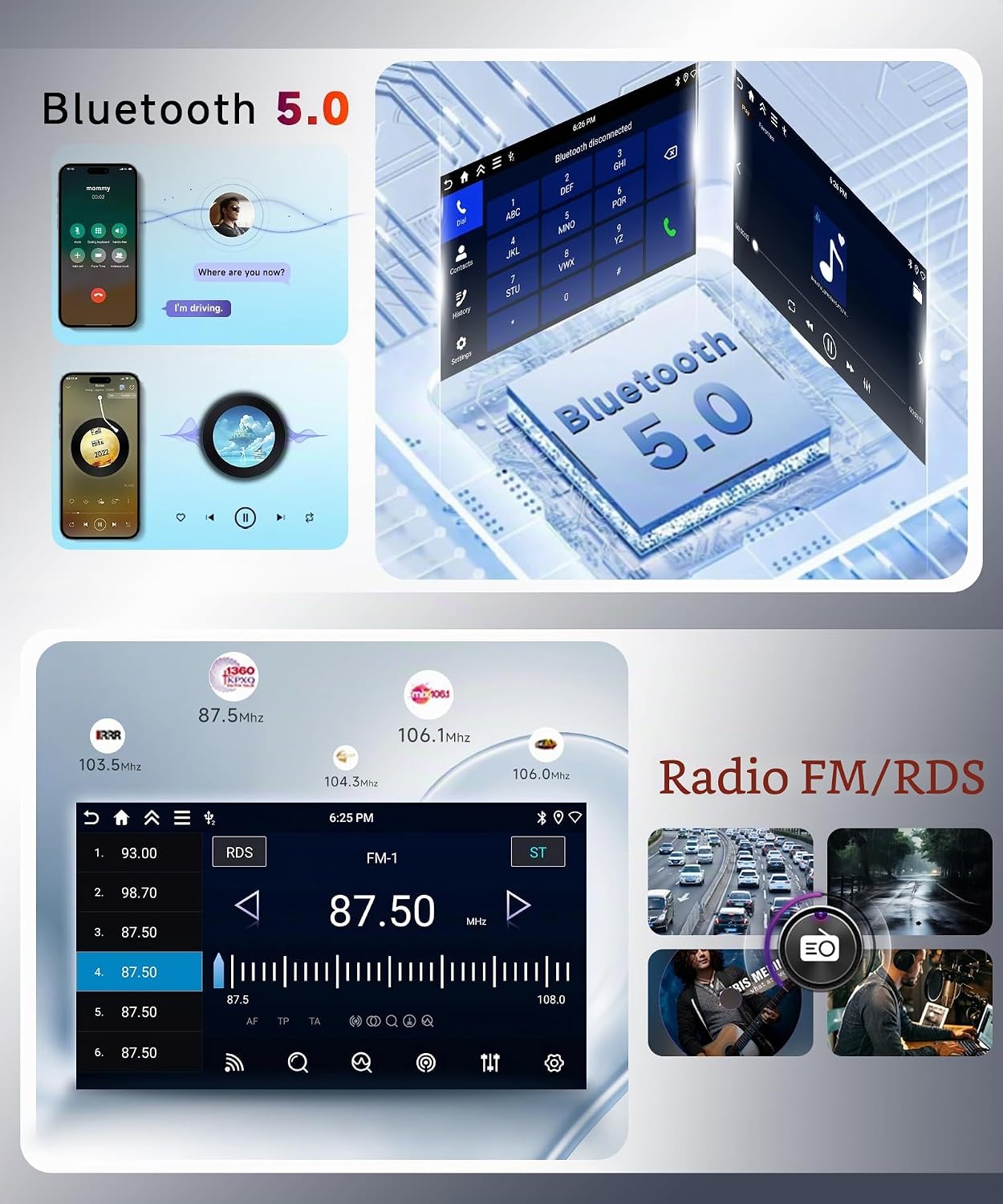
Figure 5.2: Bluetooth and FM Radio Interface. This image shows the Bluetooth calling screen and the FM radio tuner with RDS functionality.
5.4. FM/RDS Radio
Access local radio stations with clear reception.
- Automatic Search: The radio can automatically search and store available stations (87.5 MHz-107.5 MHz).
- Manual Tuning: Manually tune to desired frequencies.
- RDS (Radio Data System): Displays station information, song titles, and traffic announcements where available.
5.5. GPS Navigation and WiFi
Utilize the integrated GPS for navigation and WiFi for internet connectivity.
- GPS: The built-in GPS receiver allows for precise location tracking. Download offline maps (e.g., "Here We Go" app) for navigation without an internet connection, or use online map applications.
- WiFi: Connect to a WiFi hotspot (e.g., from your smartphone) to access the internet, download apps, and update software.
5.6. Split Screen and Mirror Link
- Split Screen: Run two applications simultaneously on the screen, such as navigation and music playback.
- Mirror Link: Display your smartphone's screen directly on the autoradio. Connect via USB cable or WLAN. Supports iOS up to version 17 and Android up to version 14.
5.7. Steering Wheel Control (SWC)
The included CAN-Bus allows the autoradio to integrate with your vehicle's original steering wheel controls.
- Functionality: Control volume, change tracks, answer calls, and navigate menus directly from your steering wheel.
- Vehicle Information: Display original vehicle data such as fuel consumption, mileage, external temperature, and door status.

Figure 5.3: Rear Camera View and Steering Wheel Control Setup. This image illustrates the rear camera's display on the unit and the interface for programming steering wheel buttons.
5.8. Rear Camera Function
The included waterproof night vision rear camera enhances parking safety.
- Automatic Display: The screen automatically switches to the rear camera view when the vehicle is put into reverse gear.
- Night Vision: Provides clear images even in low-light conditions.
5.9. Audio Equalizer (EQ) and DSP
Customize your audio experience with the advanced sound settings.
- 32-Band Equalizer: Fine-tune audio frequencies to match your preferences and vehicle acoustics.
- DSP (Digital Signal Processor): Enhances sound quality, providing powerful bass, clear mids, and bright highs for a transparent stereo sound.
- Sound Field: Adjust the sound stage to optimize listening for different seating positions.

Figure 5.4: DSP and Equalizer Settings. This image illustrates the graphical interface for adjusting the sound field and the 32-band equalizer.
6. Maintenance
- Screen Cleaning: Use a soft, lint-free cloth to clean the touchscreen. Avoid abrasive cleaners or solvents.
- Software Updates: Periodically check for software updates via WiFi to ensure optimal performance and access to new features.
- General Care: Keep the unit free from dust and moisture. Avoid extreme temperatures.
7. Troubleshooting
| Problem | Possible Cause | Solution |
|---|---|---|
| Unit does not power on. | Incorrect wiring; Blown fuse; Vehicle power issue. | Check power cable connections. Inspect vehicle fuses. Consult a professional installer. |
| No sound. | Volume too low; Mute activated; Speaker wiring issue. | Increase volume. Check if unit is muted. Verify speaker connections. |
| CarPlay/Android Auto not connecting. | Bluetooth not enabled; Phone not paired; Incompatible phone OS version. | Ensure Bluetooth is on and phone is paired. Check phone OS version compatibility (iOS up to 17, Android up to 14). Try wired connection for Android Auto. |
| GPS signal weak or inaccurate. | GPS antenna obstructed or improperly installed. | Ensure GPS antenna has a clear view of the sky. Check antenna connection. |
| Rear camera not displaying. | Incorrect camera wiring; Camera power issue; Faulty camera. | Verify camera power and video signal connections. Ensure vehicle is in reverse. |
| Steering wheel controls not working. | CAN-Bus not connected; Controls not configured. | Ensure CAN-Bus is properly connected. Follow the unit's instructions to configure SWC. |
8. Specifications
| Feature | Detail |
|---|---|
| Brand | Hodozzy |
| Model Compatibility | Lancia Ypsilon (2012-2020) |
| Screen Size | 7-inch In-Cell Touchscreen |
| RAM | 4GB |
| ROM | 64GB |
| Connectivity | Bluetooth 5.0, Wireless, Wi-Fi, USB |
| Special Features | RDS, In-Cell Screen, GPS, CarPlay, Android Auto, Split Screen, Mirror Link, SWC Support, Rear Camera Input |
| Audio Output Mode | Stereo |
| Output Power | 45 Watts x 4 Channels (180 Watts total) |
| Equalizer | 32-band EQ |
| Supported Formats | .gif, .jpg, AVI, Audio MP3, WAV, WMA |
| Item Weight | 1 Kilogram |
| Country of Origin | China |
9. Warranty and Support
Your Hodozzy Carplay Autoradio comes with a 2-year warranty from the date of purchase, covering manufacturing defects and malfunctions under normal use.
For technical support, warranty claims, or any questions regarding your product, please contact Hodozzy customer service through the retailer where you purchased the product or visit the official Hodozzy website for contact information.
Please retain your proof of purchase for warranty validation.
