
Introduction
This manual provides instructions for the DAREU FLEX75 Gasket Wireless Mechanical Keyboard. It covers setup, operation, maintenance, and troubleshooting to ensure optimal performance and longevity of your device. The FLEX75 is a tri-mode, hot-swappable, 75% custom gaming keyboard featuring PBT keycaps and RGB backlighting, compatible with Mac and Windows operating systems.
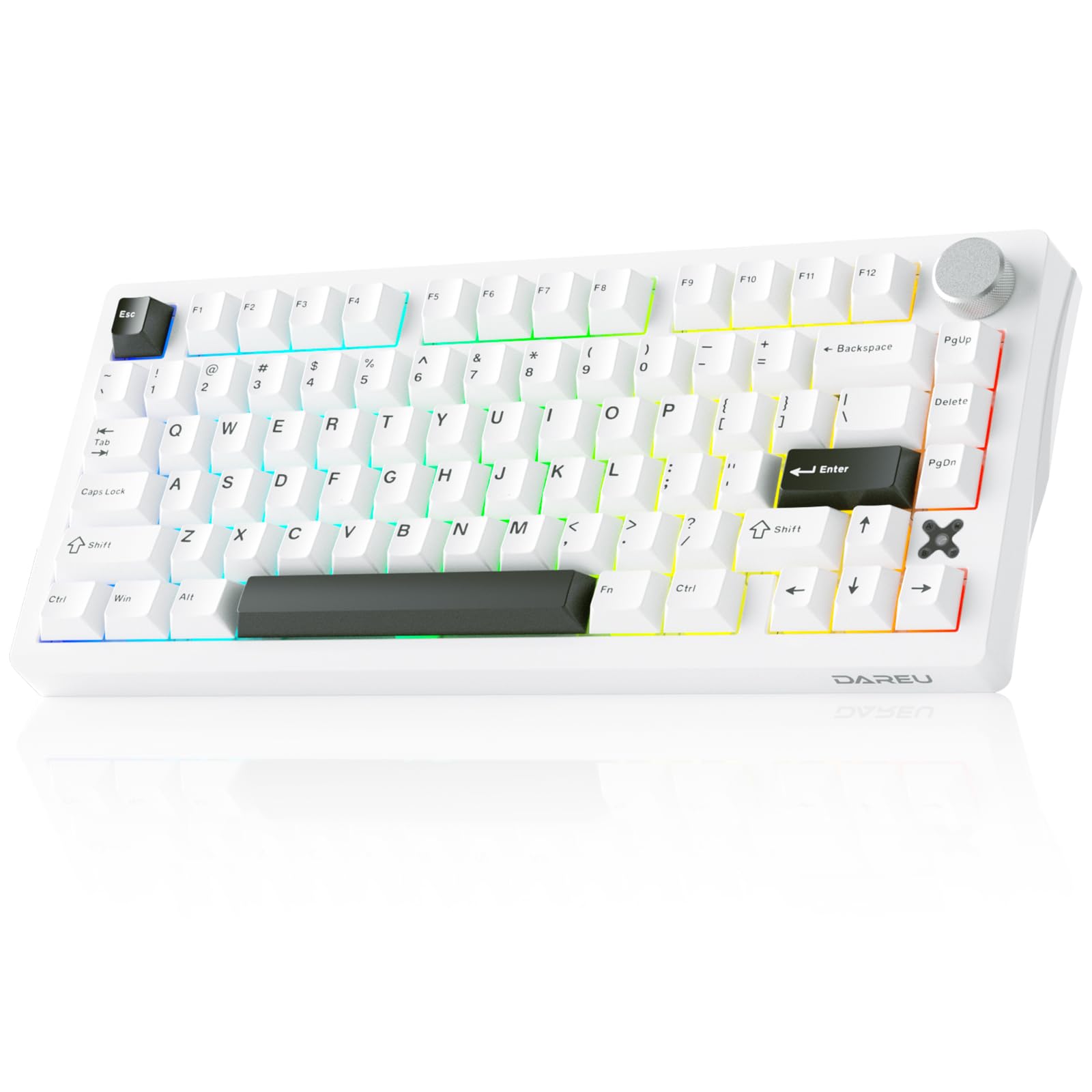
Image: DAREU FLEX75 Gasket Wireless Mechanical Keyboard, showcasing its compact 75% layout and white color scheme.
What's in the Box
Please check the package contents upon unboxing:
- DAREU FLEX75 Keyboard
- Keycap Puller
- USB Cable (Type-C)
- User Manual
Setup
Connectivity Modes
The DAREU FLEX75 supports three connection modes: Bluetooth, 2.4G Wireless, and USB-C Wired. You can connect to up to 5 devices simultaneously and switch between them.

Image: Diagram illustrating the three connectivity modes: Bluetooth (BT), 2.4G wireless, and USB-C wired, along with compatibility for various devices.
- USB-C Wired Connection:
Connect the provided USB-C cable to the keyboard and your computer. The keyboard will automatically switch to wired mode. - 2.4G Wireless Connection:
Locate the USB receiver, typically stored in a dedicated slot on the keyboard's underside. Plug the receiver into an available USB port on your device. Switch the keyboard's mode selector to 2.4G. The keyboard should connect automatically. - Bluetooth Connection:
Switch the keyboard's mode selector to BT. On your device, search for Bluetooth devices and select "DAREU FLEX75" to pair. The keyboard can store up to three Bluetooth profiles (BT1, BT2, BT3). Use Fn + 1/2/3 to switch between profiles.

Image: Close-up of the hidden USB receiver slot on the DAREU FLEX75 keyboard.
Battery Charging
Connect the keyboard to a USB power source using the provided USB-C cable. The indicator light will show charging status. A full charge provides up to 24 hours with RGB backlight on, or 120 hours with backlight off.

Image: Illustration highlighting the 4000mAh high-capacity battery of the DAREU FLEX75 keyboard.
Setup Videos
Video: Overview of the DAREU FLEX75 Wireless Mechanical Keyboard, demonstrating its features and connectivity options.
Video: Detailed look at the DAREU FLEX75 75% Wireless Mechanical Keyboard, including its design and functionality.
Operating Instructions
Basic Key Functions
The FLEX75 features a compact 75% layout, retaining essential keys while optimizing space. It uses a standard QWERTY layout.
Metal Control Knob
The CNC metal rotary knob located on the keyboard's corner provides multi-functional control:
- Rotate clockwise: Increase system volume.
- Rotate counter-clockwise: Decrease system volume.
- Press: Mute/Unmute audio.

Image: Close-up of the CNC metal knob and indicator lights (Caps Lock, Win Lock, Wireless, Bluetooth) on the DAREU FLEX75 keyboard.
RGB Backlight Control
The keyboard features 16.8 million color RGB backlighting with various effects. Control options include:
- Fn + [ { : Cycle through backlight effects.
- Fn + ] } : Change backlight color.
- Fn + Spacebar: Adjust brightness.
- Fn + Up/Down Arrow: Adjust lighting frequency/speed.

Image: The DAREU FLEX75 keyboard illuminated with vibrant RGB backlighting.
Programmable Software
Utilize the official customizable driver software to personalize your keyboard settings. This includes programming macro combos, adjusting lighting effects, and managing key functions.

Image: Screenshot of the DAREU FLEX75 programmable software interface, showing options for key functions, lighting, macros, and text templates.
Note: Ensure your software and keyboard firmware are updated for the best experience. Download the latest version from the official DAREU website.
N-Key Rollover
The keyboard supports N-Key Rollover, allowing multiple key presses to be registered simultaneously without conflicts or missing inputs, which is beneficial for fast typing and gaming.

Image: Illustration demonstrating the N-Key Rollover feature, showing multiple keys being pressed simultaneously.
Operating Videos
Video: A demonstration of the typing feel and sound of the DAREU FLEX75 Wireless Mechanical Keyboard.
Video: A visual guide to the DAREU FLEX75 Wireless Mechanical Keyboard in white, highlighting its features.
Video: An audio test demonstrating the sound profile of the DAREU FLEX75 Wireless Mechanical Keyboard.
Maintenance
Cleaning
To clean your keyboard, first disconnect it from all power sources. Use a soft, lint-free cloth slightly dampened with water or a mild cleaning solution. For keycaps, a keycap puller can be used to remove them for deeper cleaning. Avoid spraying liquids directly onto the keyboard.
Hot-Swappable Switches
The FLEX75 features a full-key hot-swappable PCB, compatible with both 3-pin and 5-pin mechanical switches. This allows for easy replacement or customization of switches without soldering.

Image: Demonstration of removing a keycap and switch from the DAREU FLEX75 keyboard, highlighting its hot-swappable design.
PBT Keycaps
The keyboard is equipped with double-shot injection-molded PBT keycaps, which are resistant to sweat, shine, and fading. Regular cleaning will help maintain their matte texture.

Image: Close-up view of the PBT keycaps on the DAREU FLEX75 keyboard, emphasizing their texture and durability.
Battery Care
To prolong battery life, avoid fully discharging the keyboard frequently. Store the keyboard in a cool, dry place when not in use for extended periods.
Troubleshooting
- Keyboard not connecting: Ensure the correct mode (Bluetooth, 2.4G, or Wired) is selected. For wireless modes, check battery level. For Bluetooth, ensure the keyboard is in pairing mode and visible to your device. For 2.4G, ensure the USB receiver is properly inserted.
- Keys not responding: Check if the keyboard is powered on and connected. If individual keys are not working, consider replacing the switch if you have spare hot-swappable switches.
- RGB backlight not working or incorrect: Use the Fn key combinations to adjust brightness and effects. Ensure the software is correctly configured if custom settings are applied.
- Software issues: Reinstall the official DAREU driver software. Ensure your operating system is compatible and up to date.
- Intermittent wireless connection: Move the keyboard closer to the receiver/device. Avoid interference from other wireless devices.
Specifications
| Feature | Detail |
|---|---|
| Brand | DAREU |
| Model Number | FLEX75 |
| Connectivity Technology | 2.4GHz wireless, Bluetooth, USB-C |
| Keyboard Layout | 75% Compact, QWERTY |
| Number of Keys | 79 |
| Switch Type | Linear (Pegasus Switch) |
| Hot-Swappable | Yes (3-pin and 5-pin compatible) |
| Keycaps | Double-shot PBT |
| Backlighting | 16.8M RGB |
| Battery Capacity | 4000mAh |
| Compatible Operating Systems | Windows, MacOS, Android, iOS, iPadOS |
| Special Features | Anti-Ghosting, Multi-Pairing, Programmable Keys, Volume Roller |
| Material | Metal Enclosure |
| Item Weight | 882 g |
Warranty
The DAREU FLEX75 Gasket Wireless Mechanical Keyboard comes with a 1-year limited warranty from the date of purchase. This warranty covers manufacturing defects and workmanship under normal use. It does not cover damage caused by misuse, accidents, unauthorized modifications, or normal wear and tear. Please retain your proof of purchase for warranty claims.
Support
For further assistance, technical support, or warranty inquiries, please visit the official DAREU website or contact their customer service department. You can find contact information on the DAREU official website or through your retailer.
Official DAREU Store on Amazon: DAREU GAMING DIRECT