
Introduction
The MIKUSO KB-BW05 is an ultra-slim wireless keyboard designed for versatility and portability. It features dual-mode connectivity, allowing seamless switching between Bluetooth 5.0 and 2.4 GHz wireless connections. This keyboard is compatible with various devices, including PCs, laptops, and tablets, offering a comfortable and efficient typing experience with its scissor-switch keycaps.

Overview of the MIKUSO KB-BW05 keyboard, emphasizing its compact design and standard 78-key layout for efficient typing.

Detailed view of a keycap, illustrating the scissor-switch mechanism that provides a comfortable and stable typing experience.
Setup
The MIKUSO KB-BW05 keyboard offers two primary connection methods: 2.4 GHz wireless via a USB receiver and Bluetooth 5.0. Ensure the keyboard is charged or has sufficient battery power before setup.
1. Power On and Mode Selection
Locate the power switch and the mode selection switch on the side of the keyboard. Slide the power switch to the 'ON' position. Then, select your desired connection mode: '2.4G' for USB receiver or 'BT' for Bluetooth.
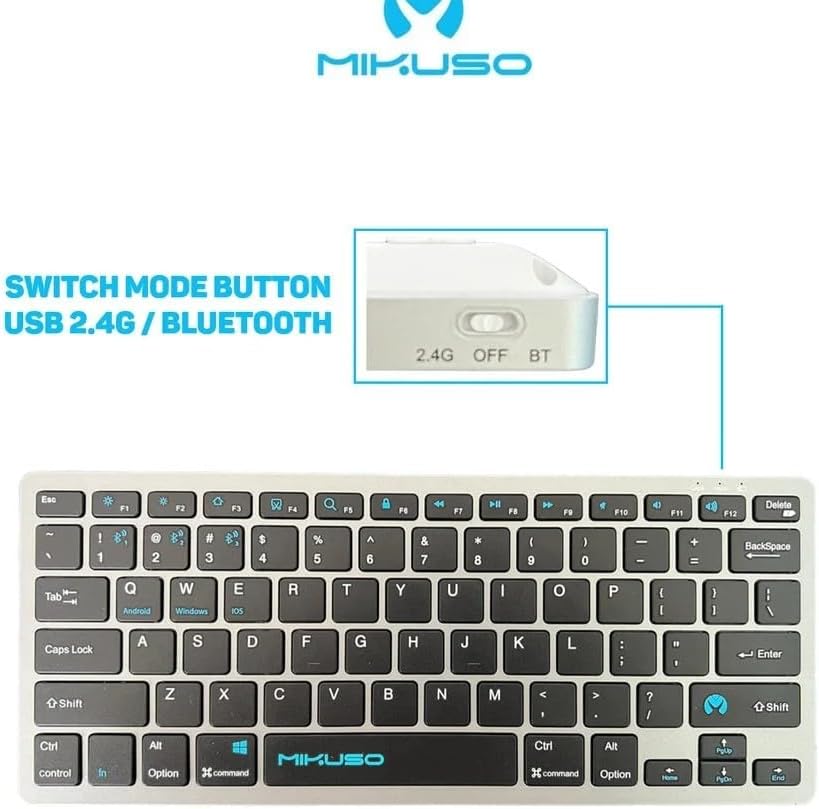
Close-up of the mode switch located on the side of the keyboard, allowing selection between 2.4 GHz wireless, Off, and Bluetooth modes. The image also shows the full keyboard layout.
2. 2.4 GHz Wireless Connection
- Set the mode switch to '2.4G'.
- Plug the Nano USB receiver into an available USB port on your computer or device.
- The keyboard should automatically connect. No additional drivers are typically required.
3. Bluetooth 5.0 Connection
- Set the mode switch to 'BT'.
- On your device (PC, tablet, smartphone), go to Bluetooth settings and ensure Bluetooth is enabled.
- The keyboard should appear in the list of available devices, typically named 'MIKUSO KB-BW05' or similar.
- Select the keyboard to pair. Your device may prompt you to enter a code displayed on the screen using the keyboard, then press Enter.
- Once paired, the keyboard is ready for use.
The keyboard can connect and switch between up to two Bluetooth 5.0 devices and one 2.4 GHz USB device within a few seconds.

The MIKUSO KB-BW05 keyboard demonstrating wide compatibility, shown connected to a laptop, tablet, and smartphone, highlighting its multi-device support.
Operating Instructions
Key Functions
The MIKUSO KB-BW05 features 78 standard keys, including function keys (F1-F12) that can be used for multimedia and system controls when combined with the Fn key.

Close-up view of the MIKUSO KB-BW05 keyboard, highlighting the key layout and blue function indicators for various operating systems.
- Fn + F1-F12: Access multimedia controls (e.g., play/pause, volume up/down, mute) or system functions (e.g., screen brightness, search) depending on the specific key and operating system. Refer to the blue icons on the F-keys for their secondary functions.
- Caps Lock: Toggles uppercase and lowercase letters. An indicator light may illuminate when Caps Lock is active.
- Control (Ctrl), Alt, Shift, Command (for macOS), Option (for macOS): Standard modifier keys for various shortcuts and commands.
Switching Between Devices
To switch between connected devices, simply use the mode selection switch on the side of the keyboard to select '2.4G' or 'BT'. If you have multiple Bluetooth devices paired, the keyboard will attempt to connect to the last active Bluetooth device. You may need to re-select the keyboard in your device's Bluetooth settings if it doesn't connect automatically.
Maintenance
To ensure the longevity and optimal performance of your MIKUSO KB-BW05 keyboard, follow these maintenance guidelines:
- Cleaning: Use a soft, dry, lint-free cloth to wipe the surface of the keyboard. For stubborn dirt, slightly dampen the cloth with water or a mild cleaning solution. Avoid excessive moisture. Do not spray cleaners directly onto the keyboard.
- Dust Removal: Use compressed air to remove dust and debris from between the keys. Hold the can upright and spray in short bursts.
- Storage: When not in use for extended periods, turn off the keyboard using the power switch to conserve battery life. Store it in a cool, dry place away from direct sunlight and extreme temperatures.
- Avoid Liquids: Keep liquids away from the keyboard to prevent damage to internal components.

View of the keyboard's underside, featuring the anti-slip base designed to keep the device stable during use.
Troubleshooting
If you encounter issues with your MIKUSO KB-BW05 keyboard, try the following troubleshooting steps:
Keyboard Not Responding
- Check Power: Ensure the keyboard is turned on and has sufficient battery charge.
- Check Mode Switch: Verify that the mode switch is set correctly to '2.4G' or 'BT' depending on your connection method.
- Re-establish Connection:
- For 2.4 GHz: Unplug and re-plug the USB receiver. Try a different USB port.
- For Bluetooth: Go to your device's Bluetooth settings, 'forget' or 'remove' the keyboard, then re-pair it.
- Interference: Move the keyboard closer to your device. Ensure there are no large metal objects or other wireless devices causing interference.
- Device Compatibility: Confirm your device's operating system supports the keyboard (e.g., Windows, macOS, Android, iOS).
Keys Not Working or Lagging
- Clean Keys: Remove any debris or dust that might be obstructing the keys.
- Battery Level: Low battery can sometimes cause inconsistent key presses or lag. Charge the keyboard if applicable.
- Restart Device: Sometimes, restarting the connected device can resolve connectivity issues.
Specifications
Below are the technical specifications for the MIKUSO KB-BW05 keyboard:
- Model Name: Mikuso KB-BW05
- Model Number: KB-BW05
- Connectivity: Bluetooth 5.0 + 2.4 GHz Wireless Dual Mode
- Key Type: Scissor Base Keycaps
- Number of Keys: 78 Standard Keys
- Design: Super Thin and Light, Compact
- Features: Soft and silent keys, Ergonomic design, Anti-slip base
- Dimensions (Approx.): 28.5 cm (Length) x 12 cm (Width) x ~1.5 cm (Thickness)
- Weight (Approx.): 0.40 kg

Diagram showing the physical dimensions (28.5 cm length, 12 cm width, ~1.5 cm thickness) and weight (0.40 kg) of the MIKUSO KB-BW05 keyboard.
Warranty Information
The MIKUSO KB-BW05 keyboard comes with a 6-month warranty from the date of purchase. This warranty covers manufacturing defects under normal use. It does not cover damage caused by misuse, accidents, unauthorized modifications, or normal wear and tear.
Please retain your proof of purchase for any warranty claims.
Support
For further assistance or if you encounter issues not covered in this manual, please refer to the retailer where you purchased the product or visit the official MIKUSO support channels if available.