
1. Introduction
The Thinkcar Thinkscan 689BT is a professional OE-level automotive diagnostic scanner designed for mechanics and enthusiasts. It provides fast, accurate, and comprehensive diagnostics for a wide range of vehicles. This device integrates advanced scanner functions into a compact and powerful form factor, offering extensive coverage for all vehicle electronic systems.
Key features include complete system diagnostics, support for modern CANFD and DOIP protocols, 35 professional reset functions, bidirectional control, and ECU coding capabilities. The scanner operates on an Android system with a high-resolution touchscreen and offers Bluetooth and Wi-Fi connectivity for convenience and updates.
2. Key Features
- Complete System Diagnostics: Professional OBD2 scanner with support for modern CANFD and DOIP protocols for comprehensive diagnosis of all vehicle systems.
- 35 Reset Functions: Includes essential resets such as Oil Reset, EPB, SAS, Airbag, ABS Bleed, TPMS, IMMO Key Matching, Gearbox Reset, and many more for daily repairs.
- Bidirectional Control and Bluetooth: Bidirectional diagnostic tool with wireless connection, allowing active tests and component control directly from the device.
- ECU Coding: Advanced support for ECU coding and adaptations, compatible with a wide range of global vehicles from different makes and models.
- Lifetime Free Updates: Receive continuous updates at no additional cost, ensuring support for new vehicles and expanding maintenance functions.
3. Product Overview
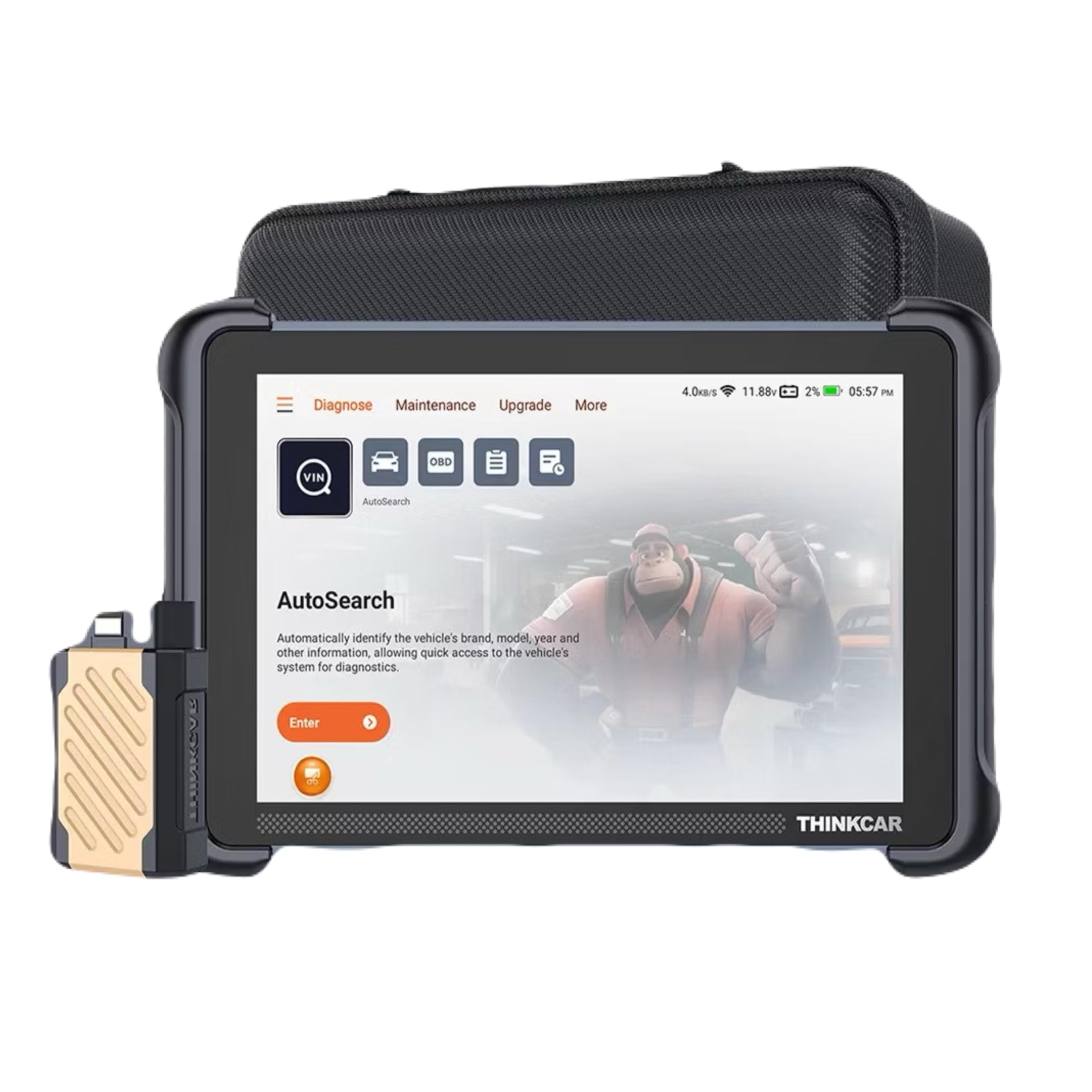
Image: The Thinkcar Thinkscan 689BT diagnostic device, showcasing its compact design and the included VCI (Vehicle Communication Interface) connector.

Image: A summary of the Thinkscan 689BT's upgraded features for 2025, highlighting full bidirectional controls, 3000+ active tests, 34+ service resets, and global vehicle coverage.
4. Setup
- Power On: Connect the Thinkscan 689BT to a power source using the provided AC/DC adapter or via the vehicle's OBD2 port. The device will automatically power on.
- Initial Configuration: Follow the on-screen prompts to select your preferred language (supports 28 languages), set the time zone, and connect to a Wi-Fi network for updates.
- VCI Connection: Plug the VCI (Vehicle Communication Interface) dongle into the vehicle's OBD2 port. Ensure a secure connection. The VCI will communicate wirelessly with the Thinkscan 689BT via Bluetooth.
- Registration: Register your device on the Thinkcar official website or through the device's interface to activate lifetime free updates and access full functionalities.
5. Operating Instructions
5.1 Basic Diagnostics
- Connect to Vehicle: Ensure the VCI is properly connected to the vehicle's OBD2 port and the Thinkscan 689BT is powered on and connected to the VCI via Bluetooth.
- Select Vehicle: From the main menu, select 'Diagnose'. The system may automatically detect the vehicle's VIN (Vehicle Identification Number) or prompt you to manually select the vehicle make, model, and year.
- System Scan: Choose 'Full System Scan' to perform a comprehensive diagnostic check of all available electronic control units (ECUs) in the vehicle.
- View/Clear DTCs: After the scan, review the Diagnostic Trouble Codes (DTCs) and their descriptions. You can then choose to clear the DTCs if the underlying issue has been resolved.
- Live Data Stream: Access real-time data from various sensors and components to monitor vehicle performance and identify potential issues.
5.2 Maintenance Service Functions (35+ Resets)
The Thinkscan 689BT offers over 35 essential maintenance and reset functions. These functions allow you to perform common service tasks without needing specialized dealer tools.

Image: A visual representation of over 34 maintenance service functions available on the Thinkscan 689BT, including Oil Reset, EPB Reset, SAS Calibration, Airbag Reset, ABS Bleed, TPMS Reset, IMMO Key Matching, and Gearbox Reset.
To access these functions, navigate to the 'Maintenance' section on the device. Select the desired reset function and follow the on-screen instructions. Examples include:
- Oil Reset: Resets the oil life reminder after an oil change.
- EPB Reset: Resets the electronic parking brake system after brake pad replacement.
- SAS Calibration: Calibrates the steering angle sensor.
- ABS Bleed: Performs ABS brake bleeding procedures.
- IMMO Key Matching: Programs new keys or remote controls.
- DPF Regeneration: Initiates diesel particulate filter regeneration.
5.3 Bidirectional Control (Active Test)
Bidirectional control allows the scanner to send commands to vehicle components and systems to test their working status. This is crucial for pinpointing specific issues.
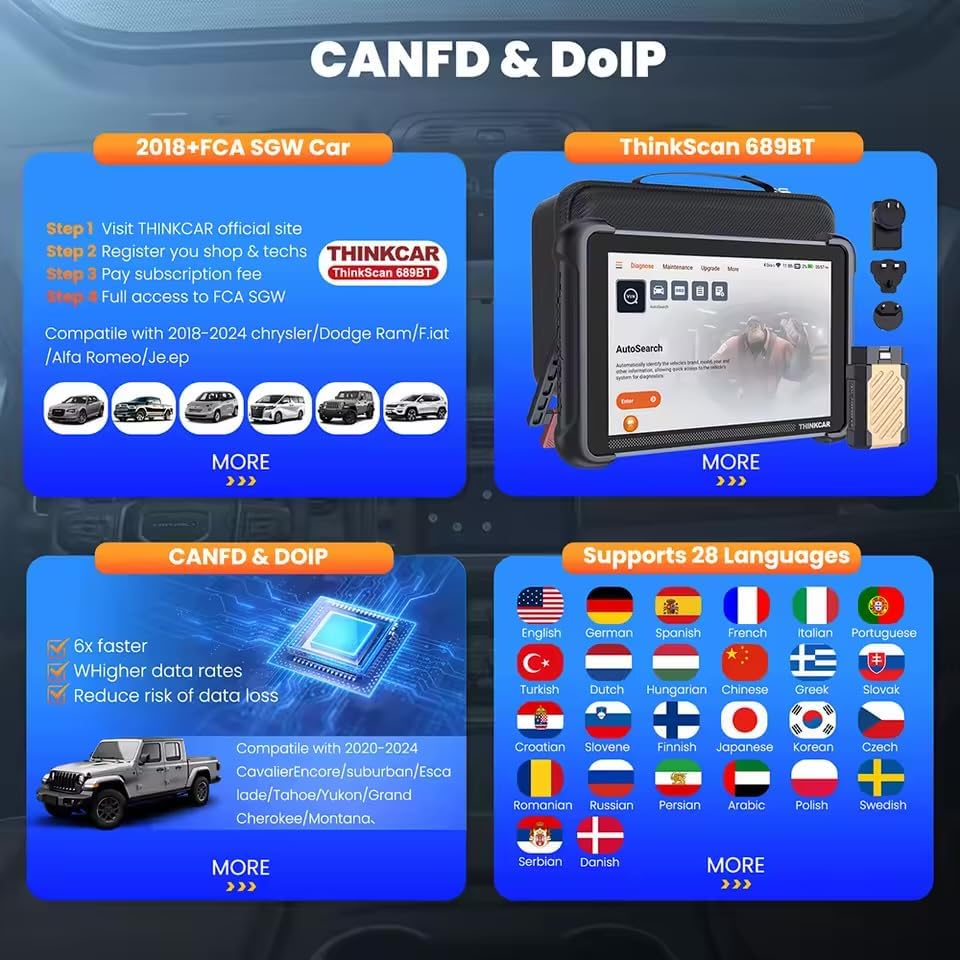
Image: An illustration of the Active Test (Bidirectional Control) feature, showing various components that can be tested, such as windows, mirrors, headlights, horns, wipers, fuel injectors, and A/C compressor.
To perform an active test:
- Navigate to the 'Active Test' or 'Bidirectional Control' section.
- Select the system or component you wish to test (e.g., turn on the radiator fan, modulate the throttle, open/close windows, operate mirrors, turn lights on/off).
- Observe the component's response to verify its functionality.
5.4 Advanced ECU Coding
The Thinkscan 689BT supports advanced ECU coding and adaptations, enabling you to customize vehicle settings and optimize performance.

Image: A depiction of Advanced ECU Coding capabilities, including unfolding hidden features, optimizing vehicle performance, disabling annoying functions, and customizing OE-settings. Note: Coding functions vary by vehicle model.
ECU coding functions include:
- Unfolding hidden features.
- Optimizing vehicle performance.
- Disabling specific functions.
- Customizing OE-settings.
Note: ECU coding functions vary significantly by vehicle make and model. Always ensure you understand the implications before making changes. Refer to the vehicle's service manual or consult a professional if unsure.
5.5 CANFD & DOIP Protocols
The Thinkscan 689BT is equipped with native support for CANFD (Controller Area Network Flexible Data-Rate) and DOIP (Diagnostics over Internet Protocol), ensuring compatibility with newer vehicles from brands like GM, BMW, and Land Rover.

Image: Details on CANFD and DOIP compatibility, showing support for 2018+ FCA SGW cars and 2020-2024 GM vehicles. It also highlights support for 28 languages, including English, Spanish, French, Portuguese, and German.
These protocols enable faster data transfer and more efficient diagnostics for modern vehicle architectures.
6. Software Updates
The Thinkcar Thinkscan 689BT comes with lifetime free software updates. These updates ensure continuous support for new vehicle models, expanded diagnostic functions, and improved performance.
To update the software:
- Ensure the device is connected to a stable Wi-Fi network.
- Navigate to the 'Upgrade' or 'Update' section in the device's menu.
- Select the available updates and follow the on-screen instructions to download and install them.
- Do not power off the device during the update process.
7. Troubleshooting
- Device not powering on: Ensure the device is properly connected to a power source (vehicle OBD2 port or AC/DC adapter). Check for any loose connections.
- VCI not connecting via Bluetooth: Ensure the VCI dongle is securely plugged into the vehicle's OBD2 port and the vehicle's ignition is on. Restart both the Thinkscan 689BT and the VCI. Check Bluetooth settings on the scanner.
- Unable to connect to vehicle: Verify the vehicle's ignition is on. Ensure the VCI is correctly installed. Check if the vehicle's OBD2 port is functional. Try a different vehicle to rule out scanner issues.
- Diagnostic functions not working: Ensure the software is up to date. Verify vehicle compatibility for the specific function. Some advanced functions may require specific vehicle conditions (e.g., engine off, ignition on).
- Slow operation: Ensure sufficient storage space on the device. Close unnecessary applications. A stable Wi-Fi connection is recommended for updates.
8. Specifications
| Feature | Description |
|---|---|
| Brand | Thinkcar |
| Model | Thinkscan 689BT |
| Operating System | Android 10.0 |
| Screen Size | 5 Inches (Touchscreen) |
| Connectivity | Bluetooth (VCI), Wi-Fi (2.4 & 5GHz) |
| Power Source | AC/DC |
| Product Dimensions | 41L x 13W x 31H centimeters |
| Part Number | Obd2-canfd-doip-bt |
| Included Components | Complete set |
| Automotive Fit Type | Universal fit |
9. Warranty Information
This product comes with a 90-day warranty from the date of purchase. The warranty covers manufacturing defects and malfunctions under normal use. Please retain your proof of purchase for warranty claims.
The warranty does not cover damage caused by misuse, accidents, unauthorized modifications, or improper maintenance.
10. Customer Support
For technical assistance, troubleshooting, or warranty inquiries, please contact your retailer or the official Thinkcar support channels. Refer to the packaging or the Thinkcar official website for contact details.
When contacting support, please have your product model (Thinkscan 689BT) and proof of purchase readily available.


