
1. Important Safety Instructions
Please read all instructions carefully before using this product and retain them for future reference. Follow all warnings and instructions marked on the product.
- Do not expose this appliance to rain or moisture.
- Do not block any ventilation openings. Install in accordance with the manufacturer's instructions.
- Do not install near any heat sources such as radiators, heat registers, stoves, or other apparatus (including amplifiers) that produce heat.
- Protect the power cord from being walked on or pinched, particularly at plugs, convenience receptacles, and the point where they exit from the appliance.
- Only use attachments/accessories specified by the manufacturer.
- Unplug this appliance during lightning storms or when unused for long periods of time.
- Refer all servicing to qualified service personnel. Servicing is required when the apparatus has been damaged in any way.
2. Package Contents
Please check that all items are present and in good condition upon unpacking.

Image: All items included in the package, neatly arranged.
- Lehwey Portable CD Player
- Remote Control (2 AAA batteries not included)
- Type-C Charging Cable
- 5V-2A USB Adapter
- 3.5mm AUX Cable
- User Manual
3. Product Overview
Familiarize yourself with the components and controls of your Lehwey CD Player.
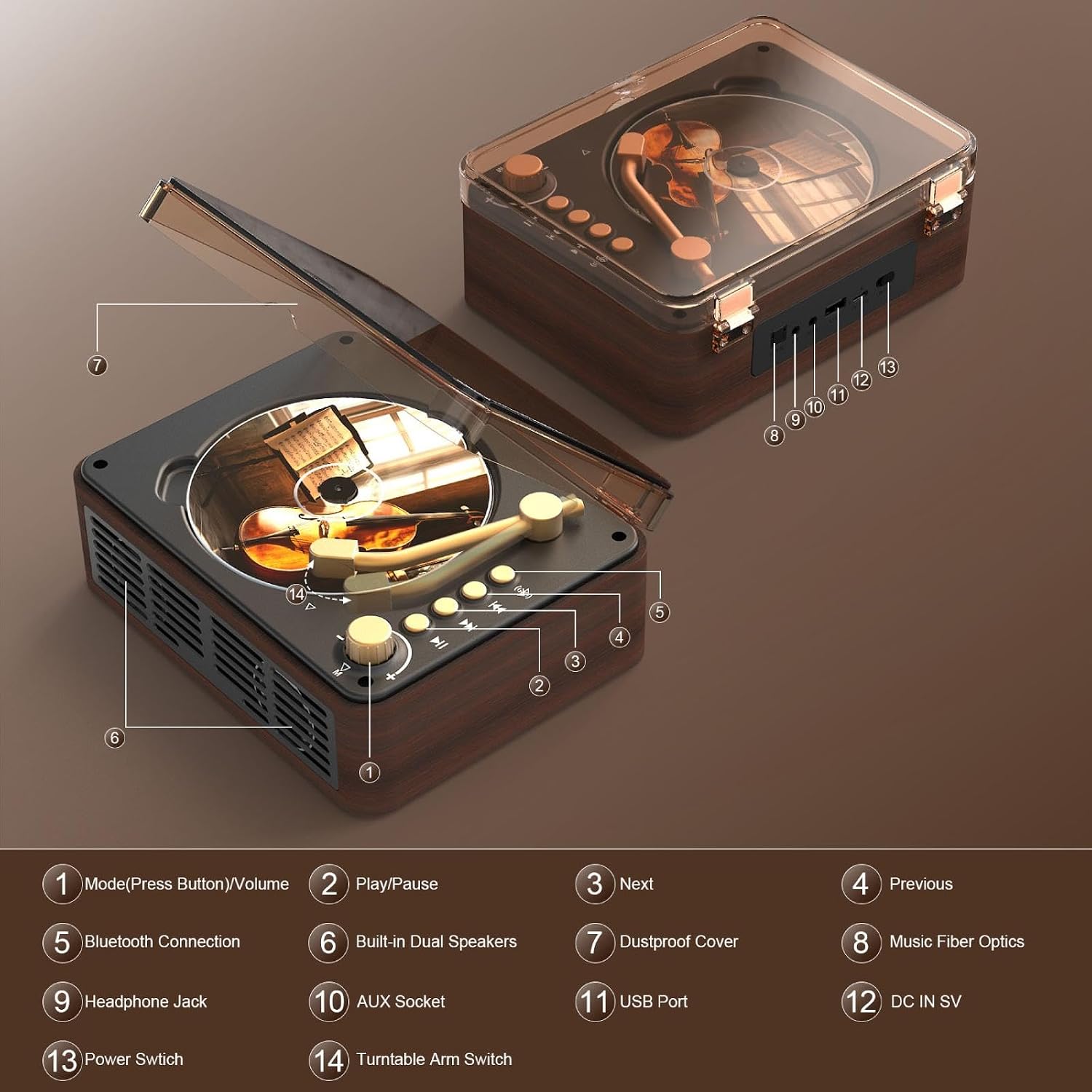
Image: Detailed diagram showing the front, top, and side controls and ports of the CD player.
- Mode (Press Button)/Volume (Rotate): Press to cycle through modes (CD, Bluetooth, FM, USB, AUX, SPDIF). Rotate to adjust volume.
- Play/Pause Button: Press to play or pause playback.
- Next Track Button: Press to skip to the next track/station.
- Previous Track Button: Press to go to the previous track/station.
- Bluetooth Connection Button: Press and hold to enter Bluetooth pairing mode.
- Built-in Dual Speakers: Provides stereo audio output.
- Dustproof Cover: Protects the CD tray from dust.
- Music Fiber Optics (SPDIF) Port: For digital audio output.
- Headphone Jack: For connecting wired headphones (3.5mm).
- AUX Socket: For connecting external audio devices via 3.5mm AUX cable.
- USB Port: For playing audio files from a USB flash drive.
- DC IN 5V (Type-C): Power input port.
- Power Switch: Slide to turn the unit ON or OFF.
- Turntable Arm Switch: Used to activate CD playback when a CD is inserted.
Video: A brief demonstration of the Lehwey Retro CD Player, showcasing its design and basic operation.
4. Setup
4.1 Power Connection
- Connect the Type-C end of the charging cable to the DC IN 5V port (12) on the back of the CD player.
- Connect the USB-A end of the charging cable to the provided 5V-2A USB Adapter.
- Plug the USB Adapter into a standard wall outlet.

Image: A white Type-C cable plugged into the power input port of the CD player.
4.2 Powering On/Off
Slide the Power Switch (13) located on the back of the unit to the 'ON' position to power on the device. Slide it to 'OFF' to power off.
5. Operating Modes
Press the Mode/Volume button (1) to cycle through the available modes.
5.1 CD Mode
- Open the Dustproof Cover (7).
- Place a CD (compatible formats: CD, CD-R, CD-RM, CD-G, MP3, WMA, WAV) onto the spindle with the label side facing up.
- Close the Dustproof Cover (7).
- Gently move the Turntable Arm Switch (14) over the CD. The player will automatically detect the CD and begin playback.
- Use the Play/Pause (2), Next (3), and Previous (4) buttons to control playback.
5.2 Bluetooth Receiver Mode
In this mode, the CD player acts as a Bluetooth speaker, receiving audio from your smartphone or other Bluetooth devices.
- Switch the CD player to Bluetooth mode. The LED indicator will flash blue.
- On your smartphone or Bluetooth device, search for Bluetooth devices and select "Lehwey CD Player" to pair.
- Once connected, the LED indicator will be solid blue. You can now stream audio from your device.
5.3 Bluetooth Transmitter Mode
In this mode, the CD player transmits audio to Bluetooth headphones or speakers.
- Ensure your Bluetooth headphones/speaker are in pairing mode.
- While in CD, USB, or AUX mode, press and hold the Bluetooth Connection Button (5) on the CD player. The LED indicator will flash blue rapidly.
- The CD player will automatically search for and connect to nearby Bluetooth audio devices. Once connected, the LED indicator will be solid blue.

Image: A woman enjoying music through Bluetooth headphones, connected wirelessly to the CD player.
5.4 FM Radio Mode
- Switch the CD player to FM Radio mode.
- Press the Play/Pause button (2) once to auto-scan and save available FM stations (frequency range: 76MHz-108MHz).
- Use the Next (3) and Previous (4) buttons to navigate through saved stations.
5.5 USB Mode
- Insert a USB flash drive into the USB Port (11).
- Switch the CD player to USB mode. The player will automatically detect and begin playing compatible audio files (MP3, WMA, WAV).
- Use the Play/Pause (2), Next (3), and Previous (4) buttons to control playback.

Image: A USB flash drive plugged into the USB port on the side of the CD player.
5.6 AUX Mode
- Connect one end of the 3.5mm AUX cable to the AUX Socket (10) on the CD player.
- Connect the other end to the audio output of an external device (e.g., smartphone, MP3 player).
- Switch the CD player to AUX mode. Audio from the external device will now play through the CD player's speakers.

Image: A white 3.5mm AUX cable plugged into the AUX input port of the CD player.
5.7 SPDIF Mode
Connect a fiber optic cable (not included) from the Music Fiber Optics (SPDIF) Port (8) on the CD player to a compatible audio receiver or sound system for digital audio output.
6. Playback Options
The CD player offers various playback options, accessible via the remote control.
- A-B Repeat: Repeats a specific section of a track. Press the A-B button at the start point (A) and again at the end point (B).
- Single Loop: Repeats the current track.
- Full Disc Loop: Repeats all tracks on the current disc/USB.
- Random Play: Plays tracks in a random order.
7. Remote Control
The included remote control allows for convenient operation from a distance (up to 5 meters).

Image: A family relaxing on a couch, using the remote control to operate the CD player placed on a shelf.
Note: The remote control requires 2 x AAA batteries (not included). Please insert them according to the polarity markings inside the battery compartment.
Functions include: Power On/Off, Mode Selection, Play/Pause, Skip Tracks, Volume Up/Down, Mute, Repeat Modes (A-B, Single, All), Random Play, FM Scan.
8. Sleep Mode
The sleep mode is designed for relaxing bedtime moments, suitable for playing audiobooks or soothing lullabies. To activate sleep mode, press the 'Sleep' button on the remote control. The player will automatically turn off after a set period (refer to remote control markings or product specifications for default timing, usually 30, 60, 90 minutes).
9. Maintenance
9.1 Cleaning
- Wipe the exterior of the unit with a soft, dry cloth. Do not use abrasive cleaners or solvents.
- To clean the CD lens, use a commercially available CD lens cleaner disc.
9.2 CD Handling
- Always hold CDs by their edges.
- Keep CDs clean and free from scratches. Store them in their cases when not in use.
10. Troubleshooting
| Problem | Possible Cause | Solution |
|---|---|---|
| No power | Power cable not connected; Power switch off | Ensure power cable is securely connected; Turn power switch ON |
| CD not playing | CD inserted incorrectly; CD dirty/scratched; Turntable arm not engaged | Reinsert CD correctly; Clean or replace CD; Ensure turntable arm is over the CD |
| No sound | Volume too low; Mute activated; Incorrect mode selected | Increase volume; Deactivate mute; Select correct input mode |
| Bluetooth pairing fails | Device too far; CD player not in pairing mode; Other device already connected | Move devices closer; Ensure CD player is in Bluetooth pairing mode; Disconnect from other devices |
| Remote control not working | Batteries low/incorrectly inserted; Obstruction between remote and player | Replace batteries, check polarity; Remove obstructions; Ensure line of sight |
11. Specifications
| Feature | Description |
|---|---|
| Brand | Lehwey |
| Model Number | CD8-US |
| Color | Brown |
| Connectivity Technology | Bluetooth, USB, AUX, SPDIF |
| Special Features | Built-In FM Radio, Portable, Wireless, Dual Speakers |
| Supported Audio Formats | CD, CD-R, CD-RM, CD-G, MP3, WMA, WAV |
| FM Frequency Range | 76MHz-108MHz |
| Connector Type | 3.5mm Jack (AUX, Headphone), USB, Type-C (Power), SPDIF |
| Number of Channels | 2 (Stereo) |
| Item Dimensions (L x W x H) | 7.8" x 6.3" x 3.3" (19.8cm x 16cm x 8.4cm) |
| Item Weight | 850 g (1.87 lbs) |
| Power Input | DC 5V |
12. Warranty and Support
This Lehwey CD Player comes with a 1-year warranty from the date of purchase. This warranty covers manufacturing defects and workmanship under normal use.
The warranty does not cover damage caused by misuse, accidents, unauthorized modifications, or normal wear and tear.
For warranty claims, technical support, or any questions regarding your product, please contact the seller through your purchase platform or refer to the contact information provided with your product packaging.