
Introduction
The UGREEN CM889 7-in-1 USB-C Hub is designed to expand the connectivity options of your USB-C enabled devices. This compact and versatile hub transforms a single USB-C port into seven essential connections, including HDMI, USB 3.0, USB 2.0, SD/TF card readers, Gigabit Ethernet, and a Power Delivery (PD) charging port. It provides a comprehensive solution for connecting multiple peripherals, external displays, and charging your device simultaneously, enhancing productivity and convenience for various applications.
Product Features
- 7-in-1 Connectivity: Expands a single USB-C port into HDMI, USB 3.0 (x2), USB 2.0 (x1), SD card reader, TF card reader, Gigabit Ethernet, and USB-C PD charging port.
- 4K HDMI Output: Supports video output up to 4K resolution at 30Hz, enabling connection to external monitors, TVs, or projectors.
- High-Speed Data Transfer: Two USB 3.0 ports offer data transfer speeds up to 5Gbps for quick file transfers.
- Power Delivery (PD) Support: USB-C PD charging port supports up to 100W power pass-through to keep your laptop charged.
- Gigabit Ethernet: Provides a stable and fast wired network connection up to 1000Mbps.
- SD/TF Card Readers: Integrated slots for simultaneous reading of SD and TF (MicroSD) cards.
- Plug and Play: Requires no additional drivers or software installation for immediate use.
- Durable Design: Constructed with aluminium alloy for enhanced durability and efficient heat dissipation.
- LED Indicator: Visual feedback on connection status.
- Safety Features: Includes overcurrent, overvoltage, and short circuit protection.
Setup Guide
Follow these steps to set up your UGREEN CM889 7-in-1 USB-C Hub:
- Connect to Host Device: Plug the USB-C connector cable of the UGREEN CM889 hub into an available USB-C port on your laptop, tablet, or smartphone. Ensure the USB-C port on your device supports data transfer, video output (DisplayPort Alternate Mode), and Power Delivery for full functionality.
- Power Connection (Optional): If your host device requires charging or if you are connecting power-intensive peripherals, connect your original USB-C power adapter to the USB-C PD port on the hub. The hub supports up to 100W power pass-through.
- Connect Peripherals:
- HDMI Display: Connect an HDMI cable from your external monitor or TV to the HDMI port on the hub. Your device should automatically detect the external display.
- USB Devices: Plug your USB-A peripherals (e.g., keyboard, mouse, USB flash drive, external hard drive) into the USB 3.0 or USB 2.0 ports.
- Network Cable: For a wired internet connection, connect an Ethernet cable to the Gigabit RJ45 port on the hub.
- SD/TF Cards: Insert your SD or TF (MicroSD) memory cards into the corresponding slots.
- Verify Connection: The LED indicator on the hub will illuminate to show a successful connection to the host device.
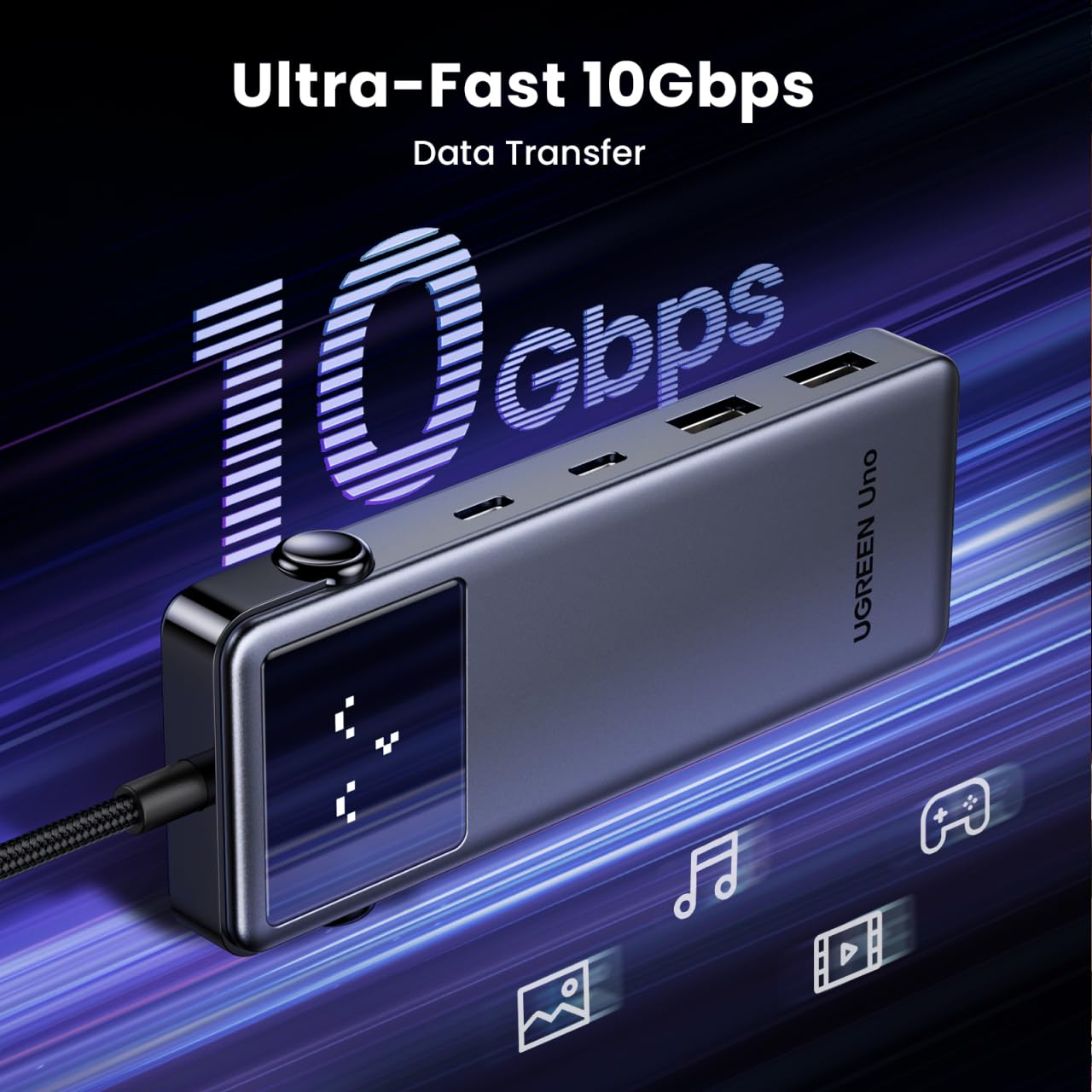
Image: UGREEN CM889 hub with its 7 ports labeled, including PD 100W, USB-C 3.0, USB-A 3.0 x 2, USB-A 2.0, HDMI 4K60Hz, and Gigabit RJ45.

Image: Visual representation of the LED display on the UGREEN CM889 hub, showing different icons for connecting to host, external display, PD charger, and external display + PD charging.
Operating Instructions
Once connected, the UGREEN CM889 hub operates automatically. Here's how to utilize its various functions:
- Data Transfer: Insert USB flash drives, external hard drives, or other USB storage devices into the USB 3.0 or USB 2.0 ports. Files can be dragged and dropped between your host device and the connected storage. The USB 3.0 ports support speeds up to 5Gbps.
- Video Output: After connecting an HDMI display, your host device's operating system will typically extend or mirror your display automatically. You can adjust display settings (resolution, orientation, mirroring/extending) through your device's display settings. The hub supports resolutions up to 4K@30Hz.
- Charging: When a power adapter is connected to the PD port, the hub will pass power through to charge your host device. Ensure your power adapter provides sufficient wattage for both the hub and your device.
- Network Access: The Gigabit Ethernet port provides a stable and high-speed internet connection. Once an Ethernet cable is connected, your device should automatically establish a wired network connection.
- Card Reading: Insert SD or TF cards into their respective slots. They will appear as removable drives on your host device, allowing you to access and transfer files.

Image: The UGREEN CM889 hub with a visual representation of high-speed data transfer, indicating up to 10Gbps capability for the main USB-C connection.

Image: Diagram illustrating the universal compatibility of the UGREEN CM889 hub with various laptops (MacBook Air/Pro, HP Envy, Dell XPS, Surface Pro, ThinkPad, ASUS Vivobook), tablets/phones (iPad Pro/Air/Mini, Galaxy Tab, iPhone 15, Galaxy S24/S23), and game consoles (ROG Ally, Steam Deck).

Image: A user demonstrating the connection of multiple peripherals like a keyboard, mouse, and external storage to the UGREEN CM889 hub, which is connected to a laptop.
Maintenance
To ensure the longevity and optimal performance of your UGREEN CM889 USB-C Hub, follow these maintenance guidelines:
- Cleaning: Use a soft, dry, lint-free cloth to gently wipe the surface of the hub. Avoid using liquid cleaners, aerosols, or solvents, as they may damage the device.
- Storage: When not in use, store the hub in a cool, dry place away from direct sunlight and extreme temperatures.
- Handling: Avoid dropping the hub or subjecting it to strong impacts. Do not bend or pull the integrated USB-C cable excessively.
- Port Care: Keep the ports free from dust and debris. You can use compressed air to gently clear any obstructions.
Troubleshooting
If you encounter issues with your UGREEN CM889 USB-C Hub, refer to the following common problems and solutions:
- No Display Output via HDMI:
- Ensure your host device's USB-C port supports DisplayPort Alternate Mode (Alt Mode).
- Check the HDMI cable connection between the hub and the monitor. Try a different HDMI cable.
- Verify the monitor input source is set correctly to HDMI.
- Restart your host device.
- USB Devices Not Recognized:
- Ensure the hub is securely connected to your host device.
- Try connecting the USB device directly to your host device to confirm it's working.
- If connecting a high-power USB device (e.g., external hard drive), ensure the hub is connected to a power adapter via its PD port.
- Try a different USB port on the hub.
- No Power Delivery (PD) Charging:
- Ensure your USB-C power adapter is functional and connected to the hub's PD port.
- Verify your host device's USB-C port supports Power Delivery.
- Check if the power adapter provides sufficient wattage for your device.
- Slow Data Transfer Speeds:
- Ensure you are using USB 3.0 compatible devices and cables for the USB 3.0 ports.
- Some older USB-C ports on host devices may not support full USB 3.0 speeds.
- Avoid connecting too many power-intensive devices simultaneously without external power.
- Ethernet Connection Issues:
- Check the Ethernet cable connection to both the hub and your router/modem.
- Verify your network settings on your host device.
- Ensure your router/modem is functioning correctly.
Specifications
| Brand | UGREEN |
| Model Number | CM889 |
| Hardware Interface | USB Type C |
| Total USB Ports | 7 (2x USB 3.0, 1x USB 2.0, 1x USB-C PD, 1x HDMI, 1x Gigabit Ethernet, 1x SD, 1x TF) |
| HDMI Output | 4K@30Hz |
| USB 3.0 Data Speed | Up to 5Gbps |
| Power Delivery | Up to 100W Pass-Through |
| Ethernet Speed | 10/100/1000Mbps (Gigabit) |
| Enclosure Material | Aluminium Alloy, ABS Plastic, Copper |
| Item Dimensions (L x W x H) | 10L x 5W x 15H Centimeters |
| Item Weight | 85 Grams |
| Country of Origin | China |
Warranty and Support
Warranty: The UGREEN CM889 7-in-1 USB-C Hub comes with a 1-Year Manufacturer Warranty from the date of purchase.
Customer Support: For any technical assistance, warranty claims, or product inquiries, please contact our authorized distributor:
Nikita DistributorsGreen Terrace Building, Lane Number 5
South Koregaon Park, Pune 411001, MH, India.
Email ID: care@nikitadistributors.com
Phone Number: 18002668571


