
1. Introduction
The TIDRADIO TD-G19 is a 4G LTE Push-to-Talk (PoC) radio designed for long-range, nationwide communication. This device utilizes cellular networks to provide extensive coverage, making it suitable for various applications including family use, job sites, and team coordination. It features AI noise reduction, Bluetooth connectivity, and app-based management for enhanced functionality and ease of use.

Image: Two TD-G19 radios demonstrating their capability for nationwide communication across the US, Canada, and Mexico.
2. What's in the Box
Verify that all items are present in your package:
- 2 x TD-G19 PoC Radios
- 2 x SIM Cards (2.0 version)
- 2 x Headphones
- 2 x Charging Adapters
- 2 x Type-C Data Cables
- 1 x Instruction Manual
3. Product Overview
Familiarize yourself with the components of your TD-G19 radio.
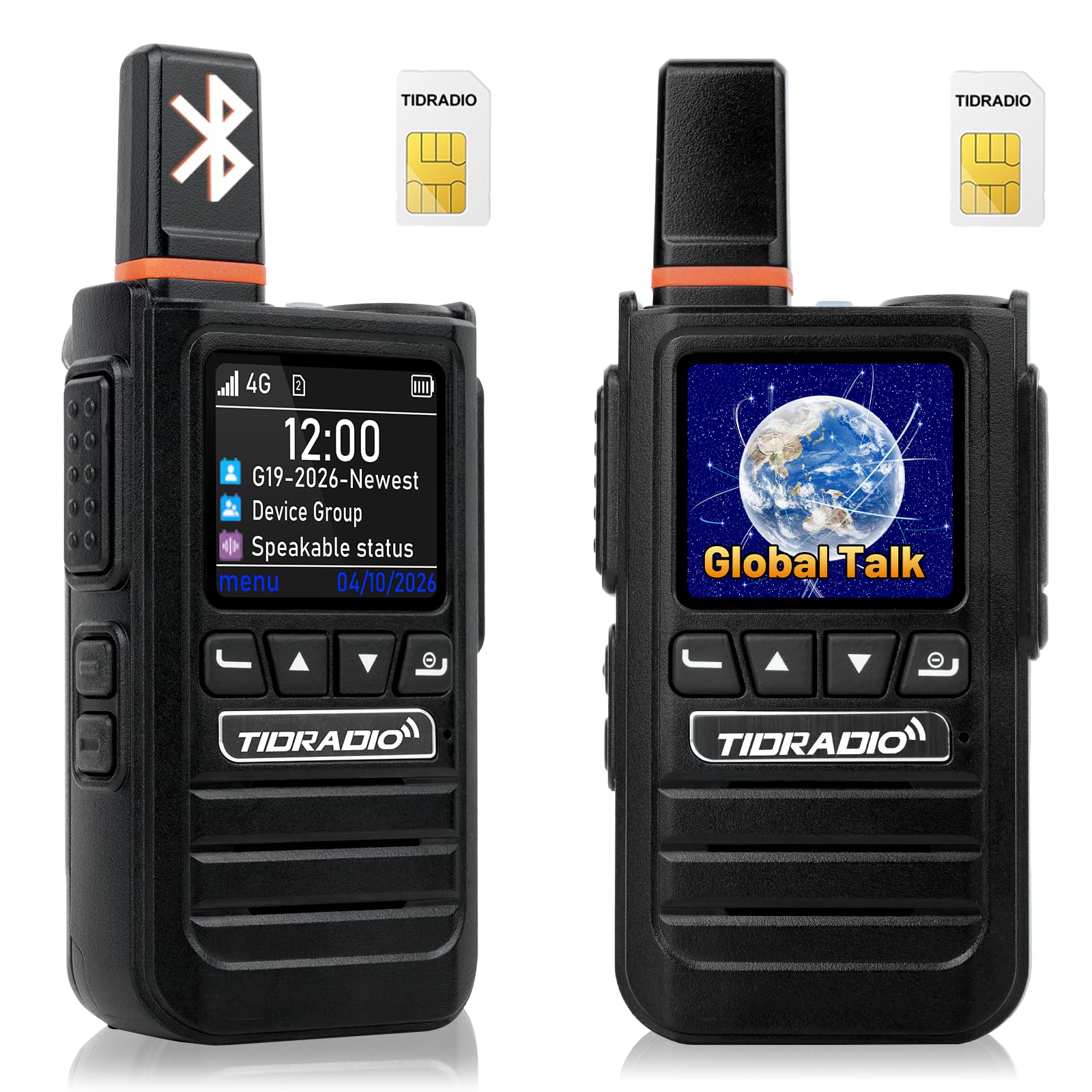
Image: Front view of the TD-G19 radio, highlighting its display and control buttons.
Key Components:
- Antenna: For signal reception and transmission.
- LCD Screen: Displays status, menu, and call information.
- PTT Button: Push-to-Talk button for initiating and ending transmissions.
- Navigation Buttons: For menu navigation and selection.
- Volume/Power Knob: Controls power on/off and audio volume.
- Speaker/Microphone: For audio output and input.
- Type-C Charging Port: For charging the device.
- Battery Compartment: Houses the rechargeable battery.
4. Setup
4.1. Battery Installation
- Ensure the radio is powered off.
- Locate the battery compartment cover on the back of the radio.
- Slide the latch to unlock and remove the cover.
- Insert the 3000mAh Lithium Polymer battery, aligning the contacts.
- Replace the battery cover and slide the latch to lock it securely.
4.2. SIM Card Activation and Installation
The TD-G19 uses a 2.0 SIM card for 4G LTE connectivity. Follow these steps to activate and install your SIM card:
- Activation: Activate the provided SIM card via the dedicated mobile application (ODmaster APP) following the on-screen instructions. The first year of data is free; renewal costs 9.9 yuan/year. You may also use your own cellular card.
- Installation: With the battery removed, locate the SIM card slot. Insert the activated SIM card into the slot, ensuring correct orientation.
- Reinstall the battery and cover.
Video: A guide on how to quickly activate your TD-G19 radio.
4.3. Initial Power On
- Rotate the Volume/Power knob clockwise until the screen illuminates.
- The radio will boot up and attempt to connect to the 4G LTE network.
- Once connected, the network status indicator will show signal strength.
4.4. APP Management (ODmaster APP)
The ODmaster APP allows for comprehensive management of your TD-G19 radios. This includes creating groups, binding devices, and reviewing call history.

Image: Overview of the ODmaster APP functionalities for managing PoC radios.
- Download & Install: Download the ODmaster APP from your device's app store.
- Account Creation: Create an account or log in.
- Bind Device: Use the app to scan and bind your TD-G19 radio to your account.
- Create Groups: Freely create communication groups. Each account can create up to 20 groups, with each group supporting up to 200 members.
- Add Members: Invite members to your groups.
5. Operating Instructions
5.1. Basic Communication
The TD-G19 supports various call types for efficient communication.

Image: Communication modes including single call, multi-party call, and group call.
- One-to-One Call: Select a contact from your list and press the PTT button to initiate a private call.
- Multi-Member Call: Select multiple contacts to create a temporary multi-member conversation.
- One-Click PTT Group Call: After entering a group, the radio will be in standby mode. Press the PTT button to broadcast to all members of the active group. After single or multi-person calls, you will automatically return to the standby group.
5.2. Bluetooth Connectivity
The TD-G19 supports Bluetooth 5.1 (BR/EDR/BLE) for connecting external audio devices.

Image: The TD-G19 supports various Bluetooth devices for hands-free operation.
- Pairing: Navigate to the Bluetooth settings on your TD-G19 radio. Enable Bluetooth and search for available devices. Select your desired Bluetooth headset or microphone to pair.
- Compatibility: The TD-G19 is compatible with TIDRADIO wireless hand mics (TID-MIC) which support both receiving and transmitting. Third-party Bluetooth headsets typically support receiving audio only, but not transmitting. It also supports Kenwood-interface hand mics (K-type).
5.3. AI Noise Reduction
The integrated AI sound-optimizing algorithm reduces background noise by up to 98% while preserving voice clarity. This feature is automatically active to ensure clear communication in noisy environments.

Image: Demonstrates the effectiveness of AI noise reduction for clearer reception and transmission.
5.4. Auto-Recording Feature
The TD-G19 can automatically record conversations. To utilize this feature, the ODmaster APP must be running in the background. All group members can view chat history, ensuring no crucial information is missed. Voice messages will not be recorded if the APP is closed.
5.5. Over-The-Air (OTA) Updates
The device supports one-click OTA auto-updates. This allows you to receive new features, extend the device's life, and improve performance without needing cables or manual intervention.
6. Key Features
The TIDRADIO TD-G19 offers a robust set of features for reliable and efficient communication:

Image: Key features of the TD-G19, including 4G LTE, Bluetooth, and APP management.
- Nationwide 4G LTE PoC Communication: Enjoy unlimited range communication across states, cities, and remote areas where 4G signal is available. Compatible with major US carriers (AT&T, Verizon, T-Mobile). No FCC license required for daily use.
- AI Noise Reduction & 3W Speaker: Advanced AI algorithm reduces 98% of background noise, ensuring clear audio. The 3W high-definition speaker provides loud and clear sound, even in noisy environments.
- APP Management: Use the ODmaster APP to create and manage groups (up to 20 groups, 200 members per group), bind devices, and playback call content.
- Bluetooth Connectivity: Supports Bluetooth 5.1 for connecting external earpieces, headphones, and shoulder mics for hands-free operation.
- 3000mAh Rechargeable Battery: Provides 3-7 days of standby time. Features a universal Type-C charging port for fast charging and a replaceable design for extended field use.
- High Security Level: Built-in AES-256 end-to-end encryption protects voice and position data from unauthorized access.
- OTA Auto-Update: One-click over-the-air updates for new features and performance improvements.
- Compatibility: Compatible with other TIDRADIO PoC radios including TD-G18, TD-G100, TD-M15, TD-M13, and TD-M2.
7. Specifications
| Feature | Detail |
|---|---|
| Model Number | TD-G19 |
| Brand | TIDRADIO |
| Color | Black |
| Number of Channels | 200 (via APP management) |
| Frequency Range | 4G LTE (AT&T, Verizon, T-Mobile) |
| Talking Range Maximum | Nationwide (12430 Miles) |
| Voltage | 3.7V DC |
| Water Resistance Level | Water Resistant |
| Battery Type | Lithium Polymer |
| Battery Capacity | 3000mAh |
| Battery Average Life | 72 hours (Standby 3-7 days) |
| Connectivity Protocol | Bluetooth 5.1 |
| Tuner Type | 4G/LTE |
| Special Features | APP Management, AI Noise Reduction, Long Range, Rugged Design, Rechargeable, Bluetooth, APP Recording, Battery Saver Mode, AES-256 Encryption |
8. Maintenance
8.1. Cleaning
- Wipe the radio's exterior with a soft, damp cloth.
- Do not use harsh chemicals or abrasive cleaners.
- Ensure the charging port is free of dust and debris.
8.2. Battery Care
- Charge the battery fully before first use.
- Use only the provided charging adapter and Type-C cable.
- Avoid overcharging or completely draining the battery for optimal lifespan.
- Store the radio and battery in a cool, dry place when not in use for extended periods.
9. Troubleshooting
| Problem | Possible Cause | Solution |
|---|---|---|
| No power | Battery not installed correctly or discharged. | Check battery installation. Charge the battery. |
| Cannot connect to network | No 4G signal, SIM card not activated or installed correctly. | Move to an area with 4G coverage. Verify SIM card activation and installation. |
| Poor audio quality | Weak signal, excessive background noise. | Move to an area with better signal. AI noise reduction is active, but extreme noise may still affect clarity. |
| Bluetooth device not pairing | Bluetooth not enabled, device out of range, or incompatible. | Ensure Bluetooth is enabled on both devices. Bring devices closer. Check compatibility (third-party devices may be receive-only). |
| APP not recording calls | ODmaster APP is not running in the background. | Ensure the ODmaster APP is open and running in the background on your smartphone. |
10. Safety Information
- Do not disassemble or modify the radio.
- Keep the radio away from extreme temperatures, direct sunlight, and moisture.
- Avoid dropping or subjecting the radio to severe impact.
- Use only manufacturer-approved accessories.
- Do not operate the radio while driving or performing tasks that require full attention.
- Dispose of batteries and electronic components responsibly according to local regulations.
11. Support
TIDRADIO provides lifetime Over-The-Air (OTA) support to efficiently resolve any usage issues. For further assistance, please refer to the official TIDRADIO website or contact customer service.
Video: An overview of the 2026 TIDRADIO TD-G19 4G PoC Radio with Bluetooth.


