
1. Introduction
Thank you for choosing the FUNYET NY-13 15.6-inch Laptop. This manual provides comprehensive instructions to help you set up, operate, and maintain your device. Please read this manual carefully before using the laptop to ensure optimal performance and longevity.
2. Safety Information
To prevent damage to your laptop or injury to yourself and others, please observe the following safety precautions:
- Do not expose the laptop to extreme temperatures, direct sunlight, or high humidity.
- Avoid placing heavy objects on the laptop.
- Use only the original power adapter and accessories provided by FUNYET.
- Keep the laptop away from liquids and strong magnetic fields.
- Do not attempt to disassemble or repair the laptop yourself. Contact customer support for assistance.
- Ensure proper ventilation to prevent overheating.
3. Package Contents
Please check the package for the following items:
- FUNYET NY-13 15.6-inch Laptop
- Power Adapter
- User Manual (this document)
4. Product Overview
Familiarize yourself with the main components and ports of your FUNYET NY-13 laptop.
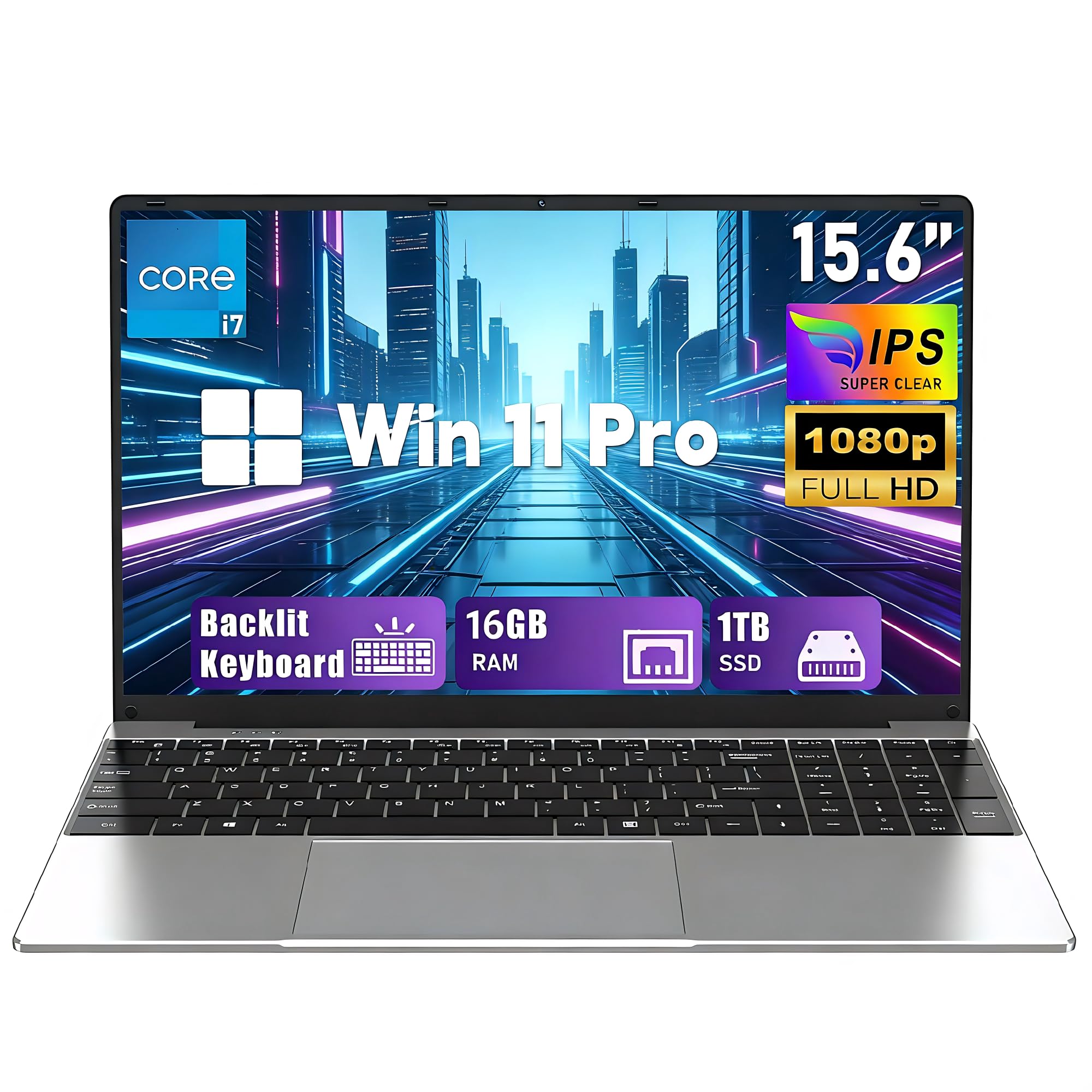
Figure 4.1: FUNYET NY-13 15.6-inch Laptop, showcasing its sleek design.
4.1 Ports and Connectors
The FUNYET NY-13 laptop features a variety of ports for connectivity. Refer to the image below for port locations.

Figure 4.2: A diagram illustrating the various connection ports available on the FUNYET NY-13 laptop, such as USB 3.0, Type-C, Mini HDMI, and headphone jack.
- USB 3.0 Ports: For connecting USB devices like external hard drives, mice, and keyboards.
- Type-C Port: A versatile port for data transfer and potentially charging (check specifications for power delivery).
- Mini HDMI Port: For connecting to external displays or projectors.
- Headphone Jack: For connecting headphones or external speakers.
- DC Power Port (19V/3.42A): For connecting the power adapter to charge the laptop.
- TF Card Slot: For inserting a TF (MicroSD) memory card.
5. Setup
5.1 Charging the Battery
Before first use, fully charge the laptop battery. Connect the power adapter to the DC power port on the laptop and then plug it into a power outlet. The charging indicator light will illuminate.
5.2 First Power-On
Press the power button located on the keyboard to turn on the laptop. Follow the on-screen instructions to complete the initial Windows 11 setup, including language selection, network connection, and user account creation.
5.3 Connecting to Wi-Fi and Bluetooth
The laptop supports WiFi 5 and Bluetooth 5.0 for wireless connectivity.
- Wi-Fi: Click the Wi-Fi icon in the taskbar, select your desired network, enter the password, and click Connect.
- Bluetooth: Go to Windows Settings > Bluetooth & devices, turn on Bluetooth, and pair with your wireless headphones, keyboards, or other compatible devices.
6. Operating Instructions
6.1 Using the Backlit Keyboard
The FUNYET NY-13 features a backlit keyboard, allowing for comfortable typing in low-light conditions. To activate or adjust the backlight, press the Fn + F5 key combination.

Figure 6.1: The FUNYET NY-13 laptop with its screen displaying key features, including the backlit keyboard.
6.2 Using the Touchpad
The integrated touchpad supports multi-touch gestures for navigation. Refer to Windows settings for customizing touchpad gestures.
6.3 Display Features
The 15.6-inch IPS FHD (1920x1080) display offers clear and vibrant visuals. You can adjust display settings such as brightness, resolution, and scaling through Windows Display Settings.

Figure 6.2: The laptop's IPS display showing vibrant fantasy character illustrations, highlighting its color accuracy and resolution.
6.4 Multitasking and Performance
Equipped with an Intel Core i7-7600U processor and 16GB of RAM, the laptop is designed for smooth multitasking. You can run multiple applications simultaneously without significant performance degradation.

Figure 6.3: The FUNYET NY-13 laptop demonstrating its ability to handle multiple applications for efficient multitasking.
6.5 Collaboration Features
The laptop's 180-degree foldable screen and integrated microphone and speakers facilitate collaborative work and online meetings.

Figure 6.4: Individuals collaborating around the FUNYET NY-13 laptop, highlighting its versatile design for teamwork.
7. Maintenance
7.1 Cleaning the Laptop
To clean your laptop, use a soft, lint-free cloth. For the screen, use a specialized screen cleaner. Avoid using harsh chemicals or abrasive materials.
7.2 Battery Care
To prolong battery life, avoid fully discharging the battery frequently. Store the laptop in a cool, dry place if not used for extended periods.
7.3 Software Updates
Regularly update your Windows operating system and drivers to ensure optimal performance and security.
8. Troubleshooting
If you encounter issues with your FUNYET NY-13 laptop, try the following basic troubleshooting steps:
- Laptop does not power on: Ensure the power adapter is securely connected and the battery is charged. Try pressing and holding the power button for 10-15 seconds.
- No display: Connect an external monitor to check if the issue is with the laptop's screen. Ensure brightness is not set to minimum.
- Wi-Fi/Bluetooth connectivity issues: Check if Wi-Fi/Bluetooth is enabled in Windows settings. Restart the laptop and your router/Bluetooth device.
- Slow performance: Close unnecessary applications, check for background processes, and ensure sufficient free space on the SSD.
- Keyboard backlight not working: Ensure you are using the correct key combination (Fn + F5) to activate it.
For more complex issues, please refer to the warranty and support section for assistance.
9. Specifications
Below are the detailed technical specifications for the FUNYET NY-13 laptop.

Figure 9.1: An image detailing the technical specifications of the FUNYET NY-13 laptop, including CPU, RAM, SSD, display, and battery.
| Feature | Specification |
|---|---|
| Model Name | NY-13 |
| Screen Size | 15.6 Inches |
| Screen Resolution | 1920 x 1080 (FHD) |
| Display Type | IPS LCD |
| Processor | Intel Core i7-7600U (2 Cores, 4 Threads, up to 3.9 GHz) |
| RAM | 16 GB DDR3 (2666 MHz) |
| Storage | 1 TB SSD (M.2) |
| Graphics Card | Integrated |
| Operating System | Windows 11 |
| Battery Type | Lithium Polymer |
| Battery Capacity | 5000 mAh (46.2 Wh) |
| Wireless Connectivity | WiFi 5 (802.11ac), Bluetooth 5.0 |
| Ports | USB 3.0, Type-C, Mini HDMI, 3.5mm Audio Jack, TF Card Slot, DC Power Port |
| Special Features | HD Audio, Numeric Keypad, Backlit Keyboard |
| Dimensions (L x W x H) | 35.7 x 22 x 2 cm |
| Weight | 1.6 kg |
10. Warranty and Support
FUNYET is committed to providing high-quality products and customer satisfaction. Your FUNYET NY-13 laptop comes with a comprehensive warranty and dedicated customer support.
10.1 Warranty Information
The laptop includes a one-year warranty from the date of purchase, covering manufacturing defects. Please retain your proof of purchase for warranty claims.
10.2 Customer Support
For any questions, technical assistance, or warranty claims, please contact our customer support team. We offer 24-hour online support to address your inquiries promptly.
- Email: funyetstore@outlook.com
- Phone: +49 800-000-7147 (Available per business day, 4 AM - 10 PM PT)
You can also visit the official FUNYET store on Amazon for more information and product updates: FUNYET Amazon Store

