
1. Introduction
Thank you for choosing the Easyfone A6 4G Senior Cell Phone. This device is designed for ease of use, featuring large buttons, clear sound, and essential functions for communication. This manual provides detailed instructions to help you set up, operate, and maintain your phone.
2. Package Contents
Please check the box for the following items:
- 1x Easyfone A6 4G Feature Cell Phone
- 1x 1050 mAh Battery
- 1x Charger (Power Adapter)
- 1x USB Cable (Type C)
- 1x User Manual
- 1x Charging Dock
- 1x Lanyard
- 1x SpeedTalk Prepaid SIM Card (optional, may be included)

Image: Contents of the Easyfone A6 4G package, showing the phone, battery, charger, USB cable, user manual, charging dock, and a SIM card.
3. Product Overview
The Easyfone A6 4G features a classic bar form factor with a focus on accessibility. It includes a clear LCD display, large backlit buttons, and a dedicated unlock switch.

Image: Front view of the Easyfone A6 4G, highlighting its large keypad and display.
3.1 Keypad and Display
The phone features extra-large buttons (15.6mm x 11mm) to prevent accidental touches and improve usability for individuals with visual impairments or dexterity challenges. The display is an LCD type, providing clear text and icons.

Image: A close-up view of the Easyfone A6 4G's large buttons, showing their dimensions for clarity.
3.2 Side Controls
The side of the phone includes a practical unlock switch, allowing for easy locking and unlocking of the screen and keypad without complex button combinations.

Image: Illustration demonstrating the side unlock switch on the Easyfone A6 4G, showing its locked and unlocked positions.
4. Setup
Follow these steps to prepare your Easyfone A6 4G for first use.
4.1 Inserting the SIM Card and Battery
- Remove the back cover of the phone.
- Insert your 4G compatible SIM card into the designated slot. Ensure the SIM card is correctly oriented.
- Insert the 1050 mAh battery into its compartment, aligning the contacts.
- Replace the back cover.

Image: Visual guide for setting up the Easyfone A6 4G, including SIM card activation and installation.
4.2 Initial Charging
Before first use, fully charge the phone battery. Use the provided USB Type C cable and charger, or place the phone in the charging dock.
5. Basic Operation
5.1 Power On/Off
- To power on: Press and hold the Power/End Call button (red button) until the screen lights up.
- To power off: Press and hold the Power/End Call button until the power off option appears, then confirm.
5.2 Locking/Unlocking the Keypad
Use the dedicated unlock switch on the side of the phone to lock or unlock the keypad. Slide it up to unlock and down to lock.
5.3 Making a Call
- Ensure the keypad is unlocked.
- Dial the desired phone number using the numeric keypad.
- Press the Call button (green button) to initiate the call.
5.4 Receiving a Call
When the phone rings, press the Call button (green button) to answer. To end a call, press the Power/End Call button (red button).

Image: A person holding the Easyfone A6 4G to their ear, demonstrating its use for making or receiving calls.
5.5 Sending and Receiving Text Messages (SMS)
Navigate to the 'Messages' menu to compose and send text messages. The large buttons facilitate easier typing.
6. Key Features
6.1 SOS Emergency Button
The dedicated SOS button provides a quick way to contact pre-set emergency numbers. When activated, the phone will call and send SMS messages to your emergency contacts until one is reached.
- To set up SOS contacts: Go to Menu > SOS Settings and add up to 5 emergency numbers.
- To activate: Press and hold the SOS button on the back of the phone for a few seconds.

Image: The Easyfone A6 4G, highlighting the emergency SOS button and the built-in flashlight.

Image: An illustration showing how the SOS button on the Easyfone A6 4G connects to pre-set emergency contacts like family members and doctors.
6.2 Speed Dial
The phone supports eight speed dial buttons (number keys 2-9) for quick access to frequently called contacts.
- To set up speed dial: Go to Menu > Contacts > Speed Dial and assign contacts to numbers 2-9.
- To use speed dial: Press and hold the assigned number key to call the contact.

Image: A visual representation of the Easyfone A6 4G's speed dial function, showing how contacts can be assigned to number keys.
6.3 Loud & Clear Sound
The Easyfone A6 4G is designed with clear and loud sound output, making conversations easier to hear. It is also hearing aid compatible (M4/T4).
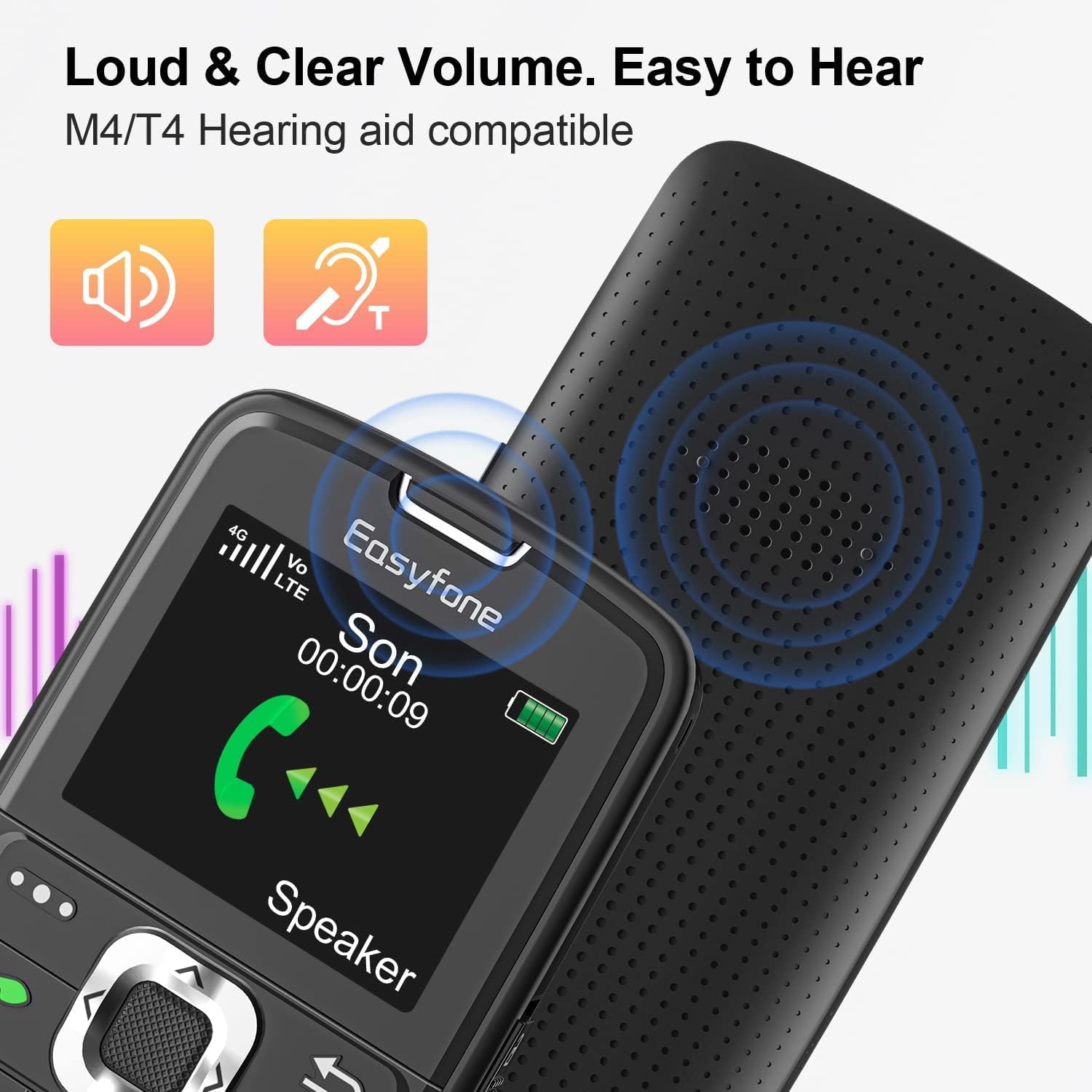
Image: The Easyfone A6 4G display showing an active call, emphasizing its loud and clear volume and hearing aid compatibility.
6.4 Flashlight
A built-in flashlight is available for convenience. Press and hold the "0" key to activate or deactivate the flashlight.
6.5 Additional Features
The phone includes several other useful functions:
- FM Radio: Listen to local radio stations.
- Alarms: Set multiple alarms.
- MP3 Player: Play audio files (requires expandable memory).
- Notes: Create simple text notes.
- Calculator: Perform basic calculations.
- Calendar: View dates and add events.
- Bluetooth: Connect to compatible Bluetooth devices.
- Voice Recorder: Record voice memos.

Image: A collection of icons illustrating the additional features available on the Easyfone A6 4G, such as FM Radio, Alarm Clock, MP3 Player, and more.
7. Charging
The Easyfone A6 4G comes with a 1050mAh battery, offering extended standby time (96+ hours). You can charge the phone using the provided USB cable or the convenient charging dock.
7.1 Using the Charging Dock
Simply place the phone into the charging dock, ensuring it is properly seated and the charging indicator appears on the screen. The dock simplifies charging, eliminating the need to connect a cable directly to the phone.
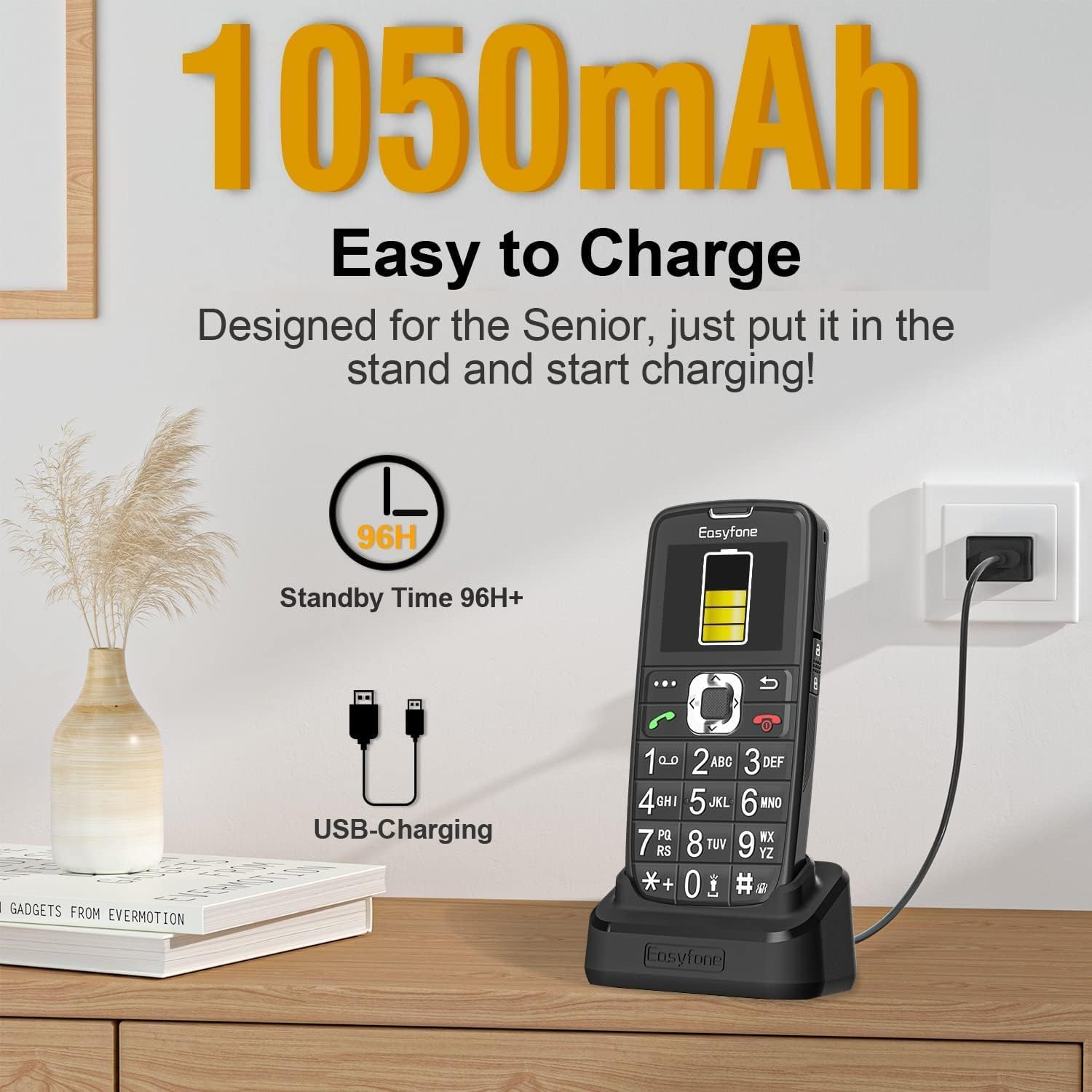
Image: The Easyfone A6 4G being charged in its dedicated dock, with an illustration of its 1050mAh battery and USB charging option.

Image: Two methods of charging the Easyfone A6 4G: directly via USB cable and conveniently using the charging dock.
8. Maintenance
- Keep the phone dry. Moisture can damage electronic circuits.
- Avoid extreme temperatures. High temperatures can shorten the life of electronic devices and damage batteries.
- Do not use harsh chemicals, cleaning solvents, or strong detergents to clean the phone.
- Handle the phone gently. Do not drop, knock, or shake it.
- Use only approved accessories.
9. Troubleshooting
| Problem | Possible Cause | Solution |
|---|---|---|
| Phone does not power on | Battery is depleted or not inserted correctly. | Charge the battery. Ensure the battery is correctly inserted. |
| Cannot make or receive calls | No network signal, SIM card issue, or incompatible carrier. | Check network coverage. Ensure SIM card is properly inserted and activated. Verify carrier compatibility (T-Mobile, SpeedTalk, Tello Mobile recommended). |
| Charging issues | Charger/cable fault, improper connection, or dirty charging contacts. | Ensure charger and cable are working. Clean charging contacts on phone and dock. Ensure phone is correctly seated in the dock. |
| Keypad is unresponsive | Keypad is locked. | Slide the unlock switch on the side of the phone to the unlocked position. |
| SOS button not working | No emergency contacts set up. | Ensure emergency contacts are configured in the SOS settings. |
10. Specifications
| Feature | Detail |
|---|---|
| Brand | Easyfone |
| Model Name | A6 4G |
| Operating System | Easyfone OS |
| Memory Storage Capacity | 16 GB (expandable) |
| Wireless Carrier Compatibility | T-Mobile, SpeedTalk, Tello Mobile |
| Cellular Technology | 4G LTE |
| Color | Black |
| SIM Card Slot Count | Single SIM |
| Connector Type | USB Type C |
| Form Factor | Bar |
| Water Resistance Level | Not Water Resistant |
| Battery Capacity | 1050 mAh |
| Display Type | LCD |
| Additional Features | SOS Button, Speed Dial, FM Radio, Flashlight, Bluetooth, Blacklist Function, Rugged Body, Wireless Charging (via dock) |
11. Warranty and Support
11.1 Warranty Information
The Easyfone A6 4G comes with a 1-year manufacturer's warranty from the date of purchase. This warranty covers defects in materials and workmanship under normal use. It does not cover damage caused by misuse, accidents, unauthorized modifications, or external causes.
11.2 Customer Support
For technical assistance, troubleshooting, or warranty claims, please contact Easyfone customer support. Refer to the contact information provided in your product packaging or visit the official Easyfone website.
12. Product Videos
12.1 Easyfone Prime-A6 4G Basic Senior Cell Phone Overview
Video: An official overview of the Easyfone Prime-A6 4G Basic Senior Cell Phone, demonstrating its features and ease of use.


