
Introduction
This manual provides instructions for the setup, operation, maintenance, and troubleshooting of your wegear Full HD 1080p Webcam (Model C100). Please read this manual thoroughly before using the product to ensure proper functionality and longevity.

Image: The wegear Full HD 1080p Webcam C100, a compact device designed for video communication.
What's in the Box
Upon opening the package, verify that all items are present:
- wegear C100 Webcam
- User Manual

Image: The wegear C100 webcam featuring its integrated USB-A cable for stable connection.
Setup
- Placement: Position the webcam on top of your laptop screen, desktop monitor, or mount it on a tripod using the universal clip. The clip is designed for flexible multi-angle adjustment.
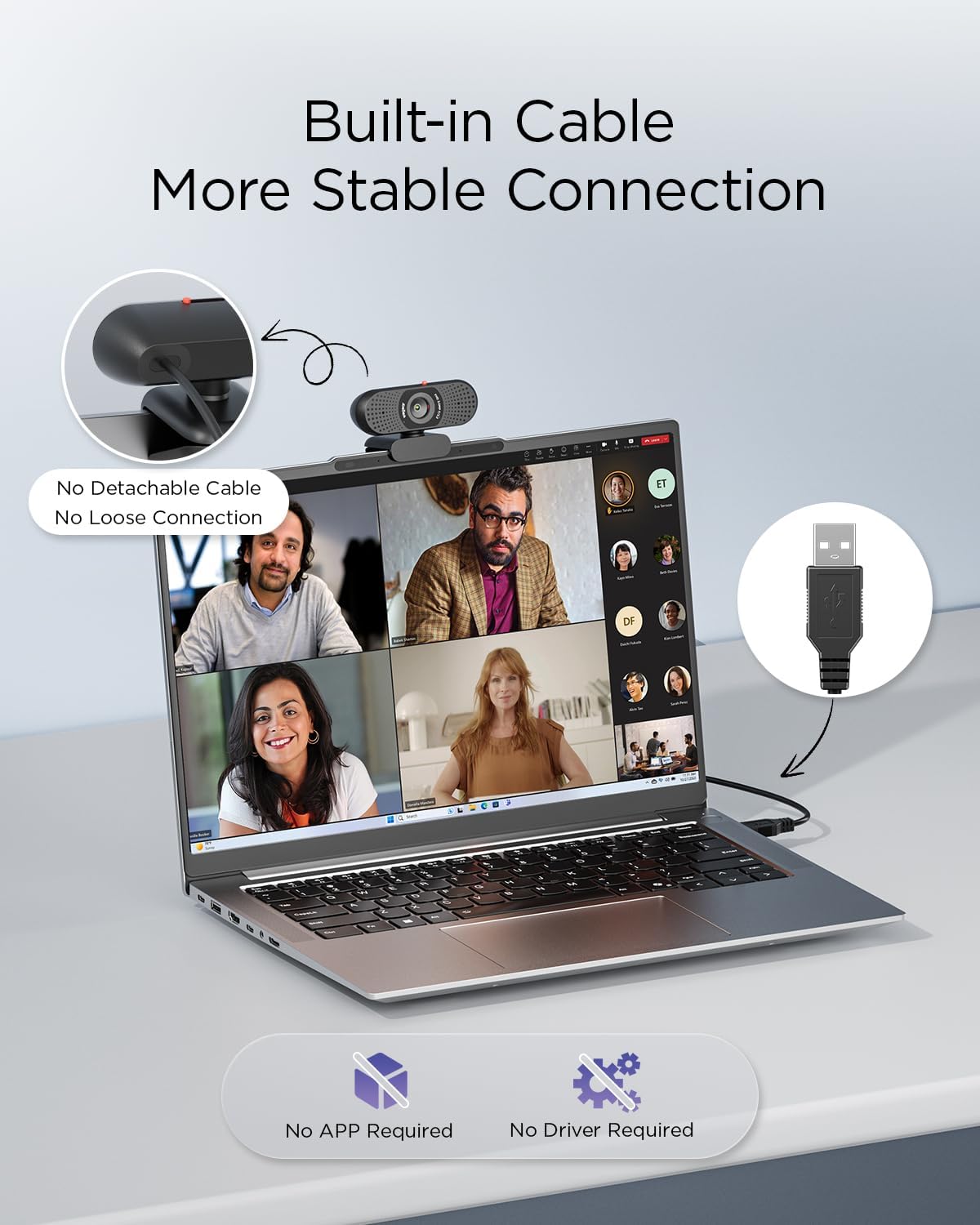
Image: The webcam securely clipped onto the top edge of a computer monitor.
- Connect to Computer: Plug the integrated USB-A cable into an available USB-A port on your computer. The webcam is plug-and-play, requiring no additional driver installation.

Image: The webcam's USB-A cable plugged into a laptop, indicating a direct connection.
- Verify Connection: Once connected, your operating system (Windows 10/11, macOS 10.14+, ChromeOS) should automatically recognize the device. You can verify this in your system's device manager or camera settings.
- Initial Use Video Guide:
Video: A guide demonstrating the initial setup and connection of the webcam.
Operating Instructions
1. Using the Privacy Cover
The webcam features a built-in sliding privacy cover to protect your privacy when the camera is not in use. Simply slide the cover to open or close the lens.

Image: Illustration showing the webcam with its privacy cover in both open and closed positions.
2. Video Quality and Features
- Full HD 1080p Video: The webcam delivers 1920 x 1080 video at 30 frames per second (FPS) for clear and smooth visuals.

Image: A visual comparison demonstrating the clarity of 1080p video output versus 720p.
- Auto Light Balance: Equipped with a 2.0MP CMOS sensor and Smart IQ algorithm, the webcam automatically adjusts white balance and exposure. This ensures natural, well-balanced colors and clear video in various lighting conditions.

Image: A split image showing how the webcam's auto light balance feature corrects exposure in both overlit and dark environments.
- Built-in Dual Microphones: The webcam includes two integrated microphones designed to capture your voice clearly, facilitating smooth and natural communication during calls.

Image: A close-up of the webcam emphasizing the location of its dual built-in microphones.
3. Software Compatibility
The wegear C100 webcam is compatible with various video conferencing and streaming platforms, including:
- Zoom
- Microsoft Teams
- FaceTime
- Google Meet
- YouTube
- Discord
- Slack
- Amazon Chime
- Webex

Image: The webcam displayed with various software logos, illustrating its wide compatibility.
Maintenance
- Cleaning: Use a soft, dry cloth to clean the webcam lens and body. Avoid abrasive cleaners or solvents.
- Storage: When not in use, store the webcam in a cool, dry place. Utilize the built-in privacy cover to protect the lens from dust and scratches.
- Cable Care: Do not bend or crimp the USB cable excessively to prevent internal damage.
Troubleshooting
- Problem: Webcam is not detected by the computer.
- Ensure the USB-A cable is securely plugged into a functioning USB port on your computer.
- Try plugging the webcam into a different USB port.
- Restart your computer.
- Check your operating system's device manager or camera settings to see if the webcam is listed.
- Problem: Video quality is poor or blurry.
- Ensure the webcam lens is clean and free from dust or smudges.
- Verify that the lighting in your environment is adequate. The webcam has auto light balance, but extreme conditions can affect quality.
- Confirm that your video conferencing software is set to use the wegear C100 webcam and is configured for 1080p resolution, if available in the software settings.
- Problem: Microphone is not picking up audio.
- Check your computer's sound settings to ensure the wegear C100 webcam's microphone is selected as the input device.
- Verify that the microphone is not muted in your operating system or video conferencing application.
- Ensure there are no physical obstructions blocking the microphone openings on the webcam.
- Problem: Privacy cover is stuck or difficult to slide.
- Gently clean the area around the sliding mechanism to remove any dust or debris.
- Avoid forcing the cover. If it remains stuck, contact customer support.
Specifications
| Feature | Detail |
|---|---|
| Brand | wegear |
| Model Number | C100 |
| Video Capture Resolution | 1080p (Full HD) |
| Effective Video Resolution | 1920 Pixels |
| Video Frame Rate | 30 FPS |
| Photo Sensor Technology | CMOS |
| Photo Sensor Size | 1/3-inch |
| Maximum Aperture | 2.2 f |
| Focus Type | Fixed Focus |
| Viewing Angle | 85 Degrees |
| Connectivity Technology | USB-A |
| Built-in Microphones | Dual Microphones |
| Features | Low Light, Built-in Privacy Cover |
| Compatible Devices | Laptop, Personal Computer |
| Operating System Compatibility | Windows 10/11, macOS 10.14+, ChromeOS |
| Item Dimensions (D x W x H) | 2.2"D x 3.4"W x 2"H |
| Item Weight | 0.22 Pounds |
Warranty and Support
Warranty Information
The wegear C100 Webcam comes with a 1 Year Manufacturer Warranty. Please retain your proof of purchase for warranty claims.
Customer Support
For technical assistance, troubleshooting beyond this manual, or warranty inquiries, please contact wegear customer support through their official website or the retailer where the product was purchased.
