
1. Introduction
This manual provides instructions for the ESSGOO 7-inch Car Stereo, a multimedia system designed to enhance your driving experience with advanced features. It includes wireless CarPlay, Android Auto, GPS navigation, Bluetooth connectivity, and CANBUS integration for steering wheel controls.
Vehicle Compatibility
This unit is designed for specific Dacia and Renault models. Please verify compatibility before installation:
- Dacia: Duster (2011-2017), Sandero, Logan, Dokker, Lodgy (2012-2017)
- Renault: Captur, Symbol (2013-2017)
Before purchase, compare your vehicle's dashboard shape, dimensions, and connectors with the product specifications. Compatibility may vary based on vehicle version and original equipment.

Image: Comparison of a car dashboard before and after installing the ESSGOO 7-inch car stereo, highlighting the improved aesthetic and functionality. The image also shows compatibility notes for Dacia and Renault models.
2. Setup and Installation
Package Contents
Verify that all components are present in the box:
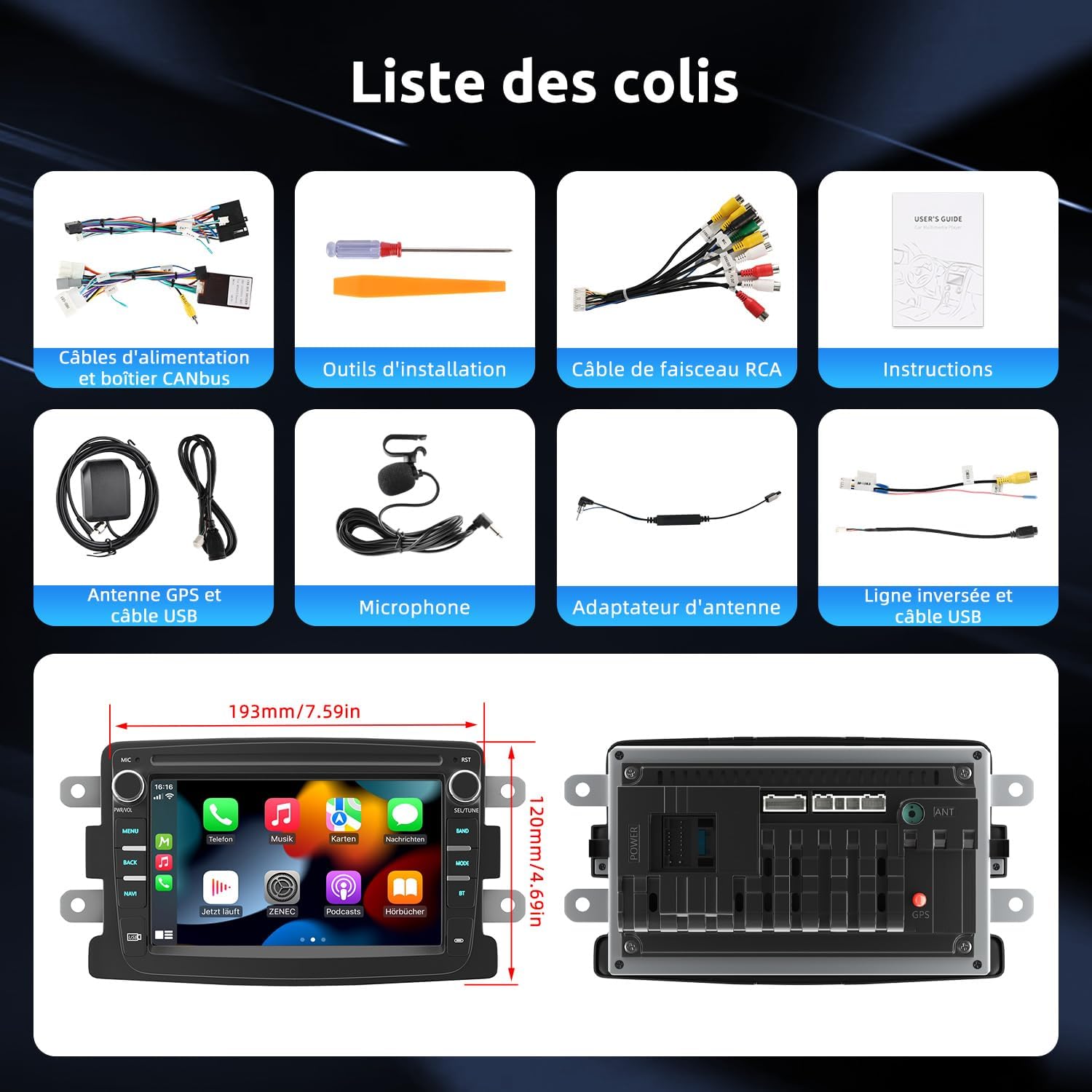
Image: A visual representation of all items included in the ESSGOO 7-inch car stereo package, such as power cables, CANBus box, installation tools, RCA cable, instructions, GPS antenna, USB cable, microphone, antenna adapter, reverse line, and an additional USB cable.
- 1 x Car Stereo Unit
- Power Cables and CANBus Box
- Installation Tools
- RCA Harness Cable
- GPS Antenna and USB Cable
- Microphone
- Antenna Adapter
- Reverse Line and USB Cable
- User Manual (this document)
Wiring and Connection
The included wiring harness and CANBUS box are designed for compatible vehicles to retain steering wheel controls. Connect the cables according to the wiring diagram provided in the physical instruction manual. Ensure all connections are secure.
Professional Installation
Due to the complexity of vehicle electronics, professional installation is recommended if you are unsure about any steps. Incorrect installation can damage the unit or your vehicle's electrical system.
3. Operating Instructions
Power On/Off
The unit will power on automatically when the vehicle's ignition is turned on. To manually power off, press and hold the power button (PWR/VOL) on the front panel.
Wireless CarPlay and Android Auto
Connect your compatible smartphone wirelessly to access navigation, music, calls, and voice commands directly from the car stereo. Some functions may require a compatible application, Wi-Fi connection, or mobile data, and may vary depending on your phone and system.
- Ensure Bluetooth and Wi-Fi are enabled on your smartphone.
- On the car stereo, navigate to the CarPlay or Android Auto application.
- Follow the on-screen prompts to pair your device.
- Once connected, your phone's compatible apps will appear on the stereo display.
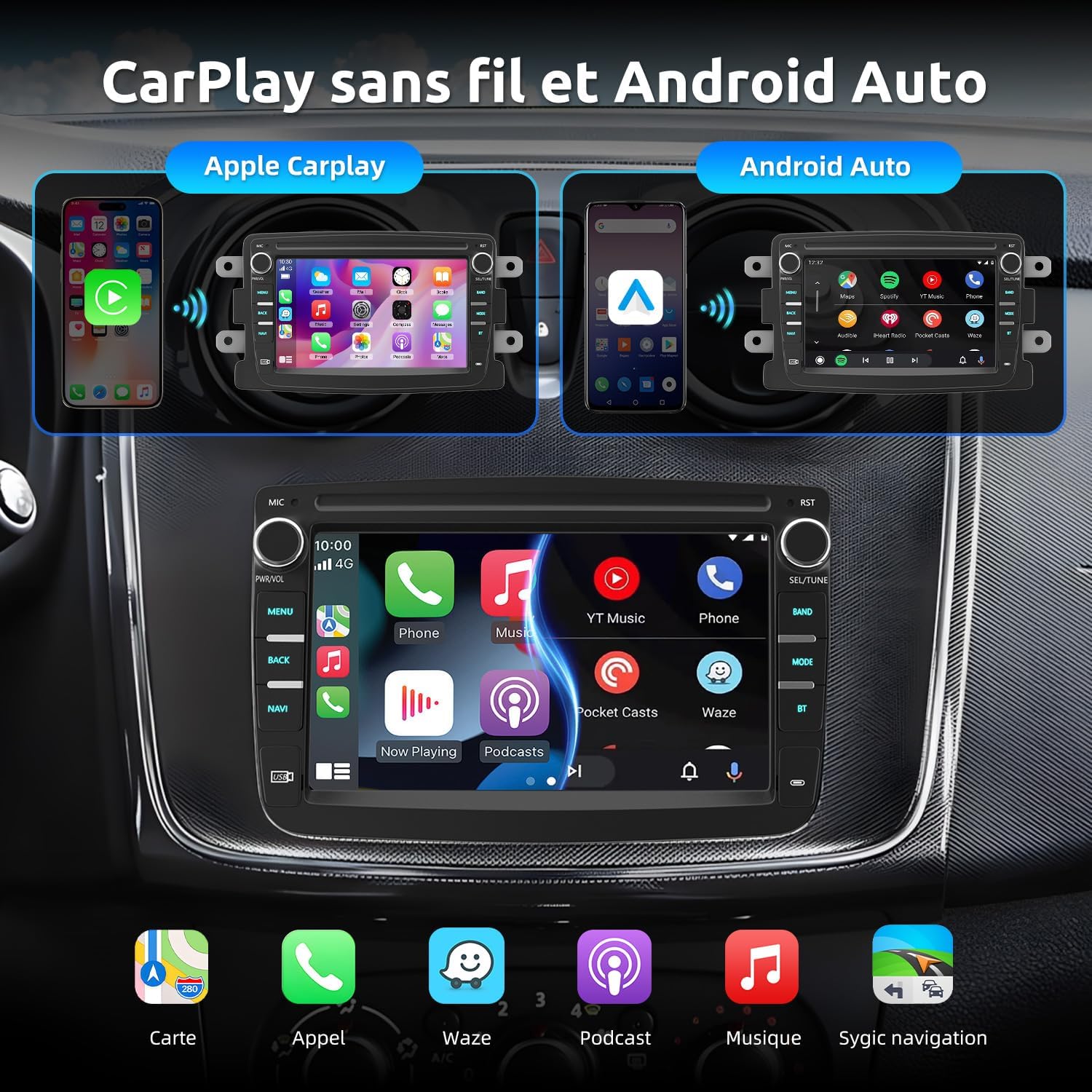
Image: The ESSGOO car stereo screen displaying both Apple CarPlay and Android Auto interfaces, illustrating how smartphones connect wirelessly to access various applications like maps, music, and calls.
GPS Navigation
The built-in Wi-Fi allows for online navigation applications or downloading compatible maps for offline use. Access navigation through the dedicated 'NAVI' button or the navigation app icon on the home screen.
Bluetooth 4.1
Bluetooth supports hands-free calling and audio streaming. Pair your phone via Bluetooth settings on the stereo to make and receive calls, and play music wirelessly.
- Go to the Bluetooth settings on the car stereo.
- Enable Bluetooth on your smartphone and search for available devices.
- Select the ESSGOO unit from the list and confirm pairing.
FM/RDS Radio
The FM/RDS radio allows you to search and store up to 30 stations. Use the 'BAND' button to switch between FM bands and the tuning controls to find stations.
Steering Wheel Controls (CANBUS)
The included CANBUS system allows you to retain your vehicle's original steering wheel controls for functions like volume adjustment, track skipping, and answering calls. Configuration may be required in the system settings.

Image: A view of a car's interior, focusing on the ESSGOO car stereo and the steering wheel. Arrows point from the steering wheel buttons to the stereo, illustrating the functionality of integrated steering wheel controls for various audio and call functions.
Voice Control
Utilize voice assistants like Siri or Google Assistant through CarPlay or Android Auto for hands-free operation, including making calls, sending messages, and controlling music.

Image: Two smartphones are shown, one with Siri activated and the other with Google Assistant, demonstrating how voice commands can be used to control the car stereo for tasks like making calls and navigating.
Backup Camera Support
The car stereo supports AHD and CVBS backup cameras, displaying the image automatically when shifting into reverse. Note that a backup camera is not included with the unit.

Image: The car stereo screen displays a real-time view from a backup camera, complete with colored parking guidelines, assisting a car in reversing safely in a parking lot. Icons indicate features like wide angle, HD, water resistance, and night vision.
Audio Adjustment
The unit features a Digital Sound Processor (DSP) for sound quality adjustments. Access the equalizer settings to customize audio output (Rock, Pop, Jazz, Classic, etc.).

Image: The car stereo's screen displays an advanced equalizer interface, offering various sound adjustment options and presets such as Rock, Pop, Jazz, and Classic, to fine-tune the audio output.
4. Maintenance
To ensure the longevity and optimal performance of your ESSGOO car stereo, follow these maintenance guidelines:
- Screen Cleaning: Use a soft, lint-free cloth to gently wipe the touchscreen. For stubborn smudges, slightly dampen the cloth with water or a screen-safe cleaner. Avoid abrasive materials or harsh chemicals.
- Software Updates: Periodically check for software updates through the system settings or the manufacturer's website to ensure you have the latest features and bug fixes.
- Environmental Conditions: Avoid exposing the unit to extreme temperatures, direct sunlight for prolonged periods, or excessive moisture.
- Cable Connections: Ensure all cables are securely connected. Loose connections can lead to intermittent functionality.
5. Troubleshooting
If you encounter issues with your ESSGOO car stereo, refer to the following common problems and solutions:
| Problem | Possible Cause / Solution |
|---|---|
| Unit does not power on. |
|
| No sound. |
|
| CarPlay/Android Auto not connecting. |
|
| Navigation app not launching or showing errors. |
|
| Slow performance or unresponsiveness. |
|
| Steering wheel controls not working. |
|
| Poor screen readability in bright sunlight. |
|
| Accessing Manufacturer Menus |
To access advanced manufacturer settings, you may need to enter a specific code. The common code is 00000. Use caution when modifying these settings. |
6. Specifications
Key technical specifications of the ESSGOO 7-inch Car Stereo:

Image: An infographic highlighting the main technical specifications of the ESSGOO car stereo, including its 4-core processor, 7-inch display, Android 15 operating system, 2GB RAM, 64GB storage, Bluetooth 4.1, 1024x600 screen resolution, and FM radio capabilities.
- Screen Size: 7 inches
- Display Resolution: 1024 x 600 pixels
- Operating System: Android 15
- Processor: 4-core
- RAM: 2 GB
- Internal Storage: 64 GB
- Connectivity: Bluetooth 4.1, Wi-Fi, USB
- Controller Type: Touchscreen, Voice Control, Steering Wheel Controls
- Special Features: GPS Navigation, Wireless CarPlay, Android Auto, Hands-Free Calling, Backup Camera Support, FM/RDS Radio
- Supported Internet Services: Google Maps, Waze, Spotify, WhatsApp, YouTube Music, YouTube, TikTok
- Audio Output Mode: Stereo
7. Warranty and Support
For warranty information, please refer to the documentation provided at the time of purchase or contact the seller directly. If you require technical assistance or have questions not covered in this manual, please reach out to ESSGOO customer support through the official channels provided by your retailer or on the ESSGOO website.