
1. Product Overview
The Kensington VeriMark Desktop 2.0 USB Fingerprint Reader (Model K64741WW) provides secure, password-free authentication for Windows PCs. This device is designed for enhanced security and convenience, supporting Windows Hello with Enhanced Sign-in Security (ESS) and FIDO U2F/FIDO2 standards. It offers a reliable wired connection with both USB-C and USB-A compatibility, making it suitable for various desktop environments.

Figure 1: Kensington VeriMark Desktop 2.0 Fingerprint Key. This image shows the compact design of the fingerprint reader with its attached USB cable, highlighting its desktop security purpose.
2. Key Features
- Advanced Security Certification: Certified to Microsoft’s highest fingerprint security standards (ESS & SDCP) for robust, hardware-isolated authentication. Supports next-generation Windows features, including Copilot Recall and Windows Hello with ESS.
- Windows Hello Integration: Enables fast, password-free fingerprint login to Windows and Microsoft 365 accounts.
- On-Device Biometric Storage: Securely stores biometric data within the device, supporting privacy regulations such as GDPR, BIPA, and CCPA through on-device biometric processing. TAA compliant.
- Universal Connectivity: Features a reliable wired USB connection with both USB-C and USB-A compatibility for desktop PCs.
- 360° Fingerprint Recognition: Provides consistent and reliable fingerprint recognition from any angle.

Figure 2: Device built for next-gen Windows security. This image illustrates the fingerprint reader's compatibility with Windows Hello and its readiness for advanced Windows features like Copilot Recall.

Figure 3: Certified enterprise security features. This image highlights the device's compliance with Secure Device Connection Protocol (SDCP) and Windows Hello Enhanced Sign-in Security (ESS), shown alongside a keyboard and mouse.

Figure 4: Match-in-Sensor Technology. This image details the on-device biometric data security and the 360° fingerprint sensor, including False Rejection Rate (FRR) and False Acceptance Rate (FAR) metrics.
3. Setup Instructions
Follow these steps to set up your Kensington VeriMark Desktop 2.0 USB Fingerprint Reader:
- Connect the Device: Plug the USB cable of the VeriMark Desktop 2.0 into an available USB port on your computer. The device supports both USB-A and USB-C connections using the provided adapter. Ensure the connection is secure.
- Driver Installation: Your Windows operating system (Windows 10 or 11) should automatically detect the device and install the necessary drivers. No additional software installation is typically required.
- Configure Windows Hello:
- Go to Settings > Accounts > Sign-in options.
- Under "Ways to sign in," locate Fingerprint recognition (Windows Hello).
- Click Set up and follow the on-screen prompts to register your fingerprints. You will be asked to scan your finger multiple times from different angles to ensure accurate recognition.
- It is recommended to register multiple fingers for convenience and redundancy.
- Placement: Position the fingerprint reader on your desk in a convenient location that allows for easy and consistent access. The rubberized underside helps keep it stationary.

Figure 5: Desktop-ready wired design. This image shows the 3.9 ft (1.2 m) cable and the included USB-A to USB-C adapter, illustrating the flexible connectivity options.
4. Operating Instructions
Once configured, the VeriMark Desktop 2.0 provides seamless authentication:
- Windows Login: At the Windows login screen, simply place your registered finger on the fingerprint reader. The device will authenticate your identity, and you will be logged into your account.
- Microsoft 365 and Other Services: For services that support Windows Hello or FIDO U2F/FIDO2, you can use your fingerprint for authentication instead of typing passwords. Follow the prompts provided by the specific application or service.
- Password Managers: Many modern password managers integrate with Windows Hello. When prompted for your master password, you may have the option to use your fingerprint for quick access.
- Optimal Use: For best results, ensure your finger is clean and dry. Place your entire fingerprint pad firmly on the sensor. The 360° recognition allows for flexibility in finger placement, but a consistent approach improves reliability.
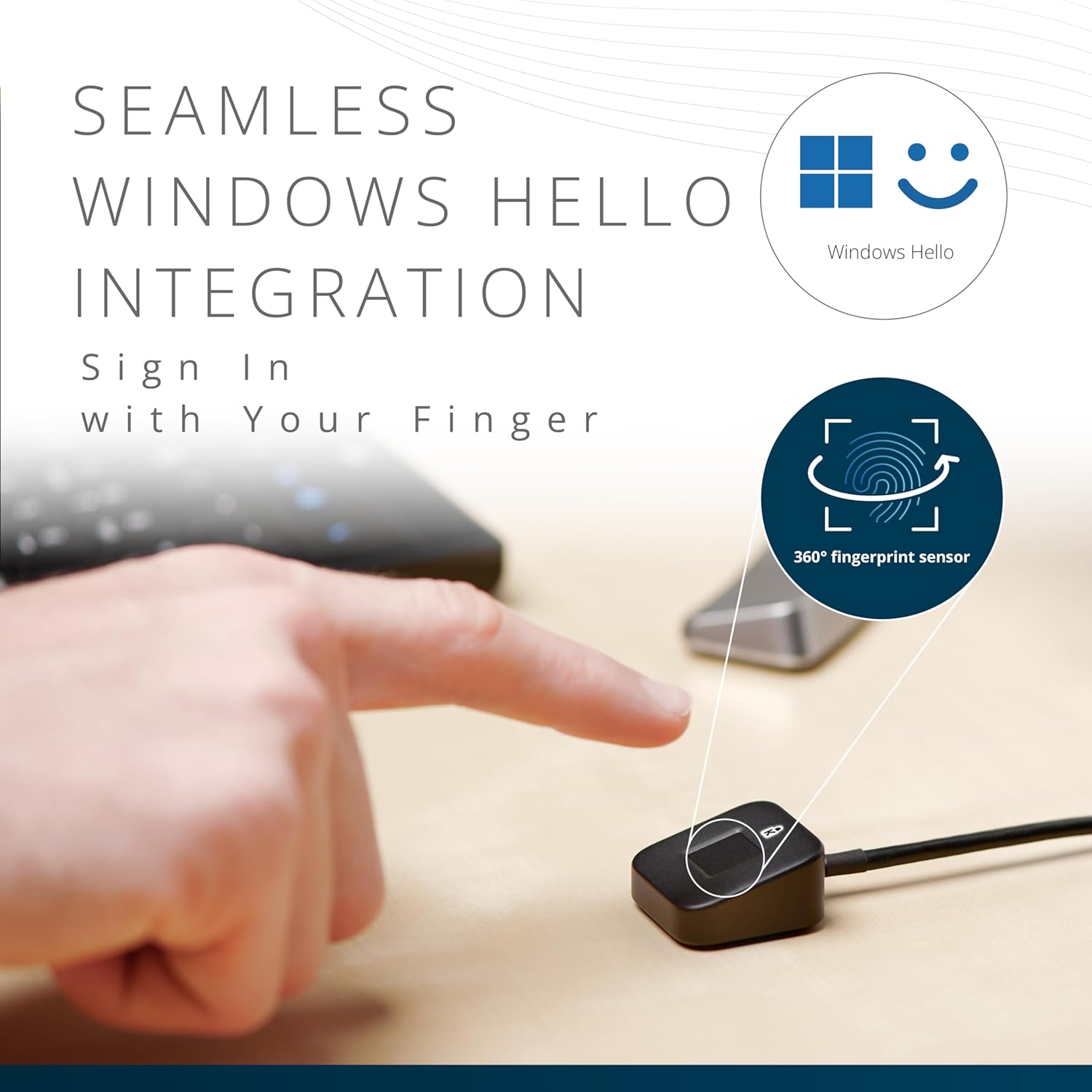
Figure 6: Seamless Windows Hello integration. This image shows a finger being placed on the sensor, demonstrating the ease of signing in with a fingerprint and highlighting the 360° fingerprint sensor capability.
5. Maintenance
To ensure optimal performance and longevity of your fingerprint reader:
- Cleaning: Gently wipe the sensor surface with a soft, dry, lint-free cloth. Avoid using abrasive cleaners, solvents, or excessive moisture, as these can damage the sensor.
- Handling: Avoid dropping the device or subjecting it to strong impacts. Do not attempt to disassemble the unit.
- Environment: Keep the device away from extreme temperatures, direct sunlight, and high humidity.
6. Troubleshooting
| Problem | Possible Solution |
|---|---|
| Fingerprint not recognized. |
|
| Device not detected by Windows. |
|
| Windows Hello setup fails. |
|
7. Technical Specifications
| Feature | Detail |
|---|---|
| Model Number | K64741WW |
| Brand | Kensington |
| Connectivity | Wired USB (USB-A and USB-C compatible) |
| Dimensions (L x W x H) | 1.5 x 2.9 x 2.9 cm |
| Weight | 60 g |
| Security Standards | Microsoft ESS & SDCP, FIDO U2F, FIDO2, TAA Compliant |
| Operating System Compatibility | Windows 10, Windows 11 |
8. Warranty and Support
For warranty information and technical support, please refer to the official Kensington website or contact their customer service. Specific warranty terms may vary by region and retailer.
Online Support: www.kensington.com/support/


