
1. Introduction
This manual provides detailed instructions for the assembly, operation, and maintenance of your Bestier 55 Inch Desk. Please read all instructions carefully before beginning assembly and retain this manual for future reference. Ensure all components are present and undamaged before proceeding.
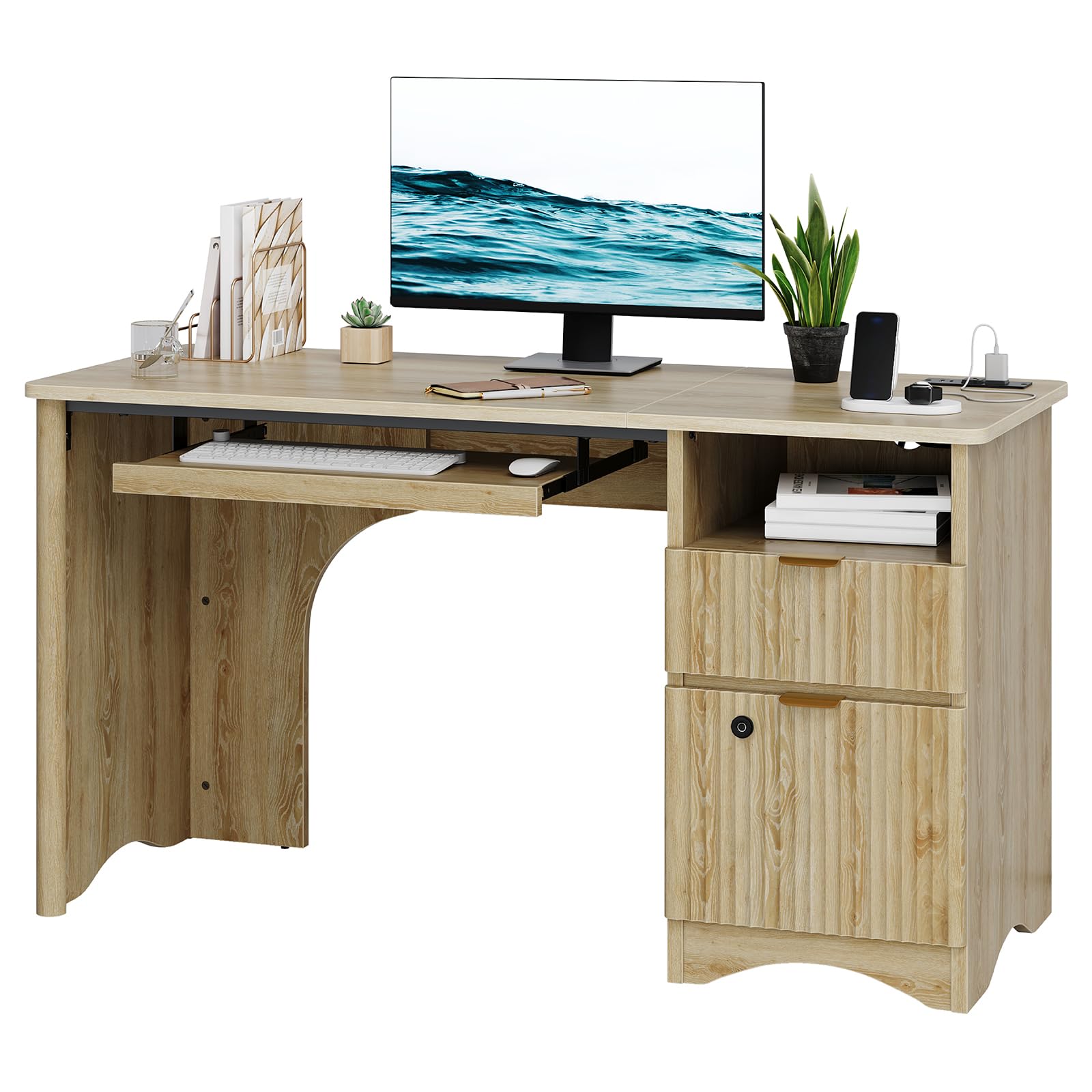
Image 1.1: The Bestier 55 Inch Desk, featuring a natural oak finish, integrated charging station, pull-out keyboard tray, and a fingerprint-lockable drawer.
2. Safety Information
- Always assemble the desk on a soft, clean surface to prevent scratches.
- Ensure all screws and fasteners are securely tightened before use. Periodically check and re-tighten as necessary.
- Do not overload the desk or drawers. Refer to the specifications for weight limits.
- Keep small parts and packaging materials away from children and pets.
- Use caution when handling electrical components. Do not expose the power strip to liquids.
- Two people are recommended for assembly to ensure safety and ease of installation.
3. Package Contents
Verify that all the following components are included in your package:
- 1 × Assembly Hardware Pack and Instruction Manual
- 1 × Fingerprint Lock (with fingerprint unlocking, emergency power supply, and error alarm functions)
- 1 × Hardware Set
- 1 × Open Storage Compartment
- 1 × Small Drawer
- 1 × File Drawer
- 1 × Sliding Keyboard Tray
- 1 × Built-in Power Strip

Image 3.1: Detailed product dimensions and individual component weight capacities for the Bestier 55 Inch Desk.
4. Assembly Instructions
Follow the step-by-step instructions provided in the included manual and refer to the assembly videos for visual guidance. It is recommended to have two people for assembly.
4.1. General Assembly Steps
- Unpack all components and verify against the package contents list.
- Identify each part using the labels.
- Assemble the main desk frame according to the diagrams.
- Install the keyboard tray slides and the keyboard tray.
- Assemble the drawers and install their slides.
- Install the fingerprint lock on the designated drawer.
- Integrate the power strip into the desk.
- Ensure all connections are secure and the desk is stable.
4.2. Assembly Videos
Video 4.2.1: How to Assemble Fluted Wood Desk
This video provides a comprehensive guide on assembling the Bestier Fluted Wood Desk, demonstrating each step for a smooth installation process. It highlights that assembly typically takes two people about one hour.
Video 4.2.2: Bestier 55 inch Modern Computer Desk Installation Video
An additional installation video for the Bestier 55-inch Modern Computer Desk, offering visual instructions for assembling the desk components.
5. Operating Instructions
5.1. Fingerprint Lock (C801 Model)
The desk features a built-in fingerprint drawer lock for secure storage.
- Setup: Follow the specific instructions included with the fingerprint lock for initial setup and registering fingerprints. The lock supports up to 10 fingerprints.
- Unlocking: Place a registered finger on the sensor for quick, one-touch access.
- Emergency Power: If the lock battery dies, plug a Type-C charger into the emergency power port to temporarily power the lock and unlock the drawer. No charging is needed for this emergency function.
- Security: The lock includes a wrong-entry alert to deter unauthorized access. No apps or Bluetooth are required for operation.

Image 5.1.1: A close-up view of the fingerprint lock on the desk drawer, highlighting its premium metal build, 10-fingerprint storage capacity, and lightning-fast unlock feature. The image also shows the Type-C emergency unlock port.
5.2. Built-in Power Strip
The integrated power strip provides convenient access to power for your devices.
- Connections: The power strip includes 2 AC outlets, 1 USB port, and 1 Type-C port.
- Usage: Plug in computers, phones, tablets, and other electronic devices directly to the desk for charging.
- Cable Management: Utilize the 60mm back cable holes and open storage cable management features to keep wires organized and maintain a clutter-free workspace.

Image 5.2.1: An aerial view of the Bestier 55 Inch Desk, showcasing the convenient charging station with USB and AC outlets, the spacious tabletop, and the pull-out keyboard tray.
5.3. Pull-Out Keyboard Tray
The keyboard tray is designed to optimize typing posture and save desktop space.
- Operation: Gently pull the tray outwards to extend it for use, and push it inwards to retract it when not needed.
- Ergonomics: Position your keyboard and mouse on the tray to maintain a comfortable and ergonomic typing position, reducing wrist fatigue.
Video 5.3.1: Review & Use | Computer desk with keyboard tray!
This video demonstrates the functionality and use of the pull-out keyboard tray, showing its smooth operation and how it can be used to optimize workspace.
5.4. Storage Drawers
The desk includes a small drawer and a customizable file drawer for organized storage.
- Smooth Operation: Both large and small drawers are equipped with heavy-duty black slide rails for smooth and quiet operation.
- File Drawer Customization: The bottom file drawer features an adjustable metal rod, allowing you to hang letter, legal, and A4 size file bags. Adjust the rod position to suit your document size needs.

Image 5.4.1: The customizable file drawer, illustrating its capacity to hold Letter, Legal, and A4 size documents with an adjustable metal rod.
Video 5.4.2: Bestier 55" Fluted Wood Desk | In-Use Demo, Storage Drawers
This video provides an in-use demonstration of the Bestier 55-inch Fluted Wood Desk, focusing on the functionality of its storage drawers and overall design.
6. Maintenance
To ensure the longevity and appearance of your Bestier desk, follow these maintenance guidelines:
- Cleaning: Wipe the desk surfaces with a damp cloth. Avoid harsh chemicals or abrasive cleaners that may damage the finish.
- Spills: Promptly clean up any spills to prevent staining or damage to the wood.
- Fingerprint Lock: Keep the fingerprint sensor clean and dry for optimal performance.
- Fasteners: Periodically check and re-tighten all screws and connections to maintain stability.
- Environment: Avoid placing the desk in direct sunlight or near heat sources to prevent warping or discoloration.
7. Troubleshooting
If you encounter any issues with your Bestier desk, refer to the following common troubleshooting tips:
7.1. Fingerprint Lock Issues
- Lock not responding: Ensure your finger is clean and dry. Try re-registering your fingerprint if the issue persists.
- Battery dead: Use a Type-C charger to provide emergency power to unlock the drawer. Replace the internal batteries as soon as possible.
- False alarms: Ensure the drawer is fully closed and nothing is obstructing the lock mechanism.
7.2. Power Strip Issues
- No power: Check if the desk's power cord is securely plugged into a working wall outlet. Ensure the power strip's switch (if any) is in the 'on' position.
- Device not charging: Verify that your device's charging cable is functional and properly connected to the USB/Type-C port or AC outlet.
7.3. Drawer Operation
- Drawers sticking: Check for any obstructions in the drawer slides. Ensure the slides are clean and free of debris.
- Drawers not closing properly: Verify that the drawer contents are not overflowing or blocking the closing mechanism.
8. Specifications
| Feature | Detail |
|---|---|
| Brand | Bestier |
| Model Number | H106413BUS-LOG |
| Product Dimensions (D x W x H) | 55"D x 30.12"W x 21.65"H |
| Color | Natual Oak |
| Material Type | Engineered Wood, Oak Wood |
| Item Weight | 89.5 pounds |
| Number of Drawers | 2 |
| Special Features | Fingerprint Lock, Built-in Power Strip (2 AC, 1 USB, 1 Type-C), Pull-Out Keyboard Tray, Customizable File Drawer, Cable Management |
| Product Care Instructions | Wipe with Damp Cloth |
9. Warranty and Support
Bestier provides professional after-sales service to assist you with any questions or concerns regarding your product. For detailed warranty information or support, please refer to the warranty card included with your purchase or contact Bestier customer service directly.
Contact information for support can typically be found on the manufacturer's website or within the product packaging.