
Introduction
This manual provides detailed instructions for the installation, operation, and maintenance of your FTes RFKits 2-Wire WiFi Video Door Intercom. Please read this manual thoroughly before using the product to ensure proper function and safety. Keep this manual for future reference.
The FTes RFKits 2-Wire WiFi Video Door Intercom system features a 7-inch monitor with a 1080P camera, two-way audio, IP65 waterproof rating for the outdoor unit, and multiple unlocking methods including the Tuya App, RFID card, and NFC. It is designed to enhance home security and communication with visitors.
Safety Information
- Ensure all power is disconnected before installation or maintenance.
- Installation should be performed by a qualified professional if you are unsure about electrical wiring.
- Do not expose the indoor monitor to water or high humidity.
- Use only the provided power adapter and accessories.
- Keep the outdoor unit's camera lens clean for optimal image quality.
- Avoid placing the outdoor unit in direct sunlight for prolonged periods to prevent overheating.
Product Overview
The FTes RFKits Video Door Intercom system consists of an outdoor unit (doorbell camera) and an indoor unit (monitor).
Key Features:
- 7-inch IPS HD Touch Screen Monitor: For clear viewing and easy interaction.
- 1080P HD Camera: Provides clear video feed from the outdoor unit.
- Two-Way Audio: Allows communication between the indoor monitor, outdoor unit, and the Tuya Smart App.
- Tuya Smart App Integration: Enables remote monitoring, calls, recording, and unlocking via smartphone.
- Multiple Unlocking Methods: Supports unlocking via the indoor monitor, Tuya App, RFID cards, and NFC.
- IP65 Waterproof Outdoor Unit: Designed for outdoor use in various weather conditions.
- Infrared LED Night Vision: Ensures clear visibility even in low-light conditions.
- Motion Detection: Automatically records video or takes snapshots when motion is detected.
- Automatic Recording: Records when the doorbell is pressed.
- Local Storage: Built-in 32GB TF card for storing video recordings and photos.
- 2-Wire Connection: Simplifies installation and provides a stable connection.
- Dual Door Lock Management: Capable of controlling two electronic door locks simultaneously.
Setup and Installation
1. Wiring Diagram
The system uses a 2-wire connection for communication and power between the outdoor unit and the indoor unit. A DC15V power adapter powers the indoor unit.
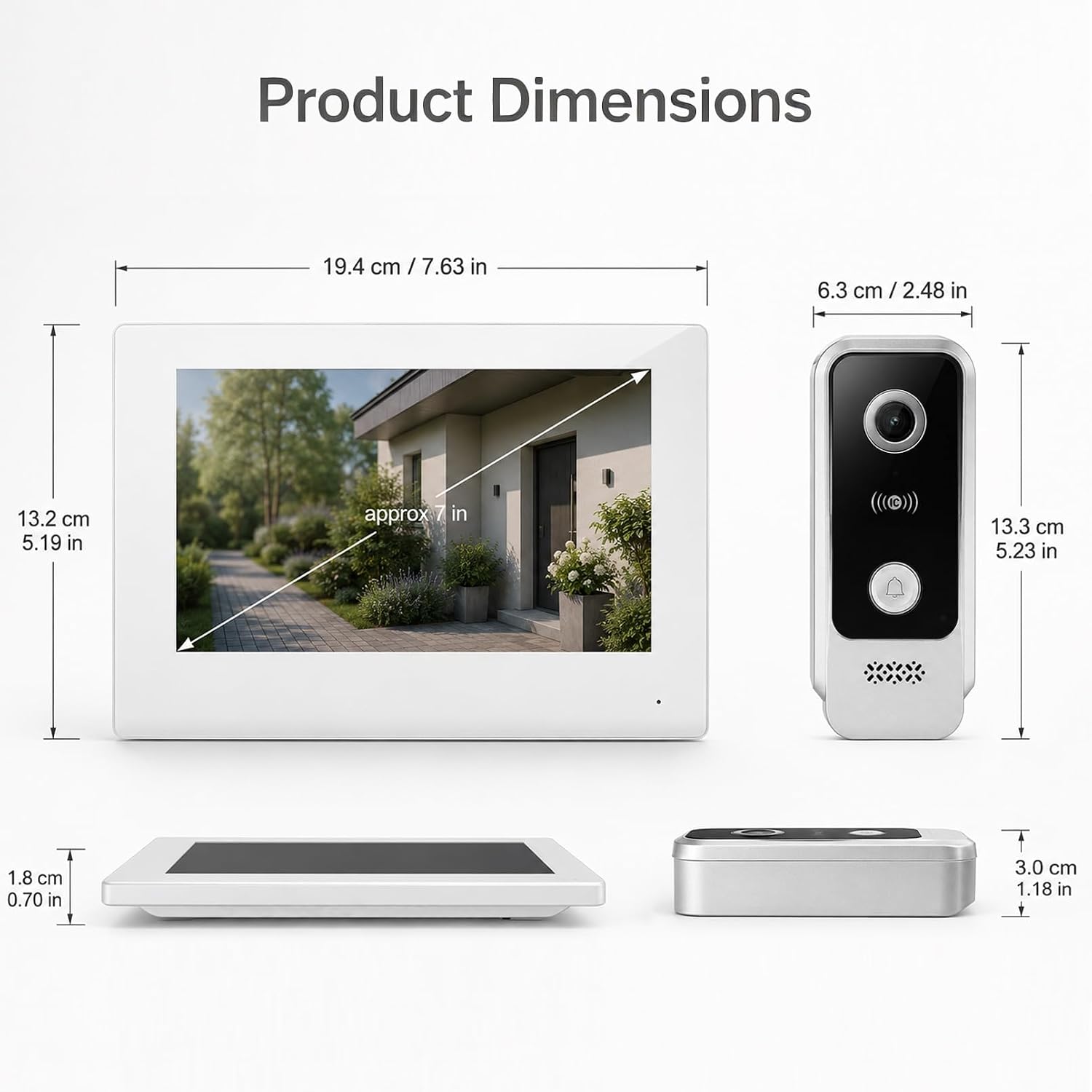
Image: Wiring diagram for the FTes RFKits Video Door Intercom. The outdoor unit connects to the indoor unit via two wires. The indoor unit is powered by a DC15V adapter.
- Connect the two wires from the outdoor unit to the corresponding terminals on the indoor unit. Ensure correct polarity if indicated (though the diagram suggests non-polarity for the 2-wire connection).
- Connect the DC15V power adapter to the indoor unit.
- For electronic door locks, connect them to the designated terminals on the indoor unit as per the lock's instructions. The system supports managing two door locks.
2. Mounting the Units
- Outdoor Unit: Mount the outdoor unit at a height of approximately 1.5 meters (5 feet) from the ground, ensuring the camera has a clear view of the visitor's face. Avoid direct sunlight or strong light sources that could cause glare.
- Indoor Unit: Mount the indoor monitor in a convenient location inside your home, away from direct heat sources or moisture.
3. Tuya Smart App Setup
- Download the "Tuya Smart" app from your smartphone's app store (iOS or Android).
- Register or log in to your Tuya Smart account.
- Follow the in-app instructions to add your video door intercom device. This typically involves putting the indoor unit into pairing mode and connecting it to your 2.4 GHz Wi-Fi network.
- Once connected, you can access the intercom functions remotely via the app.
Operating Instructions
1. Two-Way Intercom Communication
When a visitor presses the doorbell button on the outdoor unit, the indoor monitor will ring and display the visitor's image. You can also receive a notification on your Tuya Smart App.

Image: Two-way intercom in action. A visitor at the door can communicate with the resident through the indoor monitor or the Tuya app on a smartphone.
- From Indoor Monitor: Tap the "Answer" button on the 7-inch screen to initiate two-way audio communication.
- From Tuya Smart App: Open the notification or the app to view the live feed and speak with the visitor.
2. Multiple Unlocking Methods
The system offers several ways to unlock connected electronic doors.

Image: Multiple unlocking methods available for the door intercom system, including tapping the indoor monitor, using an RFID card, unlocking via the Tuya app, and NFC unlocking.
- Tap to Unlock (Indoor Monitor): During a call or live view, tap the unlock icon on the indoor monitor screen.
- RFID Card Unlock (Outdoor Unit): Present a pre-programmed RFID card to the sensor on the outdoor unit.
- NFC Unlock (Outdoor Unit): Use an NFC-enabled device (e.g., smartphone with NFC) near the outdoor unit's sensor.
- Tuya App Unlock: From the Tuya Smart App, tap the unlock icon during a call or live view.
3. Automatic Recording and Motion Detection
The system automatically records events to the built-in 32GB TF card.

Image: Automatic recording feature. When the doorbell is pressed, the system automatically records video or takes a photo.
- Bell Button Triggered Recording: When a visitor presses the doorbell, the system automatically records a video or takes a photo.
- Motion Detection Recording: The outdoor unit's camera can detect motion in its field of view. When motion is detected, the system will automatically record a video or take a snapshot. You will receive a notification on the Tuya Smart App.

Image: Motion detection in operation. The outdoor unit detects movement, triggers a mobile app notification, and the indoor unit records a snapshot.
4. Local Storage and Playback
All recordings are stored on the built-in 32GB TF card. You can review these recordings from the indoor monitor or via the Tuya Smart App.

Image: Local storage and playback interface on the indoor monitor and smartphone app, showing call records and video playback options.
- On Indoor Monitor: Navigate to the "Local Storage" or "Call Records" menu to view recorded videos and photos.
- On Tuya Smart App: Access the device's settings in the app to view cloud or local storage recordings.
Maintenance
- Cleaning: Use a soft, dry cloth to clean the indoor monitor screen and the outdoor unit's camera lens. Do not use abrasive cleaners or solvents.
- Firmware Updates: Periodically check the Tuya Smart App for available firmware updates for your device to ensure optimal performance and security.
- Cable Inspection: Regularly inspect the wiring for any signs of damage or wear.
- TF Card Management: The 32GB TF card will automatically overwrite older recordings when full. If you need to preserve specific recordings, back them up to another device.
Troubleshooting
| Problem | Possible Cause | Solution |
|---|---|---|
| No image on indoor monitor. | Power supply issue, loose wiring, outdoor unit malfunction. | Check power adapter connection. Verify 2-wire connection between units. Ensure outdoor unit is powered. |
| No audio during two-way communication. | Microphone/speaker issues, network connectivity problems (for app calls). | Check volume settings. Ensure stable Wi-Fi connection for app. Restart units. |
| Cannot unlock door remotely. | Incorrect wiring to electronic lock, lock malfunction, app connectivity issue. | Verify lock wiring. Test lock manually. Check Tuya App connection and permissions. |
| Poor image quality or night vision. | Dirty camera lens, insufficient lighting, camera malfunction. | Clean the outdoor unit's camera lens. Ensure there are no obstructions. |
| Tuya App cannot connect to the device. | Incorrect Wi-Fi password, 5GHz Wi-Fi network, device not in pairing mode, network interference. | Ensure you are using a 2.4 GHz Wi-Fi network. Re-enter Wi-Fi password. Follow app pairing instructions carefully. Move router closer if signal is weak. |
Specifications
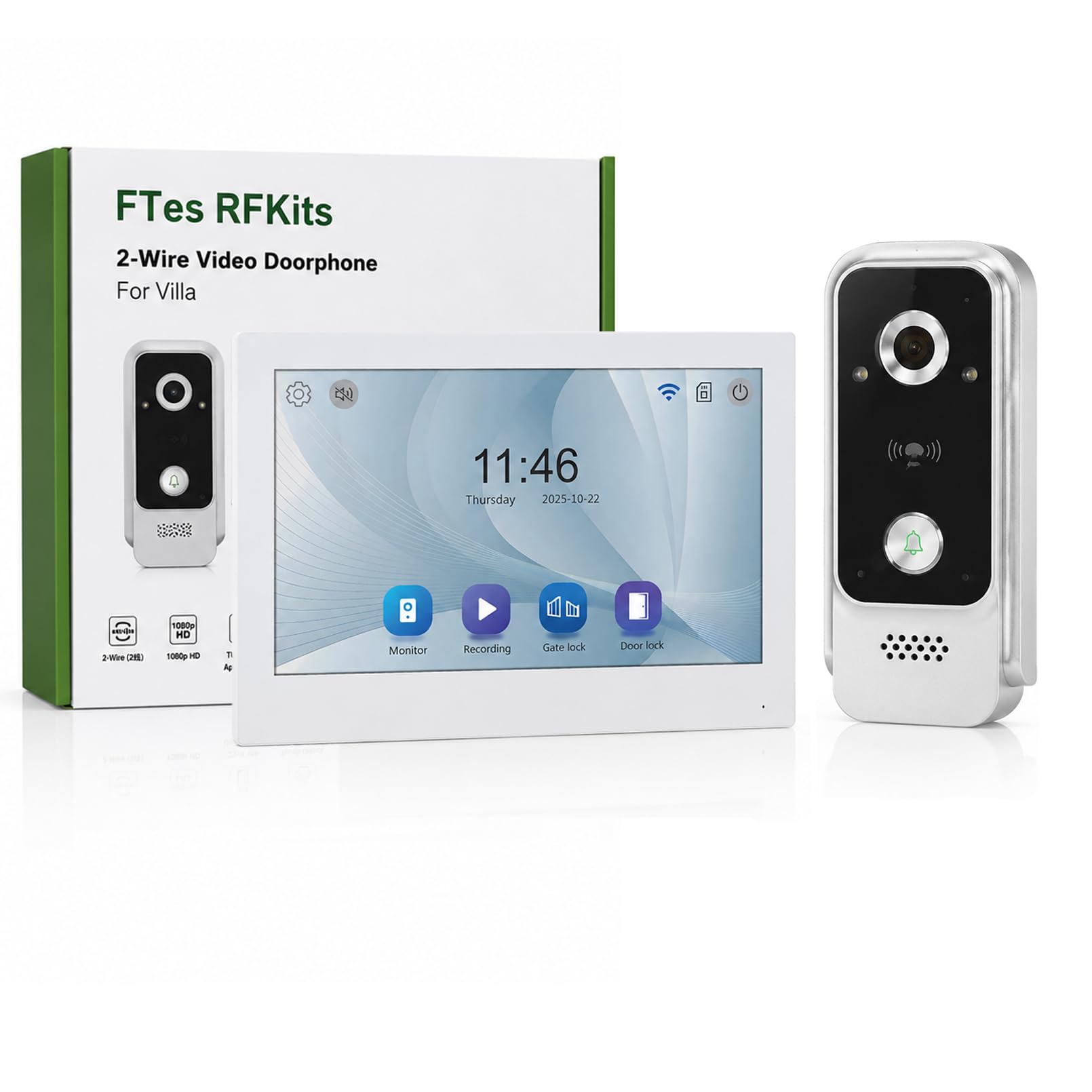
Image: Product dimensions for both the indoor monitor and outdoor unit.
| Feature | Detail |
|---|---|
| Model Number | V7024B2 |
| Brand | FTes RFKits |
| Screen Size | 7.0 inches |
| Camera Resolution | 1080P HD |
| Viewing Angle | 120° wide-angle |
| Night Vision | Infrared LED |
| Connectivity | 2-Wire (intercom), 2.4 GHz WiFi (App) |
| Unlocking Methods | Monitor, Tuya App, RFID Card, NFC |
| Storage | Built-in 32GB TF card |
| Outdoor Unit IP Rating | IP65 Waterproof |
| Power Supply | DC15V (via adapter) |
| Item Dimensions (Indoor Unit) | Approx. 19.4 x 13.2 x 1.8 cm (7.63 x 5.19 x 0.70 inches) |
| Item Dimensions (Outdoor Unit) | Approx. 6.3 x 13.3 x 3.0 cm (2.48 x 5.23 x 1.18 inches) |
| Batteries Required | No |
Warranty and Support
For warranty information and technical support, please refer to the documentation provided with your purchase or contact FTes RFKits customer service. Contact details can typically be found on the product packaging or the manufacturer's official website.
Please have your model number (V7024B2) and purchase date ready when contacting support.