
1. Introduction
Thank you for choosing the Bextgoo N1 4K Mini WiFi Indoor Surveillance Camera. This device is designed to provide high-quality video surveillance for indoor environments, offering advanced features such as 4K resolution, enhanced night vision, and flexible storage options. This manual provides essential information for the proper installation, operation, and maintenance of your camera. Please read it thoroughly before use and retain it for future reference.
2. Package Contents
Please verify that all items listed below are included in your package. If any items are missing or damaged, please contact customer support.
- 1 x Bextgoo N1 Mini Security Camera
- 1 x Camera Stand
- 1 x User Manual

Image: The Bextgoo N1 Mini Security Camera shown with its included stand, ready for placement.
3. Product Overview
The Bextgoo N1 camera is a compact and versatile surveillance device. Key features include:
- 4K Ultra HD Resolution: Captures clear and detailed video footage.
- 940nm Enhanced Night Vision: Provides clear images in complete darkness without visible light emission.
- Ultra-Low Power Consumption: Integrated 4000mAh battery offers up to 50 days of operation on a single charge.
- Flexible Storage: Supports 30-day cloud storage trial and up to 128GB local storage via Micro SD card.
- 150° Wide Viewing Angle: Covers a broad area with minimal blind spots.
- Multi-User Sharing: Allows multiple users to access real-time footage simultaneously.
- Connectivity: WiFi (2.4GHz) for remote access via smartphone.
- Installation: Can be placed on a table, mounted on a wall, or attached to a ceiling using screws or adhesive pads.
- IP66 Rating: Suitable for both indoor and outdoor use, offering protection against dust and water jets.
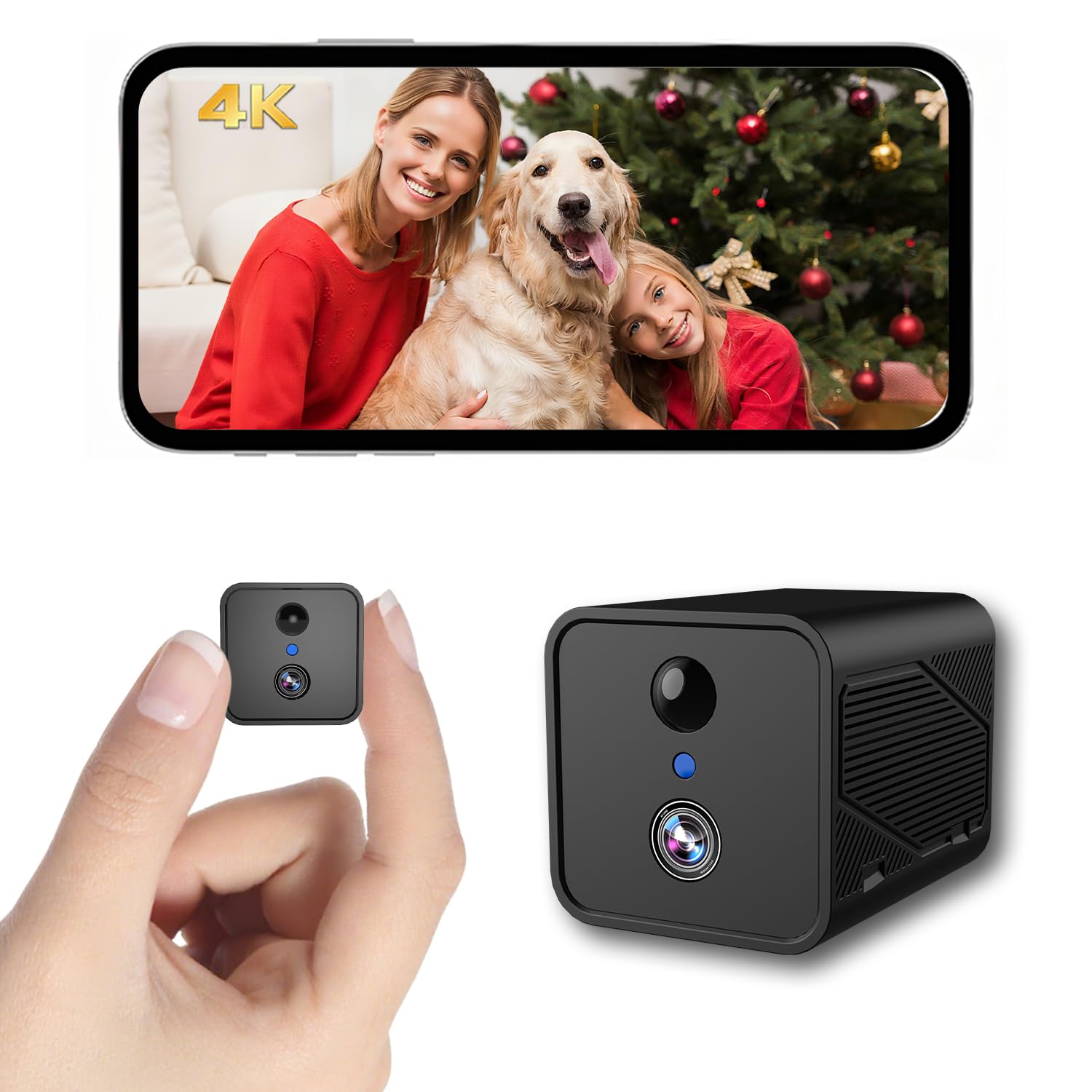
Image: The Bextgoo N1 camera highlighting its 4000mAh battery capacity and extended standby time.

Image: A smartphone screen showing a live 4K video feed from the Bextgoo N1 camera, demonstrating its high-resolution capability.
4. Setup
4.1 Initial Charging
Before first use, fully charge the camera using a standard 5V USB power adapter (not included) and the provided charging cable. The charging indicator light will show the charging status.
4.2 App Download and Account Registration
- Scan the QR code in the manual or search for the designated app (e.g., 'Bextgoo Home' or similar, refer to the included manual for exact app name) on your smartphone's app store (iOS/Android).
- Download and install the app.
- Open the app and follow the on-screen instructions to register a new account.
4.3 Camera Connection to Wi-Fi
- Ensure your smartphone is connected to a 2.4GHz Wi-Fi network. The camera does not support 5GHz Wi-Fi.
- Power on the camera.
- In the app, select 'Add Device' and choose your camera model.
- Follow the app's instructions to connect the camera to your Wi-Fi network. This typically involves scanning a QR code displayed on your phone with the camera lens or entering Wi-Fi credentials.
- Once connected, the camera's indicator light will change, and the app will confirm successful pairing.
4.4 Micro SD Card Installation (Optional)
To enable local storage, insert a Micro SD card (up to 128GB, Class 10 or higher recommended) into the designated slot on the camera. Ensure the camera is powered off before inserting or removing the card. Format the SD card via the app settings after installation.
4.5 Mounting the Camera
The Bextgoo N1 offers flexible installation options:
- Tabletop Placement: Simply place the camera with its stand on any flat surface.
- Wall/Ceiling Mounting (Screws): Use the provided stand as a template to mark drill holes. Secure the stand to the wall or ceiling with screws, then attach the camera.
- Wall/Ceiling Mounting (Adhesive Pads): For smooth surfaces, use strong adhesive pads (not included, or refer to package contents for included adhesives) to attach the stand to the desired location, then attach the camera. Ensure the surface is clean and dry for optimal adhesion.
Position the camera to cover the desired monitoring area, utilizing its 150° wide viewing angle.
5. Operating the Camera
5.1 Live View and Recording
Open the Bextgoo app on your smartphone. Select your camera from the device list to access the live video feed. From the live view interface, you can:
- View real-time video.
- Manually start/stop video recording.
- Capture screenshots.
- Access recorded footage (from cloud or SD card).
5.2 Motion Detection and Alerts
The camera features motion detection. Configure sensitivity levels and alert preferences within the app settings. When motion is detected, the camera can:
- Send push notifications to your smartphone.
- Automatically record video clips to cloud storage or the Micro SD card.
5.3 Night Vision
The camera automatically switches to 940nm infrared night vision in low-light conditions. This provides clear black-and-white video without emitting a visible red glow, ensuring discreet surveillance.
5.4 Storage Management
Manage your recorded footage through the app:
- Cloud Storage: Access recordings stored in the cloud (30-day trial included).
- Local Storage: Review footage saved on the Micro SD card. You can download clips to your phone or delete them from the card.
5.5 Multi-User Sharing
To share camera access with family members or trusted individuals, use the sharing feature within the app. You can grant different levels of access (e.g., live view only, or full control).
6. Maintenance
6.1 Cleaning
Wipe the camera lens and body with a soft, dry cloth. Avoid using harsh chemicals or abrasive cleaners, as they may damage the surface or lens.
6.2 Battery Care
To maximize battery life, avoid exposing the camera to extreme temperatures. Recharge the camera when the battery level is low. For long-term storage, charge the battery to approximately 50% and store in a cool, dry place.
6.3 Firmware Updates
Periodically check the app for available firmware updates. Keeping your camera's firmware up-to-date ensures optimal performance, security, and access to new features.
7. Troubleshooting
- Camera not connecting to Wi-Fi:
Ensure your Wi-Fi network is 2.4GHz. Check Wi-Fi password. Move the camera closer to the router. Reset the camera and try pairing again. - No video recording:
Check if a Micro SD card is inserted and formatted correctly. Verify cloud storage subscription status. Ensure motion detection is enabled and configured. - Poor video quality:
Ensure the camera lens is clean. Check your Wi-Fi signal strength. Adjust camera placement for optimal lighting. - Battery draining quickly:
Reduce motion detection sensitivity or frequency of recordings. Ensure the camera is not in an area with constant motion. Check for extreme temperature exposure. - App not receiving notifications:
Check app notification settings on your smartphone and within the Bextgoo app. Ensure your phone has an active internet connection.
8. Specifications
| Feature | Specification |
|---|---|
| Model Name | N1 |
| Model Number | N1BXL3 |
| Video Recording Resolution | 4K |
| Connectivity Technology | WiFi (2.4GHz) |
| Power Source | Battery Powered (4000mAh) |
| Voltage | 5 Volts |
| Viewing Angle | 150 Degrees |
| Night Vision Range | 20 Meters |
| Night Vision Type | Color Night Vision (Implied by 940nm LED, but typically B&W for IR) |
| Optical Sensor Technology | CMOS |
| Memory Card Type | Micro SD (up to 128GB) |
| International Protection Rating | IP66 |
| Dimensions | 5.5 x 4.2 x 4.3 centimeters |
| Material | Plastic |
| Recommended Use | Indoor, Outdoor Security |
9. Warranty and Support
9.1 Warranty Information
This product is covered by a standard return policy, allowing for returns or replacements within 30 days of purchase. For specific warranty terms beyond this period, please refer to the official Bextgoo website or contact customer support.
9.2 Customer Support
Bextgoo is committed to providing high-quality smart security solutions and continuous product improvement. Our dedicated support team is available to assist you with setup, usage, or any technical questions you may have. For assistance, please visit the Bextgoo official website or contact the seller directly.

Image: The Bextgoo customer support team, available to provide assistance with product setup, usage, and technical inquiries.
