
Newsoul 156J16
Newsoul 15.6" Wireless Portable Monitor (Model 156J16) User Manual
Comprehensive guide for setup, operation, maintenance, and troubleshooting.
Introduction
Thank you for choosing the Newsoul 15.6" Wireless Portable Monitor. This device is designed to enhance your productivity and entertainment experience with its versatile connectivity, integrated battery, and high-quality display. This manual provides essential information to help you set up, operate, and maintain your monitor effectively.
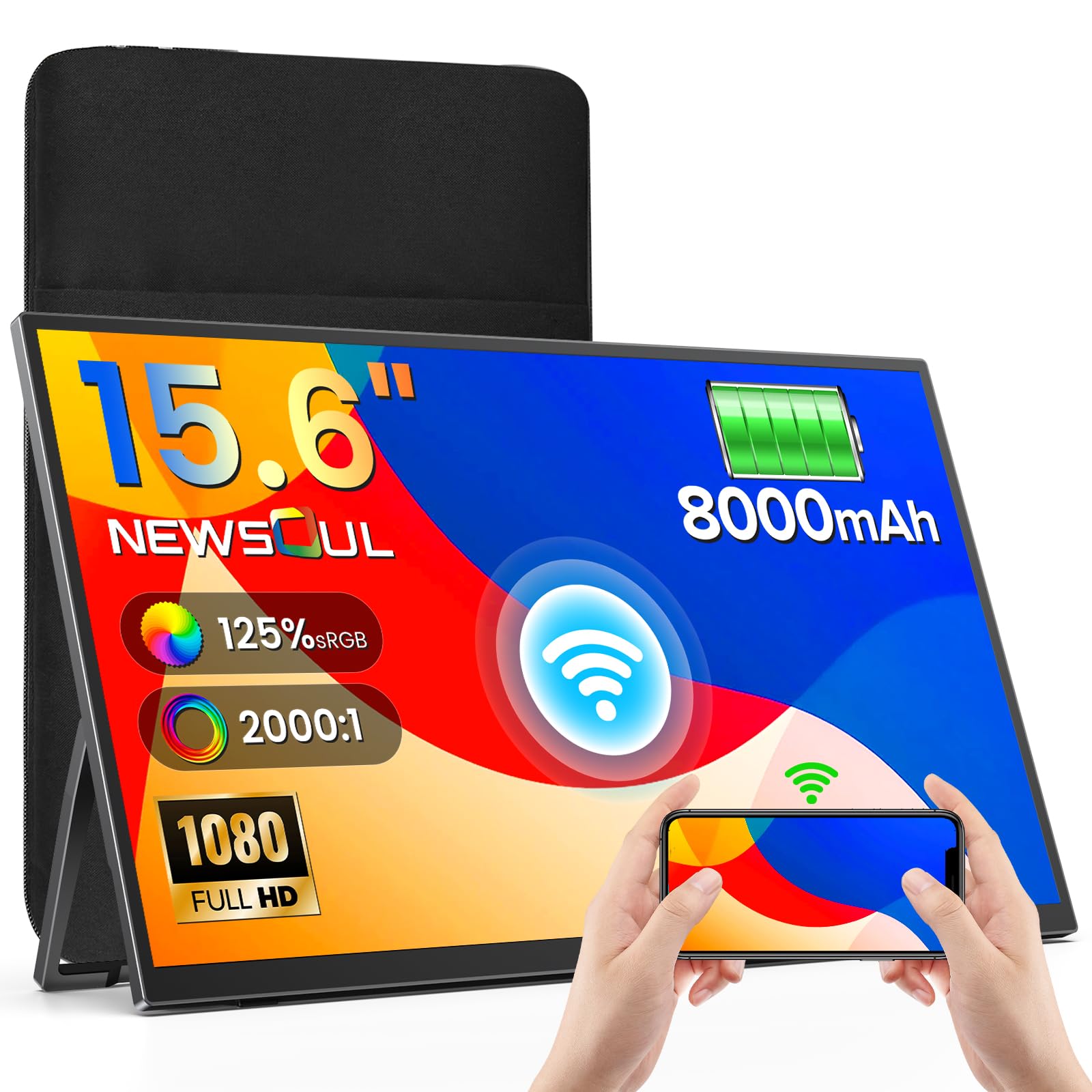
Image: Newsoul 15.6-inch Wireless Portable Monitor, showcasing its sleek design.
Setup Instructions
1. Unpacking and Initial Inspection
Carefully remove all components from the packaging. Verify that all items listed in the packing list are present and undamaged.
- 1 x Wireless Monitor
- 1 x Power Adapter
- 1 x HDMI Cable
- 2 x USB-C Cables
- 1 x Instruction Manual
- 1 x 16" Protective Bag

Image: Contents of the Newsoul portable monitor package, including cables and accessories.
2. Powering On the Monitor
Connect the provided power adapter to the monitor's USB-C power input port and plug it into a power outlet. The power indicator light will illuminate. For optimal performance and to charge the internal 8000mAh battery, ensure the monitor is connected to power during initial setup.

Image: Newsoul portable monitor connected to power for charging.
3. Connecting to Devices
The Newsoul portable monitor offers both wireless and wired connection options.
Wireless Connection (AirPlay/Miracast)
- Power on the monitor.
- On your source device (laptop, PC, smartphone), enable screen mirroring or casting.
- For Apple devices (iOS/macOS): Use AirPlay.
- For Android/Windows devices: Use Miracast.
- Select the Newsoul monitor from the list of available devices.
- The screen of your device will be mirrored or extended to the portable monitor.
The wireless connection provides stable operation up to 15 meters, even in areas without Wi-Fi, making it ideal for presentations or flexible workspaces.

Image: Diagram illustrating easy wireless connection without drivers.

Image: Newsoul portable monitor used wirelessly in a meeting room, demonstrating 15m range.
Wired Connection (USB-C / Mini HDMI)
For wired connections, use the provided USB-C or Mini HDMI cables.
- USB-C: If your device has a full-featured USB-C port (supporting video output and power delivery), connect it to the monitor using a single USB-C cable. This provides both video signal and power.
- Mini HDMI: Connect the Mini HDMI port on the monitor to your device's HDMI port using the provided HDMI to Mini HDMI cable. You may need to power the monitor separately via a USB-C power adapter if your device does not supply sufficient power through HDMI.
The monitor is compatible with Windows, macOS, Android, iOS, and various game consoles.

Image: Wired connection methods using USB-C and Mini HDMI ports.

Image: Compatibility chart showing various devices supported by the monitor.
Operating Instructions
1. Basic Controls and Ports
Familiarize yourself with the monitor's buttons and ports for easy operation.

Image: Diagram showing the location of ports and control buttons on the Newsoul portable monitor.
- Menu/Open Button: Accesses the On-Screen Display (OSD) menu.
- Power Indicator Light: Shows the monitor's power status.
- +/- Buttons: Navigate menu options and adjust settings (e.g., brightness, volume).
- Exit/Return Button: Exits menu or returns to previous screen.
- Type-C 3.1 Ports: For power input and video/data transmission.
- Mini HDMI Port: For video input.
- HP (Headphone) Port: For audio output.
2. On-Screen Display (OSD) Menu
Use the Menu button to access the OSD. Navigate with the +/- buttons and confirm selections with the Menu button. Adjust settings such as:
- Brightness and Contrast
- Color Temperature and Mode
- Volume
- Input Source Selection
- Aspect Ratio
3. Battery Management
The integrated 8000mAh battery provides approximately 4 to 5 hours of usage on a full charge. It supports fast charging, reaching 100% in about 2 hours.

Image: Information on the 8000mAh battery, 4-hour life, and 2-hour fast charging.
4. Automatic Rotation (Gravity Sensor)
The monitor features a 360° gravity sensor for automatic screen rotation between portrait and landscape modes. This function works automatically with smartphones. For laptops, manual adjustment of display settings may be required.

Image: Illustration of gravity sensing for intelligent screen orientation.

Image: Newsoul portable monitor displaying content in vertical (portrait) mode.
5. Audio Output
The monitor includes two integrated stereo speakers for audio output. You can also connect headphones or external speakers via the 3.5mm audio jack.

Image: Illustration highlighting the stereo dual speakers for immersive audio.
Maintenance
1. Cleaning the Monitor
- Always power off and unplug the monitor before cleaning.
- Use a soft, lint-free cloth slightly dampened with water or a mild, non-abrasive screen cleaner.
- Do not spray cleaner directly onto the screen.
- Avoid using alcohol, ammonia, or abrasive cleaners, as they can damage the screen surface.
2. Storage
- When not in use, store the monitor in its protective bag to prevent scratches and dust accumulation.
- Store in a cool, dry place away from direct sunlight and extreme temperatures.
3. Battery Care
- To prolong battery life, avoid fully discharging the battery frequently.
- If storing for an extended period, charge the battery to about 50% before storage.
Troubleshooting
No Display / No Signal
- Check Power: Ensure the monitor is powered on and the power indicator light is active. Connect the power adapter if the battery is low.
- Check Cables: Verify that all video cables (USB-C, HDMI) are securely connected to both the monitor and the source device. Try different cables if available.
- Input Source: Use the OSD menu to manually select the correct input source (USB-C or HDMI).
- Source Device Output: Ensure your source device (laptop, phone) is configured to output video to an external display.
- Wireless Connection: For wireless connections, ensure AirPlay/Miracast is enabled on your device and the monitor is selected. Check for interference if the signal is weak.
Screen Flickering or Unstable Display
- Power Supply: Ensure the monitor is receiving sufficient power. If using a single USB-C cable for video and power, try connecting the dedicated power adapter.
- Cable Quality: Use the provided high-quality cables. Faulty or low-quality cables can cause display issues.
- Refresh Rate: Ensure the refresh rate setting on your source device matches the monitor's capabilities (60Hz).
Automatic Rotation Not Working
- Smartphone Only: Automatic rotation via gravity sensor is primarily designed for smartphone connections.
- Laptop/PC: For laptops and PCs, you typically need to manually adjust the display orientation settings within your operating system (e.g., Windows Display Settings, macOS System Preferences).
No Sound
- Volume Level: Check the volume settings on both the monitor (via OSD) and your source device.
- Audio Output: Ensure the audio output on your source device is directed to the external monitor.
- Headphone Jack: If headphones are plugged in, sound will be routed there. Unplug them to use the internal speakers.
Specifications
| Feature | Detail |
|---|---|
| Brand | Newsoul |
| Model Number | 156J16 |
| Screen Size | 15.6 Inches |
| Display Resolution | 1920 x 1080 (Full HD) |
| Panel Type | IPS |
| Aspect Ratio | 16:9 |
| Refresh Rate | 60 Hz |
| Response Time | 1 Millisecond |
| Contrast Ratio | 2000:1 |
| Brightness | 400 cd/m² |
| Color Gamut | 125% sRGB |
| Viewing Angle | 178 Degrees |
| Battery Capacity | 8000mAh |
| Connectivity | 2x USB Type-C, 1x Mini HDMI, Wireless (AirPlay/Miracast) |
| Special Features | 2 Speakers, 360° Gravity Auto-Rotation, Ultra-slim design |
| Product Dimensions (L x W x H) | 355 x 5 x 210 mm |
| Weight | 770g (approx.) |
| VESA Compatibility | 75x75 mm |

Image: VESA-compatible mounting options for the portable monitor.
Warranty Information
Newsoul products are manufactured to high-quality standards. For specific warranty details, please refer to the warranty card included in your product packaging or visit the official Newsoul website. Keep your purchase receipt as proof of purchase for any warranty claims.
Customer Support
If you encounter any issues or have questions regarding your Newsoul 15.6" Wireless Portable Monitor, please contact our customer support team.
- Online Support: Visit the official Newsoul website for FAQs, troubleshooting guides, and contact forms.
- Email Support: Refer to your product packaging or the official website for the customer service email address.
Related documents156J16


Ask a question about this manual
Ask about setup, troubleshooting, compatibility, parts, safety, or missing instructions. Manuals+ will review the question and use this page’s manual context to help answer it.