
Introduction
Thank you for choosing the ZUOYA K21MAX Mechanical Number Pad. This device is designed to enhance your productivity and gaming experience with its versatile connectivity, customizable features, and durable construction. This manual provides detailed instructions for setup, operation, and maintenance to ensure optimal performance.
Package Contents:
- ZUOYA K21MAX Numeric Keypad
- USB Cable (Type-C)
- 2.4GHz Receiver
- Keycap Puller

Image: Overview of the K21MAX Number Pad highlighting its gasket structure, tri-mode connectivity, RGB backlight, custom driver support, 2600mAh battery, and hot-swappable switches.
Setup
The K21MAX Number Pad offers three connection modes: Wired (USB-C), 2.4GHz Wireless, and Bluetooth 5.0. Choose the mode that best suits your needs.
1. Wired Connection:
- Connect the provided USB-C cable to the port on the number pad.
- Plug the other end of the USB-C cable into an available USB port on your computer.
- The number pad will be automatically recognized and ready for use.
2. 2.4GHz Wireless Connection:
- Locate the 2.4GHz receiver in the package.
- Plug the 2.4GHz receiver into an available USB port on your computer.
- Turn on the number pad using the switch located on the side or back.
- The number pad should connect automatically. If not, press Fn + 4 to activate 2.4G mode.
3. Bluetooth 5.0 Connection:
- Turn on the number pad.
- Press and hold Fn + 1, Fn + 2, or Fn + 3 for 3-5 seconds to enter Bluetooth pairing mode. The indicator light will flash rapidly.
- On your computer or device, enable Bluetooth and search for new devices.
- Select "K21MAX" from the list of available devices to pair.
- Once paired, the indicator light will stop flashing. You can switch between paired Bluetooth devices by pressing Fn + 1, Fn + 2, or Fn + 3.
Charging the Battery:
The K21MAX features a built-in 2600mAh rechargeable battery. Connect the USB-C cable to the number pad and a power source (e.g., computer USB port, USB wall adapter) to charge. The indicator light will show charging status.

Image: The K21MAX Number Pad being charged via its USB-C port, illustrating the high-capacity 2600mAh battery.
Operating Instructions
Basic Functions:
- Num Lock: Press the 'Num' key to toggle the numeric keypad function on or off.
- Esc, Tab, Backspace: Dedicated keys for common functions.
- Calculator: The number pad includes a dedicated key for opening the calculator application (Windows only).

Image: Visual representation of the three-mode connection (Wired, 2.4GHz, Bluetooth) and various Fn key combinations for backlight control, device switching, and battery check.
RGB Backlighting:
The K21MAX features customizable RGB backlighting with over 16 million colors and 20+ preset lighting modes.
- Fn + Del: Switch between different backlight effects.
- Fn + Home: Adjust backlight color.
- Fn + PgUp: Increase backlight brightness.
- Fn + PgDn: Decrease backlight brightness.
- Fn + Ins: Adjust backlight speed.
Hot-Swappable Switches:
The K21MAX supports hot-swappable 3-pin/5-pin mechanical switches, allowing you to change switches without soldering. Use the included keycap puller and switch puller (not included, but typically comes with switches) to replace switches.
- Carefully remove the keycap using the keycap puller.
- Use a switch puller to gently remove the switch from the PCB.
- Align the pins of the new switch with the holes on the PCB and press firmly until it clicks into place.
- Replace the keycap.
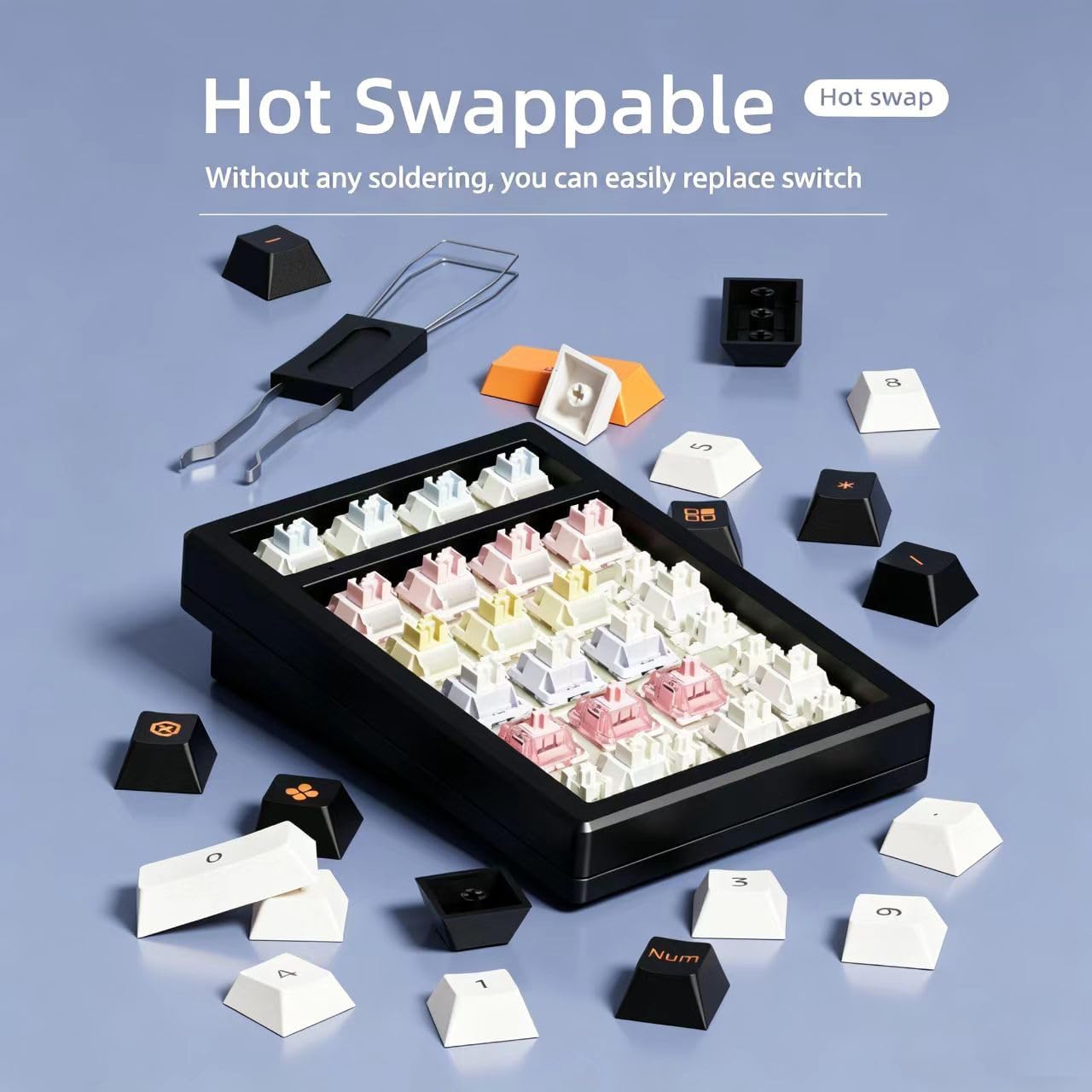
Image: Various keycaps and switches laid out around the K21MAX Number Pad, demonstrating its hot-swappable feature, allowing for easy switch replacement without soldering.
Custom Driver and Macro Programming:
The K21MAX supports custom driver programming and macro functions for personalized key settings. The driver allows you to remap keys, create macros, and customize RGB lighting effects.
- Download the custom driver software from the official ZUOYA website or the provided URL: https://www.keycool.vip/
- Install the software on your computer.
- Follow the on-screen instructions within the software to customize key functions, create macros, and adjust lighting.

Image: A computer screen displaying the custom driver software for the K21MAX, showing options for keyboard settings, macro editor, and lighting settings, with the numpad and a full-size keyboard on the desk.
Maintenance
Cleaning:
- Disconnect the number pad from your computer before cleaning.
- Use a soft, lint-free cloth slightly dampened with water or a mild cleaning solution to wipe the surface.
- For cleaning between keycaps, use compressed air or a small brush.
- Avoid using harsh chemicals or abrasive materials.
General Care:
- Avoid exposing the number pad to extreme temperatures, humidity, or direct sunlight.
- Do not drop or subject the device to strong impacts.
- Keep liquids away from the number pad to prevent damage.
Troubleshooting
Number Pad Not Responding:
- Wired Mode: Ensure the USB-C cable is securely connected to both the number pad and the computer. Try a different USB port or cable.
- 2.4GHz Mode: Ensure the 2.4GHz receiver is plugged in and the number pad is in 2.4G mode (Fn + 4). Check battery level.
- Bluetooth Mode: Ensure Bluetooth is enabled on your device and the number pad is paired and selected (Fn + 1/2/3). Try re-pairing the device. Check battery level.
- Battery: Ensure the number pad is sufficiently charged. Connect it to a power source using the USB-C cable.
Keys Not Registering or Double-Typing:
- This could indicate a faulty switch. Utilize the hot-swappable feature to replace the problematic switch.
- Ensure the keycaps are properly seated on the switches.
RGB Backlight Not Working:
- Check the backlight brightness settings (Fn + PgUp/PgDn).
- Ensure the number pad is not in a low-power state. Charge the battery if necessary.
- If using the custom driver, verify that lighting effects are enabled and configured correctly.
Connectivity Issues:
- Interference: Move the number pad closer to the receiver/device or away from other wireless devices that might cause interference.
- Driver Issues: Reinstall the custom driver software if you suspect software-related problems.
- Factory Reset: To restore factory settings, press Fn + ~. Note that this will erase custom settings.
Specifications
| Model Name | K21MAX Number Pad |
| Number of Keys | 21 Keys |
| Connectivity | Wired (USB-C), 2.4GHz Wireless, Bluetooth 5.0 (Tri-Mode) |
| Battery Capacity | 2600mAh |
| Key Switches | Hot-Swappable (3-pin/5-pin mechanical switches) |
| Backlighting | RGB (16 million colors, 20+ modes) |
| Construction | CNC Aluminum Alloy Shell, Gasket Structure |
| Keycaps | PBT Keycaps |
| Compatibility | Windows, Mac, OS, Android (PC, Laptops, Gaming Consoles, Smartphones) |
| Special Features | NKRO (N-Key Rollover), Programmable Macro Keys, Ergonomic Design |
Warranty Information
The ZUOYA K21MAX Mechanical Number Pad comes with a 1-year warranty from the date of purchase. This warranty covers manufacturing defects and workmanship under normal use. It does not cover damage caused by misuse, accidents, unauthorized modifications, or normal wear and tear.
Please retain your proof of purchase for warranty claims.
Support
For technical assistance, troubleshooting, or warranty inquiries, please contact ZUOYA customer support through the following channels:
- Official Website: Visit the ZUOYA official website for FAQs, driver downloads, and contact information.
- Email Support: Refer to your product packaging or the official website for the customer support email address.
When contacting support, please provide your product model (K21MAX) and a detailed description of the issue.