
1. Introduction
This manual provides essential information for setting up, operating, maintaining, and troubleshooting your TCL TAB 10 Gen4 tablet. Please read this manual thoroughly before using your device to ensure proper and safe operation. The TCL TAB 10 Gen4 is a thin, lightweight, and high-performance tablet designed for various daily tasks.
2. Safety Information
To prevent injury or damage to your device, observe the following safety precautions:
- Do not expose the tablet to extreme temperatures, direct sunlight, or high humidity.
- Avoid dropping or subjecting the tablet to severe impact.
- Use only approved chargers and accessories.
- Do not attempt to disassemble or repair the tablet yourself. Refer to qualified service personnel.
- Keep the tablet away from medical devices to avoid interference.
3. Package Contents
Verify that all items are present in your product package:
- TCL TAB 10 Gen4 Main Unit
- Flip Case
- Instruction Manual (this document)
- Warranty Card
4. Device Overview
Familiarize yourself with the physical components of your TCL TAB 10 Gen4 tablet.
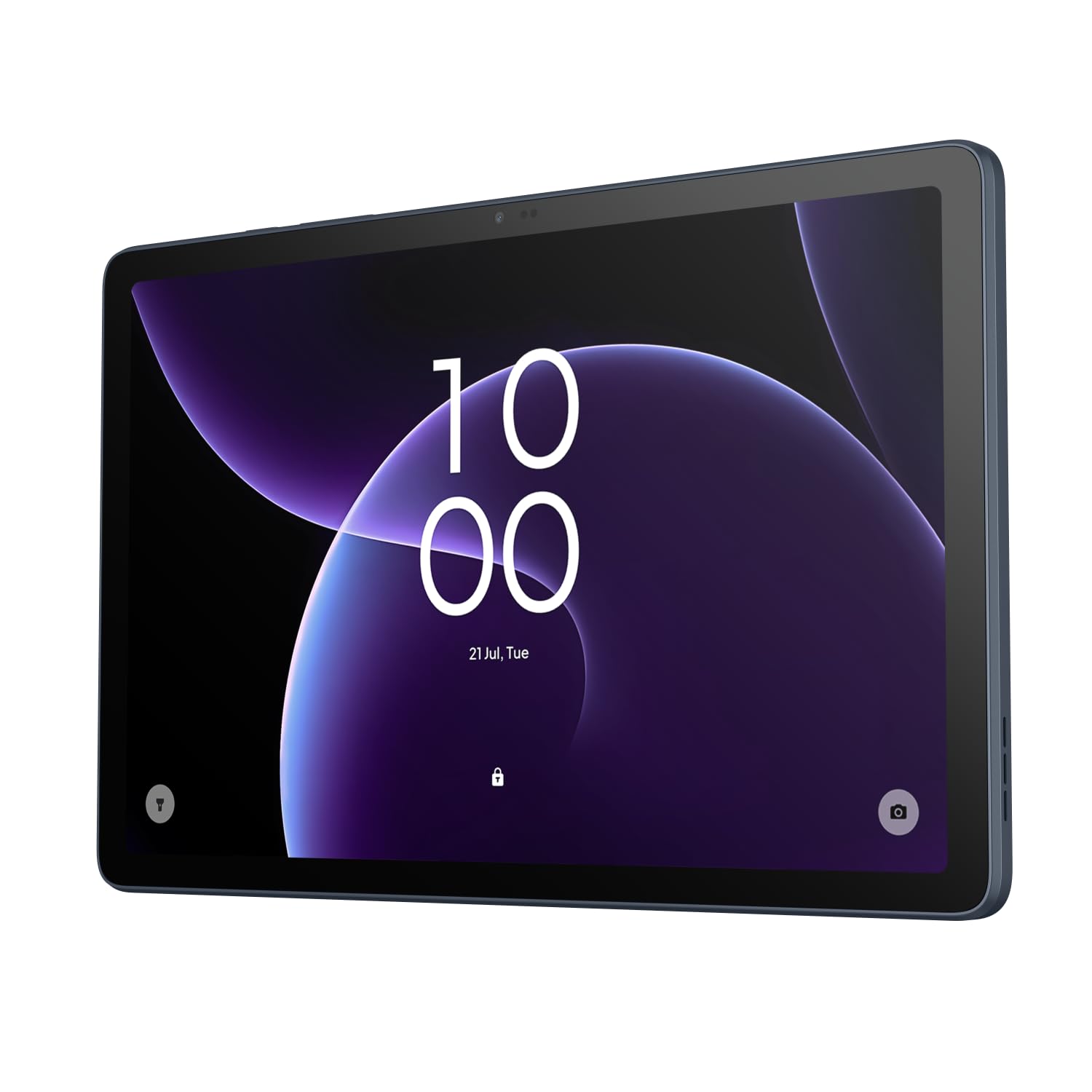
Front view of the TCL TAB 10 Gen4 tablet displaying the lock screen with time and date.

Rear view of the TCL TAB 10 Gen4 tablet, showing the dark blue finish and the camera module with 'AI CAMERA' text.
4.1. Buttons and Ports
- Power Button: Press and hold to turn the device on or off. Press briefly to lock/unlock the screen.
- Volume Buttons: Adjust the media volume or ringtone volume.
- USB-C Port: For charging and data transfer.
- Headphone Jack: Connect 3.5mm headphones.
- MicroSD Card Slot: Insert a microSD card for expanded storage.
- Front Camera: Located above the display for video calls and selfies.
- Rear Camera: Located on the back for taking photos and videos.
5. Setup
5.1. Initial Charging
Before first use, fully charge your tablet using the provided USB-C cable and a compatible power adapter. The battery indicator on the screen will show the charging status.
5.2. Powering On/Off
- To Power On: Press and hold the Power button until the TCL logo appears.
- To Power Off: Press and hold the Power button until the power options appear, then tap "Power off."
- To Restart: Press and hold the Power button until the power options appear, then tap "Restart."
5.3. Initial Setup Wizard
Upon first startup, the tablet will guide you through a setup wizard. Follow the on-screen instructions to:
- Select your language.
- Connect to a Wi-Fi network.
- Sign in with your Google account or create a new one.
- Set up screen lock (PIN, pattern, password).
5.4. Inserting a MicroSD Card
To expand storage, insert a microSD card (sold separately) into the designated slot. Ensure the tablet is powered off before inserting or removing the card.
6. Operating the Tablet
6.1. Basic Navigation
The TCL TAB 10 Gen4 uses touch gestures for navigation:
- Tap: Select an item or open an app.
- Touch and Hold: Access contextual menus or move items.
- Swipe: Scroll through screens or lists.
- Pinch: Zoom in or out on images and web pages.
6.2. Connecting to Wi-Fi
- Go to Settings > Network & internet > Wi-Fi.
- Toggle Wi-Fi On.
- Select your desired network from the list.
- Enter the password if prompted, then tap Connect.
6.3. Downloading Applications
Access the Google Play Store to download and install applications. A Google account is required.
- Open the Play Store app.
- Search for the desired app.
- Tap Install.
6.4. Using the Camera
Open the Camera app to take photos or record videos. Tap the shutter button to capture an image or start/stop video recording. Switch between front and rear cameras using the icon on the screen.
7. Maintenance
7.1. Cleaning the Device
Use a soft, lint-free cloth to clean the screen and body of the tablet. Do not use harsh chemicals or abrasive materials. For stubborn smudges, slightly dampen the cloth with water.
7.2. Software Updates
Regularly check for and install software updates to ensure optimal performance and security. Go to Settings > System > System update.
7.3. Battery Care
To prolong battery life:
- Avoid fully discharging the battery frequently.
- Do not leave the tablet connected to the charger for extended periods after it is fully charged.
- Keep the tablet within recommended operating temperatures.
8. Troubleshooting
This section addresses common issues you might encounter with your tablet.
8.1. Tablet Will Not Turn On
- Ensure the battery is charged. Connect the charger and wait a few minutes before attempting to power on.
- Press and hold the Power button for at least 10-15 seconds to force a restart.
8.2. Wi-Fi Connection Issues
- Check if Wi-Fi is enabled in Settings.
- Restart your Wi-Fi router.
- Forget the network in tablet settings and reconnect.
- Ensure you are within range of the Wi-Fi signal.
8.3. Slow Performance
- Close unused applications running in the background.
- Clear cache data for apps.
- Ensure sufficient storage space is available.
- Restart the tablet.
9. Specifications
Detailed technical specifications for the TCL TAB 10 Gen4 tablet:
| Feature | Specification |
|---|---|
| Brand | TCL |
| Model Name | TAB 10 Gen4 |
| Memory Storage Capacity | 128 GB |
| Screen Size | 10.1 inches |
| Display Max Resolution | 1920x1200 pixels |
| Generation | 4th Generation |
| Included Components | Main unit, Flip case, Instruction manual, Warranty card |
| Configuration | 4GB RAM + 128GB ROM |
| Wireless Type | Wi-Fi |
| Cellular Technology | Wi-Fi model |
| Operating System | Android 15 |
| Item Dimensions (LxWxH) | 23.8 x 15.5 x 0.7 cm |
| Touchscreen | Yes |
| Graphics Description | Integrated |
| Operating System Family | Android |
| Display Type | LCD Display |
| Built-in Memory Capacity | 4 GB |
| HDD Capacity | 128 GB |
| Battery Cell Type | Lithium Ion |
| Lithium Battery Energy Content | 10 Watt Hours |
| Processor Description | MediaTek |
| Computer CPU Manufacturer | MediaTek |
10. Warranty and Support
10.1. Warranty Information
The TCL TAB 10 Gen4 tablet comes with a 1-year warranty from the date of purchase. This warranty covers manufacturing defects under normal use. Please refer to the included Warranty Card for full terms and conditions.
10.2. Customer Support
If you encounter issues not covered in the troubleshooting section or require further assistance, please contact TCL customer support. Contact details can typically be found on the official TCL website or on your warranty card.
Before contacting support, please have your tablet's model number (TAB 10 Gen4) and serial number ready.