
1. Introduction
The Bigme B7 Pro is a 7-inch E-reader designed for comfortable reading and versatile functionality. It features an eye-comfort E Ink display, runs on Android 14 OS, and includes 8GB RAM with 256GB internal storage. This device supports global 4G connectivity for calling and comes with a stylus for note-taking and annotation. This manual provides essential information for setting up, operating, maintaining, and troubleshooting your Bigme B7 Pro E-reader.
2. Setup
2.1 Unboxing and Initial Inspection
Carefully remove all components from the packaging. Ensure the following items are present:
- Bigme B7 Pro E-reader
- Stylus
- Protective Case
- USB-C Cable
- Quick Start Guide (if included)
2.2 Charging the Device
Before first use, fully charge your Bigme B7 Pro. Connect the USB-C cable to the device's charging port and the other end to a compatible USB power adapter (not included) or a computer's USB port. The charging indicator will show the charging status.
2.3 Powering On/Off
- To Power On: Press and hold the power button (usually located on the side or top edge) for a few seconds until the screen illuminates.
- To Power Off: Press and hold the power button until a power-off menu appears. Select 'Power Off'.
- To Restart: From the power-off menu, select 'Restart'.
2.4 Initial Setup
Upon first power-on, the device will guide you through the initial setup process:
- Language Selection: Choose your preferred language.
- Wi-Fi Connection: Connect to a Wi-Fi network to access online features and download apps.
- Google Account: Sign in with your Google account to access the Google Play Store and other Google services.
- Date and Time: Set the correct date and time or allow automatic synchronization.
2.5 Stylus Usage
The included stylus allows for precise interaction with the E-reader. No pairing is typically required; simply use it to navigate, write, or draw on the screen. The stylus is designed for note-taking, highlighting, and annotation within supported applications.
3. Operating Instructions
3.1 Navigation
The Bigme B7 Pro features a responsive touchscreen for navigation. Swipe, tap, and pinch to interact with the interface. Physical buttons may also be present for page turns or home functions, depending on the device's design.
3.2 Reading and Document Management
To open a book or document, tap its icon on the home screen or within the library application. While reading, you can:
- Turn Pages: Tap the left/right side of the screen or use physical page-turn buttons (if available).
- Adjust Settings: Tap the center of the screen to bring up reading options, such as font size, line spacing, and contrast.
- Highlight/Annotate: Use the stylus to highlight text or write notes directly on the page within supported applications.
3.3 App Installation and Management
Running on Android 14, the Bigme B7 Pro allows for the installation of various applications. Access the Google Play Store or a pre-installed app market to download your favorite reading apps (e.g., Kindle, Kobo), productivity tools, or other Android applications.

Figure 3.3.1: The Bigme B7 Pro operating on Android 14, showcasing various applications available through its open system.
3.4 4G Calling Capability
The Bigme B7 Pro supports global 4G connectivity, enabling you to make and receive calls directly from the device. Insert a compatible SIM card into the designated slot (refer to the device's physical layout for slot location). Use the pre-installed phone application to manage calls and contacts.

Figure 3.4.1: The Bigme B7 Pro displaying its 4G calling interface.
3.5 Storage Management
The device comes with 256GB of internal storage. For additional storage, the Bigme B7 Pro supports microSD cards up to 2TB. Insert the microSD card into the dedicated slot (location varies by model, typically on the side). Manage files and applications through the device's file manager.

Figure 3.5.1: The Bigme B7 Pro highlighting its expandable storage capacity up to 2TB via microSD.
3.6 Connecting Accessories
The Bigme B7 Pro supports Bluetooth connectivity, allowing you to pair external accessories such as Bluetooth keyboards for enhanced productivity. Navigate to the device's Bluetooth settings to pair new devices.

Figure 3.6.1: The Bigme B7 Pro connected to a Bluetooth keyboard for improved office efficiency.
4. Maintenance
4.1 Cleaning the Device
To clean the screen and body of your E-reader, use a soft, lint-free cloth. For stubborn smudges, slightly dampen the cloth with water or a screen-safe cleaning solution. Avoid harsh chemicals or abrasive materials.
4.2 Battery Care
To prolong battery life:
- Avoid extreme temperatures.
- Do not leave the device fully discharged for extended periods.
- Use the provided or a certified USB-C cable for charging.
4.3 Software Updates
Regularly check for and install software updates to ensure optimal performance, security, and access to new features. Updates can typically be found in the device's 'Settings' menu under 'System' or 'About device'.
4.4 Storage Optimization
Periodically review and delete unnecessary files, apps, or cached data to free up storage space and maintain device speed. You can manage storage through the 'Settings' menu.
5. Troubleshooting
5.1 Common Issues and Solutions
- Device Not Turning On: Ensure the device is charged. Connect it to a power source and try powering on again. If unresponsive, perform a hard reset by holding the power button for 10-15 seconds.
- Screen Unresponsive: Restart the device. If the issue persists, ensure the screen is clean and free of debris.
- Apps Crashing/Freezing: Close and reopen the app. Clear the app's cache in 'Settings > Apps'. If the problem continues, uninstall and reinstall the app.
- Wi-Fi/4G Connectivity Issues: Check if Wi-Fi is enabled and you are within range of a known network. For 4G, ensure your SIM card is properly inserted and activated, and you have network coverage. Try toggling airplane mode on and off.
- Stylus Not Working: Ensure the stylus tip is clean. If the stylus requires charging (some models do), ensure it is charged.
5.2 Factory Reset
If persistent issues occur, a factory reset may resolve them. Warning: A factory reset will erase all data on your device. Back up important files before proceeding. Navigate to 'Settings > System > Reset options > Erase all data (factory reset)'.
6. Specifications
The following table outlines the key specifications for the Bigme B7 Pro E-reader:
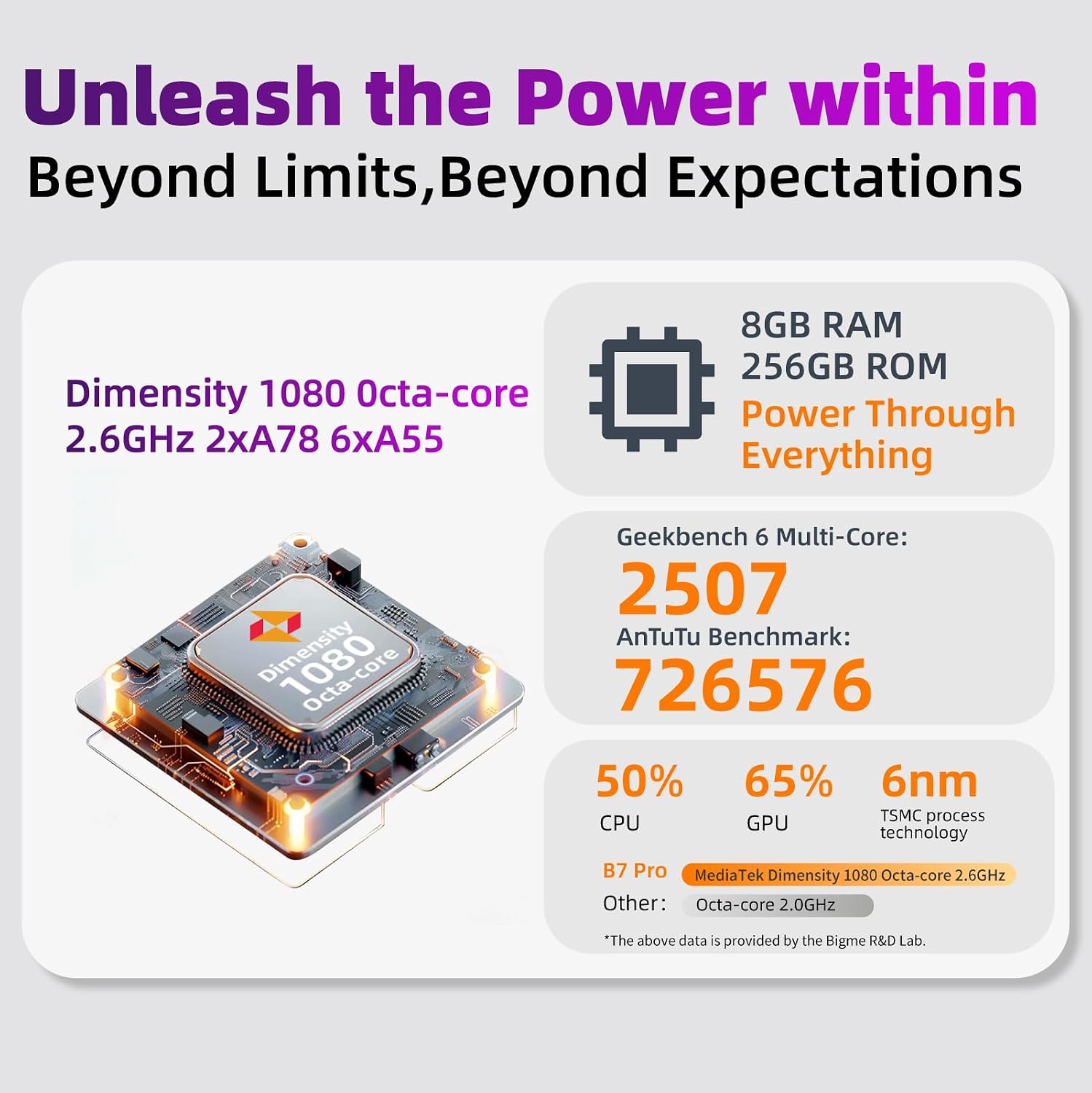
Figure 6.1.1: Internal specifications and performance benchmarks of the Bigme B7 Pro.
| Feature | Specification |
|---|---|
| Brand | Bigme |
| Model Name | GY-US-B7 Pro |
| Display Technology | Electronic Ink |
| Screen Size | 7 inches |
| Operating System | Android 14 |
| Memory (RAM) | 8 GB |
| Storage Capacity | 256 GB |
| Expandable Storage | Up to 2TB (microSD) |
| Connectivity Technology | 4G LTE, Bluetooth, Wi-Fi |
| Human-Interface Input | Buttons, Touchscreen |
| Product Dimensions | 5.5"L x 6.2"W x 0.31"Th |
| Item Weight | 12 ounces |
| Included Components | Protective Case, Stylus |
7. Warranty and Support
7.1 Product Warranty
The Bigme B7 Pro E-reader comes with a 1-year manufacturer's warranty from the date of purchase. This warranty covers defects in materials and workmanship under normal use. It does not cover damage caused by misuse, accidents, unauthorized modifications, or normal wear and tear. Please retain your proof of purchase for warranty claims.
7.2 Customer Support
For technical assistance, troubleshooting, or warranty inquiries, please contact Bigme customer support. Refer to the official Bigme website or the contact information provided in your product packaging for the most up-to-date support channels.


