
Introduction
The CATIGA CF-300 is a professional financial calculator designed for business analysts, real estate investors, accountants, and finance students. It features built-in functions for Time Value of Money (TVM), Internal Rate of Return (IRR), Net Present Value (NPV), Cash Flow analysis, Amortization, and Break-Even calculations. This manual provides detailed instructions for setting up, operating, maintaining, and troubleshooting your CF-300 calculator.

Image: Front view of the CATIGA CF-300 Financial Calculator, displaying its keys and LCD screen.
Setup
1. Battery Installation
The CF-300 calculator is powered by batteries. To install or replace batteries:
- Locate the battery compartment cover on the back of the calculator.
- Use a small screwdriver to open the compartment.
- Insert new batteries, ensuring correct polarity (+/-).
- Replace the cover and secure it with the screw.
2. Attaching the Protective Cover
The CF-300 comes with a flip-open hard case designed for secure protection. To attach the cover:
- Align the cover with the calculator.
- Gently press the bottom edges of the cover until it clicks securely into place. This ensures a snug fit, preventing sliding or loosening during transport.
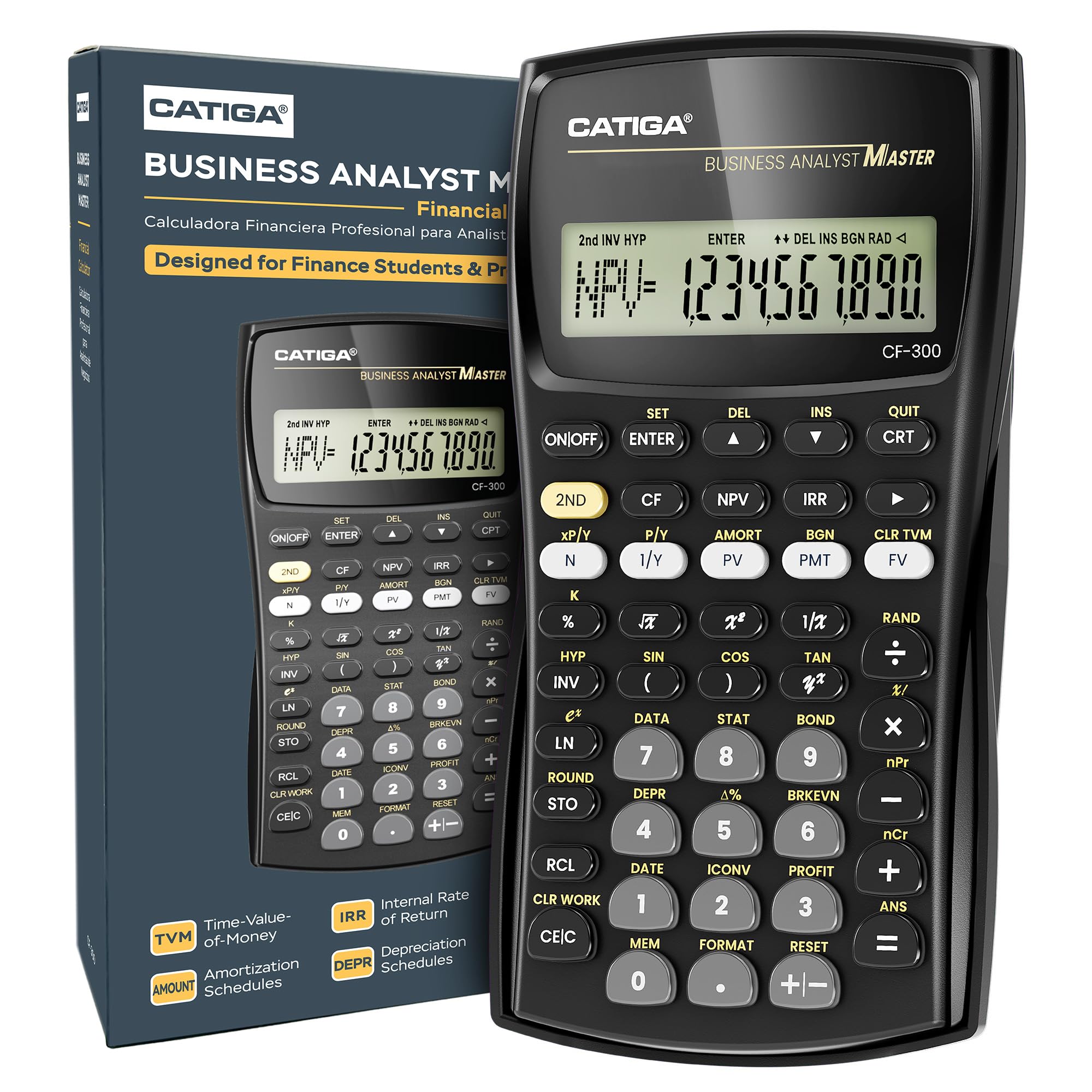
Image: Hands demonstrating how to securely attach the clip-on protective cover to the CATIGA CF-300 calculator.
3. Initial Power On
Press the ON/OFF button to turn on the calculator. The display should show '0' or a previous calculation result. If the display is blank, check battery installation.
Operating Instructions
The CATIGA CF-300 features an industry-standard layout for efficient financial calculations.

Image: Overview of the CATIGA CF-300 calculator, highlighting key function areas such as Cash Flow Tools, Smart Memory, Statistics Mode, and TVM Functions.
1. Basic Arithmetic Operations
Perform standard addition, subtraction, multiplication, and division using the numeric keypad and operator keys (+, -, x, ÷). Press = for the result.
2. Time Value of Money (TVM) Functions
The TVM row includes keys for N (number of periods), I/Y (interest rate per year), PV (present value), PMT (payment), and FV (future value). To use these functions:
- Enter the known values for at least four of the five TVM variables.
- Press the key for the unknown variable to calculate its value.
- Use CLR TVM to clear previous TVM entries.
3. Cash Flow (CF) Analysis
The CF function allows for the calculation of Net Present Value (NPV) and Internal Rate of Return (IRR).
- Press CF to enter cash flow mode.
- Enter the initial investment (CF0) and subsequent cash flows (C01, C02, etc.) along with their frequencies (F01, F02, etc.).
- Press NPV or IRR and then CPT (Compute) to get the result.
4. Amortization
To calculate amortization schedules:
- Enter the loan details using the TVM keys (N, I/Y, PV, PMT, FV).
- Press AMORT to access the amortization worksheet.
- Input the starting and ending payment periods to view principal, interest, and remaining balance.
5. Statistical Calculations
The calculator supports various statistical functions, including mean, standard deviation, and linear regression.
- Press DATA to enter data points.
- Press STAT to access statistical calculations.
- Select the desired statistical function (e.g., mean, standard deviation) and press CPT.
6. Memory Functions
The CF-300 includes memory functions for storing and recalling values.
- STO: Stores a displayed value into a memory register.
- RCL: Recalls a value from a memory register to the display.

Image: A detailed view of the CATIGA CF-300 calculator's LCD display and the arrangement of its financial and statistical function keys.
Maintenance
1. Cleaning
To clean your calculator, use a soft, dry cloth. For stubborn dirt, slightly dampen the cloth with water or a mild, non-abrasive cleaner. Avoid using harsh chemicals or solvents, as these can damage the casing or display.
2. Storage
When not in use, store the calculator in its protective hard case to prevent scratches and damage. Keep it away from extreme temperatures, direct sunlight, and high humidity.
3. Battery Replacement
If the display becomes dim or calculations are inconsistent, it may be time to replace the batteries. Refer to the 'Battery Installation' section under Setup for instructions.
Troubleshooting
- Display is blank: Check battery installation. Replace batteries if necessary. Ensure the calculator is turned on by pressing ON/OFF.
- Incorrect calculation results: Verify that all input values are correct. Ensure you are in the correct calculation mode. Clear previous entries using CLR WORK or CLR TVM as appropriate. Reset the calculator if persistent issues occur (refer to the manual for specific reset procedures, usually a small reset button or key combination).
- Keys are unresponsive: Clean around the keys to remove any debris. If the issue persists, the calculator may require service.
Specifications
| Brand | CATIGA |
| Model Name | CF-300 |
| Calculator Type | Financial |
| Display Type | LCD |
| Power Source | Battery Powered |
| Color | Black |

Image: The CATIGA CF-300 calculator with its approximate dimensions (6 inches length, 3.15 inches width, 0.85 inches thickness) indicated.
Warranty and Support
Warranty Information
Specific warranty details are typically provided with your product packaging. Please refer to the documentation included with your purchase for comprehensive warranty terms and conditions.
Customer Support
For technical assistance, troubleshooting, or general inquiries regarding your CATIGA CF-300 Financial Calculator, please contact customer support. Support options may include:
- Online Support: Visit the official CATIGA website for FAQs and support resources.
- Phone Support: Contact the support hotline during business hours.
- Email Support: Send your inquiries via email for assistance.
Please have your model number (CF-300) and purchase information ready when contacting support.