
1. Important Safety Information
Please read all safety and operating instructions carefully before using your television. Keep these instructions for future reference.
- Do not block ventilation openings.
- Do not install near any heat sources.
- Protect the power cord from being walked on or pinched.
- Only use attachments/accessories specified by the manufacturer.
- Unplug this apparatus during lightning storms or when unused for long periods.
- Refer all servicing to qualified service personnel.
2. What's in the Box
Verify that all components are present before proceeding with the setup.
- TCL TV with Google TV
- TV Remote + Batteries
- Power Cable
- Wall Bracket (for wall mounting)
- Quick Start Guide (not included in this digital manual)

Figure 2.1: TV Dimensions and Box Contents. This image illustrates the physical dimensions of the 43-inch TV and lists the items typically found inside the product packaging, including the TV, remote control, power cable, and a wall bracket.
3. Setup
3.1 Mounting the TV
Your TCL 43Q51K TV can be set up using the included wall bracket or a compatible TV stand (not included). Ensure the mounting surface can support the TV's weight.
Wall Mounting (Recommended)
A wall bracket is included with your TV. Follow the instructions provided with the wall bracket for safe and secure installation. The TV supports a VESA Mount Standard of 200 x 200 mm.

Figure 3.1: TCL 43Q51K TV Wall Mounted. This image shows the television securely mounted on a wall, demonstrating a common installation method.
3.2 Connecting Devices
Connect your external devices to the TV using the available ports. Refer to the image below for port locations.
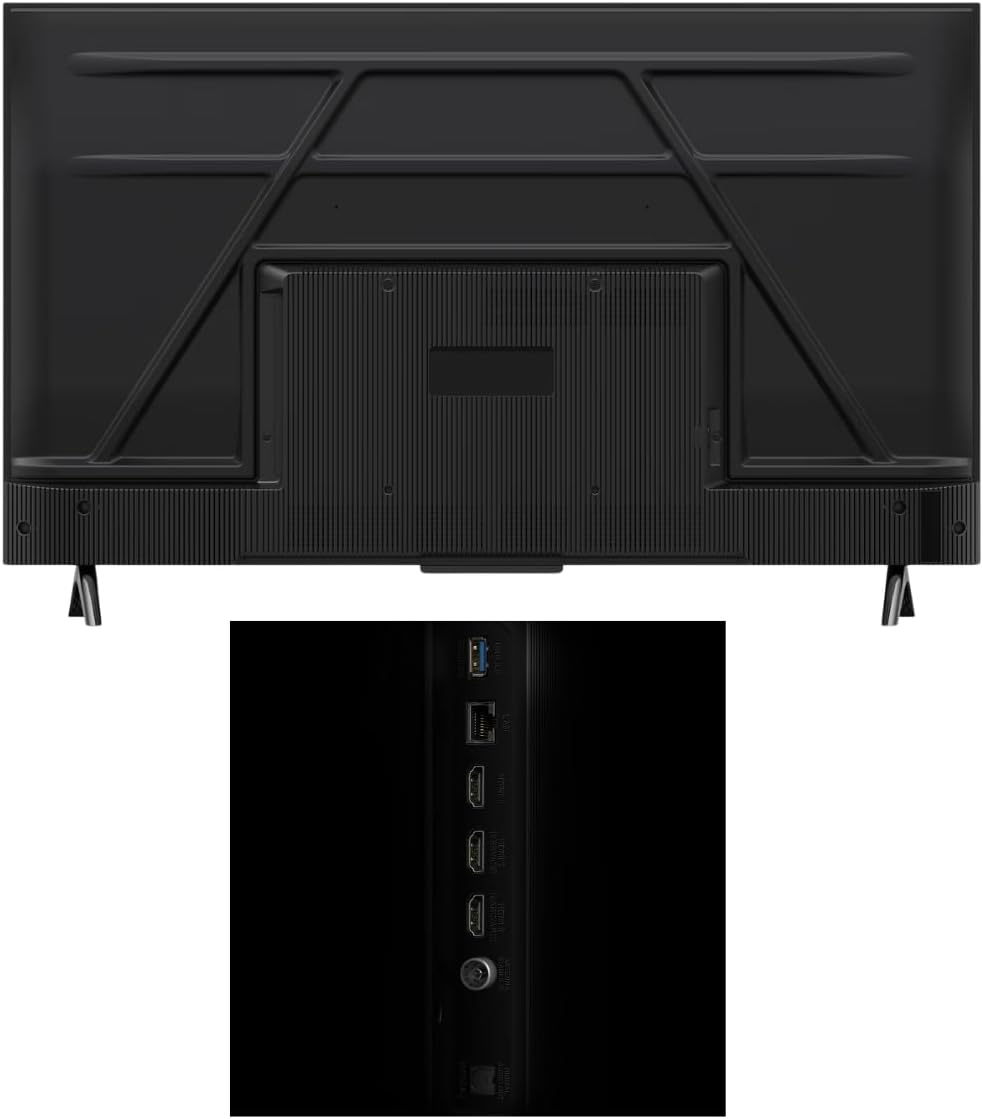
Figure 3.2: Rear View of TV. This image displays the back of the television, highlighting the arrangement of the input and output ports.

Figure 3.3: TV Input Ports. A detailed view of the connectivity options available on the TV, such as HDMI, USB, and other audio/video inputs.
- HDMI: Connect up to two HDMI devices (e.g., Blu-ray player, game console).
- USB: Connect USB storage devices for media playback.
- Optical Audio: For connecting to external sound systems.
- Power Cable: Connect the included power cable to the TV and a power outlet.
3.3 Initial Power On and Google TV Setup
- Plug the power cable into an electrical outlet.
- Press the power button on the remote control or on the TV.
- Follow the on-screen instructions to complete the initial setup, including connecting to your Wi-Fi network and logging into your Google account for Google TV features.
4. Operating the TV
4.1 Remote Control
Use the included remote control to navigate the Google TV interface, adjust settings, and control playback. The remote uses Bluetooth technology for enhanced responsiveness.
4.2 Google TV Interface
Your TV features Google TV, providing access to a wide range of streaming applications, live TV, and personalized content recommendations.

Figure 4.1: Google TV Home Screen. This image shows the main interface of Google TV, featuring recommended content and accessible applications.

Figure 4.2: Google TV Entertainment. An illustration of the Google TV platform, highlighting its extensive library of applications and content.
4.3 Picture and Sound Settings
Access the TV settings menu to customize your viewing and listening experience.
- QLED Quantum Dot Color: Enhances color vibrancy and realism.
- HDR PRO+ (Dolby Vision, HDR10+, HLG): Provides enhanced contrast and detail for compatible content.
- AiPQ Processor: Optimizes picture quality for contrast, color, clarity, motion, and upscaling.
- Motion Rate 240 with MEMC: Improves motion clarity for fast-paced scenes.
- High Brightness LED Backlight: Ensures a vibrant picture in various lighting conditions.
- Dolby Atmos & DTS:X: Advanced audio technologies for immersive sound.

Figure 4.3: Enhanced QLED Color. This visual comparison highlights the superior color reproduction achieved with QLED technology.

Figure 4.4: High Brightness LED Backlight. A side-by-side comparison illustrating the improved brightness and vibrancy provided by the high brightness LED backlight.

Figure 4.5: AiPQ Processor. This image depicts the AiPQ processor, emphasizing its function in optimizing contrast, color, clarity, and motion.
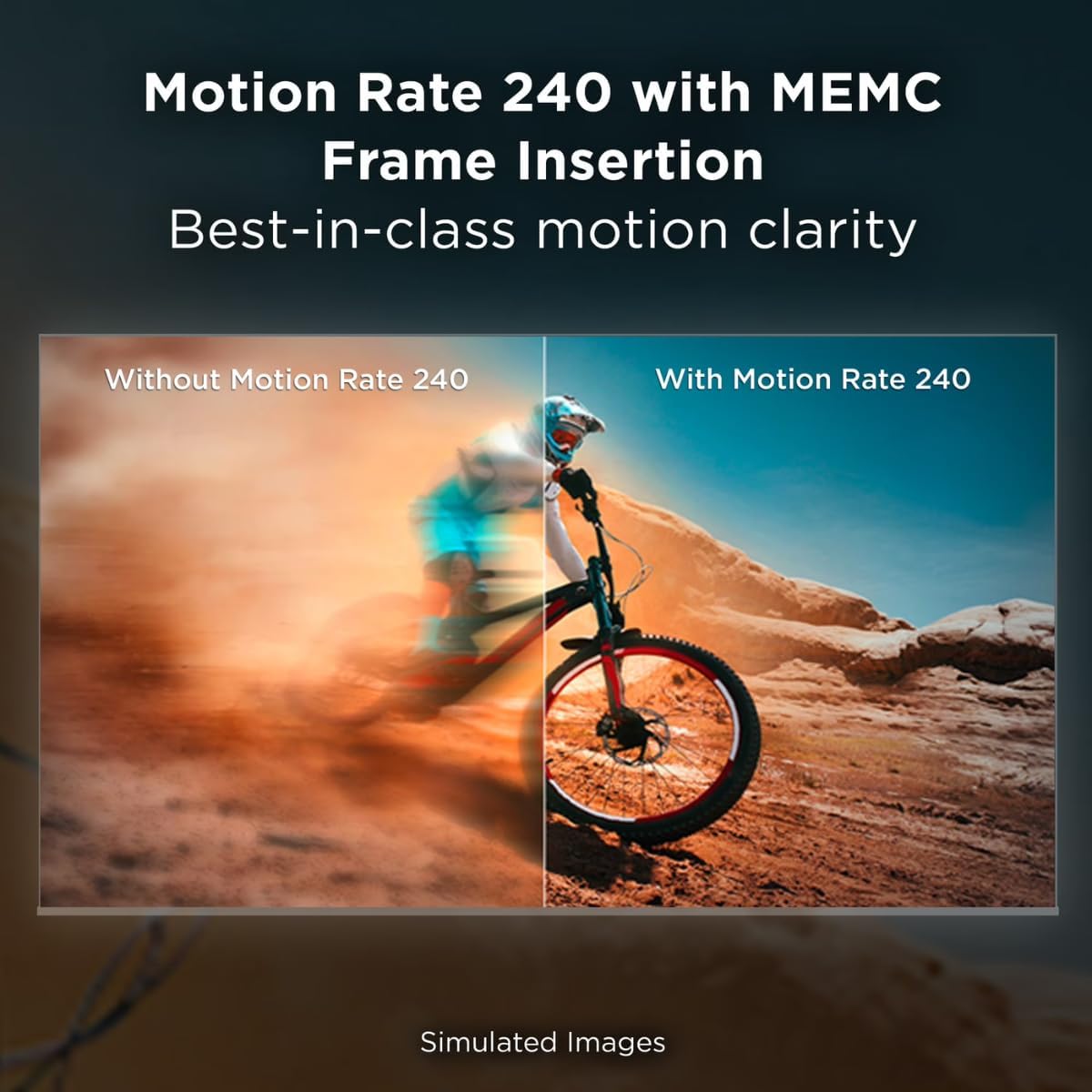
Figure 4.6: HDR PRO+ with Dolby Vision, HDR10+, & HLG. A visual representation of how HDR PRO+ technology enhances details and color vibrancy.

Figure 4.7: Motion Rate 240 with MEMC Frame Insertion. This comparison illustrates the improved motion clarity provided by Motion Rate 240 technology.
4.4 Bluetooth Personal Audio
Pair your Bluetooth headphones for a private listening experience without disturbing others.
4.5 Screen Mirroring
The TV supports AirPlay 2, Google Cast, and SmartShare for mirroring content from compatible devices.
4.6 Parental Control
Utilize the V-Chip technology to manage and restrict content based on ratings.
5. Maintenance
5.1 Cleaning the Screen
- Gently wipe the screen with a soft, lint-free cloth.
- For stubborn marks, lightly dampen the cloth with water or a specialized screen cleaner.
- Avoid using harsh chemicals or abrasive materials.
5.2 Cleaning the TV Body
Use a soft, dry cloth to wipe the TV's frame and back panel. Do not spray cleaners directly onto the TV.
6. Troubleshooting
If you encounter issues with your TV, refer to the following common solutions:
| Problem | Possible Solution |
|---|---|
| No Power | Ensure the power cable is securely connected to both the TV and a working electrical outlet. Try a different outlet. |
| No Picture / Poor Picture Quality |
|
| No Sound |
|
| Remote Control Not Working |
|
| Network Connection Issues |
|
7. Specifications
Detailed technical specifications for the TCL 43Q51K Series QLED 4K UHD HDR Smart TV.
| Feature | Detail |
|---|---|
| Brand | TCL |
| Model Name | 43Q51K |
| Screen Size | 43 inches |
| Display Technology | QLED |
| Resolution | 4K UHD (3840 x 2160) |
| Refresh Rate | 60 Hz |
| HDR Format Supported | HDR10, HDR10+, HLG, Dolby Vision |
| Motion Enhancement Technology | MEMC (Motion Rate 240) |
| Picture Quality Enhancement | AiPQ Processor, Direct LED Backlight, QLED Color Technology |
| Operating System | Google TV |
| Connectivity Technology | Bluetooth 5, HDMI (2 ports), USB (1 port), Wi-Fi |
| Audio Output Mode | Stereo |
| Integrated Surround Sound | DTS:X, Dolby Digital Plus, Dolby Atmos |
| Screen Mirroring Technology | AirPlay 2, Google Cast, SmartShare |
| Parental Control | V-Chip |
| Mounting Type | Wall Mount (VESA 200 x 200 mm) |
| Product Dimensions (D x W x H) | 3"D x 37.6"W x 21.8"H |
| Item Weight Without Stand | 13.5 pounds |
| Included Components | Power Cable, Remote Control, Wall Bracket |
8. Warranty Information
This product comes with a limited warranty.
- Warranty Type: Limited
- Warranty Description: 90 Days
For specific terms and conditions, please refer to the warranty card included with your product or contact TCL customer support.
9. Customer Support
For further assistance, technical support, or service inquiries, please contact TCL customer support.
Manufacturer: TCL
Please visit the official TCL website for contact information and support resources.