
Introduction
This manual provides instructions for the setup, operation, and maintenance of your TASCAM DR-40XP 4-Channel 32-Bit Float Portable Handheld Field Recorder. Please read this manual thoroughly to ensure proper use and to maximize the performance of your device.
Setup
1. Unpacking and Initial Inspection
Carefully remove all components from the packaging. Verify that all items are present and undamaged. If any items are missing or damaged, contact your dealer.
2. Power Supply
The DR-40XP operates on batteries or via USB-C power. Batteries are not included.
- Battery Installation: Open the battery compartment cover on the back of the unit. Insert the required batteries, ensuring correct polarity. Close the cover securely.
- USB-C Power: Connect the DR-40XP to a compatible USB-C power source using a USB-C cable (not included).

Image: The TASCAM DR-40XP with its battery compartment open, illustrating the correct way to insert batteries. This ensures the device is powered for portable use.
3. MicroSD Card Installation
A microSD card is required for recording and is not included with the unit.
- Locate the microSD card slot on the side of the DR-40XP.
- Insert the microSD card into the slot until it clicks into place. Ensure the card is oriented correctly.
- To remove, gently push the card until it springs out, then pull it out.

Image: A hand inserting a microSD card into the dedicated slot on the side of the TASCAM DR-40XP, demonstrating the storage setup process.
4. Microphone Configuration
The built-in unidirectional condenser microphones can be adjusted for A-B or X-Y stereo configurations.
- A-B Configuration: Position the microphones outwards for a wider stereo image, suitable for capturing ambient sounds or large ensembles.
- X-Y Configuration: Position the microphones inwards, with capsules close together, for a tighter stereo image with better mono compatibility, ideal for focused sound sources.

Image: The TASCAM DR-40XP with its adjustable microphones set in an X-Y configuration, where the capsules are angled towards each other for a focused stereo capture.

Image: A visual representation demonstrating how to switch between X-Y and A-B microphone configurations on the TASCAM DR-40XP, highlighting the physical adjustment of the built-in microphones.
Operating Instructions
1. Powering On/Off
- To power on, press and hold the power button until the display illuminates.
- To power off, press and hold the power button until the unit shuts down.
2. Basic Recording
The DR-40XP supports 4-channel recording, allowing simultaneous capture from built-in microphones and external inputs.
- Select Recording Mode: Use the REC MODE button to choose your desired recording configuration (e.g., Stereo, 4-Channel).
- Adjust Input Levels: Use the + INPUT LEVEL - buttons on the side of the unit to set appropriate recording levels. Monitor the level meters on the display to avoid clipping.
- Start Recording: Press the RECORD button once to arm recording (standby mode), then press it again to start recording. The REC indicator will illuminate red.
- Stop Recording: Press the STOP button to end the recording.
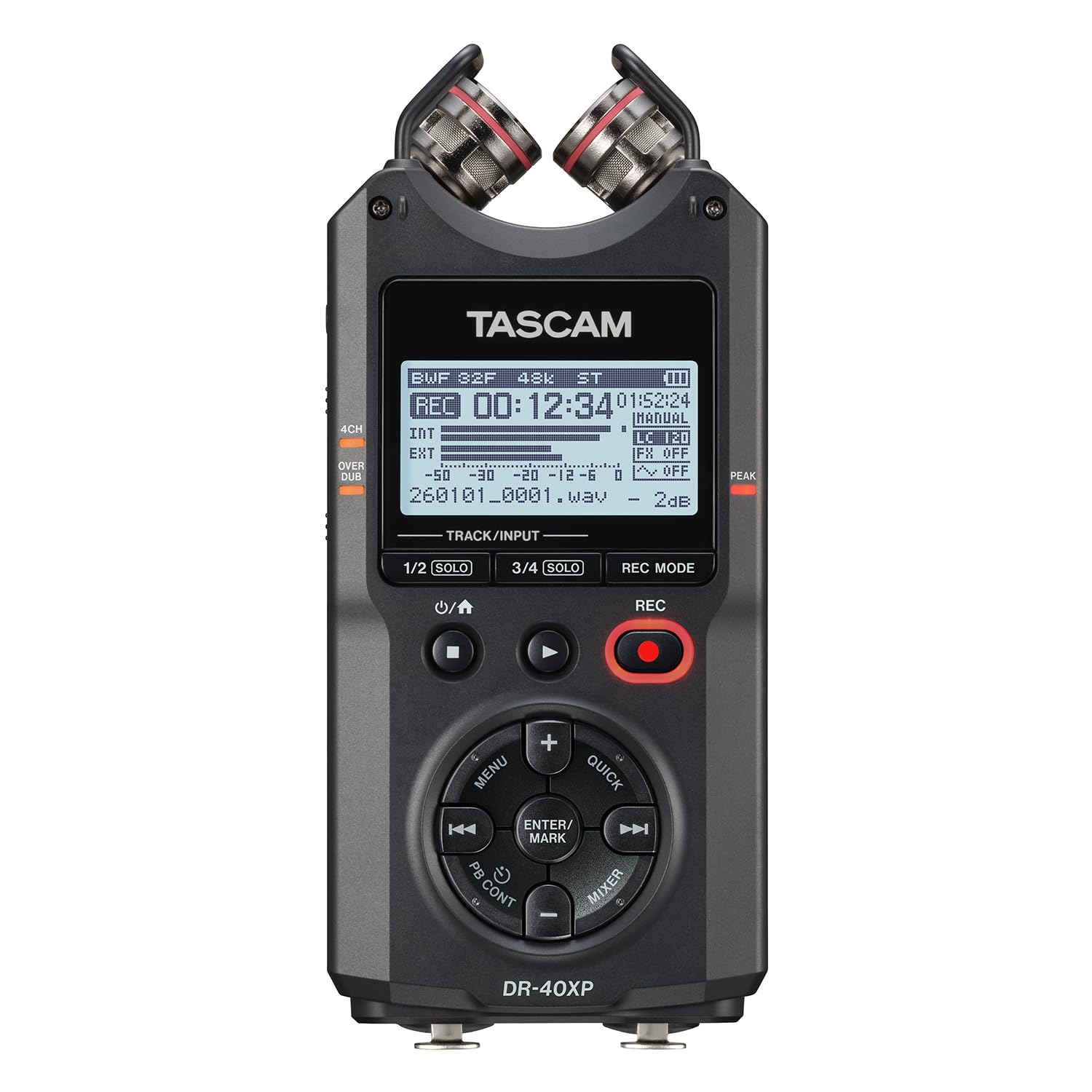
Image: A clear front view of the TASCAM DR-40XP, highlighting the main display and control buttons for recording, playback, and menu navigation.
3. Connecting External Microphones/Line Sources
The DR-40XP features two XLR/TRS combo inputs for external microphones or line-level sources, with +48V phantom power support.
- Connect your external microphones or line-level devices to the EXT MIC/LINE IN jacks at the bottom of the unit.
- If using condenser microphones requiring phantom power, enable +48V phantom power through the unit's menu settings.
- Adjust input levels for external sources using the + INPUT LEVEL - buttons.

Image: The bottom panel of the TASCAM DR-40XP, clearly showing the two XLR/TRS combo input jacks for connecting external microphones or line-level audio sources.
4. Using as a USB-C Audio Interface
The DR-40XP can function as a 2-in/2-out USB-C audio interface for direct recording to a computer or compatible mobile device.
- Connect the DR-40XP to your computer or mobile device using a USB-C cable.
- Select the DR-40XP as your audio input/output device in your computer's sound settings or DAW software.
- The unit will then transmit audio to and from your connected device.

Image: The TASCAM DR-40XP connected to a laptop via USB-C, illustrating its functionality as an audio interface for direct recording and file management with the TASCAM Audio File Manager software.
5. File Management and Menu Navigation
Use the navigation buttons and ENTER/MARK button to navigate the menu and manage recorded files. The DR-40XP supports multiple menu languages.

Image: The TASCAM DR-40XP's display showing various language options for the user interface, indicating multi-language support for menu navigation.
Product Overview Video
Video: An official TASCAM overview of the DR-40XP 4-Channel 32-Bit Float Field Recorder, demonstrating its features and applications. This video provides a visual guide to the product's capabilities.
Maintenance
1. Cleaning
- Wipe the unit with a soft, dry cloth. Do not use liquid cleaners or solvents.
- Avoid getting dust or debris into the microphone capsules or input jacks.
2. Storage
- Store the DR-40XP in a cool, dry place away from direct sunlight and extreme temperatures.
- If storing for an extended period, remove the batteries to prevent leakage.
Troubleshooting
| Problem | Possible Cause | Solution |
|---|---|---|
| Unit does not power on. | Low or dead batteries; incorrect battery installation; no USB-C power. | Replace batteries; check battery polarity; connect to a reliable USB-C power source. |
| No sound recorded. | Input levels too low; incorrect input source selected; microphone not connected properly; microSD card full or not inserted. | Increase input levels; verify input source in menu; check microphone connections; insert/replace microSD card. |
| Distorted audio. | Input levels too high (clipping); faulty cable or microphone. | Reduce input levels; check cables and microphones for damage. |
| Unit not recognized as USB audio interface. | Incorrect USB mode selected; driver issues; faulty USB-C cable. | Ensure USB mode is set to "Audio Interface" in the unit's menu; install necessary drivers (if applicable); try a different USB-C cable. |
If you encounter issues not listed here, or if the suggested solutions do not resolve the problem, please contact TASCAM customer support.
Specifications
- Recording Channels: 4-channel
- Recording Format: 32-bit float, 24-bit, 16-bit WAV
- Sampling Frequencies: 96 kHz, 48 kHz, 44.1 kHz
- Microphones: Adjustable A-B or X-Y unidirectional condenser microphones
- Maximum SPL: 125 dB
- Preamps: Ultra-low noise HDDA preamps
- Inputs: 2 x XLR/TRS combo inputs with +48V phantom power
- Interface: USB-C (2-in/2-out audio interface)
- Storage: microSD card (not included)
- Dimensions: 1.38 x 2.76 x 6.13 inches (35 x 70 x 156 mm)
- Weight: 6.1 ounces (173 grams)
Warranty Information
The TASCAM DR-40XP is covered by a manufacturer's warranty. For detailed information regarding warranty terms, conditions, and registration, please refer to the warranty card included with your product or visit the official TASCAM website.
Customer Support
For technical assistance, product inquiries, or service, please contact TASCAM customer support through their official website or the contact information provided in your product documentation.
Online Resources: www.tascam.com


