
1. Introduction
The iGPSPORT BSC500 is an advanced GPS cycle computer designed to enhance your cycling experience with precise navigation, comprehensive data tracking, and smart connectivity. This manual provides detailed instructions on how to set up, operate, and maintain your device to ensure optimal performance.

Image: The iGPSPORT BSC500 mounted on a bicycle handlebar, displaying navigation information.
2. Key Features
- Vivid 3.3-inch Full-Color Display: Experience enhanced visibility with a high-resolution, high-contrast screen that automatically adjusts brightness based on ambient light, ensuring clear readability day or night.
- Seamless Navigation: Never get lost with automatic rerouting when you deviate from your course. Supports one-tap navigation to saved points via the iGPSPORT app (within approximately 100km).
- Enhanced Safety with Voice Guidance: Receive voice prompts for turns and alerts, allowing you to keep your eyes on the road. Features an electronic bell and various alarms for crowded roads or night riding.
- Instant Start & High-Precision GPS: Quickly acquire your position after startup, supporting multiple positioning systems including QZSS for stable and accurate location data in urban and mountainous areas.
- Continuous Ride Data Logging: Automatically saves and resumes ride data and navigation even if the device powers off during a long ride, ensuring continuous data management.
- Versatile Training & Virtual Ride: Supports indoor training, app integration, and a virtual ride function that simulates real-world routes with automatic intensity changes when connected to a smart trainer.
3. Setup
3.1 Unboxing and Initial Inspection
Upon opening the package, ensure all components are present:
- BSC500 Main Unit
- BSC500 Screen Protector
- Strap
- User Manual
- Simple Mount
Inspect the device for any physical damage.
3.2 Charging the Device
Before first use, fully charge the BSC500 using the provided USB cable. Connect the cable to the charging port on the device and a compatible USB power source. The battery indicator on the screen will show charging status.
3.3 Mounting the Device
Attach the simple mount to your bicycle handlebar or stem using the provided straps. Ensure the mount is securely fastened and the device clicks firmly into place. For optimal GPS reception, mount the device in an open area away from obstructions.

Image: Detailed view of the simple mount installation process.
3.4 Power On/Off
To power on, press and hold the power button until the screen illuminates. To power off, press and hold the power button until the power-off prompt appears, then confirm.
3.5 App Pairing (iGPLink App)
Download the iGPLink app from your smartphone's app store. Open the app and follow the on-screen instructions to pair your BSC500. This enables data synchronization, route planning, and advanced settings management.

Image: The iGPLink app interface showing device pairing and data management options.
4. Operation
4.1 Basic Navigation
The BSC500 offers clear, turn-by-turn navigation. Routes can be created and synced from the iGPLink app. If you go off-course, the device will automatically reroute you back.

Image: The BSC500 display showing clear turn-by-turn navigation instructions.
4.2 Data Display and Customization
The 3.3-inch color display shows up to 12 data items simultaneously, including speed, heart rate, power, and distance. You can customize the data fields to suit your preferences via the device settings or the iGPLink app.

Image: The BSC500 display showcasing customizable ride data fields.
4.3 Voice Navigation and Electronic Bell
The BSC500 features built-in voice navigation to guide you without needing to look at the screen. An electronic bell can be activated by double-tapping the screen, providing a discreet way to alert others.
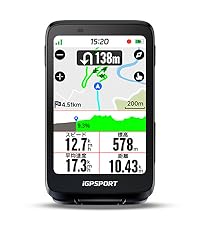
Image: The BSC500 display indicating active voice navigation.

Image: The BSC500 display showing the electronic bell feature.
5. Advanced Features
5.1 Virtual Ride Mode
Connect your BSC500 to a compatible smart trainer to experience virtual rides. This mode simulates real-world routes, adjusting resistance based on the course's gradient, making indoor training more engaging.

Image: A cyclist utilizing the iGPSPORT BSC500 with a smart trainer for an immersive virtual ride experience.
5.2 Multi-Device Connectivity
The BSC500 supports Bluetooth and ANT+ for seamless connection with various sensors and devices, including speed sensors, cadence sensors, heart rate monitors, and power meters.
- Speed Sensor:

- Cadence Sensor:

- Heart Rate Monitor:

- Power Meter:

5.3 E-bike Information Display
For compatible E-bikes (ANT+LEV compatible), the BSC500 can display battery remaining, navigation information, and ride data all on one screen, providing a comprehensive overview for your E-bike rides.

Image: The BSC500 displaying integrated E-bike information during a ride.
6. Maintenance
- Cleaning: Wipe the device with a soft, damp cloth. Avoid using harsh chemicals or abrasive materials.
- Charging: Always use the provided USB cable for charging. Ensure the charging port is dry before connecting the cable.
- Storage: Store the device in a cool, dry place away from direct sunlight and extreme temperatures.
- Water Resistance: The BSC500 is IPX7 waterproof, meaning it can withstand immersion in 1 meter of water for up to 30 minutes. However, it is not recommended for underwater use.
7. Troubleshooting
- Device not turning on: Ensure the device is fully charged. If the issue persists, try performing a soft reset (refer to the Quick Start Manual for specific button combinations).
- GPS signal not acquired: Ensure you are in an open outdoor area away from tall buildings or dense foliage. Allow a few minutes for the device to acquire a signal.
- Cannot pair with app: Ensure Bluetooth is enabled on your smartphone and the device. Restart both the device and the app. Make sure the app is updated to the latest version.
- Inaccurate data: Check that all connected sensors are properly installed and functioning. Ensure the device's firmware is up to date.
8. Specifications
| Feature | Specification |
|---|---|
| Brand | iGPSPORT |
| Model | BSC500 |
| Color | BSC500 |
| Product Dimensions (L x W x H) | 10 x 5.7 x 1.5 cm |
| Product Weight | 0.11 kg |
| Screen Size | 3.3 inches |
| Display Type | LCD |
| Average Battery Life | 25 Hours |
| Connectivity | ANT, Bluetooth |
| Native Resolution | 320x480 |
| Mounting Type | Handlebar Mount |
| Human Interface Input | Touchscreen, Buttons |
| Water Resistance | IPX7 |
| Warranty | 2 Years |
| Country of Origin | China |
9. Videos
iGPSPORT BiNavi Feature Introduction
Video: An overview of the iGPSPORT BiNavi series features, including navigation, data display, and connectivity. The BSC500 shares many of these functionalities.
BiNavi Cycling Computer Real Ride Review and Features
Video: A real-world demonstration and review of the BiNavi cycling computer, highlighting its performance and user experience during a ride.
iGPSPORT BSC300T Cycling Computer Overview
Video: A detailed look at the iGPSPORT BSC300T cycling computer, showcasing its design, interface, and key functionalities, which are similar to the BSC500.
10. Warranty and Support
The iGPSPORT BSC500 comes with a 2-year warranty from the date of purchase. This warranty covers manufacturing defects and malfunctions under normal use. For warranty claims or technical support, please contact iGPSPORT customer service through their official website or the iGPLink app.
For additional resources, FAQs, and firmware updates, visit the official iGPSPORT support page: iGPSPORT Official Store