
1. Product Overview
The HANLINYUE Free2 Bluetooth Page Flip is a versatile remote control designed to enhance your reading and media consumption experience across various devices. It features two customizable buttons, RGB backlighting, and a hot-swappable keyshaft design.
This device supports multiple operating modes for compatibility with Android e-readers, smartphones, tablets, and Windows computers. It is equipped with a non-removable lithium-ion battery.

Image: The HANLINYUE Free2 Bluetooth Page Flip in purple, showcasing its compact design.
2. Package Contents
- HANLINYUE Free2 Bluetooth Page Flip device
- USB charging cable
- User Manual (this document)
3. Device Layout

Image: A detailed view of the Free2 device highlighting its components: (1) ON/OFF Function switch, (2) RGB full-color backlight under the keycaps, (3) Keyshaft hot-swappable design, and (4) Power/mode switching indicators.
- ON/OFF Function Switch: Used to power the device on/off and switch between modes.
- Keyshafts: Two hot-swappable keyshafts for customizable keycaps.
- USB Port: For charging the device.
- Indicator Lights: Display power status and current operating mode.
4. Setup
4.1 Charging the Device
Before first use, ensure the device is fully charged. Connect the USB charging cable to the device's USB port and a power source. The indicator lights will show charging status.
To avoid long-term power loss, charge the equipment every month or so.
4.2 Power On/Off
- To power on, press and hold the "ON/OFF Function" button until the indicator lights activate.
- To power off, press and hold the "ON/OFF Function" button until the indicator lights turn off.
4.3 Bluetooth Pairing
- Ensure the Free2 device is powered on.
- On your target device (e-reader, smartphone, tablet, or PC), navigate to the Bluetooth settings.
- Enable Bluetooth and search for available devices.
- Select "Free2" from the list of found devices to initiate pairing.
- Confirm the pairing request on your device if prompted.
Video: Tutorial demonstrating Bluetooth pairing and page turning on an Android e-book reader. This video shows the process of connecting the Free2 device via Bluetooth and then using it to flip pages.
Video: Tutorial demonstrating Bluetooth pairing and page turning on an Android e-reader. This video illustrates the steps to connect the Free2 device and use it for page flipping.
4.4 Mode Switching
The Free2 supports different modes for various functionalities. Press the "ON/OFF Function" button briefly to cycle through available modes. The indicator lights will change to reflect the current mode.
- Android E-book Reader Version: Supports page flipping using volume mode. (Not compatible with Kindle).
- Smartphone and iPad Versions: Controls TikTok vertical video, page flipping in reading apps, music playback (switching/pausing), and remote camera control.
- KOBO Reader and PC Version: Supports page flipping on Kobo devices (may require plugins). For PC, supports TikTok scrolling, PPT page flipping, and music switching (requires shortcut key settings in application). A Bluetooth receiver is required for PCs without built-in Bluetooth.

Image: The Free2 device next to an Android e-reader, illustrating the "Android Reader" mode for page flipping. It notes that page flipping requires enabling volume key page turning in the reading app settings.

Image: The Free2 device being held next to an e-book reader, demonstrating effortless left and right page flipping. This function relies on enabling the volume key page turning feature in the reading application.

Image: A close-up of the Free2 device with its indicator lights, illustrating how to set the device to volume mode for Android reader page flipping. A diagram shows the volume icon illuminated.
Video: Demonstrates how to switch the keyboard light on the Free2 device. This video shows the action of pressing and holding the buttons to control the RGB lighting.
5. Operating Instructions
5.1 Page Flipping
- For Android E-readers: Ensure the device is in the correct mode. In your reading application settings, enable page flipping using volume keys. The Free2 will then control page turns.
- For Smartphones/Tablets: In compatible reading applications, the device can directly control page flipping.
- For Kobo Devices: Connect via Bluetooth. Some Kobo devices may require specific plugins to enable page flipping functionality.
- For PC: Supports PPT page flipping. For other applications, ensure the Free2 is in the correct mode and any necessary shortcut keys are configured within the application settings.
Note: Kindle devices are not supported.
5.2 Media Control (Smartphone/Tablet/PC)
- TikTok: Switch between vertical videos.
- Music Playback: Switch tracks and pause/resume music. For PC, this requires setting shortcut keys in the music application.
5.3 Remote Camera Control (Smartphone/Tablet)
When in the smartphone/tablet mode, the Free2 can remotely control your phone's camera to take photos and videos from a distance of approximately 10 meters.
5.4 RGB Lighting Control
- The device comes with RGB lighting.
- Hardware Control: Long press a button cap for 15 seconds to toggle the lighting on/off.
- Software Control: Use the official customization software (Windows 10 and above) to permanently turn off lighting or change lighting colors.
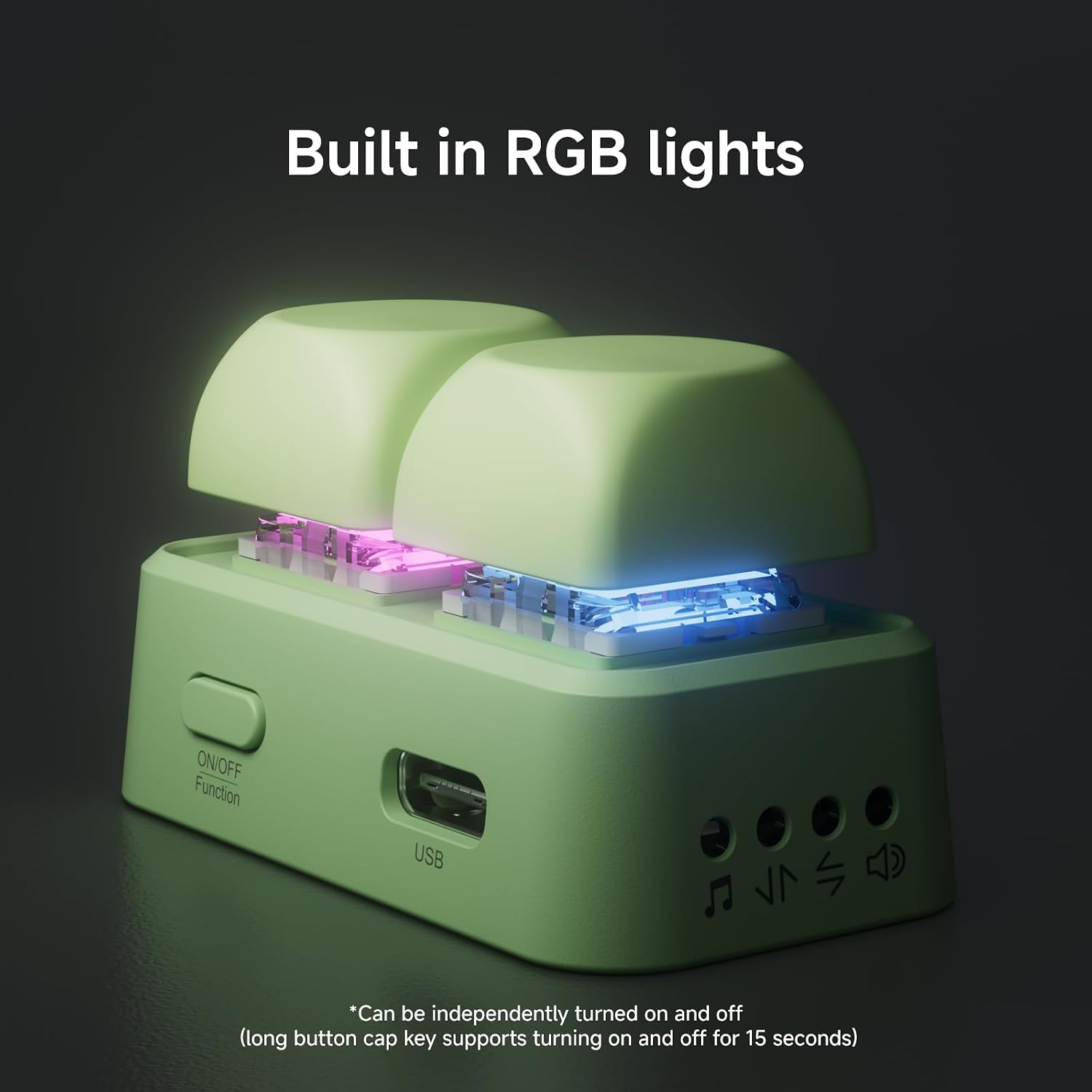
Image: A close-up view of the Free2 device highlighting its built-in RGB lights under the keycaps. The image indicates that lights can be independently turned on and off, and a long press of a button cap for 15 seconds supports this function.
6. Customization and Maintenance
6.1 Button Function Customization
Official software is available for Windows 10 and above systems to customize button functions according to your preferences. Mac systems only support custom functions, not firmware upgrades.
6.2 Keycap and Keyshaft Replacement
The Free2 features a three-legged and five-legged high axis design, supporting the free replacement of cross keycaps. This allows for personalization and repairability.

Image: A selection of colorful keycaps, demonstrating the DIY customization potential for the Free2 device.

Image: A close-up demonstrating the process of replacing a keyshaft on the Free2 device, highlighting its hot-swappable feature.
Video: Tutorial on axis disassembly. This video demonstrates how to remove and replace the keyshafts on the Free2 device, showcasing its hot-swappable design.
7. Troubleshooting
- Device not responding / Stuck on red light: If the device becomes unresponsive or is stuck with a red indicator light, try performing a reset. Press and hold the "ON/OFF Function" button for 15 seconds. This may resolve temporary issues. If the issue persists, ensure the device is charged.
- Connectivity Issues: Ensure Bluetooth is enabled on both the Free2 and your target device. Make sure the Free2 is within the 10-meter operating range. Try unpairing and re-pairing the device. For PC, ensure you have a Bluetooth receiver if your computer lacks built-in Bluetooth.
- Accidental Key Presses (Too Sensitive): If the buttons are too sensitive, leading to unintended actions, consider if the keycaps or keyshafts can be adjusted or replaced with alternatives that offer more resistance.
- Software Not Recognizing Device: Ensure your computer is running Windows 10 or above. Verify the USB connection if attempting a wired connection (though wired connection only supports copy, paste, cut functions). Ensure the device is powered on and in the correct mode for software interaction.
- Page Flipping Not Working: For Android e-readers, confirm that "volume key page turning" is enabled in your reading application's settings. For Kobo, check if specific plugins are required. For PC, ensure shortcut keys are correctly configured in the application.
Video: Demonstrates how to shut down, reset Bluetooth, and restore factory settings on the Free2 device. This video is useful for troubleshooting connectivity or functionality issues.
8. Specifications
| Feature | Detail |
|---|---|
| Brand | HANLINYUE |
| Model Number | Free2 |
| Connectivity Technology | Bluetooth |
| Compatible Devices | Smartphone, Android E-readers, Tablets, PC (Windows 10+) |
| Keyboard Description | Mechanical |
| Special Feature | Backlit (RGB) |
| Product Dimensions (L x W x H) | 2.09" x 1.05" x 1.18" (53mm x 27mm x 27mm) |
| Power Source | Battery Powered (Built-in 230mAh Lithium Polymer Battery) |
| Switch Type | Clicky (Hot-swappable 3-pin/5-pin half-height shaft) |
| Remote Control Distance | Approximately 10 meters |
| Material | ABS + electronic components |

Image: A diagram detailing the product dimensions and key specifications of the Free2 device, including product name, model, color options, material, axle model, keycap model, Bluetooth version, product size, weight, remote control distance, battery capacity, and compliance standards.
9. Warranty and Support
The HANLINYUE Free2 Bluetooth Page Flip comes with a 1-year warranty from the date of purchase.
For technical support, troubleshooting assistance, or warranty claims, please contact HANLINYUE customer service through the platform where you purchased the product.
Please retain your proof of purchase for warranty validation.