
1. Introduction
Thank you for choosing the Metz 43MQH7000Z 43-inch Smart TV. This manual provides essential information for the safe and efficient use of your television. Please read it thoroughly before operating the device and retain it for future reference.
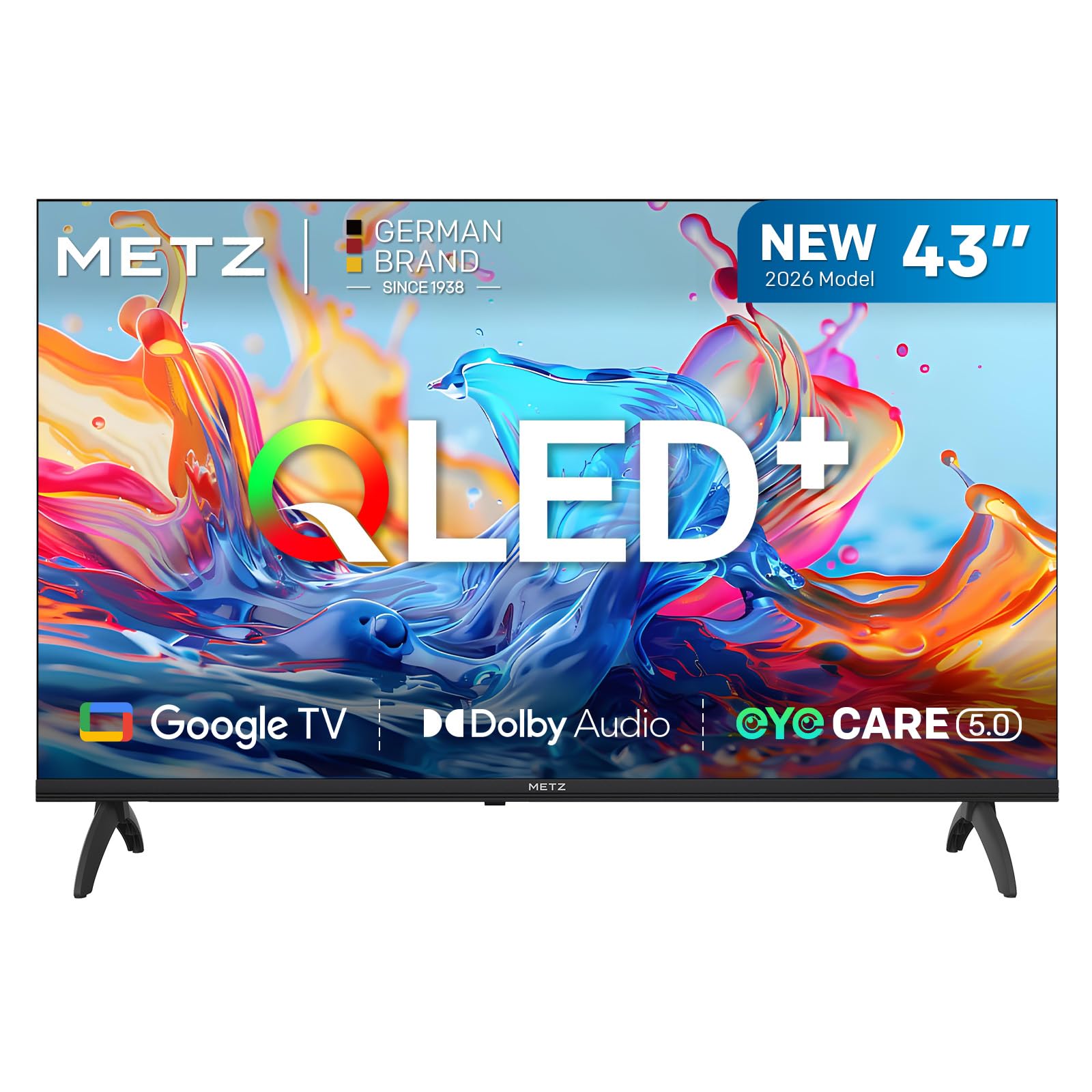
Figure 1: Metz 43MQH7000Z 43-inch Smart TV, front view with stand.
2. Safety Information
Always observe the following basic safety precautions when using your television:
- Do not expose the TV to rain or moisture to prevent fire or electric shock.
- Do not open the cabinet. Refer all servicing to qualified personnel.
- Ensure proper ventilation. Do not block ventilation openings.
- Protect the power cord from being walked on or pinched.
- Unplug the TV during lightning storms or when unused for long periods.
- Keep the TV away from direct sunlight, heat sources, and strong magnetic fields.
3. What's in the Box
Carefully unpack your Metz 43MQH7000Z TV and check that all items are present:
- Metz 43MQH7000Z Smart TV
- Remote Control
- Power Cable
- User Manual (this document)
- TV Bases (2 units)
- Screws for Bases (4 units)
- AAA Batteries (2 units)

Figure 2: TV dimensions and included components.
4. Setup
4.1 Attaching the Stand
- Place the TV face down on a soft, flat surface to prevent screen damage.
- Align the TV bases with the corresponding slots on the bottom of the TV.
- Secure each base with the provided screws.
4.2 Wall Mounting (Optional)
The TV supports VESA standard 200 x 100 mm. Use a compatible wall mount kit (sold separately) and follow its instructions carefully. Ensure the wall can support the TV's weight.
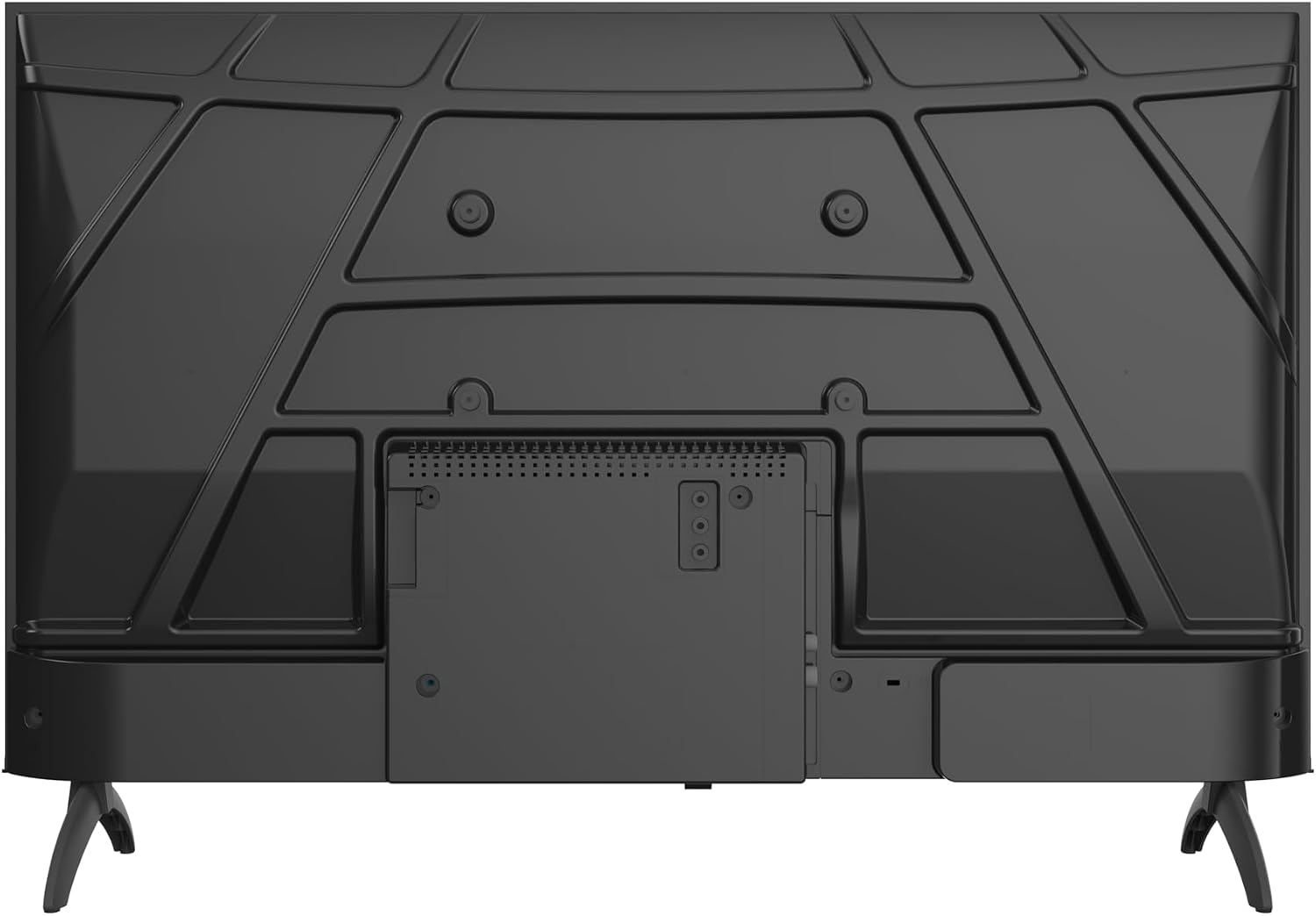
Figure 3: Rear view of the TV, showing VESA mounting points.
4.3 Connecting Peripherals
Connect your external devices to the appropriate ports on the TV. The TV features:
- 2 x HDMI ports: For connecting Blu-ray players, game consoles, etc.
- 2 x USB ports: For connecting USB drives for media playback.
- LAN port: For wired internet connection.
- Antenna/Cable input: For DVB-T/T2/C/S/S2 signals.
- CI+ slot: For conditional access modules.
- Headphone output: For private listening.

Figure 4: Side view of the TV, illustrating connectivity ports.
4.4 Power On and Initial Setup
- Connect the power cable to the TV and then to a power outlet.
- Press the power button on the remote control or TV.
- Follow the on-screen instructions to complete the initial setup, including language selection, network connection (Wi-Fi or LAN), and channel scanning.
- Sign in with your Google account to access Google TV features and apps.
5. Operating Your TV
5.1 Remote Control Overview
The remote control allows you to navigate the TV's interface, adjust settings, and access smart features. Insert the two AAA batteries into the remote control, ensuring correct polarity.
5.2 Google TV Interface
Your Metz TV runs on Google TV, providing a personalized home screen with content recommendations from your streaming services. Use the remote's navigation buttons to browse and select content.

Figure 5: Google TV interface displaying various streaming content.
5.3 Picture Settings
Your TV features advanced picture technologies for an optimal viewing experience:
- Gen 6 QLED+: Delivers vibrant colors and enhanced brightness.
- HDR10 & HLG: Provides superior contrast and color accuracy for compatible content.
- Eye Care Mode: Reduces eye strain during prolonged viewing. This includes Low Blue Light and Flicker-Free technologies.

Figure 6: Example of vibrant colors on a Metz QLED+ display.

Figure 7: Visual comparison of HDR10 & HLG vs. standard display.

Figure 8: Eye Care features: Low Blue Light and Flicker-Free technology.
5.4 Sound Settings
Experience rich and clear audio with your TV's sound features:
- Dolby Audio: Provides immersive surround sound for movies, series, and music.
- Adaptive Audio: Adjusts sound modes (Standard, Cinema, Music, Concert, News, Personal) to suit your content.
- Dialogue Clarity: Enhances spoken words, making conversations clearer even in noisy scenes.

Figure 9: Dolby Audio creating an immersive sound environment.
5.5 Connectivity
- Wi-Fi: Connect to your home network for internet access and streaming.
- Bluetooth 5.1: Connect wireless headphones, soundbars, or other Bluetooth devices.
- Casting: Easily cast content from your smartphone or laptop to the TV using Chromecast built-in.

Figure 10: Bluetooth 5.1 for faster, smarter, and more reliable connections.

Figure 11: Multi-screen casting for an immersive experience.
5.6 Smart Features
- Streaming Apps: Access popular services like Netflix, YouTube, Prime Video, and Disney+.
- Game Mode: Optimizes display settings for gaming, reducing input lag.
- Auto Volume Leveller: Maintains consistent volume levels across different channels and content.
6. Maintenance
6.1 Cleaning
- Screen: Gently wipe the screen with a soft, lint-free cloth. For stubborn marks, use a screen cleaner specifically designed for TVs, applied to the cloth, not directly to the screen.
- Body: Wipe the TV's frame and stand with a soft, dry cloth. Do not use abrasive cleaners or solvents.
Always unplug the TV from the power outlet before cleaning.
6.2 Software Updates
Your Smart TV may receive software updates to improve performance and add new features. Ensure your TV is connected to the internet to receive these updates. You can usually check for updates in the TV's settings menu.
7. Troubleshooting
If you encounter issues with your TV, refer to the following common solutions:
| Problem | Possible Solution |
|---|---|
| No power | Check if the power cable is securely connected and the power outlet is working. Try a different outlet. |
| No picture, but sound is present | Ensure the correct input source is selected. Check cable connections to external devices. |
| No sound, but picture is present | Check volume level and mute status. Verify audio settings and external speaker connections. |
| Remote control not working | Replace batteries. Ensure no obstructions between remote and TV. |
| Cannot connect to Wi-Fi | Check Wi-Fi password. Restart your router and TV. Ensure TV is within range of the router. |
For more detailed troubleshooting, please refer to the full User Manual PDF or contact customer support.
8. Specifications
| Feature | Detail |
|---|---|
| Model Name | MQH7000 |
| Model Number | 43MQH7000Z |
| Screen Size | 43 Inches (108 cm) |
| Display Technology | QLED |
| Resolution | 1080p (1920 x 1080) |
| Refresh Rate | 60 Hz |
| HDR Format Supported | HDR10 |
| Image Enhancement Technology | QLED+ |
| Operating System | Google TV |
| Audio Technology | Dolby Audio, Dolby Digital, Dolby Digital Plus |
| Bluetooth Version | 5.1 |
| HDMI Ports | 2 |
| USB Ports | 2 |
| Connectivity | Bluetooth, USB, Wi-Fi, LAN, DVB-T/T2/C/S/S2, CI+ |
| Special Features | Auto Volume Leveller, Bezel-Less Design, Chromecast, Eye Comfort Mode, Game Mode |
| Dimensions (with stand) | 21.4P x 95.5L x 61.1H cm |
| Weight (with stand) | 5.5 kg |
| VESA Mounting Standard | 200 x 100 mm |
| Memory Storage Capacity | 1.5 GB |
| Model Year | 2026 |
| Country of Origin | Poland |
For detailed energy efficiency information, please refer to the EU Energy Label:

Figure 12: EU Energy Label for the 43MQH7000Z.
You can also find more information at: https://eprel.ec.europa.eu/qr/2590947
9. Warranty and Support
9.1 Warranty Information
Your Metz 43MQH7000Z Smart TV comes with a 2-year warranty from the date of purchase. Please retain your proof of purchase for warranty claims. The warranty covers manufacturing defects under normal use conditions.
9.2 Customer Support
For technical assistance, troubleshooting, or warranty inquiries, please contact Metz customer support:
- Manufacturer: METZ DISPLAY POLSKA SP.Z O.O.
- Address: UL. RYSZARDA CHOMICZA 13A/DC2, 55-080 NOWA WIES WROCŁAWSKA, POLAND
- Email: metzpoland@skyworth.com
You can also download the complete User Manual in PDF format for more detailed information:


