
1. Introduction
The FOSSIBOT FC360 is a waterproof 8K 360° action camera designed for capturing immersive video and photos in various environments. It features advanced image stabilization, built-in GPS, a 3.0-inch touchscreen, and supports 360° recording and live streaming. This manual provides detailed instructions for setting up, operating, maintaining, and troubleshooting your FC360 camera.
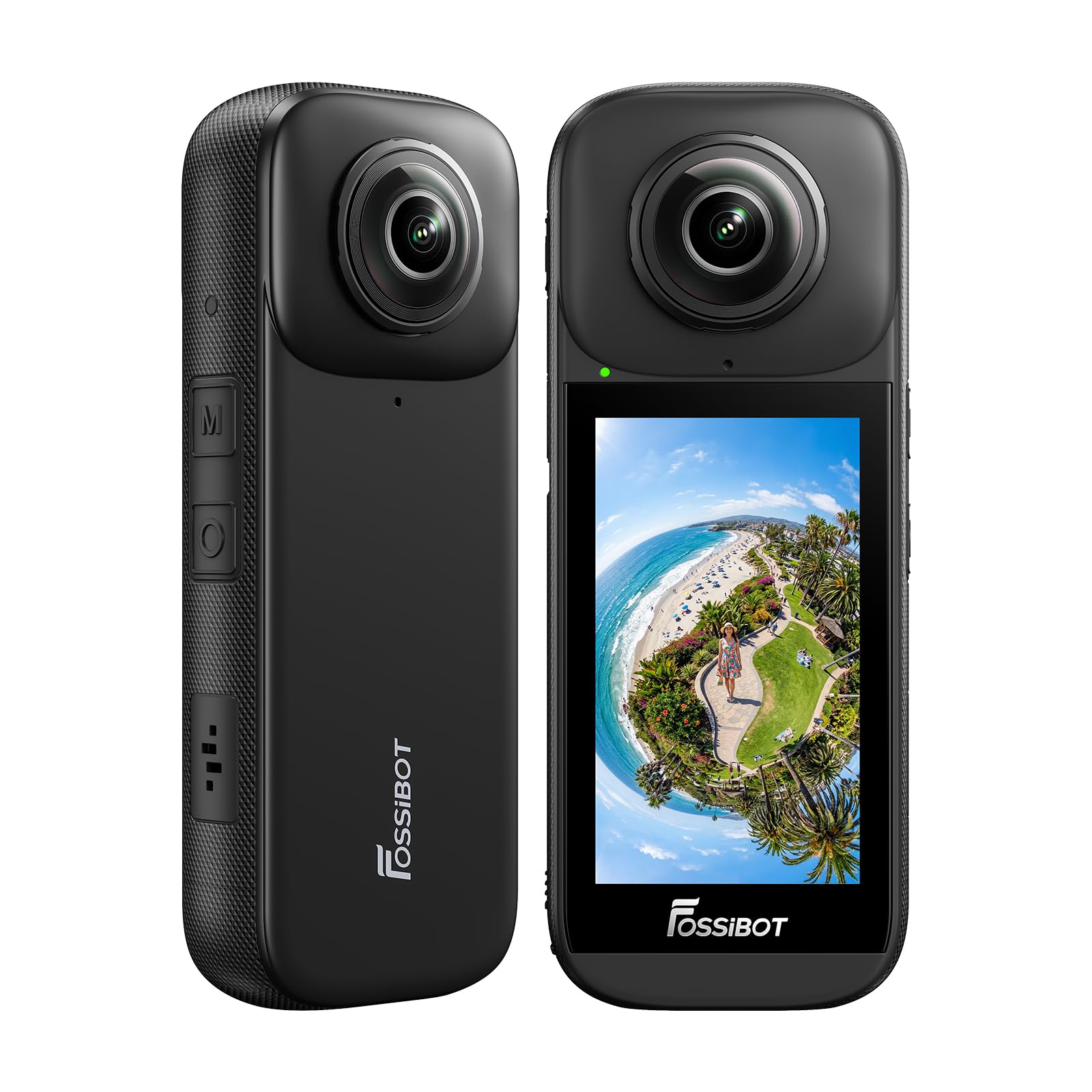
Image: The FOSSIBOT FC360 Action Camera, showcasing its sleek design and touchscreen display.
2. What's in the Box
Verify that all items listed below are included in your package:
- FOSSIBOT FC360 Action Camera
- USB Cable
- User Manual (this document)
- Warranty Card
- Protective Pouch

Image: The FOSSIBOT FC360 camera, USB cable, user manual, warranty card, and a protective pouch are shown as included items.
3. Product Overview
3.1 Key Features
- 8K/12K Resolution & HDR: Captures high-detail images and videos with enhanced dynamic range.
- 360° Capture: Records immersive panoramic footage.
- IP68 Waterproof: Designed for use in wet conditions, including underwater (up to 10m without case, 50m with case).
- Image Stabilization: Ensures smooth and steady footage.
- Built-in GPS: Records location data with your videos.
- 3.0-inch Touchscreen: For easy navigation and preview.
- Replaceable Battery: 1600mAh battery with 18W fast charging support.
- Invisible Selfie Stick Effect: Automatically removes the selfie stick from 360° footage.
- Smart Auto-Editing & AI-Powered Instant Movies: Automated editing features for cinematic results.
- Smart Tracking: Keeps subjects centered and in focus.
- Loop Recording & Emergency Recording: Continuous recording and automatic locking of critical moments.
- Split-screen Video: Displays multiple perspectives simultaneously.
- Flexible Editing Options: In-camera and app-based editing.
- Connectivity: Wi-Fi and Bluetooth for seamless sharing and control.
- External Storage: Supports TF Card 64GB-1TB.
3.2 Camera Components
Familiarize yourself with the camera's physical components:

Image: Front and back view of the FOSSIBOT FC360 camera, showing the lenses, touchscreen, and buttons.
- Front Lens: Primary 360° capture lens.
- Rear Lens: Secondary 360° capture lens.
- 3.0-inch Touchscreen: For live view, settings, and playback.
- Power Button: To turn the camera on/off and change modes.
- Shutter/Record Button: To capture photos or start/stop video recording.
- USB-C Port: For charging and data transfer.
- Battery Compartment: Houses the replaceable battery.
- MicroSD Card Slot: For external storage.
4. Setup
4.1 Charging the Battery
Before first use, fully charge the camera battery. The FC360 uses a 1600mAh replaceable battery and supports 18W fast charging.
- Open the battery compartment cover.
- Insert the battery into the compartment, ensuring correct orientation.
- Close the battery compartment cover securely.
- Connect the camera to a power source using the provided USB cable and an 18W (or higher) USB power adapter (not included).
- The charging indicator light will illuminate. It will turn off or change color when charging is complete.

Image: The FOSSIBOT FC360 camera next to its 1600mAh replaceable battery and an illustration of 18W fast charging.
4.2 Inserting a MicroSD Card
The FC360 does not have built-in storage and requires a MicroSD card (TF Card) for recording. It supports cards from 64GB to 1TB.
- Locate the MicroSD card slot on the side of the camera.
- Insert the MicroSD card with the contacts facing the front of the camera until it clicks into place.
- To remove, gently push the card in until it springs out.
Note: Use a high-speed MicroSD card (UHS-I Speed Class 3 or higher) for optimal performance, especially when recording 8K video.
4.3 Powering On/Off
- Power On: Press and hold the Power button for a few seconds until the screen illuminates.
- Power Off: Press and hold the Power button for a few seconds until the power-off prompt appears, then confirm.
4.4 Connecting to the Mobile App
Download the official FOSSIBOT FC360 app from your device's app store to control the camera remotely, preview footage, and edit content.
- Turn on the FC360 camera.
- Enable Wi-Fi on your camera through the settings menu.
- On your smartphone, open the FOSSIBOT FC360 app and follow the on-screen instructions to connect to the camera's Wi-Fi network.
- Once connected, you can control the camera, view live footage, and transfer files.
5. Operating Instructions
5.1 Basic Photo and Video Capture
- Switch Modes: Tap the mode icon on the touchscreen or short-press the Power button to cycle through photo, video, and other modes.
- Capture Photo: In photo mode, press the Shutter/Record button once to take a picture.
- Record Video: In video mode, press the Shutter/Record button once to start recording. Press again to stop.
5.2 Using the Touchscreen
The 3.0-inch touchscreen allows for intuitive control:
- Swipe Up/Down: Access settings or playback.
- Swipe Left/Right: Switch between different shooting modes or adjust parameters.
- Tap: Select options, change settings, or focus.
5.3 Advanced Shooting Features
5.3.1 Invisible Selfie Stick Effect
When using a compatible selfie stick, the camera can automatically stitch out the stick from your 360° footage, creating a seamless, drone-like perspective.

Image: A snowboarder is shown with and without the invisible selfie stick effect, demonstrating how the stick is removed from the 360-degree view.
5.3.2 Image Stabilization (PilotSteady™)
The FC360 features advanced image stabilization technology to ensure your footage remains smooth and steady, even during dynamic activities.

Image: A side-by-side comparison of video footage with stabilization off (blurry) and on (clear and steady) while riding a bike.
5.3.3 Smart Tracking
Activate Smart Tracking mode to automatically keep a selected subject centered and in focus within the 360° frame. This is ideal for action shots and vlogs.

Image: A skier is highlighted within a grid on the camera's display, demonstrating the Smart Tracking feature keeping the subject in focus.
5.3.4 Loop Recording
The camera supports loop recording, continuously overwriting the oldest footage when the memory card is full. This ensures you never miss a moment, especially useful for dashcam-like applications.

Image: A visual representation of loop recording, showing older footage being deleted to make space for new recordings.
5.3.5 Emergency Recording
Built-in sensors detect dangerous events and automatically lock the corresponding video segments, preventing them from being overwritten by loop recording. This feature provides peace of mind during adventures.

Image: A visual showing an alert icon over a video frame, indicating that an emergency event has been detected and the footage locked.
5.3.6 Split-screen Video Recording
Capture and display multiple perspectives simultaneously within a single video, enhancing your storytelling with immersive viewing experiences.

Image: A split-screen video showing different angles captured by the 360-degree camera simultaneously.
5.3.7 Bluetooth Remote Control
Pair the camera with a Bluetooth-enabled remote control (sold separately) for hands-free operation, ideal for capturing footage while engaged in activities like cycling.

Image: A cyclist using a Bluetooth remote control to operate the FOSSIBOT FC360 camera, highlighting seamless connectivity.
5.3.8 Flexible Editing Options
The FC360 supports both in-camera and app-based editing, allowing you to reframe footage directly on the device or through the mobile application. This reduces the need to transfer large files to your phone and speeds up export times.

Image: A hand holding the FOSSIBOT FC360 camera with editing options displayed on its screen, alongside a preview of reframed 360-degree footage.
5.3.9 Sharing Content
Easily share your captured moments to social media by scanning a QR code generated by the camera or app.

Image: A smartphone displaying a QR code for sharing content, with multiple 360-degree video thumbnails below.
6. Maintenance
6.1 Cleaning the Camera and Lenses
- Use a soft, lint-free cloth to clean the camera body.
- For lenses, use a specialized lens cleaning cloth and lens cleaning solution. Avoid touching the lenses directly with your fingers.
- Ensure the camera is dry before closing any ports or compartments after use in wet conditions.
6.2 Battery Care
- Store batteries in a cool, dry place.
- Avoid fully discharging the battery for extended periods.
- If storing for a long time, charge the battery to about 50-60% capacity.
6.3 Storage
- Store the camera in its protective pouch or a camera case when not in use to prevent scratches and damage.
- Keep the camera away from extreme temperatures, high humidity, and strong magnetic fields.
6.4 Replacing Lenses
The FOSSIBOT FC360 features tougher, replaceable lenses. If a lens becomes damaged, contact FOSSIBOT customer support for replacement options and instructions.

Image: A close-up of the FOSSIBOT FC360 camera highlighting its replaceable lenses.
7. Troubleshooting
| Problem | Possible Cause | Solution |
|---|---|---|
| Camera does not power on. | Battery is depleted or not inserted correctly. | Charge the battery. Ensure the battery is inserted with correct polarity. |
| Cannot record video/take photos. | No MicroSD card, card full, or card error. | Insert a MicroSD card. Check available storage. Format the card (this will erase all data). Try a different card. |
| Wi-Fi connection issues. | Incorrect password, camera Wi-Fi off, or interference. | Ensure Wi-Fi is enabled on the camera. Re-enter password. Move closer to the camera. Restart both devices. |
| Footage is blurry or unstable. | Lenses are dirty, or stabilization is off. | Clean the lenses. Ensure image stabilization is enabled in settings. |
| Camera freezes or becomes unresponsive. | Software glitch or overheating. | Press and hold the Power button for 10 seconds to force a restart. Allow the camera to cool down if it feels hot. |
8. Specifications
| Feature | Detail |
|---|---|
| Brand | FOSSIBOT |
| Model Number | FC360 |
| Video Capture Resolution | 8K |
| Effective Still Resolution | 30 MP |
| Photo Sensor Technology | CMOS |
| Screen Size | 3 inches |
| Connectivity Technology | USB, Wi-Fi |
| Flash Memory Type | SD (supports 64GB-1TB TF Card) |
| Video Capture Format | MP4 |
| Supported Audio Format | MP4 |
| Water Resistance Level | IP68 Waterproof |
| Image Stabilization | Dynamic (PilotSteady™) |
| Special Features | 360 Degree Capture, GPS, Slow Motion, Time Lapse, Invisible Selfie Stick Effect, Smart Tracking, Loop Recording, Emergency Recording, Split-screen Video |
| Battery | 1600mAh Replaceable (1 Nonstandard Battery included) |
| Charging | 18W Fast Charging |
| Lens Type | Wide Angle, F2.0 Aperture |
| Wireless Compatibility | 2.4 GHz Radio Frequency (Wi-Fi, Bluetooth) |
| Image Aspect Ratio | 16:9 |
| Image Capture Speed | 60 frames_per_second |
9. Warranty and Support
9.1 Warranty Information
The FOSSIBOT FC360 Action Camera comes with a 2-year warranty from the date of purchase. This warranty covers manufacturing defects and malfunctions under normal use. It does not cover damage caused by misuse, accidents, unauthorized modifications, or natural disasters.
Please retain your proof of purchase for warranty claims.
9.2 Customer Support
For technical support, warranty claims, or any questions regarding your FOSSIBOT FC360 camera, please contact FOSSIBOT customer service through their official website or the contact information provided on your warranty card.
You can visit the FOSSIBOT Store for more information: FOSSIBOT Official Store