
1. Introduction
Thank you for purchasing the Bonsaii C277-A Micro-Cut Shredder. This manual provides essential information for the safe and efficient operation, maintenance, and troubleshooting of your shredder. Please read it thoroughly before use and keep it for future reference.
2. Important Safety Instructions
To reduce the risk of fire, electric shock, or injury, always follow basic safety precautions when using this product.
- Keep out of reach of children and pets.
- Keep loose clothing, jewelry, hair, and hands away from the paper entry slot.
- Do not spray any flammable products or lubricants into the shredder.
- Do not shred metal objects, wet paper, or adhesive materials.
- Always unplug the shredder before moving, cleaning, or emptying the waste bin.
- Do not operate the shredder if the power cord is damaged. Contact customer support.
- The shredder is equipped with overheat protection. If the motor temperature rises, the unit will automatically stop, and an overheat lamp will illuminate red. Allow the unit to cool down for approximately 40 minutes before resuming operation.
- An automatic power-off feature is activated if the dust box is not correctly set, indicated by an interlock switch. Ensure the dust box is properly seated for operation.

This image illustrates the shredder's safety features, including overheat protection (red lamp) and the automatic power-off mechanism triggered by the dust box interlock switch.
3. Product Overview
The Bonsaii C277-A is a compact micro-cut shredder designed for home and small office use. It features a handle-up design for easy waste bin access and a transparent window to monitor shred level.
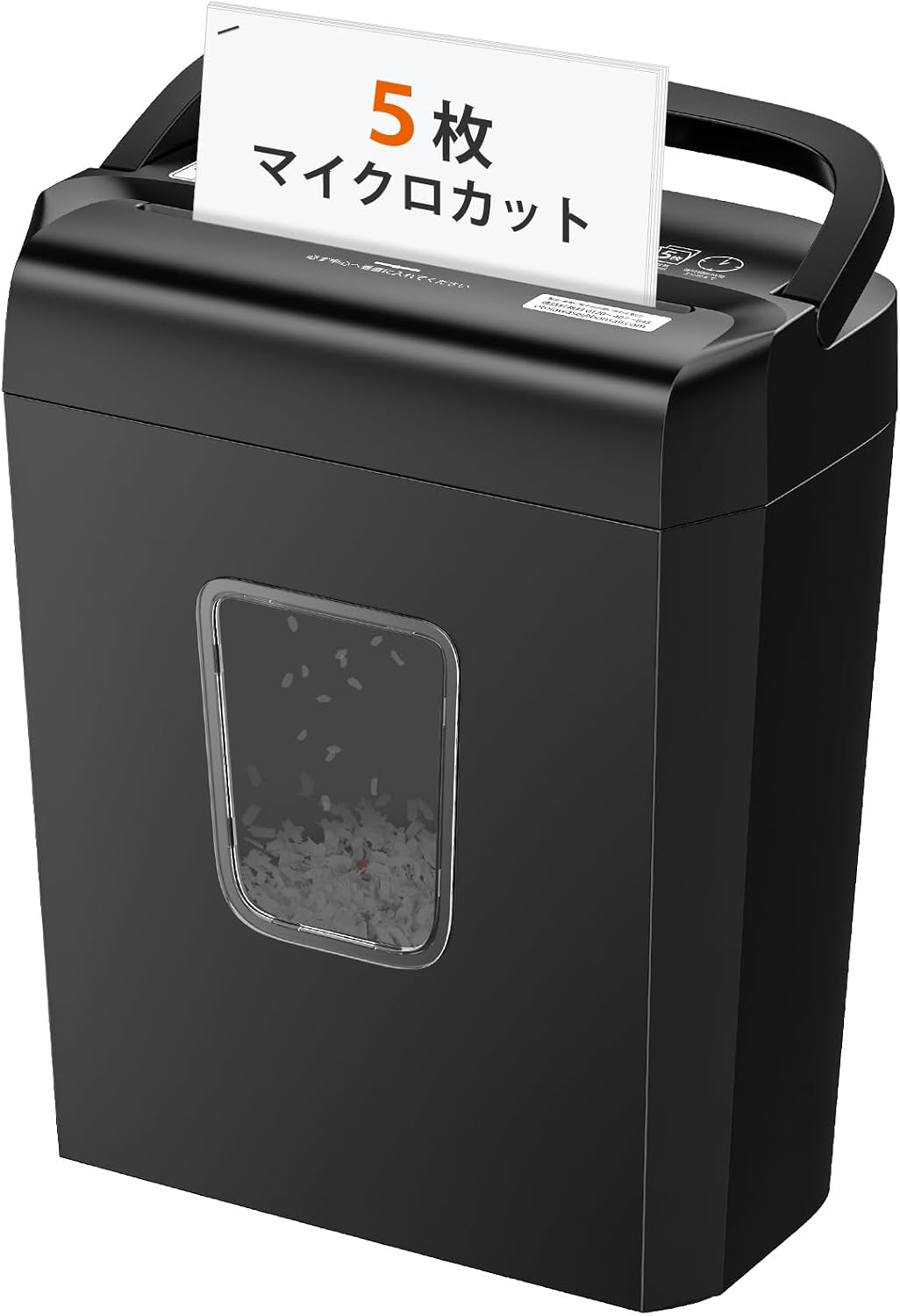
This image shows the overall design of the Bonsaii C277-A shredder.
4. Setup
- Unpack: Carefully remove the shredder from its packaging.
- Position: Place the shredder on a flat, stable surface. Ensure it is near a power outlet and away from heat sources or water.
- Assemble Waste Bin: Ensure the shredder head is correctly seated on the waste bin. The interlock switch must be engaged for the unit to operate.
- Connect Power: Plug the power cord into a standard AC 100V (50/60Hz) outlet.

This image shows how to lift the shredder head using the handle for easy access to the 13L waste bin.
5. Operation
The Bonsaii C277-A shredder offers three operating modes: Auto, Stop, and Reverse.
- Auto (Shred): Slide the switch to the 'Shred' position. The shredder will automatically start when paper is inserted and stop when shredding is complete.
- Stop: Slide the switch to the 'Stop' position to turn off the shredder. This mode should be used when emptying the waste bin or moving the unit.
- Reverse: Slide the switch to the 'Reverse' position to reverse the blades. This is useful for clearing paper jams.
- Manual Shred: This mode keeps the blades continuously rotating. It is primarily for cleaning and not recommended for regular shredding tasks.
Shredding Documents:
- Ensure the shredder is in 'Auto' mode.
- Insert up to 5 sheets of A4 paper (64g/m²) into the paper entry slot. The shredder can also shred credit cards (one at a time), staples (No. 10), and paper clips.
- The shredder will automatically start and stop.
- Do not exceed the maximum sheet capacity to prevent jams.
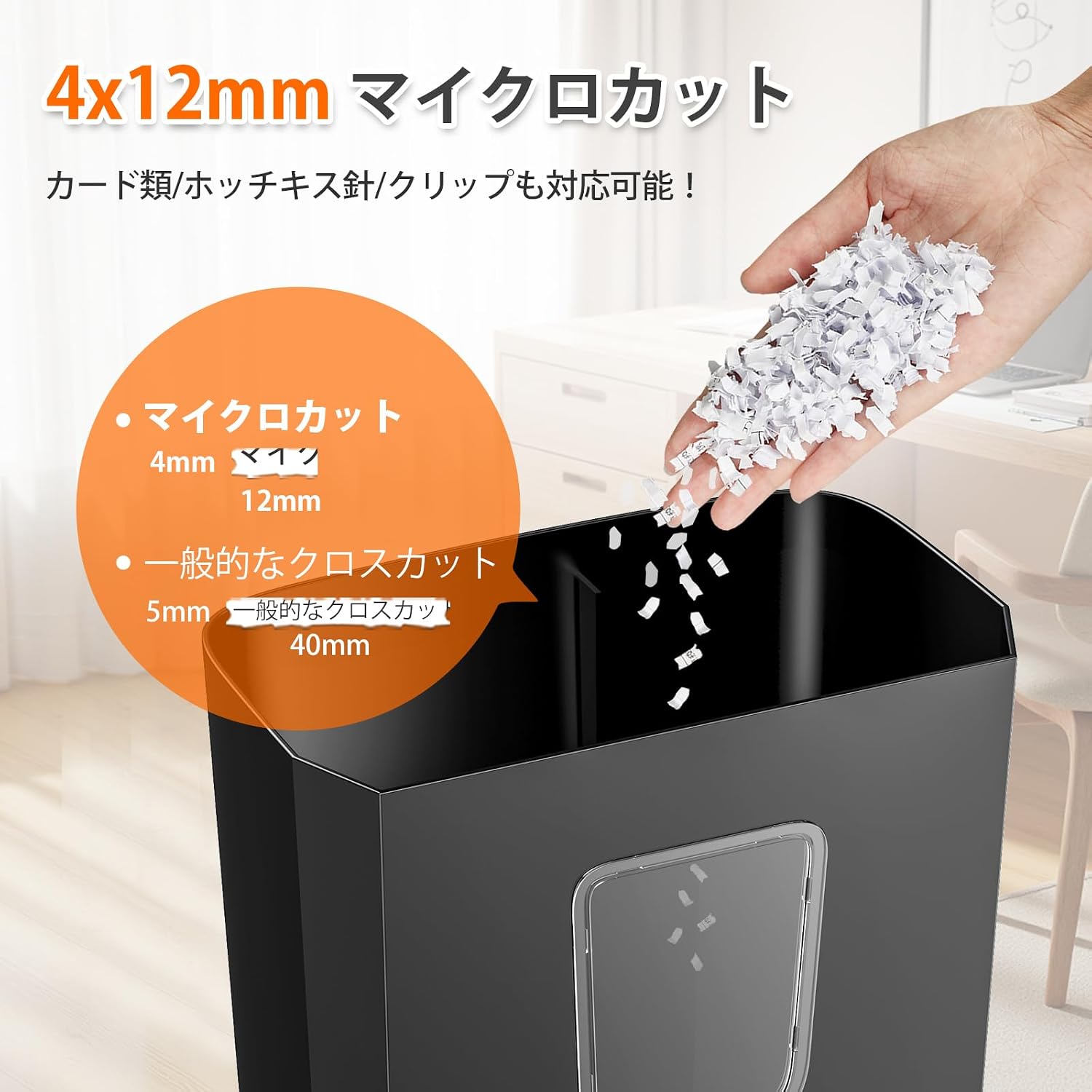
This image demonstrates the shredder's capability to shred paper, cards, staples, and clips.

This image highlights the control panel with its various operating functions.
6. Maintenance
Regular maintenance ensures optimal performance and extends the life of your shredder.
- Emptying the Waste Bin: When the waste bin is full (visible through the transparent window), slide the switch to 'Stop', unplug the unit, and lift the shredder head using the handle to empty the bin. Reattach the head securely before use.
- Cleaning: Unplug the shredder. Use a soft, dry cloth to wipe the exterior. Do not use abrasive cleaners or solvents.
- Oiling (Optional): For prolonged use, shredder oil sheets can be used periodically to lubricate the blades. Follow the instructions provided with the oil sheets.
This image illustrates the handle-up design, making it easy to remove the shredder head for emptying the waste bin.
7. Troubleshooting
| Problem | Possible Cause | Solution |
|---|---|---|
| Shredder does not start | Not plugged in; Waste bin not properly seated; Overheat protection activated. | Ensure power cord is securely plugged in; Re-seat the waste bin correctly; Allow 40 minutes for cooling if overheat lamp is red. |
| Paper jam | Too many sheets inserted; Paper inserted incorrectly. | Slide switch to 'Reverse' to clear the jam. If unsuccessful, unplug, carefully remove paper manually (avoiding blades), then plug in and try 'Reverse' again. Reduce sheet count for future shredding. |
| Shredder stops during operation | Overheat protection activated; Waste bin full; Continuous operation time exceeded. | Allow 40 minutes for cooling; Empty the waste bin; Adhere to the 3-minute continuous operation limit. |
This image illustrates the overheat protection and automatic power-off features, which are key for troubleshooting operational stops.
8. Specifications
| Feature | Specification |
|---|---|
| Model | C277-A |
| Shred Type | Micro-Cut |
| Shred Size | 4 x 12 mm |
| Shredding Capacity | 5 sheets (A4, 64g/m²) |
| Waste Bin Capacity | 13 Liters |
| Continuous Operation Time | 3 minutes |
| Cool-down Time | 40 minutes |
| Shredding Speed | Approx. 1.8 m/min (50/60Hz) |
| Operating Noise Level | Approx. 62 dB |
| Feed Opening Width | 220 mm (A4 size) |
| Dimensions (W x D x H) | 300 x 180 x 362.2 mm |
| Power Supply | AC 100V (50/60Hz) |
| Rated Power Consumption | 140W (50/60Hz) |
| Protection Functions | Thermal Breaker, Warning Lamp, Dust Box Switch |
| Shreds | Paper, Credit Cards, Staples, Paper Clips |

This image provides a comprehensive overview of the shredder's technical specifications.

This image illustrates the compact dimensions of the shredder, showing it fits under a desk.

This image highlights the shredder's quiet operation with a noise level of approximately 62dB.
9. Warranty and Support
The Bonsaii C277-A shredder comes with a one-year warranty from the date of purchase, covering defects in materials and workmanship under normal use. Please retain your proof of purchase for warranty claims.
Customer Support:
For any questions, issues, or repair requests, please contact Bonsaii customer support. Our dedicated staff provides support in Japanese and handles domestic repair services.
- Domestic Japanese support available.
- Inquiries handled in Japanese.
- Domestic repair services provided.
- Official warranty card included.
- Prompt response to inquiries.
Note: During manufacturing and shipping, small paper scraps may remain in the shredder or waste bin. This is normal and does not affect product performance.

This image outlines the various customer support services offered by Bonsaii.


