
Introduction
Thank you for choosing the Gamrombo Wireless Gamepad Model 131312312312. This manual provides detailed instructions to help you set up, operate, and maintain your new gamepad. Please read this manual thoroughly before use to ensure optimal performance and longevity of your device.
Setup and Initial Connection
1. Charging the Gamepad
Before first use, fully charge the gamepad. Connect the provided charging cable to the gamepad's charging port and to a compatible USB power source. The charging indicator light will show the charging status and turn off or change color once fully charged.
2. Wireless Connection (Bluetooth)
The Gamrombo Wireless Gamepad connects via Bluetooth. Follow these steps to pair your device:
- Ensure the gamepad is sufficiently charged.
- Turn on the gamepad by pressing the Home button.
- Activate pairing mode on the gamepad (refer to specific button combination if available, otherwise assume a dedicated pairing button or holding Home). The indicator lights will flash, indicating it is discoverable.
- On your host device (PC, Mac, Android, iOS), navigate to the Bluetooth settings.
- Search for available devices and select "Gamrombo Gamepad" (or similar name) from the list.
- Once connected, the indicator lights on the gamepad will become solid.

Image: The Gamrombo Wireless Gamepad featuring RGB adjustable ambient lighting and indicating Bluetooth wireless connection capability. The image highlights 7 colors with 8 mode light combinations.
3. Platform Compatibility
This gamepad is designed for compatibility with multiple platforms:
- PC (Windows 7 and above)
- MAC/Laptop
- Android devices
- iOS/iPad devices
- Samsung devices
- Steam platform

Image: The Gamrombo Wireless Gamepad displayed with icons representing its compatibility across various platforms: PC (Windows 7 and above), MAC/Laptop, Android, iOS/iPad, Samsung, and Steam.
Important Compatibility Note for Xbox Consoles:
This controller lacks official Microsoft authorization hardware. Due to Microsoft’s device policy, unlicensed third-party accessories may trigger error code 0x82d60002 and face a permanent connection block on Xbox One and Xbox Series X/S consoles after a grace period. It remains fully compatible as a plug-and-play controller for PC (Windows) gaming. Please verify your intended platform before purchasing or attempting to connect to Xbox consoles.
Operating Instructions
1. Gamepad Layout and Functions
Familiarize yourself with the buttons and their functions:
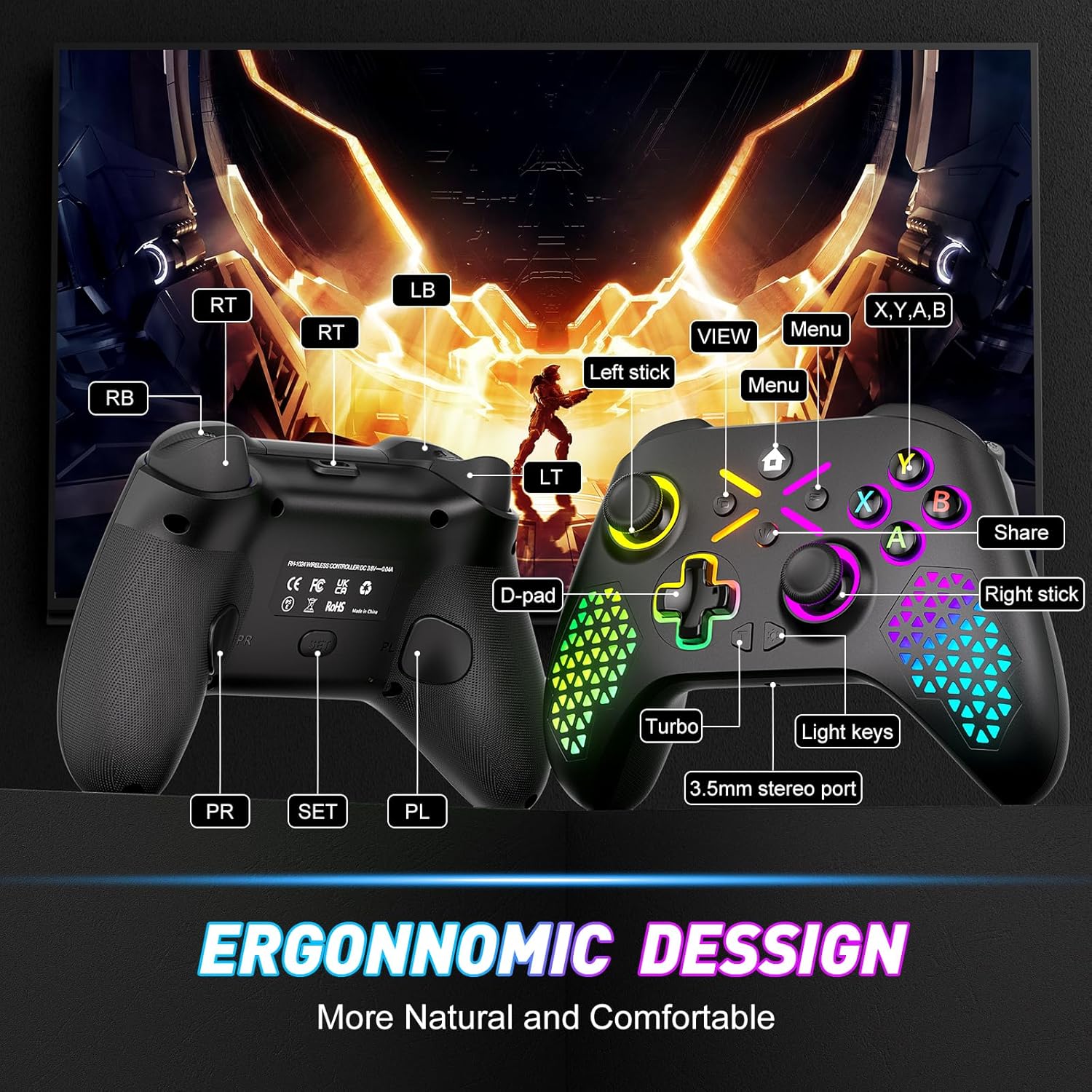
Image: Front and back views of the Gamrombo Wireless Gamepad, highlighting its ergonomic design and labeling key components such as LB, LT, RB, RT, View, Menu, X, Y, A, B, Share, D-pad, Left stick, Right stick, Turbo button, Light keys, 3.5mm stereo port, PR, SET, and PL buttons.
- Left Stick / Right Stick: Analog joysticks for movement and camera control.
- D-pad: Directional pad for precise input.
- A, B, X, Y Buttons: Standard action buttons.
- LB / RB: Left and Right Bumper buttons.
- LT / RT: Left and Right Trigger buttons.
- View / Menu Buttons: System-specific function buttons.
- Share Button: For sharing content (platform dependent).
- Turbo Button: Activates rapid-fire function for assigned buttons.
- Light Keys: Controls the RGB ambient lighting.
- 3.5mm Stereo Port: For connecting headphones or headsets.
- PR / SET / PL Buttons: Programmable back buttons for advanced customization.
2. RGB Adjustable Ambient Light
The gamepad features adjustable RGB lighting with 7 colors and 8 light mode combinations. Use the Light keys button to cycle through different colors and modes to personalize your gaming experience.
3. 6-Axis Gyro Sensor
The built-in six-axis gyroscope provides more accurate somatosensory control, enhancing the immersive gaming experience in compatible games. This allows for motion-based input, such as tilting the controller to steer or aim.
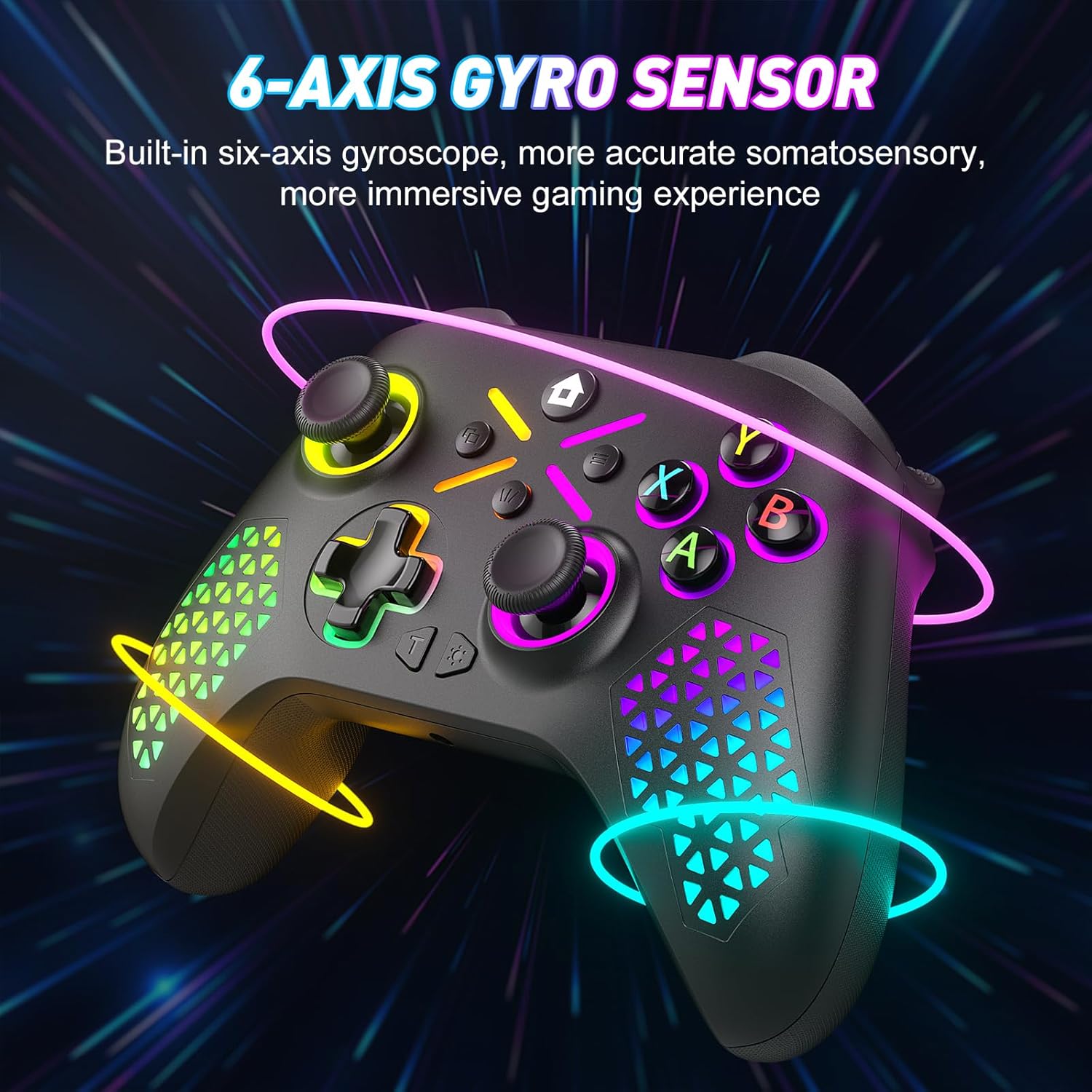
Image: The Gamrombo Wireless Gamepad with dynamic glowing lines emanating from it, visually representing the functionality of its built-in 6-axis gyro sensor for enhanced somatosensory gaming.
4. Turbo Function
To activate the Turbo function for a specific button, press and hold the Turbo button, then press the desired action button (e.g., A, B, X, Y, LB, RB, LT, RT). The button will now rapidly repeat its input when held down. To deactivate, repeat the process.
5. Programmable Back Buttons (PR, SET, PL)
The PR, SET, and PL buttons on the back of the controller are programmable. Refer to the specific software or in-game settings of your platform for detailed instructions on how to map these buttons to desired functions. Some users may find these buttons challenging to map depending on the game or system.
Maintenance and Care
- Cleaning: Use a soft, dry cloth to clean the gamepad. For stubborn dirt, slightly dampen the cloth with water. Avoid using harsh chemicals or abrasive cleaners.
- Storage: Store the gamepad in a cool, dry place away from direct sunlight and extreme temperatures.
- Battery Care: To prolong battery life, avoid fully discharging the gamepad frequently. Charge it regularly, even if not in use for extended periods.
- Avoid Drops: Protect the gamepad from drops and impacts, which can damage internal components.
Troubleshooting
Gamepad Not Connecting/Pairing
- Ensure the gamepad is charged.
- Verify Bluetooth is enabled on your host device.
- Try restarting both the gamepad and your host device.
- Remove any previous pairings of the gamepad from your device's Bluetooth settings and attempt to pair again.
- Ensure no other Bluetooth devices are interfering with the connection.
Joystick Input Issues (e.g., Glitching, Unresponsive)
- Calibrate the joysticks if your operating system or game supports it.
- Ensure no physical obstructions are affecting joystick movement.
- Update gamepad drivers if available for your operating system.
- If issues persist, the joystick mechanism may be faulty.
Compatibility Issues with Xbox Consoles
As noted in the Setup section, this gamepad is not officially licensed for Xbox consoles. Attempting to use it with Xbox One or Xbox Series X/S may result in error code 0x82d60002 and potential connection blocks. This is an inherent limitation due to Microsoft's device policy for third-party accessories. The gamepad is primarily designed for PC (Windows), Mac, Android, iOS, and Steam platforms.
Buttons Not Responding or Hard to Map
- Check in-game controller settings to ensure buttons are correctly assigned.
- For programmable back buttons (PR, SET, PL), consult the game or platform's specific mapping instructions. Some games or systems may have limited support for custom button mapping.
- Ensure the Turbo function is not inadvertently activated on a button you wish to use normally.
Specifications
| Brand: | Gamrombo |
| Model: | 131312312312 |
| Connectivity: | Wireless (Bluetooth) |
| Compatibility: | PC (Windows 7+), MAC/Laptop, Android, iOS/iPad, Samsung, Steam |
| Special Features: | RGB Adjustable Ambient Light (7 colors, 8 modes), 6-Axis Gyro Sensor, Turbo Function, Programmable Back Buttons |
| Power Input: | DC 2.8V-4.0V |
| Package Quantity: | 1 Gamepad |
| ASIN: | B0GYXBP8Q2 |
Warranty and Support
For warranty information or technical support, please refer to the documentation included with your purchase or visit the official Gamrombo website. You may also contact Gamrombo customer service directly for assistance with product issues or inquiries.
Official Gamrombo Store: Gamrombo Store on Amazon


