
Introduction
Welcome to your new HP OmniDesk AI M03-0009nl Tower PC. This manual provides essential information for setting up, operating, maintaining, and troubleshooting your computer. Please read this manual thoroughly to ensure proper use and longevity of your device.
Product Overview
The HP OmniDesk AI M03-0009nl is a high-performance tower PC designed for demanding tasks, gaming, and creative work. It features a distinctive design with a wooden front panel and efficient cooling.
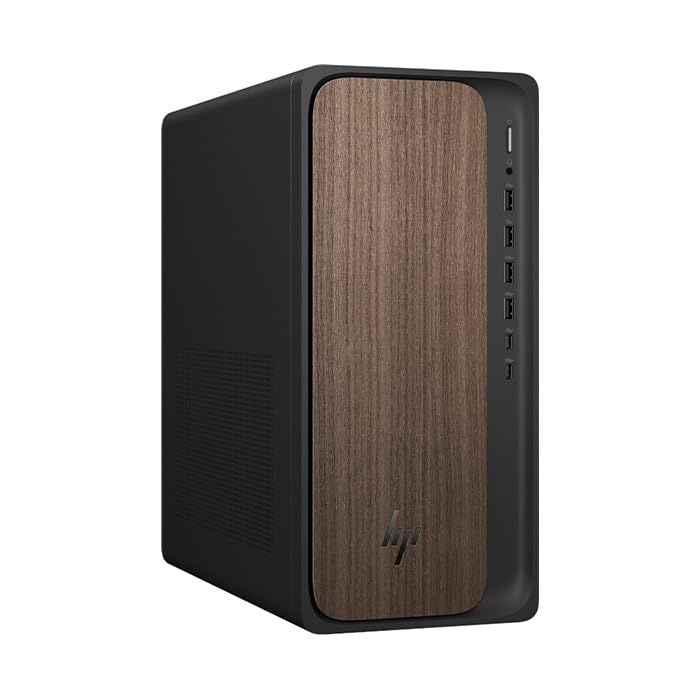
This image displays the front of the HP OmniDesk AI M03-0009nl Tower PC. The left side features a distinctive wooden panel, while the right side houses the front input/output ports, including USB ports and an audio jack.
Front Panel Features
- Power Button: Used to turn the PC on or off.
- USB Ports: Multiple USB Type-A and Type-C ports for connecting peripherals.
- Audio Jack: For connecting headphones or a headset.
Setup
Unpacking
Carefully remove the PC from its packaging. Ensure all components are present: the PC unit and the power cable. Retain the packaging for future transport or service needs.
Connecting Peripherals
- Connect your monitor(s) to the appropriate video output ports (HDMI, DisplayPort) on the rear of the PC.
- Connect your keyboard and mouse to the available USB ports.
- If using a wired network connection, connect an Ethernet cable to the LAN port.
- Connect the power cable to the PC's power input and then to a grounded electrical outlet.
Operating Your PC
Powering On/Off
- To Power On: Press the power button located on the front panel of the PC.
- To Power Off: In Windows, click the Start button, then select Power > Shut down. Avoid directly unplugging the PC or holding the power button for extended periods unless necessary.
Initial Windows 11 Setup
Upon the first power-on, you will be guided through the initial setup of Windows 11 Home. Follow the on-screen instructions to configure language, region, network connection, and create your user account.
Maintenance
Cleaning
Regularly clean the exterior of your PC with a soft, dry, lint-free cloth. Ensure that all ventilation openings are free from dust and debris to maintain optimal airflow. Do not use liquid cleaners directly on the PC or abrasive materials.
Software Updates
Keep your Windows operating system and device drivers updated to ensure optimal performance, security, and compatibility. Access Windows Update through the Settings menu in Windows 11.
Troubleshooting
No Power
- Verify that the power cable is securely connected to both the PC and a functional power outlet.
- Test the power outlet with another device to ensure it is supplying power.
No Display
- Ensure your monitor is powered on and correctly connected to one of the PC's video output ports (HDMI or DisplayPort).
- Check the input source selection on your monitor to ensure it matches the connected port.
System Slowdown
- Close any unnecessary applications running in the background.
- Open Task Manager (Ctrl+Shift+Esc) to identify and close processes consuming high CPU, memory, or disk resources.
- Ensure there is sufficient free space on your SSD.
Technical Specifications
| Feature | Detail |
|---|---|
| Model | HP OmniDesk AI M03-0009nl |
| Processor | Intel Core Ultra 7 265 (2.4 GHz, up to 5.3 GHz) |
| RAM | 32 GB DDR5 5600 MHz (Max 64 GB) |
| Storage | 1 TB SSD (PCIE x 4) |
| Graphics | NVIDIA GeForce RTX 5060 with 8 GB GDDR7 VRAM |
| Operating System | Windows 11 Home |
| Connectivity | Wi-Fi, Bluetooth, Ethernet, USB |
| USB Ports | 7 Total (USB 2.0, 3.0, Type-C) |
| Video Output | HDMI, DisplayPort (4 Total) |
| Power Supply | 400 Watt |
| Dimensions (WxDxH) | 15 x 34 x 34 cm |
| Weight | 5.3 kg |
What's in the Box
- HP OmniDesk AI M03-0009nl Tower PC
- Power Cable
Warranty and Support
Product Warranty
This HP OmniDesk AI M03-0009nl Tower PC comes with a 1-year manufacturer's warranty. Please refer to the warranty card or documentation included with your purchase for detailed terms and conditions, including coverage and limitations.
Technical Support
For technical assistance, driver downloads, or further product information, please visit the official HP support website. You can find contact information for customer service and support resources there.