
Introduction
This manual provides detailed instructions for the setup, operation, and maintenance of your Trueque KM42Pro Wireless RGB Backlit Keyboard and Mouse Combo. Please read this guide thoroughly to ensure optimal performance and longevity of your device.
Setup Instructions
1. Unpacking and Components
Carefully remove the keyboard and mouse from their packaging. Ensure all components are present:
- Wireless Keyboard
- Wireless Mouse
- 2.4GHz USB Receiver (stored inside the mouse)
- USB-C Charging Cable
- USB-A to Type-C Adapter
2. Connecting the Devices
- Locate the USB Receiver: The 2.4GHz USB receiver is conveniently stored in a compartment on the underside of the mouse. Gently open the compartment and remove the receiver.
- Insert the Receiver: Plug the USB receiver into an available USB-A port on your computer. If your computer only has USB-C ports, use the included USB-A to Type-C adapter.
- Power On: Locate the ON/OFF switches on both the keyboard and the mouse. Slide them to the 'ON' position. The devices are plug-and-play and should connect automatically within seconds.

Image: The 2.4GHz USB receiver provides a stable wireless connection up to 33 feet. It can be used with laptops and older PCs, with an adapter for USB-C ports.

Image: The USB receiver is stored securely in the mouse's underside compartment for easy access and portability.
3. Initial Charging
The keyboard and mouse come with a partial charge. For best performance, it is recommended to fully charge both devices before first use. Connect the USB-C charging cable to the charging ports on the keyboard and mouse, and then to a USB power source. You can continue to use the devices while they are charging.

Image: Both the keyboard and mouse feature USB-C charging ports for convenient recharging.
Operating Instructions
1. Keyboard Backlight Control
The keyboard features an RGB rainbow backlight with three adjustable brightness levels.
- Turn On/Off Backlight: Press Fn + Shift simultaneously.
- Adjust Brightness: Press Fn + Shift repeatedly to cycle through the three brightness levels (low, medium, high) and off.

Image: Control the keyboard's RGB backlight and adjust its brightness using the Fn + Shift key combination.
2. Mouse Lighting Effects and DPI Adjustment
The mouse offers 15 switchable lighting effects and adjustable DPI settings.
- Change Lighting Effects: Press the dedicated light button on the mouse to cycle through 15 different lighting effects. You can also turn the lights off.
- Adjust DPI: Press the DPI button on the mouse to switch between 1000, 1500, and 2000 DPI settings, allowing you to customize cursor speed for different tasks.
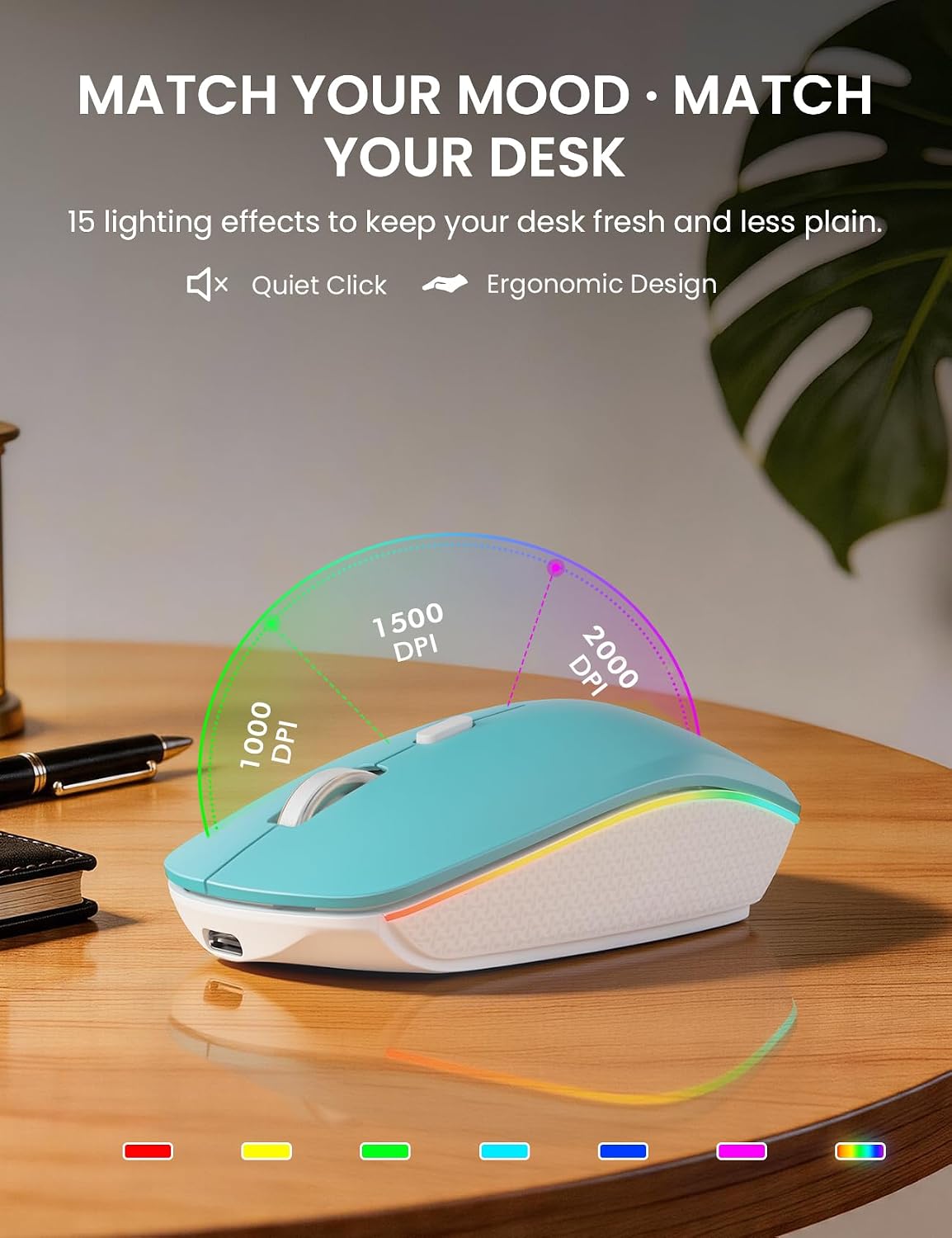
Image: The mouse features 15 lighting effects and adjustable DPI settings for personalized use.
3. Mac & Windows Layout Switching
The keyboard supports both Mac and Windows layouts. Switch between them with a single touch for seamless use across different operating systems.

Image: Easily switch between Mac and Windows keyboard layouts to suit your operating system.
4. Ergonomic Features
- Wrist Rest: The integrated wrist rest provides cushioned support to reduce strain during long typing sessions.
- Foldable Stands: Flip out the stands on the underside of the keyboard to achieve a more natural typing angle, or keep it flat if preferred.

Image: The integrated wrist rest provides ergonomic support for comfortable typing.

Image: Extend the foldable stands for an elevated, more ergonomic typing angle.
Maintenance
1. Charging and Battery Life
The keyboard and mouse are equipped with rechargeable lithium-ion batteries. To maximize battery life:
- Charge the devices when the battery indicator light shows low power.
- Use the provided USB-C cable for charging.
- The keyboard has a standby time of up to 365 days, and the mouse sleeps after 1.5 minutes of inactivity.
- The keyboard backlight turns off after 2 minutes of inactivity to save power.

Image: The devices feature smart power management for extended battery life and quick charging.
2. Cleaning
To clean your keyboard and mouse:
- Disconnect the devices from power and turn them off.
- Use a soft, damp cloth to wipe down surfaces.
- For stubborn dirt, a small amount of mild soap can be used, ensuring no liquid enters the internal components.
- The keyboard is designed to be spill-resistant, but avoid submerging it in liquid.
Troubleshooting
| Problem | Possible Cause | Solution |
|---|---|---|
| Keyboard/Mouse not responding | Devices are off, low battery, receiver not connected, out of range. | Ensure devices are ON. Charge devices. Re-insert USB receiver. Move closer to receiver (within 33 ft). |
| Backlight not working | Backlight is off, low battery. | Press Fn + Shift to turn on/adjust brightness. Charge the keyboard. |
| Mouse cursor erratic or slow | Low battery, incorrect DPI setting, dirty sensor. | Charge the mouse. Adjust DPI using the DPI button. Clean the optical sensor on the mouse underside. |
| Multimedia keys not working on Mac | Compatibility limitation. | Some multimedia keys may not be fully compatible with Mac OS systems. This is expected behavior. |
Specifications
- Brand: Trueque
- Model Number: KM42Pro
- Color: Robin Egg Blue
- Connectivity Technology: 2.4GHz USB Wireless
- Special Features: Low-Profile, Power-Saving, Rechargeable, Silent, RGB Backlit, Wrist Rest, Foldable Stands, Spill-Resistant
- Compatible Devices: Chromebook, Laptop, Macbook Pro, Macbook Air, iMac, Dell XPS 13/15, Inspiron, HP ENVY, Pavilion, Personal Computer
- Movement Detection: Optical
- Keyboard Backlighting Color Support: RGB (Rainbow)
- Power Source: Battery Powered (1 Lithium Ion battery included for each device)
- Keyboard Layout: QWERTY
- Compatible Operating System Family: Linux, Windows, macOS, Chrome OS
- Minimum Required Operating System Version: Mac OS 13 Ventura, Windows 11
- Keyboard Description: Membrane
Warranty and Support
Warranty Information
Your Trueque KM42Pro Wireless RGB Backlit Keyboard and Mouse Combo is covered by a 2-Year Warranty from the date of purchase. This warranty covers manufacturing defects and ensures reliable operation under normal use. Please retain your proof of purchase for warranty claims.
Customer Support
For any questions, troubleshooting assistance, or warranty inquiries, please contact our customer support team:
- Email Support: Truequeservice@outlook.com
- Phone Support (US): 1-866-608-6766
- Operating Hours: Monday - Friday, 9 AM - 1 PM PST and 2 PM - 6 PM PST

Image: Our dedicated customer support team is available to assist you with any product-related queries.
