
Introduction
Thank you for choosing the GXTrust 1873 Revyn 60% Mechanical Gaming Keyboard. This ultra-compact, triple-mode keyboard is designed for optimal gaming performance and versatility. This manual provides detailed instructions for setup, operation, maintenance, and troubleshooting to ensure you get the most out of your device.

The GXTrust 1873 Revyn 60% Mechanical Gaming Keyboard, showcasing its compact design and vibrant RGB backlighting.
Package Contents
Please check the box for the following items:
- GXTrust 1873 Revyn 60% Mechanical Gaming Keyboard
- USB-A Receiver (2.4 GHz wireless dongle)
- USB-C to USB-A Cable (for wired connection and charging)
- User Manual (this document)

The retail packaging for the GXTrust 1873 Revyn keyboard, indicating its contents.
Setup
Initial Charging
Before first use, it is recommended to fully charge the keyboard. Connect the supplied USB-C cable to the keyboard's USB-C port and the other end to a powered USB-A port on your computer or a wall adapter. The keyboard can be used while charging.
Connecting the Keyboard
The GXTrust 1873 Revyn offers three connection modes: 2.4 GHz wireless, Bluetooth, and wired USB-C.
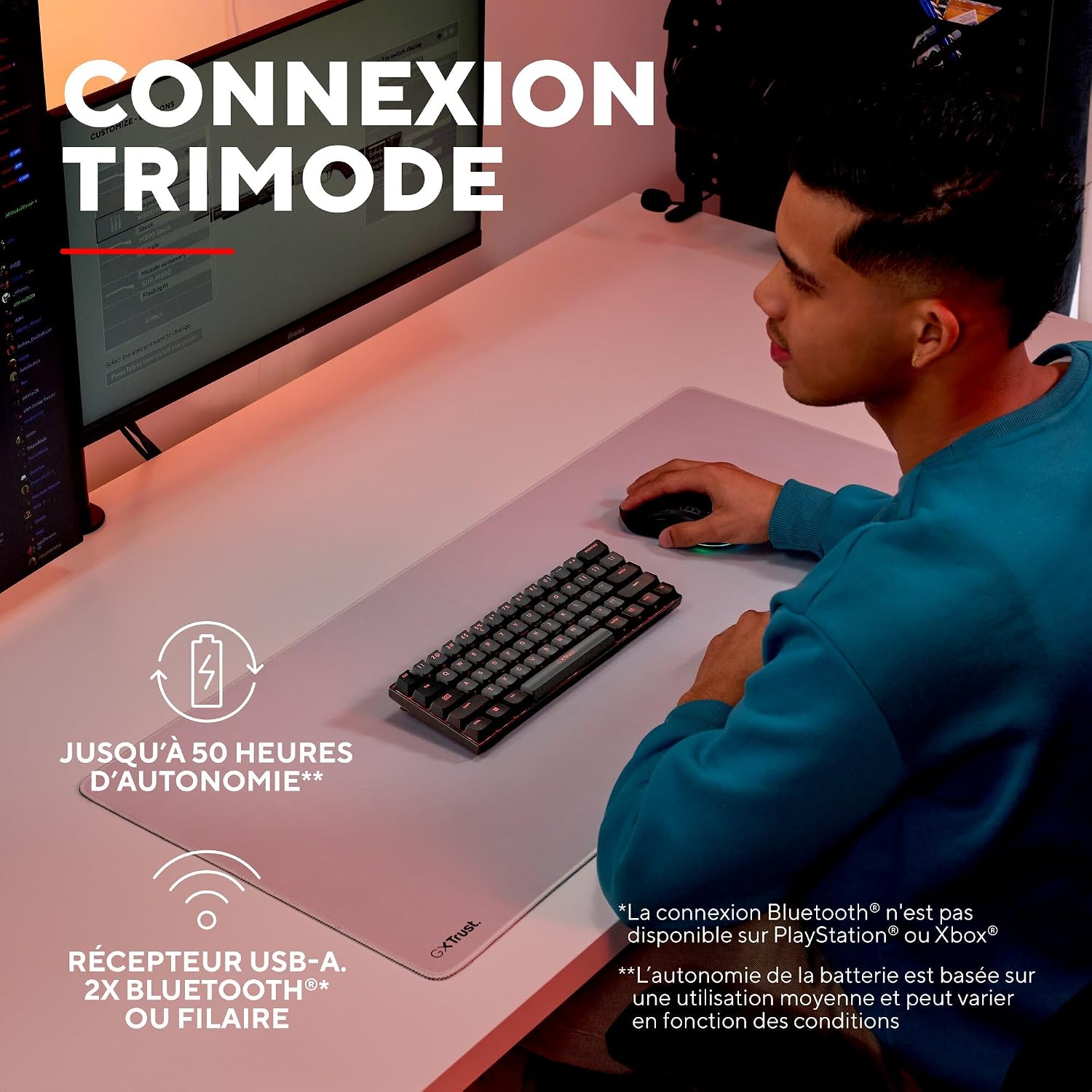
A user demonstrating the wireless functionality of the GXTrust 1873 Revyn keyboard on a desk setup.
1. 2.4 GHz Wireless Connection
- Locate the USB-A receiver stored in the compartment on the back of the keyboard.
- Plug the USB-A receiver into an available USB-A port on your computer.
- Turn on the keyboard using the power switch located on the back. The keyboard should automatically connect to the receiver.
2. Bluetooth Connection
The keyboard supports two Bluetooth profiles (BT1 and BT2).
- Turn on the keyboard using the power switch.
- Press and hold the Fn + Z (for BT1) or Fn + X (for BT2) keys for 3-5 seconds until the corresponding key (Z or X) flashes rapidly, indicating pairing mode.
- On your device (PC, laptop), go to Bluetooth settings and search for new devices.
- Select "GXTrust Revyn" from the list of available devices to pair. The key will stop flashing once connected.
3. Wired Connection
- Connect the supplied USB-C cable to the keyboard's USB-C port.
- Connect the USB-A end of the cable to an available USB-A port on your computer.
- The keyboard will automatically switch to wired mode and begin charging.

The GXTrust 1873 Revyn keyboard connected via its coiled USB-C cable, highlighting the wired connection option.
Operating Instructions
Key Layout and Fn Key Usage
The 60% compact layout means some functions are accessed via the Fn key in combination with other keys. Refer to the keycaps for secondary functions, typically indicated by a smaller icon or text.

A close-up view of the GXTrust 1873 Revyn keyboard keys, illustrating the triple function markings on some keycaps.
- Arrow Keys: Typically Fn + W/A/S/D or dedicated keys if available.
- Function Keys (F1-F12): Accessed via Fn + 1-0, -, =.
- Multimedia Controls: Often combined with Fn and other keys (e.g., volume, play/pause).
RGB Lighting Control
The keyboard features full RGB backlighting with 16.8 million color combinations. You can cycle through various lighting effects and adjust brightness directly on the keyboard or through the dedicated software.

The GXTrust 1873 Revyn keyboard illuminated with its full RGB backlighting, displaying a spectrum of colors.
- Change Lighting Mode: Press Fn + \| (backslash/pipe key).
- Adjust Brightness: Press Fn + Up Arrow (increase) / Down Arrow (decrease).
- Adjust Speed: Press Fn + Left Arrow (slower) / Right Arrow (faster).
Software Customization
For advanced customization, including key remapping, macro creation, and detailed RGB lighting effects, download the dedicated GXTrust software from the official website. The software is compatible with Windows 11 and above.

A screenshot of the GXTrust software interface, showing options for key programming and RGB lighting customization.
Maintenance
Cleaning
To maintain your keyboard's performance and appearance:
- Disconnect the keyboard from your computer before cleaning.
- Use a soft, lint-free cloth lightly dampened with water or a mild cleaning solution to wipe the keycaps and chassis.
- For dust and debris between keys, use compressed air.
- Avoid using harsh chemicals, abrasives, or solvents.
Battery Care
The integrated rechargeable battery provides up to 50 hours of use. To prolong battery life:
- Avoid fully discharging the battery frequently.
- Store the keyboard in a cool, dry place when not in use for extended periods.
- If storing for a long time, charge the battery to about 50% before storage.
Troubleshooting
| Problem | Possible Cause | Solution |
|---|---|---|
| Keyboard not responding (wireless) | Low battery, receiver not connected, incorrect mode, out of range. | Charge the keyboard. Ensure the USB-A receiver is securely plugged in. Switch to 2.4 GHz or Bluetooth mode. Move closer to the receiver/device. |
| Bluetooth connection issues | Not in pairing mode, device not discoverable, interference. | Ensure keyboard is in Bluetooth pairing mode (Fn+Z/X). Make sure your device's Bluetooth is on and discoverable. Try re-pairing. |
| RGB lighting not working | Lighting turned off, low battery, software conflict. | Press Fn+\| to cycle modes. Charge the keyboard. Check software settings. |
| Keys not registering | Software issue, physical damage, debris under keycap. | Restart your computer. Try connecting to another device. Clean the key area with compressed air. |
Specifications
| Feature | Detail |
|---|---|
| Model Name | GXT 1873 Revyn |
| Connectivity Technology | Bluetooth, RF (2.4 GHz), USB-A, USB-C (Wired) |
| Keyboard Description | 60% Ultra-compact Mechanical |
| Recommended Uses | Gaming, Multimedia, Personal, Daily Use |
| Special Features | Integrated rechargeable battery (up to 50 hours), Triple connection, Programmable keys/lighting, Full RGB backlighting (16.8 million colors) |
| Color | Grey/Black |
| Dimensions (L x W x H) | 29L x 10W x 3.1H cm |
| Material | Plastic |
| Keyboard Layout | AZERTY (French) |
| Number of Buttons | 61 |
| Minimum OS Requirement | Windows 11 |
| Weight | 533 Grams |

The GXTrust 1873 Revyn keyboard is compatible with PC, PlayStation, and Xbox. Bluetooth connectivity is not available for PlayStation or Xbox.
Warranty and Support
Warranty Information
The GXTrust 1873 Revyn keyboard comes with a 2-year warranty from the date of purchase. This warranty covers manufacturing defects and malfunctions under normal use. It does not cover damage caused by misuse, accidents, unauthorized modifications, or normal wear and tear.
Customer Support
For technical assistance, warranty claims, or further inquiries, please visit the official GXTrust website or contact their customer support team. Please have your product model number (GXT 1873 Revyn) and proof of purchase ready when contacting support.