
1. Introduction
This manual provides instructions for the VTSYIQI Color Spectrometer Handheld Spectrophotometer. This device is designed for precise color measurement and quality control across various industries, including plastics, textiles, paint, and ceramics. It features a D/8 optical structure, SCI/SCE modes, a full waveband balanced LED light source, and a CMOS dual beam splitting sensor for accurate and efficient data processing.
2. Safety Information
Please read all safety instructions before operating the device.
- Do not expose the device to extreme temperatures or humidity.
- Avoid direct exposure of the measurement aperture to strong light sources.
- Use only the provided accessories and power adapter.
- Do not attempt to disassemble or repair the device yourself. Contact qualified service personnel for assistance.
- Keep the device away from water and other liquids.
- Ensure the measurement surface is clean and dry before use.
3. Package Contents
Verify that all items are present in the package:
- Main Host (Color Spectrometer)
- Intelligent Calibration Base
- USB Cable
- User Manual
- SQCX Quality Management Software (via download or included media)
- Calibration Certificate
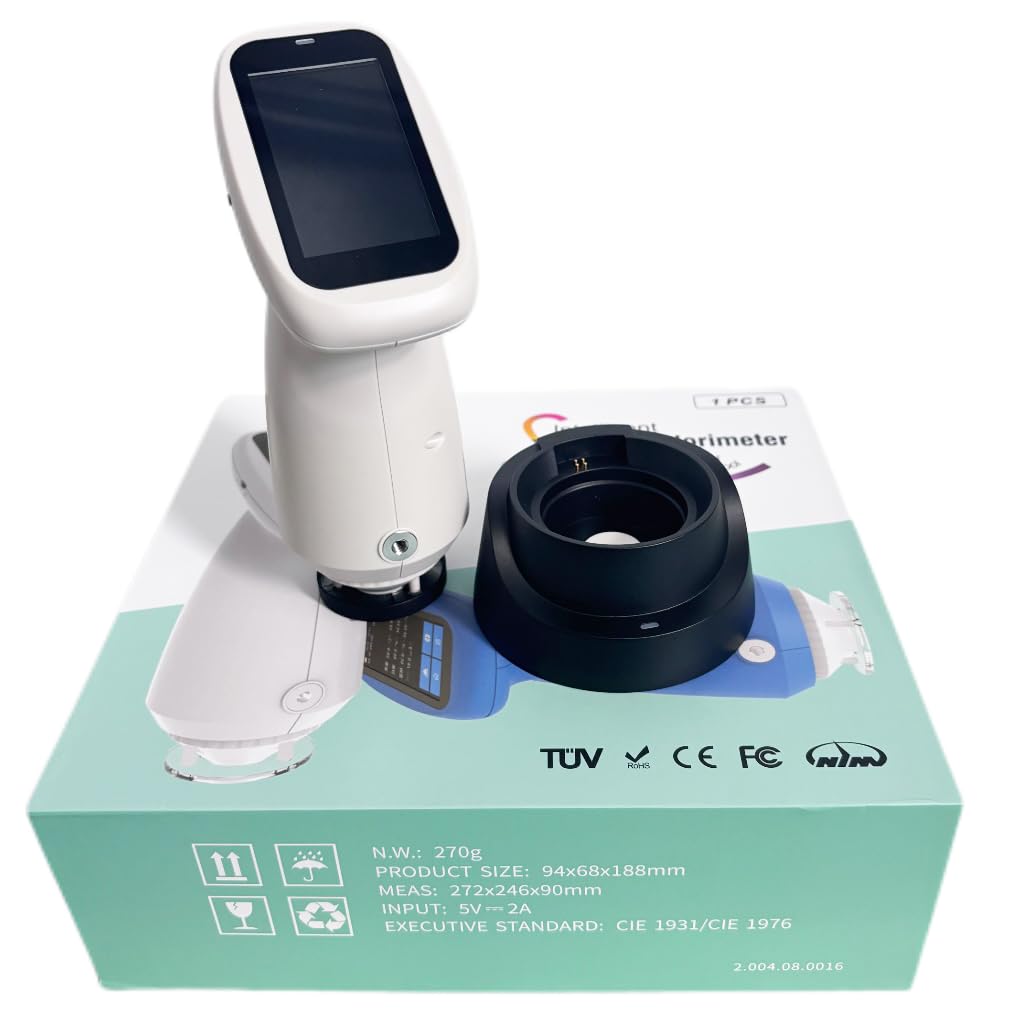
Image: The VTSYIQI Color Spectrometer, its intelligent calibration base, and other accessories neatly packaged in the product box.
4. Setup
4.1 Initial Charging
Before first use, fully charge the device using the provided USB cable and a compatible power adapter. Connect the USB cable to the charging port on the intelligent calibration base, then place the spectrometer onto the base.

Image: The VTSYIQI Color Spectrometer resting on its black intelligent calibration and charging base.
4.2 Powering On/Off
To power on, press and hold the power button located on the side of the device until the screen illuminates. To power off, press and hold the power button until the shutdown prompt appears, then confirm.
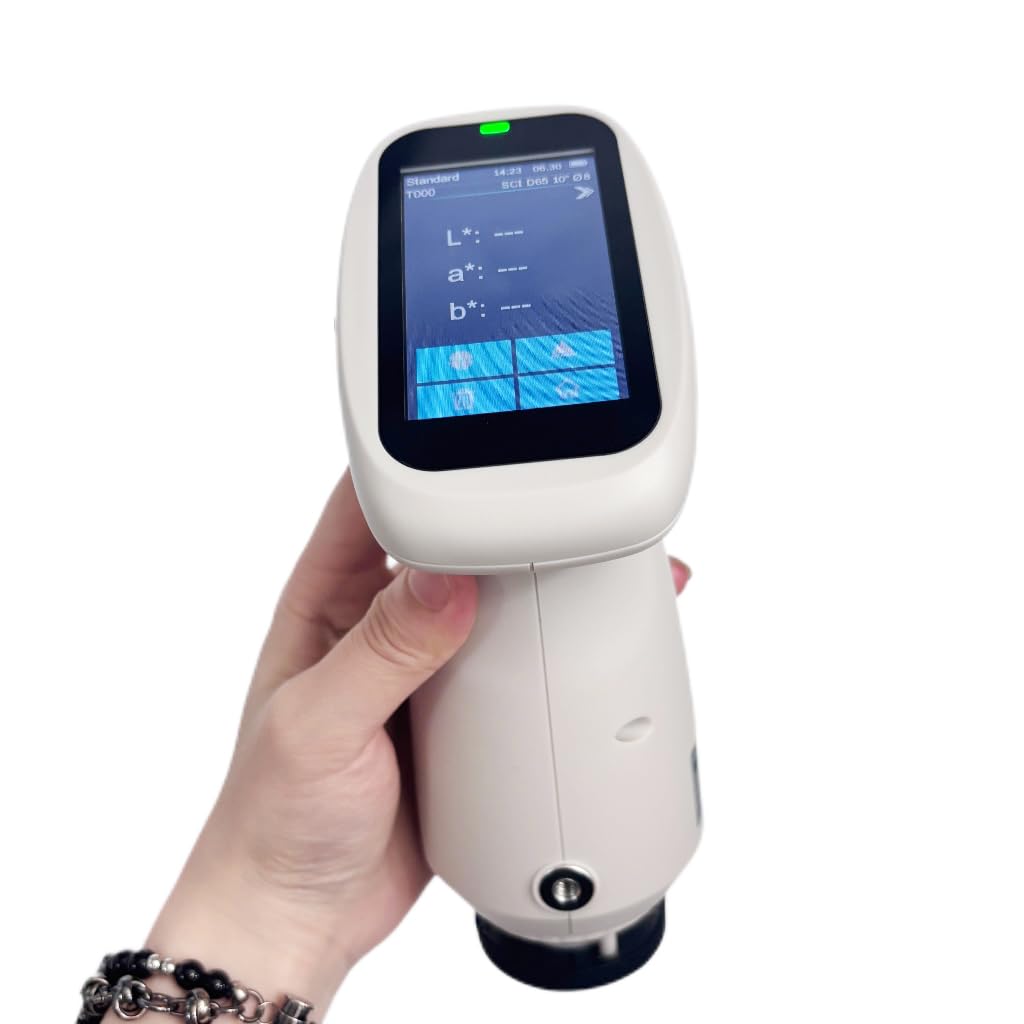
Image: A hand holding the VTSYIQI Color Spectrometer, with its display showing measurement parameters like L*, a*, b* values.
4.3 Whiteboard Calibration
The device requires regular whiteboard calibration for accurate measurements.
- Ensure the intelligent calibration base is clean and free of dust.
- Place the spectrometer onto the calibration base, ensuring it is seated correctly.
- Access the calibration function from the device menu or press the designated measurement button while on the base. The device will perform an automatic whiteboard calibration.
- Wait for the calibration process to complete. A confirmation message will appear on the screen.
Video: This video demonstrates the operation of the VTSYIQI Spectrocolorimeter, including the whiteboard calibration process. It shows how to place the device on its base and initiate calibration.
5. Operating Instructions
5.1 Measurement Modes
The spectrometer supports various measurement modes and color spaces. Navigate through the on-screen menu to select the desired mode (e.g., SCI/SCE) and color space (e.g., CIE LAB, LCh).
5.2 Taking a Measurement
- Ensure the device is calibrated.
- Select the appropriate measurement aperture (MAV: Φ8mm/Φ10mm) for your sample.
- Place the measurement aperture firmly and flatly against the sample surface.
- Press the measurement button. The device will take a reading, typically within 1 second.
- The measurement results, including spectral reflectance and colorimetric indices, will be displayed on the screen.

Image: The VTSYIQI Color Spectrometer next to its black calibration base, with the device's screen displaying measurement data.
5.3 Data Management with SQCX Software
The included SQCX Quality Management Software allows for comprehensive color data management.
- Connect the spectrometer to a computer via USB.
- Install and launch the SQCX software.
- Transfer measurement data from the device to the software.
- Use the software for color management, color difference comparison, test report generation, and customization of color management systems.
Video: This video provides a display overview of the VTSYIQI Color Spectrometer, showcasing its user interface and various measurement options.
6. Maintenance
6.1 Cleaning
Regularly clean the device, especially the measurement aperture and the whiteboard on the calibration base. Use a soft, dry cloth. For stubborn dirt, a slightly damp cloth with mild detergent can be used, followed by drying. Do not use abrasive cleaners or solvents.
6.2 Storage
When not in use, store the spectrometer in its original packaging or a protective case in a cool, dry place, away from direct sunlight and extreme temperatures.
6.3 Calibration
Perform whiteboard calibration before each measurement session or if the device has been moved or subjected to significant temperature changes.
7. Troubleshooting
| Problem | Possible Cause | Solution |
|---|---|---|
| Device does not power on. | Low battery or power button not pressed correctly. | Charge the device. Press and hold the power button for a few seconds. |
| Inaccurate measurements. | Device not calibrated, dirty aperture/whiteboard, or incorrect measurement technique. | Perform whiteboard calibration. Clean the aperture and whiteboard. Ensure proper contact with the sample. |
| Cannot connect to SQCX software. | USB cable issue, software not installed, or driver problems. | Check USB connection. Reinstall SQCX software and drivers. |
| Screen is unresponsive. | Software glitch or temporary freeze. | Restart the device by holding the power button. If issue persists, contact support. |
8. Specifications
| Feature | Detail |
|---|---|
| Optical Geometry | D/8 (diffused illumination, 8-degree viewing angle), SCI/SCE Mode, Comply to CIE No.15, GB/T 3978, GB 2893, GB/T 18833, ISO7724-1, ASTM E1164, DIN5033 Teil7 |
| Light Source | Combined full spectrum LED light source |
| Integrating Sphere Size | Φ40mm |
| Sensor | CMOS dual beam splitting sensor |
| Wavelength Range | 400-700nm |
| Measuring Aperture | Two Apertures: MAV: Φ8mm/Φ10mm |
| Specular Component | SCI/SCE |
| Color Space | CIE LAB, XYZ, Yxy, LCh, CIE LUV, s-RGB, HunterLab, βxy, DIN Lab99 |
| Color Difference Formula | ΔE*ab, ΔE*uv, ΔE*94, ΔE*cmc(2:1), ΔE*cmc(1:1), ΔE*00, DINΔE99, ΔE(Hunter) |
| Observer Angle | 2°/10° |
| Illuminant | D65, A, C, D50, D55, D75, F1, F2(CWF), F3, F4, F5, F6, F7(DLF), F8, F9, F10(TPL5), F11(TL84), F12(TL83/U30), U35, NBF, ID50, ID65 (Partially realize through the PC software /APP software) |
| Display | Spectrogram/Values, Samples Chromaticity Values, Color Difference Values/Graph, PASS/FAIL Result, Color Simulation, Color Offset |
| Measuring Time | About 1s |
| Repeatability (Chromaticity value) | MAV/SCI, within ΔE*ab 0.035 (After preheating and correction, the average value of the whiteboard was measured for 30 times at an interval of 5s) |
| Repeatability (Spectral reflectance) | MAV/SCI, Standard deviation within 0.1% (400nm to 700nm: within 0.2%) |
| Inter-instrument Error | MAV/SCI, Within ΔE*ab 0.35 (Average for 12 BCRA Series II color tiles) |
| Displayed Accuracy | 0.01 |
| Measured Reflectance Range | 0-200% |
| Reflectance Resolution | 0.01% |
| Measurement Mode | Single Measurement, Average Measurement (2-99 times) |
| Locating Method | Stabilizer position |
| White Calibration Mode | Contact type calibration |
| Dimensions | 94mm x 68mm x 188mm |
| Item Weight | Approximately 11.02 pounds (device and accessories) |
9. Warranty and Support
The VTSYIQI Color Spectrometer comes with a standard manufacturer's warranty. Please refer to the warranty card included in your package for specific terms and conditions.
For technical support, service, or warranty claims, please contact VTSYIQI customer service through their official website or the contact information provided in your product documentation.
Keep your purchase receipt as proof of purchase for warranty purposes.