
1. Important Safety Information
Please read all instructions carefully before operating your new television. Keep this manual for future reference. Always follow basic safety precautions to reduce the risk of fire, electric shock, and injury to persons.
- Do not expose this apparatus to rain or moisture.
- Do not block any ventilation openings.
- Do not place near any heat sources such as radiators, heat registers, stoves, or other apparatus (including amplifiers) that produce heat.
- Protect the power cord from being walked on or pinched.
- Only use attachments/accessories specified by the manufacturer.
- Refer all servicing to qualified service personnel.
2. What's in the Box
Verify that all components are present before proceeding with setup.
- TOSHIBA 43-inch M450 Series QLED 4K UHD Smart Fire TV
- Power Cable
- Remote Control
- Remote Control Battery
- Stand (2 pieces)
3. Setup
3.1 Attaching the TV Stand
To ensure stability, attach the included stand to the television. Place the TV face down on a soft, clean surface to prevent scratches.
- Align each stand piece with the corresponding screw holes on the bottom of the TV.
- Secure each stand piece using the provided screws. Do not overtighten.
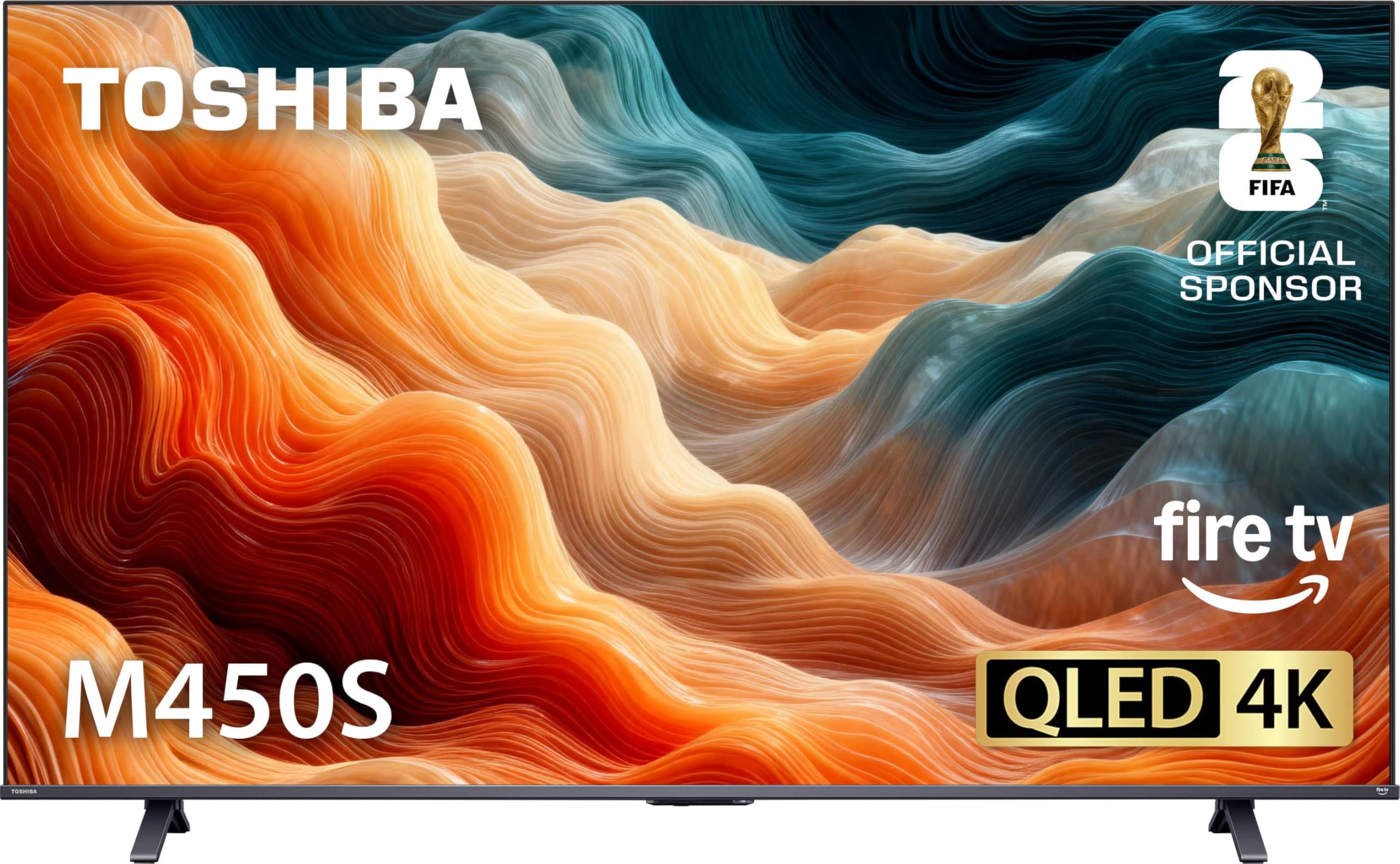
Image: TV dimensions and stand attachment guide. The TV measures 37.9 inches wide, 22.1 inches high (without stand), and 3.1 inches deep. With the stand, the height is 23.9 inches and depth is 8.9 inches. The VESA wall mount size is 200x300mm (M6). Product weight with stand is 13.5 lbs, without stand is 13.0 lbs.
3.2 Wall Mounting (Optional)
If you choose to wall mount your TV, ensure you use a VESA-compatible mount that supports the 200x300mm (M6) standard. Follow the instructions provided with your wall mount kit.
3.3 Connecting Power
Plug the power cable into the TV's power input, then into a wall outlet. The TV will enter standby mode.
3.4 Initial Setup and Remote Pairing
Upon first power-on, the TV will guide you through the initial setup process. This includes connecting to Wi-Fi, signing into your Amazon account, and pairing the Voice Remote with Alexa.
- Insert the included batteries into the remote control.
- Follow the on-screen instructions to pair the remote. Typically, you will press and hold the Home button on the remote for 10 seconds.
- Connect to your home Wi-Fi network.
- Sign in with your Amazon account to access Fire TV features.
4. Operating Your TV
4.1 Basic TV Functions
- Power: Press the Power button on the remote to turn the TV on or off.
- Volume: Use the Volume Up/Down buttons to adjust the sound level.
- Input Selection: Use the Input button to switch between connected devices (HDMI 1, HDMI 2, HDMI 3, etc.).
4.2 Fire TV Interface and Navigation
Your Toshiba M450 Series TV features the Fire TV operating system, providing access to streaming apps, live TV, and smart features.

Image: Fire TV interface displaying a selection of streaming applications and content categories.
- Navigate the home screen using the directional pad on your remote.
- Access your favorite apps, live TV, and personalized recommendations.
- Fire TV learns your preferences and suggests content you might enjoy.
4.3 Voice Remote with Alexa
The included remote features built-in Alexa voice control.
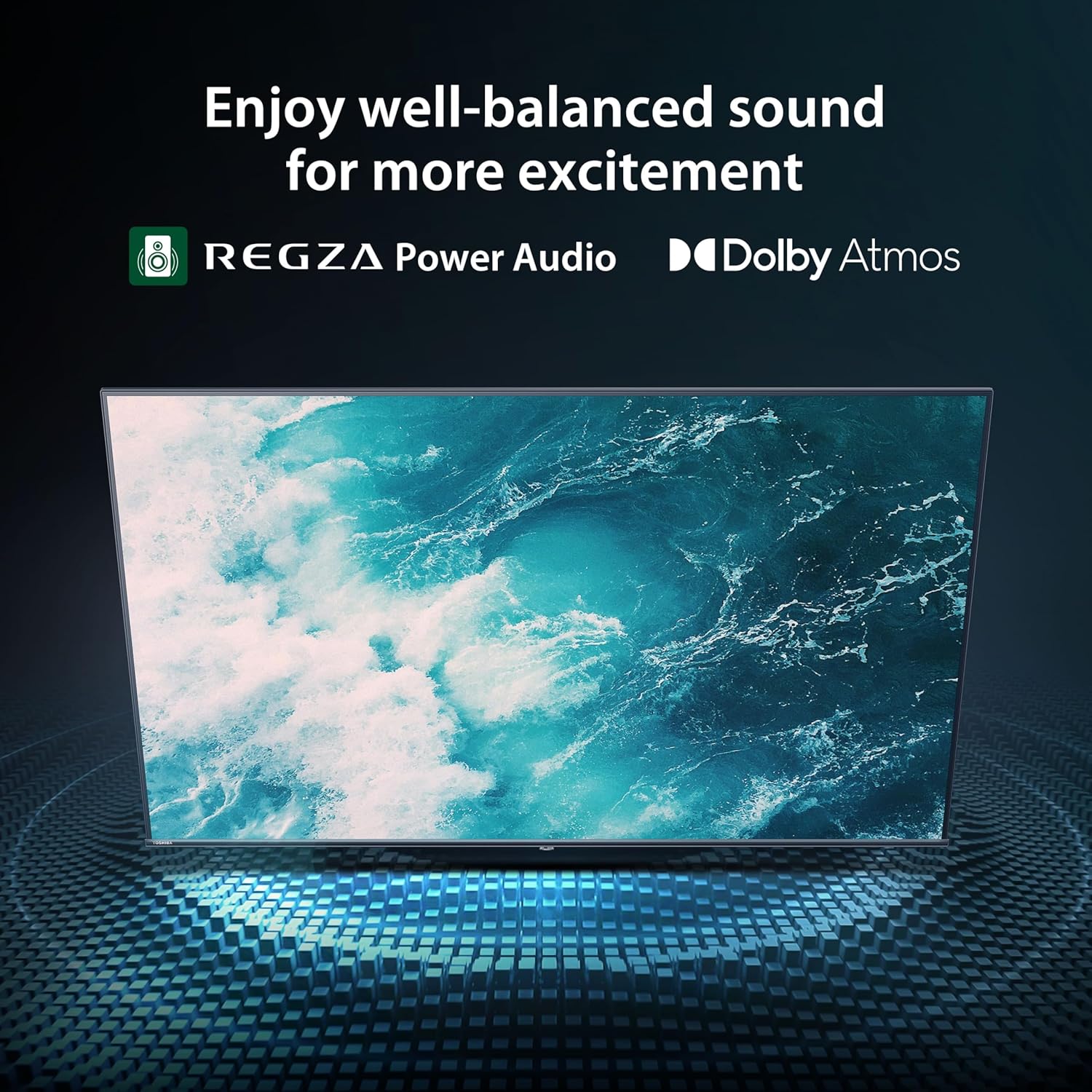
Image: Toshiba Fire TV remote control, emphasizing the Alexa voice button for voice commands.
- Press and hold the Alexa button on your remote.
- Speak your command, such as "Find action movies," "Launch Netflix," "Change to HDMI 1," or "What's the weather?"
- Control compatible smart home devices directly through your TV.
4.4 User Profiles
Create up to six personalized user profiles to customize viewing experiences for each household member.

Image: Fire TV interface displaying options for creating and selecting user profiles.
4.5 Picture and Sound Enhancements
Your TV features advanced technologies for optimal viewing and listening.

Image: Overview of key visual and audio technologies: QLED Color, REGZA Engine ZR, REGZA Power Audio, Dolby Vision & Dolby Atmos, Game Mode, and HDR10+ Adaptive.
- REGZA Engine ZR: The AI Engine ZRi Gen3 optimizes picture and sound for realistic experiences.
- REGZA QLED Color: Delivers rich, lifelike colors.
- Dolby Vision & Dolby Atmos: Combines HDR imaging with immersive sound for a cinematic experience.
- HDR10+ Adaptive: Adjusts brightness and contrast scene-by-scene for detailed visuals.
- AI 4K Clarity: Enhances lower-resolution content to near-4K quality.
- REGZA Power Audio: Provides well-balanced sound through dual 'clear direct speakers'.
4.6 Game Mode
For an enhanced gaming experience, activate Game Mode.

Image: Graphic illustrating Game Mode features, including Variable Refresh Rate (VRR) and Auto Low Latency Mode (ALLM).
- Supports ALLM (Auto Low Latency Mode) for reduced input lag.
- Supports VRR (Variable Refresh Rate) for smoother gameplay.
- eARC (Enhanced Audio Return Channel) for high-quality audio passthrough.
4.7 Apple AirPlay
Stream content from your Apple devices directly to your TV using Apple AirPlay.
5. Maintenance
5.1 Cleaning Your TV
- Screen: Gently wipe the screen with a soft, lint-free cloth. For stubborn marks, lightly dampen the cloth with water or a screen-cleaning solution specifically designed for TVs. Do not spray liquid directly onto the screen.
- Body: Wipe the TV frame and stand with a soft, dry cloth.
- Do not use abrasive cleaners, waxes, or solvents.
5.2 Software Updates
Your Fire TV will automatically check for and install software updates when connected to the internet. Ensure your TV remains connected to Wi-Fi for optimal performance and security updates.
6. Troubleshooting
If you encounter issues with your TV, refer to the following common solutions:
| Problem | Possible Solution |
|---|---|
| No Power | Check if the power cable is securely connected to both the TV and the wall outlet. Try a different outlet. |
| No Picture / Black Screen | Ensure the correct input source is selected. Check all cable connections (HDMI, etc.). Restart the TV by unplugging it for 60 seconds. |
| No Sound | Check the volume level and ensure the TV is not muted. Verify external audio device connections if applicable. |
| Remote Not Responding | Replace the remote control batteries. Re-pair the remote by holding the Home button for 10 seconds. |
| Wi-Fi Connectivity Issues | Restart your router and modem. Ensure the TV is within range of your Wi-Fi signal. Re-enter your Wi-Fi password. |
For further assistance, please refer to the online support resources or contact TOSHIBA customer service.
7. Specifications
| Feature | Detail |
|---|---|
| Model Name | 43M450SU |
| Screen Size | 42.5 inches (43-inch class) |
| Display Technology | QLED, 4K UHD |
| Resolution | 3840 x 2160 (4K) |
| Refresh Rate | 60 Hz |
| Operating System | FireOS |
| Connectivity Technology | Wi-Fi |
| Total Number of HDMI Ports | 3 |
| HDR Format Supported | Dolby Vision, HDR10+ |
| Integrated Surround Sound Format | Dolby Atmos |
| Product Dimensions (D x W x H) | 3.1"D x 37.9"W x 22.1"H (without stand) |
| VESA Wall Mount Size | 200x300mm (M6) |
| UPC | 888143028019 |
8. Warranty and Support
8.1 Product Warranty
This TOSHIBA television comes with a 1 Year Limited Warranty from the date of purchase. Please retain your proof of purchase for warranty claims.
For customers in the EU, spare parts availability is guaranteed for 3 years.
8.2 Customer Support
For technical support, warranty service, or additional information, please visit the official TOSHIBA support website or contact their customer service hotline. Contact details can typically be found on the TOSHIBA website or in your product packaging.


