
Introduction
The Google Fitbit Air is a comfortable and intelligent activity tracker designed to monitor your health and fitness. This manual provides essential information for setting up, operating, maintaining, and troubleshooting your device to ensure optimal performance.
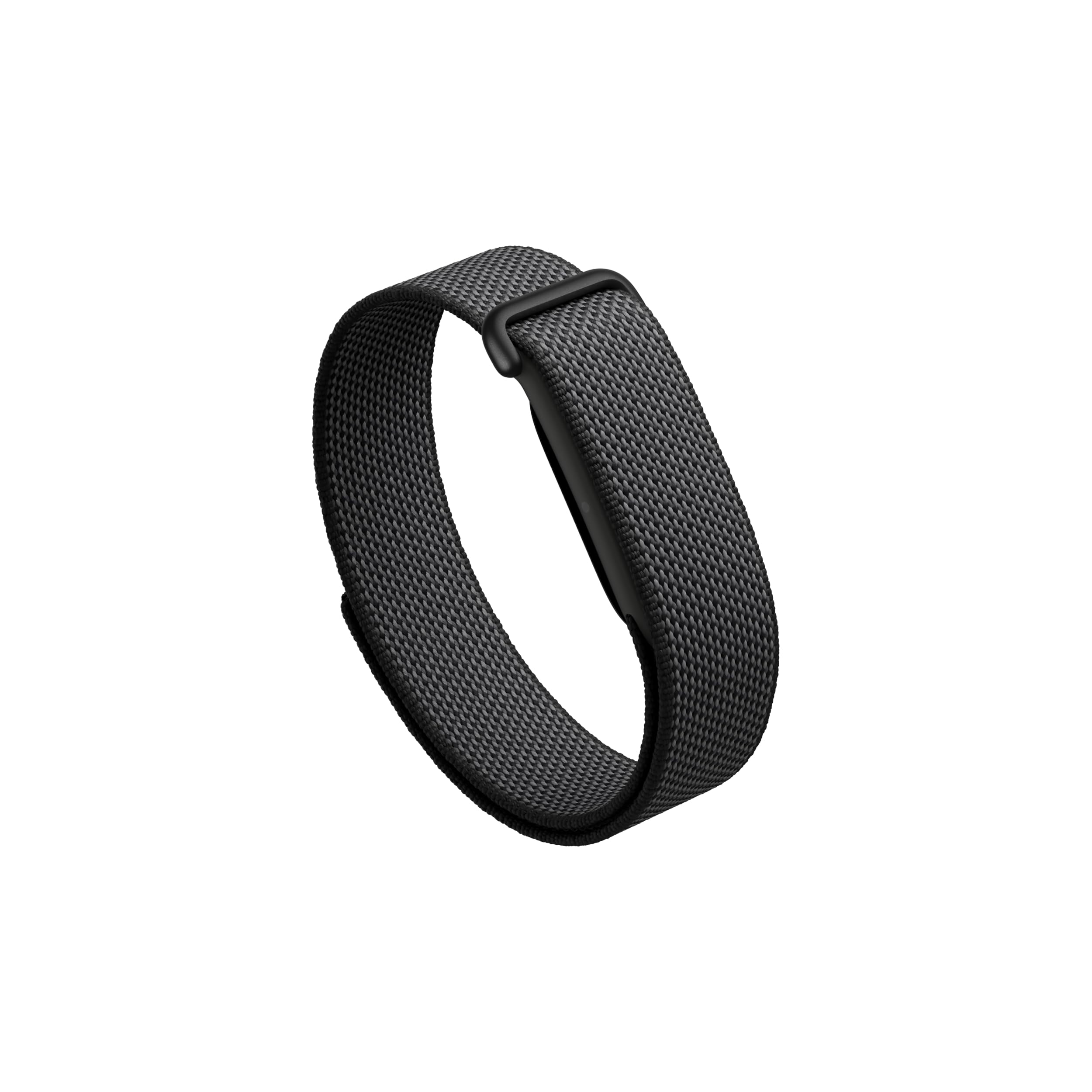
The Google Fitbit Air tracker with the Obsidian Performance Loop Band.
What's in the Box
Upon unboxing your Google Fitbit Air, you should find the following components:
- Fitbit Air Tracker
- Google Performance Loop Band (Obsidian, One Size)
- USB-C® Charging Cable

The Fitbit Air tracker, wristband, and USB-C charging cable.
Setup
1. Charging the Device
Before initial use, fully charge your Fitbit Air. The device features fast charging, providing up to one day of battery life in just five minutes. A full charge can last up to a week.
- Connect the USB-C® charging cable to a compatible power source.
- Attach the magnetic end of the charging cable to the charging contacts on the back of your Fitbit Air tracker.
- Ensure the tracker is securely connected and charging. The device will indicate charging status.

The micro-adjustable performance loop band for a secure fit.
2. Attaching and Adjusting the Band
The Google Performance Loop Band is designed for comfort and a secure fit. It is micro-adjustable to fit wrists 130-210 mm around.
- To attach the band, align the tracker pebble with the opening in the band and gently press it into place until it clicks securely.
- To adjust the fit, slide the loop mechanism along the band until it feels snug but comfortable on your wrist. The band should not be too tight or too loose to ensure accurate tracking.

The comfortable, micro-adjustable design of the Fitbit Air band.
3. App Installation and Pairing
The Fitbit Air requires the Google Health app for full functionality and data viewing.
- Download the Google Health app from your device's app store (compatible with Android 11.0 or higher and Apple iOS 16.4 or higher).
- Open the app and follow the on-screen instructions to create an account or log in.
- Select 'Set up a new device' and choose Fitbit Air.
- Follow the prompts to pair your Fitbit Air with your smartphone via Bluetooth. Ensure Bluetooth is enabled on your phone.
Operating Your Fitbit Air
The Fitbit Air is designed for effortless, continuous tracking without a screen, providing insights directly through the Google Health app.
1. Automatic Tracking
Your Fitbit Air automatically tracks various health metrics 24/7:
- Heart Rate: Continuous optical heart rate monitoring.
- Activity: Steps, distance, and automatic recognition of various workouts.
- Sleep: Sleep stages (light, deep, REM), sleep duration, and sleep score.
- Oxygen Saturation (SpO2): Red and infrared sensors monitor blood oxygen levels.
- Skin Temperature: Device temperature sensor for skin temperature variation.

The screenless design allows for distraction-free tracking.
2. Viewing Your Data
All tracked data is synchronized to the Google Health app, where you can view detailed insights, trends, and personalized guidance.
- Open the Google Health app on your smartphone.
- Navigate through the various tabs (e.g., Today, Fitness, Sleep, Health) to access your metrics.
- The app provides summaries, graphs, and historical data to help you understand your health patterns.

Detailed sleep insights available in the Google Health app.
3. Google Health Premium (Optional)
A Google Health Premium membership offers advanced features, including personalized coaching built with Gemini, adaptive fitness plans, and deeper insights into your health data. A 3-month trial may be available with your new Fitbit Air.
4. Water Resistance
The Fitbit Air is water resistant up to 50 meters, making it suitable for swimming and showering. It is not recommended for scuba diving or high-speed water sports.
Maintenance
1. Cleaning Your Fitbit Air
Regular cleaning helps maintain the device's performance and prevents skin irritation.
- Remove the tracker from the band.
- Wipe the tracker and band with a soft, lint-free cloth. If necessary, use a small amount of water or a mild, non-abrasive cleaner.
- Ensure the device is completely dry before reattaching the band and wearing it.
- Avoid harsh chemicals or abrasive materials, as these can damage the device or band.
2. Software Updates
Keep your Google Health app and Fitbit Air firmware updated to access the latest features, improvements, and bug fixes. The app will typically notify you when an update is available.
Troubleshooting
If you encounter issues with your Fitbit Air, try the following steps:
1. Device Not Charging
- Ensure the charging cable is securely connected to both the tracker and the power source.
- Try a different USB port or power adapter.
- Clean the charging contacts on the tracker and cable with a dry cloth to remove any debris.
2. Connectivity Issues (Bluetooth)
- Ensure Bluetooth is enabled on your smartphone and the Fitbit Air is within range.
- Restart your smartphone and the Fitbit Air.
- If the issue persists, try unpairing and re-pairing the device through the Google Health app.
3. Inaccurate Tracking
- Verify that the band is worn snugly but comfortably on your wrist, typically one finger's width above your wrist bone.
- Ensure your Google Health app is up to date and syncing regularly.
- Note that GPS tracking relies on your smartphone's GPS, so accuracy may vary if your phone is not with you during activities.
4. LED Indicator Not Working
- If the LED indicator on your tracker stops working, but the device otherwise functions, try restarting the device.
- If the issue persists and affects functionality, contact customer support.
Specifications
| Feature | Detail |
|---|---|
| Model Name | Fitbit Air |
| Model Number | GA09509 |
| Operating System | Fitbit OS |
| Connectivity | Bluetooth |
| Compatible Devices | Android 11.0+ / Apple iOS 16.4+ |
| Battery Life | Up to 7 days |
| Fast Charging | 1 day of battery life in 5 minutes |
| Water Resistance | Up to 50 meters |
| Metrics Measured | Heart rate, SpO2, skin temperature, 3-axis accelerometer + gyroscope |
| Band Material | Polyester, Nylon, Elastane yarn |
| Band Length | 21 centimeters (One Size, fits wrists 130-210 mm) |
| Display Type | No Display |
Warranty Information
The Google Fitbit Air Performance Loop Band comes with a 1 Year Manufacturer Warranty. Please retain your proof of purchase for warranty claims. For detailed terms and conditions, refer to the official Fitbit warranty documentation or visit the Fitbit support website.
Support
For further assistance, technical support, or to view frequently asked questions, please visit the official Fitbit support website:
You can also access support resources directly through the Google Health app.