
1. Product Overview
The SOLAKAKA A75 PRO is a 75% layout wireless mechanical keyboard designed for versatile use across various operating systems. It features tri-mode connectivity (2.4GHz, Bluetooth 5.0, USB-C), a customizable LCD screen, a multi-function knob, gasket-mounted construction for enhanced acoustics, hot-swappable switches, durable PBT keycaps, and vibrant RGB backlighting.
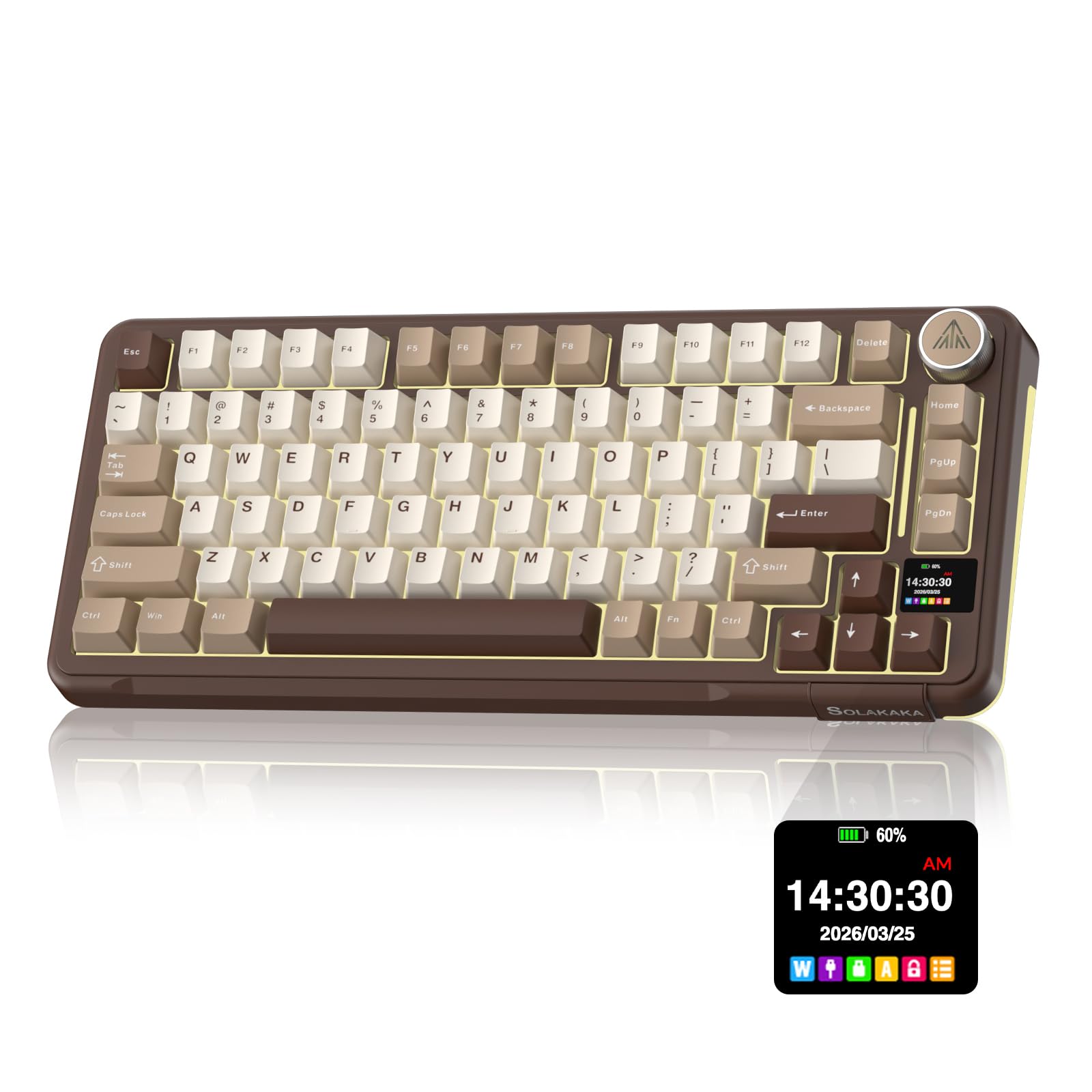
Image 1.1: The SOLAKAKA A75 PRO keyboard, showcasing its compact layout and integrated screen and knob.
2. Setup Guide
2.1 Package Contents
- SOLAKAKA A75 PRO Mechanical Keyboard
- USB-C to USB-A Cable
- 2.4GHz Wireless Dongle (if applicable)
- Keycap Puller
- Switch Puller
- Spare Switches (2)
- User Manual
2.2 Initial Charging
Before first use, connect the keyboard to a USB power source using the provided USB-C cable. The keyboard features a 4,000mAh rechargeable battery. The LCD screen will indicate charging status.
2.3 Connectivity Modes
The A75 PRO supports three connection modes: 2.4GHz wireless, Bluetooth 5.0, and wired USB-C. A switch located on the side of the keyboard allows selection between these modes.

Image 2.1: The side panel of the keyboard showing the switch for selecting 2.4GHz, Bluetooth, or wired USB-C connection modes.
2.3.1 2.4GHz Wireless Connection
- Locate the 2.4GHz USB dongle, typically stored in a slot on the keyboard.
- Plug the dongle into an available USB port on your computer.
- Set the keyboard's mode switch to the 2.4GHz position. The keyboard should connect automatically.
2.3.2 Bluetooth 5.0 Connection
- Set the keyboard's mode switch to the Bluetooth position.
- On your device (PC, Mac, Smartphone, Tablet), enable Bluetooth and search for new devices.
- Select "SOLAKAKA A75 PRO" from the list of available devices to pair.
- The keyboard supports multiple Bluetooth profiles. Refer to the LCD screen for switching between paired devices.
2.3.3 USB-C Wired Connection
- Connect the provided USB-C cable to the keyboard's USB-C port.
- Connect the other end of the cable to a USB port on your computer.
- Set the keyboard's mode switch to the USB-C position. The keyboard will function as a wired device and charge simultaneously.
3. Operating Instructions
3.1 LCD Smart Display and Multifunction Knob
The integrated LCD screen and rotary knob provide quick access to various settings and information.
- LCD Screen: Displays custom GIFs, system status (e.g., battery level, connection mode), time, and RGB lighting controls.
- Rotary Knob: Provides instant control over volume and media playback. Pressing the knob typically mutes/unmutes, while rotating adjusts volume. It can also be used to navigate menus on the LCD screen.

Image 3.1: Examples of information and settings displayed on the LCD screen, including home screen, lighting modes, and brightness controls.
3.2 RGB Backlighting Control
The keyboard features 16.8 million color RGB backlighting with various dynamic modes. South-facing LEDs ensure optimal illumination.
| Function | Key Combination |
|---|---|
| Backlight Mode Cycle | Fn + \ |
| Backlight Brightness Up | Fn + F5 |
| Backlight Brightness Down | Fn + F6 |
| Backlight Color Cycle | Fn + D |
| Side Backlight Lighting Effects | Fn + P |
| Side Backlight Brightness Up | Fn + Up Arrow |
| Side Backlight Brightness Down | Fn + Down Arrow |
| Side Backlight Color Cycle | Fn + Tab |

Image 3.2: Visual representation of various backlight modes and their control keys.
3.3 Programmable Software
The SOLAKAKA A75 PRO is compatible with dedicated software for advanced customization. This software allows for:
- Complete key remapping
- Macro recording
- Layered RGB profiles
- Per-game configuration storage
- Custom GIF/image upload to the LCD screen
The software is primarily designed for Windows operating systems. Please visit the official SOLAKAKA website for the latest software download.

Image 3.3: Screenshots of the SOLAKAKA programmable software interface, showing options for lighting effects, key assignments, and macro programming.
3.4 Official Product Video
Video 3.4: An official product video from SOLAKAKA demonstrating the A75 Pro wireless mechanical keyboard with its screen and knob features.
4. Maintenance
4.1 Hot-Swappable Switches
The A75 PRO features hot-swappable sockets, allowing you to change mechanical switches without soldering. This enables customization of typing feel and sound.
- Using the provided keycap puller, gently remove the desired keycap.
- Using the provided switch puller, carefully grip the switch and pull it straight up to remove it from the PCB.
- Align the pins of the new switch with the holes on the PCB and press down firmly until it clicks into place. Ensure pins are not bent.
- Replace the keycap.

Image 4.1: Close-up view of the hot-swappable switch design and durable PBT keycaps.
4.2 PBT Keycaps
The keyboard is equipped with durable PBT double-shot keycaps. These keycaps are resistant to shine, oil buildup, and wear, ensuring legends remain crisp and the textured surface stays dry over extended use.
4.3 Cleaning
- Use a soft, dry cloth to wipe the keyboard surface.
- For deeper cleaning, use a can of compressed air to remove dust and debris from between keycaps.
- Keycaps can be removed for thorough cleaning using the keycap puller. Clean with mild soap and water, then ensure they are completely dry before reattaching.
4.4 Gasket Structure
The keyboard features a gasket-mounted structure with multi-layer dampening materials. This design contributes to a softer typing feel and a deeper, more satisfying sound profile. No specific user maintenance is required for the gasket structure itself.

Image 4.2: Exploded view diagram illustrating the multi-layer gasket structure of the keyboard.
5. Troubleshooting
5.1 Keyboard Not Responding
- Check Connection: Ensure the mode switch is set correctly for your chosen connection type (2.4GHz, BT, or USB-C).
- Battery Level: Connect the keyboard via USB-C to charge it. A low battery can cause connectivity issues.
- USB Port: If using wired or 2.4GHz dongle, try a different USB port on your computer.
- Dongle Seating: For 2.4GHz, ensure the dongle is fully seated in the USB port.
- Bluetooth Pairing: For Bluetooth, ensure the keyboard is in pairing mode and correctly paired with your device. Try unpairing and re-pairing if issues persist.
5.2 RGB Lights Not Working or Incorrect
- Brightness: Adjust brightness using Fn + F5/F6.
- Mode: Cycle through lighting modes using Fn + \.
- Software: If using custom profiles, ensure the programmable software is running and the profile is active.
5.3 LCD Screen Issues
- Power Cycle: Turn the keyboard off and on.
- Software: Ensure the programmable software is correctly installed and updated if you are trying to display custom GIFs or images.
5.4 Software Not Detecting Keyboard (Windows Only)
- Wired Mode: Ensure the keyboard is connected via USB-C and the mode switch is set to USB-C. Some software requires a wired connection for initial detection or firmware updates.
- Reinstall Software: Uninstall and reinstall the latest version of the SOLAKAKA programmable software.
6. Specifications
| Feature | Detail |
|---|---|
| Brand | SOLAKAKA |
| Model | A75 PRO |
| Connectivity Technology | 2.4GHz Wireless, Bluetooth 5.0, USB-C Wired |
| Keyboard Description | Mechanical |
| Layout | 75% (QWERTY) |
| Special Features | Backlit (RGB), Hot-Swappable, LCD Screen & Knob, PBT Keycaps, Rechargeable Battery |
| Color | CreamBrown |
| Material | Plastic |
| Power Source | Battery Powered (4,000mAh) |
| Switch Type | Mechanical |
| Compatible Devices | Gaming Console, Laptop, PC, Smartphone, Tablet |
| Compatible Operating Systems | Mac OS 10.14 Mojave+, Ubuntu 22.04+, Windows 10+ |
7. Warranty and Support
The SOLAKAKA A75 PRO keyboard comes with a manufacturer's warranty. Please refer to your purchase documentation or the official SOLAKAKA website for specific warranty terms, duration, and support contact information.
For technical assistance or inquiries, please contact SOLAKAKA customer support through their official channels.

