
Introduction
This manual provides essential information for the safe and efficient use of your Xiaomi 55-inch 4K UHD Smart Quantum MagiQ S Mini LED Google TV. Please read these instructions thoroughly before operating the device and retain them for future reference.
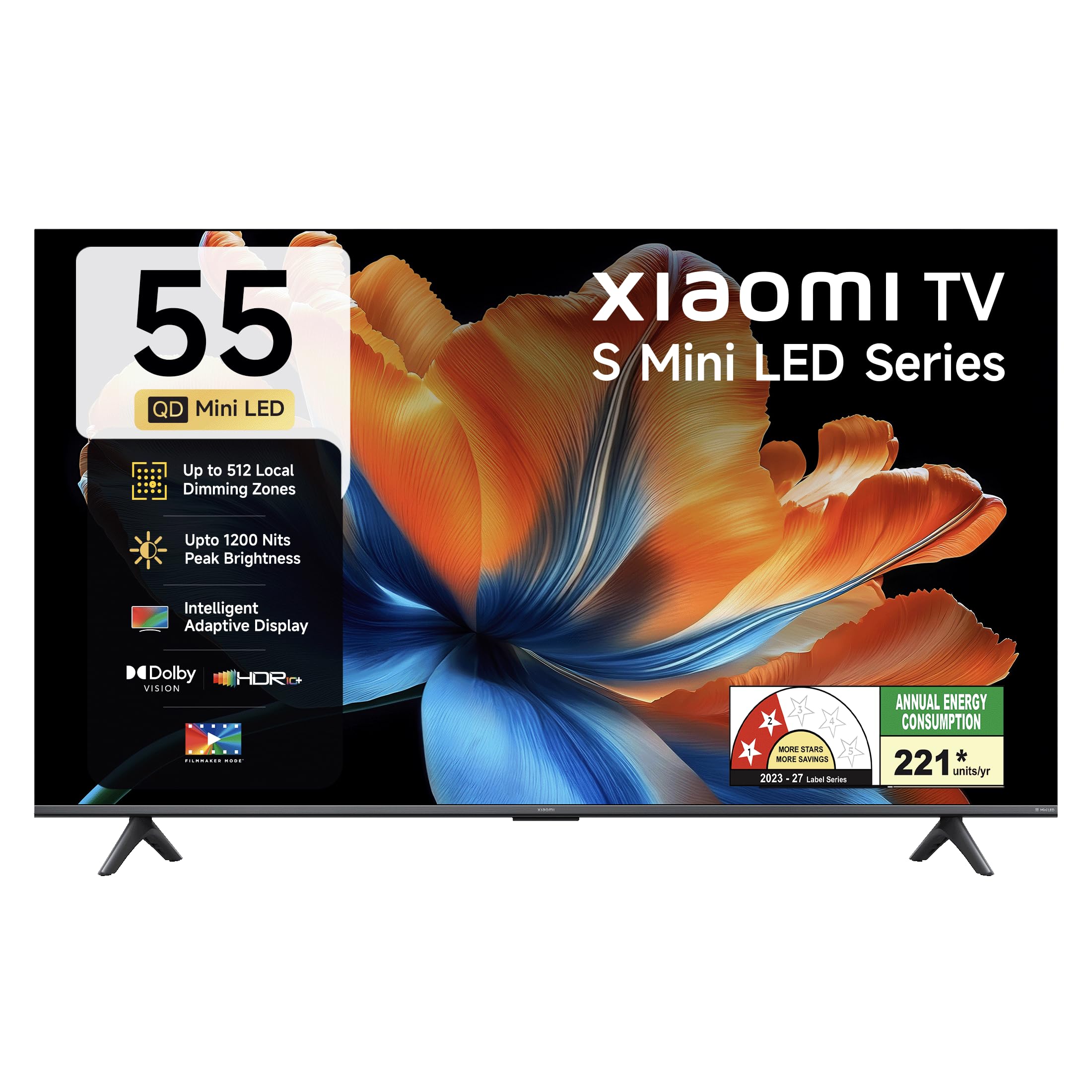
Image: Front view of the Xiaomi 55-inch 4K UHD Smart Quantum MagiQ S Mini LED Google TV, showcasing its slim bezel design.
Setup Guide
1. Unpacking and Included Components
Carefully remove all items from the packaging. Ensure all components listed below are present and undamaged.

Image: Contents of the product box, including the TV unit, remote control, user manual, two stand units, four screws, two AAA batteries, and a power cord.
- 1 LED TV Unit
- 1 Remote Control
- 1 User Manual (this document)
- 2 Stand Units
- 4 Screws for stand installation
- 2 AAA batteries (for remote control)
- 1 Power Cord
2. Stand Installation or Wall Mounting
Your television supports both table-top stand installation and wall mounting. Choose the method suitable for your environment.
- For Stand Installation: Attach the two provided stand units to the bottom of the TV using the four screws. Ensure they are securely fastened.
- For Wall Mounting: Use a compatible VESA wall mount (sold separately). Follow the instructions provided with your wall mount kit. Ensure the wall can support the TV's weight.
3. Connecting External Devices
Connect your external devices such as set-top boxes, gaming consoles, or audio systems to the TV's ports.

Image: Rear view of the TV highlighting connectivity ports: Optical, Earphone, AV In, 3 HDMI ports (one with eARC), 2 USB 2.0 ports, Antenna, and Ethernet.
- HDMI Ports (x3): Connect gaming consoles, Blu-ray players, or set-top boxes. One port supports eARC for enhanced audio return channel functionality.
- USB Ports (x2): Connect USB storage devices for media playback.
- Ethernet Port: For wired internet connection.
- Optical Output: For connecting to external audio systems.
- AV In: For connecting older devices using composite video and stereo audio.
- Antenna: For connecting a terrestrial or cable antenna.
4. Initial Power On and Setup
After connecting all necessary cables, plug the power cord into an electrical outlet. Press the power button on the remote control or the TV to turn it on. Follow the on-screen instructions for initial setup, which typically includes:
- Language selection
- Network connection (Wi-Fi or Ethernet)
- Google account sign-in
- Channel scanning
Operating Your Xiaomi Smart TV
1. Remote Control Functions
The included remote control provides access to all TV functions. Insert the two AAA batteries into the remote control, ensuring correct polarity.

Image: Xiaomi remote control, featuring dedicated quick access buttons for popular streaming services and Google Assistant voice control.
- Power Button: Turns the TV on or off.
- Google Assistant Button: Activates voice control for searching content, controlling smart home devices, and more.
- Navigation Pad: Used to navigate menus and select items.
- Volume Up/Down: Adjusts the audio volume.
- Channel Up/Down: Changes TV channels.
- Quick Access Buttons: Dedicated buttons for Netflix, Prime Video, YouTube, Disney+ Hotstar, SonyLIV, and Live TV.
- Mute Button: Silences the TV audio.
2. Google TV Interface and Applications
Your TV runs on the Android 14 OS with Google TV, offering a personalized content experience. Access a wide range of applications from the Google Play Store.

Image: The PatchWall interface, providing customized content recommendations and curation from various streaming platforms.
- Content First UI: Organizes content from all your streaming services in one place.
- Personal Profiles: Create individual profiles for personalized recommendations.
- Supported Apps: Pre-installed and downloadable apps include Netflix, Prime Video, YouTube, Zee5, JioCinema, SonyLiv, and more.
- Google Assistant: Use voice commands for navigation, search, and smart home control.
3. Picture and Sound Settings
Optimize your viewing and listening experience through various picture and sound modes.
Picture Settings:
- Filmmaker Mode: Disables post-processing effects to display content as intended by the director.
- Dolby Vision: Enhances HDR content with dynamic metadata for optimized image quality frame by frame.
- HDR10+: Uses dynamic data to enhance every frame, providing an immersive viewing experience.
- Eye Comfort Mode: Reduces blue light and flicker for a more comfortable viewing experience.
- MEMC Engine: Motion Estimation, Motion Compensation technology for smoother motion in fast-paced scenes.
- AI Picture Optimization Engine: Advanced AI algorithms analyze content in real-time to enhance clarity, contrast, and color reproduction.

Image: Filmmaker Mode, designed to preserve original colors, contrast, and motion for an authentic cinematic experience.

Image: Dolby Vision technology, optimizing image quality with deeper blacks and brighter highlights.

Image: HDR10+ dynamic frame-by-frame tuning, ensuring consistent detail across dark and bright scenes.

Image: Eye Care Mode, providing flicker-free visuals with DC Dimming and reduced blue light for comfortable viewing.
Audio Settings:
- 34 Watts Output: Powerful built-in box speakers.
- Dolby Audio: Delivers rich, clear, and powerful sound.
- DTS-X & DTS Virtual:X: Provides immersive, multi-dimensional audio.
- Xiaomi Sound: Preset audio configurations developed for optimal sound quality.

Image: Xiaomi Sound, offering tailored audio experiences through expert-developed configurations.
4. Connectivity and Streaming
Your TV offers versatile connectivity options for seamless streaming and device integration.
- Dual Band Wi-Fi: Connects to 2.4GHz and 5GHz wireless networks.
- Bluetooth: Connect wireless headphones, speakers, or other Bluetooth accessories.
- Google Cast Built-in: Stream content directly from compatible apps on your smartphone or tablet.
- Apple AirPlay 2: Stream content from Apple devices.
- Miracast: Mirror your Android device's screen wirelessly.

Image: Stream content from your phone using Google Cast or Apple AirPlay 2.
Care and Maintenance
Proper care ensures the longevity and optimal performance of your TV.
- Screen Cleaning: Gently wipe the screen with a soft, lint-free cloth. For stubborn marks, use a screen-specific cleaning solution applied to the cloth, not directly to the screen.
- Body Cleaning: Wipe the TV's frame and back panel with a soft, dry cloth. Avoid abrasive cleaners or solvents.
- Ventilation: Ensure adequate airflow around the TV. Do not block ventilation openings.
- Power Off: Always turn off the TV and unplug it from the power outlet before cleaning or if it will be unused for an extended period.
- Software Updates: Periodically check for and install software updates to ensure optimal performance and security.
Troubleshooting Common Issues
Refer to this section for solutions to common operational problems.
| Problem | Solution |
|---|---|
| TV does not turn on | Ensure the power cord is securely plugged into both the TV and a working electrical outlet. Check if the power outlet is active. Try pressing the power button on the TV itself. |
| No picture, but sound is present | Check the input source. Ensure the connected device (e.g., set-top box) is turned on and functioning. Try a different HDMI cable or port. |
| No sound, but picture is present | Check the volume level and ensure the TV is not muted. Verify audio output settings (e.g., internal speakers, external sound system). Check audio cables for external devices. |
| Remote control not responding | Replace the AAA batteries in the remote control. Ensure there are no obstructions between the remote and the TV. Re-pair the Bluetooth remote if necessary (refer to TV settings). |
| Cannot connect to Wi-Fi | Ensure your Wi-Fi router is on and working. Re-enter the Wi-Fi password. Try restarting both the TV and the router. Check if other devices can connect to the Wi-Fi network. |
Technical Specifications
Detailed specifications for the Xiaomi 55-inch 4K UHD Smart Quantum MagiQ S Mini LED Google TV (Model L55MC-IN).

Image: Physical dimensions and weight of the Xiaomi 55-inch TV, both with and without the stand.
| Feature | Specification |
|---|---|
| Model Number | L55MC-IN |
| Screen Size | 55 Inches (138 cm) |
| Display Technology | Mini LED |
| Resolution | 4K Ultra HD (3840 x 2160) |
| Refresh Rate | 60 Hz (DLG 120 Hz) |
| Peak Brightness | Up to 1200 Nits |
| Operating System | Android 14 OS with Google TV |
| RAM | 2GB |
| ROM (Internal Storage) | 32 GB |
| Sound Output | 34 Watts |
| Audio Technologies | Dolby Audio, DTS-X, DTS Virtual:X |
| Connectivity | Dual Band Wi-Fi, Bluetooth, 3 HDMI (1 eARC), 2 USB, Optical, Ethernet, AV In |
| Screen Mirroring | Google Cast, Apple AirPlay 2, Miracast |
| Special Features | Filmmaker Mode, MEMC, Eye Comfort Mode, AI Picture Optimization Engine |
| Product Dimensions (D x W x H) | 31.2D x 31.2W x 76.9H Centimeters (with stand) |
| Item Weight Without Stand | 11.6 Kilograms |
| Power Consumption | 230 Watts |
| Country of Origin | India |
Warranty Information
Your Xiaomi TV comes with a comprehensive warranty provided by the brand from the date of purchase.
- Standard Warranty: 3-year comprehensive warranty for non-prebook customers (purchases between April 22nd - May 31st).
- Pre-book Customer Warranty: 4-year comprehensive warranty for pre-book customers (purchases between April 22nd - April 30th).
Warranty claims can be made using your Amazon invoice as proof of purchase. For detailed terms and conditions, please refer to the official Xiaomi warranty policy or contact customer support.
Customer Support
For any assistance, service requests, or queries regarding your Xiaomi TV, please contact Xiaomi customer support.

Image: Overview of Xiaomi's customer support commitments, including quick installation, prompt call-backs, and swift doorstep solutions.
- Installation Services: New TV installations are typically completed within 3 hours of your appointment.
- Service Requests: Expect a call back from the support team within 60 minutes for any service request.
- On-site Support: Experts aim to arrive at your home within 24 hours of your service request.
Please visit the official Xiaomi India website or refer to the contact information provided in your product packaging for the most up-to-date support details.


