
1. Introduction
This manual provides instructions for the installation, operation, and maintenance of the LOCKIMELOW KP-9000-6XHML-X2 6-Port Multi-Gigabit Managed Switch. This device is designed to provide high-speed network connectivity with advanced management features for various environments, including desktop, small business, and server rack applications.
The KP-9000-6XHML-X2 features 4x 2.5Gb RJ45 ports and 2x 10G SFP+ ports, offering flexible and powerful networking capabilities. Please read this manual thoroughly before using the product to ensure proper setup and optimal performance.
2. Package Contents
Please verify the contents of your package. If any items are missing or damaged, contact your vendor immediately.
- 1x LOCKIMELOW KP-9000-6XHML-X2 6-Port Multi-Gigabit Managed Switch
- 1x Power Adapter
- 1x User Manual (this document)
3. Product Overview
The LOCKIMELOW KP-9000-6XHML-X2 is a compact and robust managed switch designed for high-performance networking. It supports full-duplex and auto-negotiation Gigabit Ethernet data transmission.
3.1 Front Panel
The front panel of the switch includes the network ports and LED indicators.
- RJ45 Ports (1-4): Four 2.5 Gigabit Ethernet ports for connecting network devices using Cat5e/Cat6 cables.
- SFP+ Ports (5-6): Two 10 Gigabit SFP+ slots for fiber optic connections or direct attach cables.
- LED Indicators:
- Power LED: Indicates the power status of the device.
- Link/Act LEDs (per port): Indicates network link status and activity for each corresponding port.
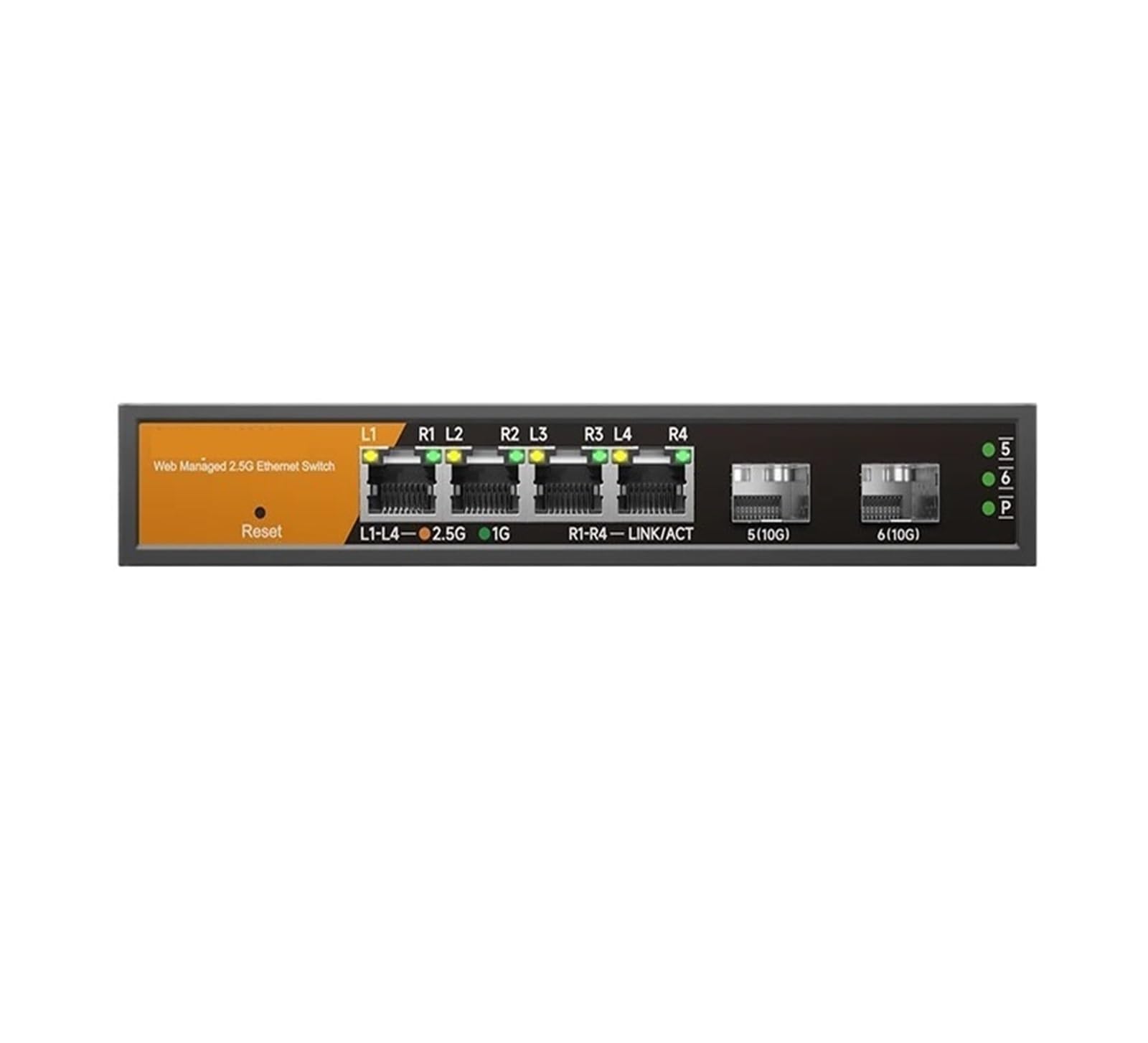
Figure 1: Front view of the LOCKIMELOW KP-9000-6XHML-X2 switch, showing the 4x 2.5Gb RJ45 ports and 2x 10G SFP+ ports, along with LED indicators.
3.2 Rear Panel
The rear panel typically contains the power input and possibly a reset button.
- DC Power Input: Connector for the included power adapter.
4. Setup
Follow these steps to set up your LOCKIMELOW KP-9000-6XHML-X2 switch.
4.1 Physical Installation
- Placement: Place the switch on a stable, flat surface (desktop) or mount it on a wall using appropriate hardware (not included). Ensure adequate ventilation for heat dissipation.
- Power Connection: Connect the power adapter to the DC power input on the switch and then plug the adapter into a standard electrical outlet. The Power LED should illuminate.
- Network Connections:
- Connect your network devices (computers, servers, other switches) to the RJ45 ports (1-4) using Cat5e or Cat6 Ethernet cables.
- For 10 Gigabit connections, insert compatible SFP+ transceivers or Direct Attach Cables (DACs) into the SFP+ ports (5-6) and connect to your 10G devices.
- Verify the Link/Act LEDs for connected ports. A solid light indicates a successful link, and a blinking light indicates data activity.
4.2 Initial Access (Web Management)
The switch supports WEB management for configuration. Refer to the separate management guide or the manufacturer's website for detailed instructions on accessing the web interface and initial login credentials. Typically, you will need to connect a computer to one of the switch's ports and configure your computer's IP address to be in the same subnet as the switch's default IP address.
5. Operating Instructions
The LOCKIMELOW KP-9000-6XHML-X2 is a managed switch, offering various configuration options through its web management interface.
5.1 Basic Network Operation
Once physically connected and powered on, the switch will automatically establish network links for connected devices. It operates in full-duplex and half-duplex communication modes and supports auto-negotiation for speed and duplex settings.
5.2 Advanced Management Features
Access the web management interface to configure the following features:
- VLAN (Virtual Local Area Network): Create and manage up to 32 VLANs to segment your network for improved security and performance.
- QoS (Quality of Service): Prioritize network traffic to ensure critical applications receive sufficient bandwidth.
- SNMP (Simple Network Management Protocol): Monitor and manage the switch remotely using SNMP-compatible network management systems.
- User Management: Configure user accounts and access privileges for the web management interface.
- Firmware Upgrade: Update the switch's firmware to gain new features and performance improvements.
- Configuration File Download/Upload: Backup and restore switch configurations.
- MAC Address Table: View and manage the 4K MAC address table.
- MDX/MDIX: Automatic detection and correction for straight-through or crossover cables.
For detailed configuration steps for each feature, refer to the comprehensive online documentation or the specific management guide provided by LOCKIMELOW.
6. Maintenance
Proper maintenance ensures the longevity and reliable operation of your switch.
- Environmental Conditions: Ensure the switch is operated within its specified temperature and humidity ranges. Avoid direct sunlight, excessive dust, and moisture.
- Ventilation: The switch features excellent heat dissipation. Ensure that ventilation openings are not blocked to maintain continuous, stable operation.
- Cleaning: Use a soft, dry cloth to clean the exterior of the switch. Do not use liquid or aerosol cleaners.
- Firmware Updates: Regularly check the manufacturer's website for new firmware versions. Updating firmware can improve performance, add features, and fix bugs.
7. Troubleshooting
If you encounter issues with your switch, refer to the following common troubleshooting steps:
- No Power:
- Check if the power adapter is securely connected to the switch and the power outlet.
- Verify the power outlet is functional.
- Ensure the Power LED on the switch is illuminated.
- No Link on a Port:
- Ensure the Ethernet cable is securely connected to both the switch port and the connected device.
- Check the cable for damage. Try a different cable.
- Verify the connected device is powered on and functioning correctly.
- For SFP+ ports, ensure the transceiver is properly seated and compatible.
- Check the Link/Act LED for the specific port.
- Slow Network Speed:
- Ensure you are using appropriate cables (Cat5e/Cat6 for 2.5GbE, compatible SFP+ modules/DACs for 10GbE).
- Check for network congestion.
- Verify duplex settings on connected devices and the switch (auto-negotiation should handle this).
- Ensure the switch's heat dissipation is not compromised.
- Cannot Access Web Management:
- Ensure your computer's IP address is in the same subnet as the switch's default IP address.
- Verify physical connection to the switch.
- Try resetting the switch to factory defaults (refer to the management guide for the reset procedure).
If problems persist, contact LOCKIMELOW technical support for further assistance.
8. Specifications
| Feature | Specification |
|---|---|
| Model Number | KP-9000-6XHML-X2 |
| Switch Type | Managed Gigabit Switch |
| Number of Interfaces | 6 (4x 2.5Gb RJ45, 2x 10G SFP+) |
| Transmission Rate | 10000 Mbps (10Gbps) |
| Switch Capacity | 60Gbps |
| Communication Mode | Full-Duplex & Half-Duplex |
| Packet Forwarding Rate | 33.48Mpps |
| MAC Address Table | 4K |
| Buffer | 8.1M |
| Latency | <10us |
| MDX/MDIX | Yes |
| VLAN Support | Yes (32 VLANs) |
| QoS Support | Yes |
| SNMP Support | Yes |
| User Management | Yes |
| Firmware Upgrade | Yes |
| Configuration File Download/Upload | Yes |
| WEB Management | Yes |
| Product Size (L x W x H) | 175 x 73 x 28 mm |
| Installation Method | Desktop and Wall Mounted |
| Weight | 0.32 kg |
| Compatibility | Cat5, Cat5e, Cat6 network cables |
9. Warranty and Support
LOCKIMELOW products are designed for reliability and performance. For warranty information, please refer to the warranty card included with your product or visit the official LOCKIMELOW website. Warranty terms and conditions may vary by region and product.
For technical support, product inquiries, or to report issues, please contact LOCKIMELOW customer service through the contact information provided on the official website or your purchase documentation. Please have your product model number (KP-9000-6XHML-X2) and serial number ready when contacting support.