
Introduction
Welcome to the user manual for your ECOPAD A30 Pro 10.1-inch Android 16 Tablet. This guide provides essential information and instructions to help you get started, operate, maintain, and troubleshoot your device. The ECOPAD A30 Pro is designed for versatile use, from entertainment to business, featuring an AI-optimized Android 16 OS, a high-performance UNISOC T7280 octa-core processor, 30GB RAM (6GB physical + 24GB extended), 64GB internal storage expandable up to 2TB, a 10.1-inch IPS HD display with Widevine L1 support, and a 6000mAh battery.
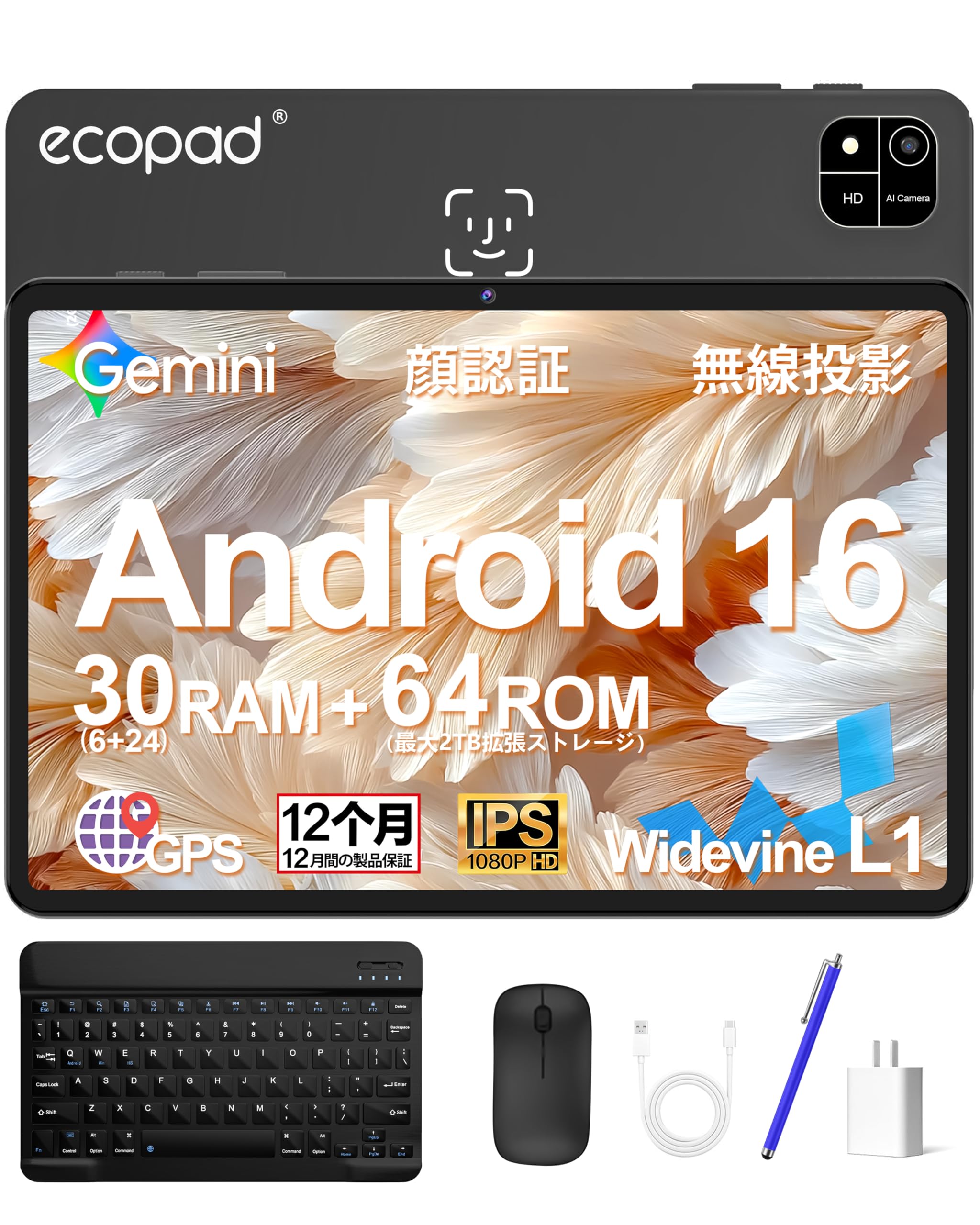
Figure 1: ECOPAD A30 Pro 10.1-inch Tablet.
Setup
1. Package Contents
Before you begin, please ensure all items are present in your package:
- ECOPAD A30 Pro Tablet
- Bluetooth Keyboard
- Bluetooth Mouse
- Type-C Charger (18W PD fast charging compatible)
- Tablet Case
- Tempered Glass Film (pre-applied)
- Stylus Pen

Figure 2: Tablet with ports labeled and included accessories.
2. Initial Charging
Connect the included Type-C charger to the tablet's Type-C port. It is recommended to fully charge the tablet before first use. The 18W PD fast charger significantly reduces charging time compared to standard chargers.

Figure 3: Tablet connected to charger, illustrating 6000mAh battery and 18W fast charging.
3. Power On/Off
To power on, press and hold the power button located on the side of the tablet until the ECOPAD logo appears. To power off, press and hold the power button, then select "Power off" from the on-screen options.
4. Micro TF Card Installation
Locate the Micro TF slot on the side of the tablet. Gently insert a Micro TF card (up to 2TB, not included) into the slot until it clicks into place. This expands your tablet's storage capacity.
5. Bluetooth Keyboard Connection
- Turn on the power switch of the Bluetooth keyboard. Press and hold "FN+C". The Bluetooth indicator light will flash, and the keyboard will enter pairing mode.
- On your tablet, turn on Bluetooth and long-press the Bluetooth settings icon to enter the Bluetooth settings.
- Tap "Pair new device" or "Add new device".
- Find "Bluetooth keyboard" in the list of available devices and tap to pair. Confirm pairing if prompted.

Figure 4: Visual guide for Bluetooth keyboard and mouse connection.
6. Bluetooth Mouse Connection
- Open the battery cover on the back of the mouse and insert batteries (not included in all sets).
- On your tablet, turn on Bluetooth and long-press the Bluetooth settings icon to enter the Bluetooth settings.
- Tap "Pair new device" or "Add new device".
- Find "BT5.2 Mouse" (or similar) in the list of available devices and tap to pair.
Operating Instructions
1. Android 16 OS and Performance
Your ECOPAD A30 Pro runs on the AI-optimized Android 16 operating system, offering enhanced operability and performance. The system operates approximately 20-30% faster than previous generations, ensuring smoother app launches and transitions. The UNISOC T7280 octa-core processor (up to 2.2GHz) provides efficient performance while minimizing power consumption, allowing for stress-free multitasking, video playback, and gaming.

Figure 5: UNISOC T7280 processor architecture and speed.
2. Gemini AI Assistant
The tablet integrates the Gemini AI assistant, supporting various intelligent features such as double-finger AI screen recognition and a smart sidebar. These features enhance your experience across different scenarios, from recognizing screen content to facilitating app operations.

Figure 6: Gemini AI capabilities for image recognition, data analysis, and content generation.
3. Display Features
The 10.1-inch IPS display with a resolution of 1280x800 pixels delivers vivid and smooth visuals. IPS technology ensures wide viewing angles, providing consistent and natural images from any perspective. The display supports a 90Hz refresh rate for a smoother visual experience, especially during gaming or scrolling. Widevine L1 certification allows for high-definition streaming of content from platforms like Netflix, YouTube, and Prime Video.
The tablet also features a blue light cut mode, which helps reduce eye strain during prolonged use or night viewing, making it comfortable for reading, studying, and watching movies.

Figure 7: Display features including 90Hz refresh rate and Widevine L1 for streaming.
4. PC Mode
The ECOPAD A30 Pro supports a PC mode, which transforms the screen into a desktop-like layout. This allows you to display multiple applications simultaneously and freely adjust window sizes, enhancing productivity for business or study tasks.
5. Security and Privacy
The tablet features enhanced privacy protection functions, allowing for detailed settings such as access restrictions and notification management for each application. Face recognition technology enables quick and secure unlocking by simply looking at the camera, eliminating the need for passwords or PIN codes and preventing unauthorized access.

Figure 8: Face recognition technology for enhanced security.
6. Camera Usage
The tablet is equipped with an 8MP rear camera and a 5MP front camera, suitable for video calls, capturing photos, and scanning documents.

Figure 9: Tablet in use for video calling, highlighting front and rear cameras.
7. Usage Scenarios
The ECOPAD A30 Pro is versatile for various activities, including entertainment, business, and learning. Enjoy video streaming, e-books, and web browsing at home or on the go. Its lightweight design makes it easy to carry. Features like GPS, wireless projection, and dual stereo speakers enhance your experience for online meetings, navigation, and multimedia consumption.

Figure 10: Examples of tablet usage in different environments.
Maintenance
1. Battery Care
- To maximize battery life, avoid fully discharging the tablet frequently.
- Do not expose the tablet to extreme temperatures (hot or cold).
- Use only the original or certified compatible charger.
- If the tablet will not be used for an extended period, charge it to about 50-60% before storing.
2. Cleaning the Device
- Use a soft, lint-free cloth to clean the screen and body of the tablet.
- For stubborn smudges, slightly dampen the cloth with water or a screen cleaner.
- Avoid using harsh chemicals, abrasive materials, or excessive moisture.
3. Software Updates
Regularly check for and install software updates to ensure optimal performance, security, and access to new features. You can usually find update options in the tablet's Settings menu under "System" or "About tablet".
Troubleshooting
1. Device Not Turning On
- Ensure the battery is charged. Connect the charger and wait a few minutes before attempting to power on again.
- Press and hold the power button for at least 10-15 seconds to perform a forced restart.
2. Screen Unresponsive
- Restart the tablet.
- Ensure the screen is clean and free of debris or liquids.
- If a screen protector is installed, ensure it is properly applied and not interfering with touch sensitivity.
3. Wi-Fi Connectivity Issues
- Toggle Wi-Fi off and on in the tablet's settings.
- Restart your Wi-Fi router.
- Ensure you are within range of the Wi-Fi network and have entered the correct password.
4. Slow Performance
- Close unnecessary background applications.
- Clear cache data for frequently used apps.
- Ensure sufficient storage space is available. Consider uninstalling unused apps or moving large files to external storage.
- Restart the tablet periodically.
Specifications
| Feature | Specification |
|---|---|
| Brand | ECOPAD |
| Model Name | A30 Pro |
| Operating System | Android 16 |
| Processor | UNISOC T7280 Octa-core (up to 2.2 GHz) |
| GPU | Mali-G57 |
| RAM | 6 GB (30 GB with virtual RAM expansion) |
| Internal Storage | 64 GB |
| Expandable Storage | Up to 2 TB via MicroSD card |
| Screen Size | 10.1 inches |
| Display Type | IPS HD |
| Resolution | 1280x800 pixels |
| Refresh Rate | 90 Hz |
| Max Brightness | 480 cd/m² |
| Aspect Ratio | 16:9 |
| Rear Camera | 8 MP |
| Front Camera | 5 MP |
| Battery Capacity | 6000 mAh Lithium-ion |
| Average Battery Life | 7 Hours |
| Charging | 18W PD Fast Charging (Type-C) |
| Audio Jack | 3.5mm |
| Connectivity | Wi-Fi (802.11ac), Bluetooth, USB-C |
| GPS | Yes |
| Biometric Authentication | Face Recognition |
| Dimensions (L x W x H) | 25.9 x 17.1 x 0.9 cm |
| Weight | 535 grams |
| Certifications | PSE, CE, FCC, TELEC, GMS |

Figure 11: Comparison of ECOPAD tablet models, highlighting A30 Pro specifications.
Warranty and Support
1. Warranty Information
The ECOPAD A30 Pro tablet comes with a 1-year limited warranty from the date of purchase. This warranty covers manufacturing defects and malfunctions under normal use. It does not cover damage caused by misuse, accidents, unauthorized repairs, or normal wear and tear. Please retain your proof of purchase for warranty claims.
2. Customer Support
For technical assistance, troubleshooting, or warranty inquiries, please contact ECOPAD customer support. Refer to the contact information provided with your product packaging or visit the official ECOPAD website for the most up-to-date support details.
You can also visit the ECOPAD Store on Amazon for additional product information and support resources.