
Introduction
The Eacam ONIKUMA CW905 is a USB wired gaming mouse designed for ergonomic comfort and high-performance gaming. It features adjustable DPI settings, programmable buttons, and vibrant RGB lighting to enhance your gaming experience. This manual provides essential information for setting up, operating, maintaining, and troubleshooting your gaming mouse.
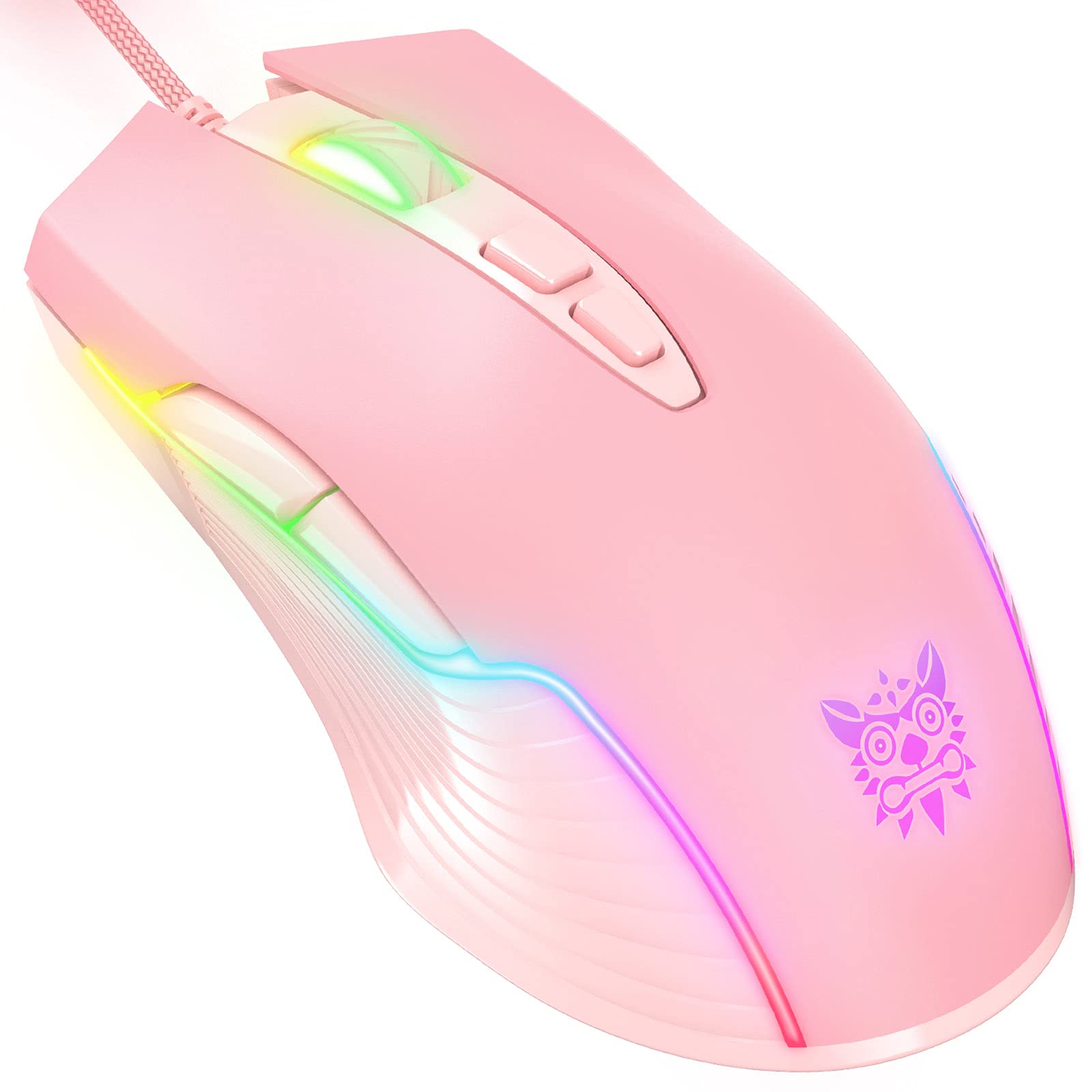
Image: Eacam ONIKUMA CW905 USB Wired Gaming Mouse
Package Contents
- 1 x Eacam ONIKUMA CW905 Wired Gaming Mouse
- 1 x User Manual (English/Chinese)
Product Features
- Ergonomic & Skin-friendly Design: Symmetrical and streamlined design provides a comfortable claw-grip, ensuring long-term use without fatigue.
- 6-Speed DPI Switchable: Adjustable DPI settings (800-1600-2400-3200-4800-6400) for precise control and speed customization.
- RGB Lighting Colors: Multi-color lights create an immersive gaming environment and enhance the aesthetic of your setup.
- 7 Programmable Buttons: Includes Left, Right, Forward, Backward, DPI+ button, DPI- button, and Scroll wheel to meet various gaming demands.
- Strong Compatibility: Compatible with Win10/8/7XP/Vista, Linux. Note: Programming functions are not available for Mac systems.
Setup
- Connect the Mouse: Plug the USB cable of the ONIKUMA CW905 gaming mouse into an available USB port on your computer.
- Automatic Installation: The mouse is plug-and-play. Your operating system will automatically detect and install the necessary drivers for basic functionality. No additional software installation is required for standard use.
- Compatibility: The mouse is compatible with Windows (10/8/7/XP/Vista) and Linux operating systems. Please note that advanced programming functions are not supported on Mac systems.
Operating Instructions
DPI Adjustment
The ONIKUMA CW905 mouse features 6 adjustable DPI settings, allowing you to customize cursor sensitivity to your preference. Use the dedicated DPI+ and DPI- buttons, typically located behind the scroll wheel, to cycle through the available settings:
- 800 DPI
- 1600 DPI
- 2400 DPI
- 3200 DPI
- 4800 DPI
- 6400 DPI
Each press of the DPI button will switch to the next sensitivity level.
Button Functions
The mouse is equipped with 7 buttons for various functions:
- Left Button: Primary click function.
- Right Button: Secondary click function (context menu).
- Scroll Wheel: Scrolls content up/down; also functions as a middle click button.
- Forward Button: Navigates forward in web browsers or file explorers.
- Backward Button: Navigates backward in web browsers or file explorers.
- DPI+ Button: Increases DPI sensitivity.
- DPI- Button: Decreases DPI sensitivity.

Image: Top view showing mouse buttons
RGB Lighting
The mouse features dynamic multi-color RGB lighting that activates automatically when connected to a powered USB port. The lighting effects are pre-programmed and cannot be customized through software on this model.
Maintenance
To ensure the longevity and optimal performance of your Eacam ONIKUMA CW905 gaming mouse, follow these maintenance guidelines:
- Cleaning: Regularly wipe the surface of the mouse with a soft, dry cloth. For stubborn dirt, a slightly damp cloth can be used, but ensure no liquid enters the mouse's internal components. Avoid using harsh chemicals, solvents, or abrasive cleaning materials.
- Cable Care: Avoid sharply bending or twisting the USB cable. Do not pull the mouse by its cable.
- Storage: Store the mouse in a clean, dry environment away from extreme temperatures and direct sunlight when not in use.
Troubleshooting
If you encounter issues with your gaming mouse, refer to the following common troubleshooting steps:
- Mouse Not Responding:
- Ensure the USB cable is securely connected to your computer's USB port.
- Try connecting the mouse to a different USB port on your computer.
- Test the mouse on another computer to determine if the issue is with the mouse or your system.
- Restart your computer.
- DPI Not Changing:
- Verify that you are pressing the correct DPI+ or DPI- buttons.
- Ensure the mouse is properly connected and recognized by your computer.
- RGB Lights Not Working:
- Check the USB connection; the RGB lighting is powered via the USB.
- If the mouse functions but the lights do not, and all connections are secure, contact customer support.
Specifications
| Feature | Specification |
|---|---|
| Brand | Eacam (ONIKUMA) |
| Model Number | CW905 |
| Sensor | SPCP-199 |
| Acceleration | 20G |
| High-Speed Motion Detection | 100IPS |
| Left/Right Button Life Time | 3,000,000 times |
| Polling Rate | 125Hz |
| Sensor Resolution (DPI) | 800-1600-2400-3200-4800-6400 |
| Number of Keys | 7 |
| Cable Length | 1.5m |
| Interface | USB |
| Working Voltage | 5V |
| Working Current | <100mA |
| Item Size (Approx.) | 12.7 x 7.1 x 4.0 cm |
| Item Weight (Approx.) | 129g |
| Country of Origin | China |
Warranty Information
This Eacam ONIKUMA CW905 USB Wired Gaming Mouse comes with a manufacturer warranty for 90 days from the date of purchase. This warranty covers manufacturing defects under normal use. Please retain your proof of purchase for any warranty claims.
The warranty does not cover damage caused by misuse, accidents, unauthorized modifications, or normal wear and tear.
Support
For further assistance, technical support, or to inquire about warranty claims, please refer to the contact information provided with your purchase documentation or visit the official Eacam website. When contacting support, please have your product model number (CW905) and proof of purchase readily available.