
Inefala Inefala-A7688A4576H6MI2-EU60
Inefala Android 15 Car Radio User Manual
Model: Inefala-A7688A4576H6MI2-EU60
For Peugeot 407 (2004-2008)
1. Introduction
Thank you for choosing the Inefala Android 15 Car Radio. This device is specifically designed for Peugeot 407 models manufactured between 2004 and 2008. It features a 9-inch HD touchscreen, 2GB RAM, 64GB storage, Wireless CarPlay, Android Auto, GPS navigation, Bluetooth, FM/RDS radio, Equalizer (EQ), Steering Wheel Control (SWC) compatibility, and includes a rear camera and microphone. This manual provides detailed instructions for installation, operation, maintenance, and troubleshooting to ensure optimal performance and user experience.
2. What's in the Box
Please verify that all items listed below are included in your package:
- Car Radio Housing ×1
- Power Cable ×1
- RCA Cable ×1
- Accessories ×1 (various connectors)
- Canbus ×1
- Radio Antenna ×1
- Installation Tool ×1
- Car Radio Unit ×1
- Microphone ×1
- Rear Camera ×1

Image: Overview of the car radio unit dimensions and all included accessories and cables in the package.
3. Setup & Installation
Professional installation is recommended. Ensure the vehicle's power is disconnected before starting installation.
3.1 Pre-Installation Overview

Image: Comparison of the Peugeot 407 dashboard before and after the installation of the Inefala Android car radio, showing the integrated look.
3.2 Wiring Diagram
Carefully follow the wiring instructions to connect the power, audio, and accessory cables.

Image: Detailed wiring diagram showing connections for power, USB, microphone, RCA, rear camera input, CVBS, video out, subwoofer, video in, AUX R/L, and AMP control. Ensure interfaces match before connecting.
3.3 AUX IN Connection
To ensure audio from your CD player, connect the AUX IN cable as shown:

Image: Diagram illustrating how to connect the AUX IN R and AUX IN L cables to the car radio's wiring harness.
3.4 Backup Camera Wiring
Connect the backup camera for enhanced safety during reversing maneuvers.

Image: Wiring diagram for the backup camera, showing connections for power, ground, and the video signal cable to the car radio. Note: The white plug must be connected to the car radio for Bluetooth and WiFi signals.
3.5 Steering Wheel Control (SWC) Setup
Maintain control of your radio functions directly from your steering wheel.

Image: Instructions for setting up steering wheel controls. It details steps for both configurations: with and without a CANBUS decoder, including navigating to app settings for CANBUS setup.
- Without CANBUS Decoder: Connect the plug from the power cable or the steering wheel control cable (Key1/Key2) to the corresponding interface. Use the manual pairing function to activate button functionality.
- With CANBUS Decoder: Connect the CAN bus before powering the device. Navigate to App -> Settings -> Factory Settings (000000) -> CAN Settings to ensure SWC functions properly. Select the CAN bus decoder and then choose the corresponding vehicle model and year based on actual conditions.
4. Operating Instructions
4.1 Wireless CarPlay and Android Auto
Seamlessly integrate your smartphone for navigation, calls, and music.

Image: Display showing the interfaces for iOS CarPlay and Android Auto, along with a smartphone demonstrating wireless connection and mirror link functionality for navigation, calls, music, and video.
- Connect your smartphone wirelessly via Bluetooth or Wi-Fi.
- Access compatible apps, navigation, and make calls directly from the car radio display.
- Mirror Link allows displaying your phone's screen on the car radio.
4.2 Bluetooth Functionality
Enjoy hands-free communication and wireless audio streaming.

Image: Multi-panel display showcasing the high-definition touchscreen, Bluetooth call and music playback interfaces, FM/RDS radio tuner, and a 32-band equalizer for audio customization.
- Pair your phone via Bluetooth for hands-free calling.
- Stream music wirelessly from your device to the car radio.
4.3 FM/RDS Radio
Tune into your favorite radio stations with clear reception.
- Access FM radio stations.
- RDS (Radio Data System) provides station information, song titles, and traffic announcements where available.
4.4 GPS Navigation and WiFi Connectivity
Navigate with precision and stay connected on the go.

Image: Displays showing online and offline GPS maps, a car navigating with real-time directions, and the car radio screen browsing online content, highlighting 5GHz WiFi capability.
- Utilize the built-in GPS for accurate navigation.
- Connect to WiFi for real-time updates, online streaming, and app downloads.
4.5 Equalizer (EQ) Settings
Customize your audio experience with the integrated equalizer.
- Adjust audio frequencies to match your preferences.
- The system offers a 32-band EQ for fine-tuning sound output.
4.6 Rear View Camera
Enhance safety and ease of parking with the included rear camera.
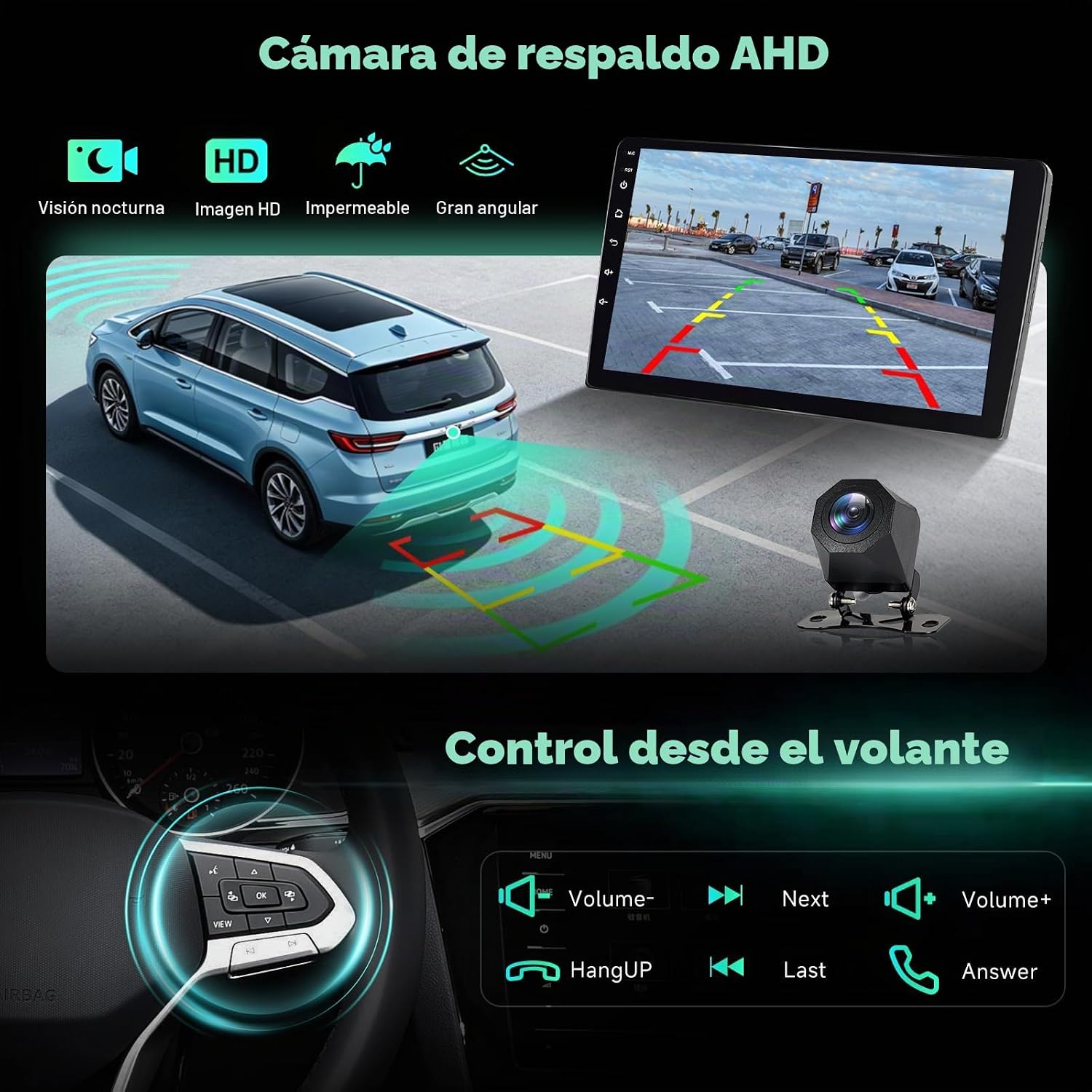
Image: Illustration of the AHD backup camera system, showing night vision, HD image, waterproof design, and wide-angle view. It also depicts the steering wheel controls for managing radio functions.
- The display automatically switches to the rear camera view when reversing.
- Features include night vision, HD imaging, and a wide-angle waterproof design.
5. Maintenance
- Cleaning the Screen: Use a soft, lint-free cloth to gently wipe the touchscreen. For stubborn smudges, slightly dampen the cloth with water or a screen-safe cleaner. Avoid harsh chemicals or abrasive materials.
- Software Updates: Periodically check for software updates through the device's settings or the manufacturer's website to ensure optimal performance and access to new features.
- General Care: Avoid exposing the unit to extreme temperatures, direct sunlight for prolonged periods, or excessive moisture. Ensure all connections remain secure.
6. Troubleshooting
- No Power: Check all power connections. Ensure the vehicle's ignition is on. Verify fuses are intact.
- No Sound: Check speaker connections. Ensure volume is not muted or set to zero. Verify AUX IN connection if using an external CD player.
- Bluetooth Connection Issues: Ensure Bluetooth is enabled on both the car radio and your smartphone. Delete previous pairings and try reconnecting.
- GPS Not Working: Ensure the GPS antenna is properly connected and has a clear view of the sky. Check GPS settings in the device menu.
- Steering Wheel Controls Not Responding: Recheck CANBUS or Key1/Key2 wiring. Reconfigure SWC settings in the device menu.
- Rear Camera Not Displaying: Verify the camera's power and video signal connections. Ensure the reverse gear is engaged. Check the white plug connection for Bluetooth/WiFi signals, as it can affect camera functionality.
7. Specifications
| Feature | Detail |
|---|---|
| Product Dimensions | 13.5 x 23 x 5.5 cm; 1.68 kg (5.3 x 9.1 x 2.2 inches; 3.7 lbs) |
| Manufacturer | Inefala |
| Model Number | Inefala-A7688A4576H6MI2-EU60 |
| Operating System | Android 15 |
| RAM | 2 GB |
| Storage | 64 GB |
| Display | 9-inch IPS HD Touchscreen (1280 × 720) |
| Connectivity Technology | Bluetooth, WiFi (5GHz compatible) |
| Special Features | Wireless CarPlay, Android Auto, Rear View Camera Input, Touchscreen, RDS, GPS |
| Compatible Devices | Smartphone |
| Connector Type | RCA |
| Audio Output Mode | Stereo (4 channels) |
| Output Power | 45 Watts (per channel), 180 Watts (total) |
| Control Method | Touch |
8. Warranty & Support
Inefala offers comprehensive support for its products.
- Product Warranty: 24 months of online consultation service.
- Response Time: Inquiries will receive a response within 78 hours.
8.1 Technical Support
For technical assistance, please follow these steps:

Image: A diagram outlining a two-step process for obtaining 24/7 technical support. Step 1 involves checking the seller information (e.g., Amazon, Inefala EU). Step 2 provides details about the seller and suggests contacting them via email for assistance.
- Step 1: Identify Seller. Check your purchase details to identify the seller (e.g., Amazon, Inefala EU).
- Step 2: Contact Support. If you have any questions or require assistance, please contact us directly via email at inefalatech@163.com. We guarantee to address 100% of your concerns.
Related documentsInefala-A7688A4576H6MI2-EU60


Ask a question about this manual
Ask about setup, troubleshooting, compatibility, parts, safety, or missing instructions. Manuals+ will review the question and use this page’s manual context to help answer it.