
Skyworth 60Q6700H
SKYWORTH 60Q6700H 4K QLED Google Smart TV User Manual
Model: 60Q6700H
1. Introduction
This manual provides essential information for the setup, operation, maintenance, and troubleshooting of your SKYWORTH 60Q6700H 4K QLED Google Smart TV. This television features a 60-inch 4K Ultra HD QLED+ display, 120Hz HSR refresh rate, HDR10+/Dolby Vision support, Dolby Atmos audio, and integrated Google TV functionality. Please read this manual thoroughly before using your TV to ensure proper and safe operation.
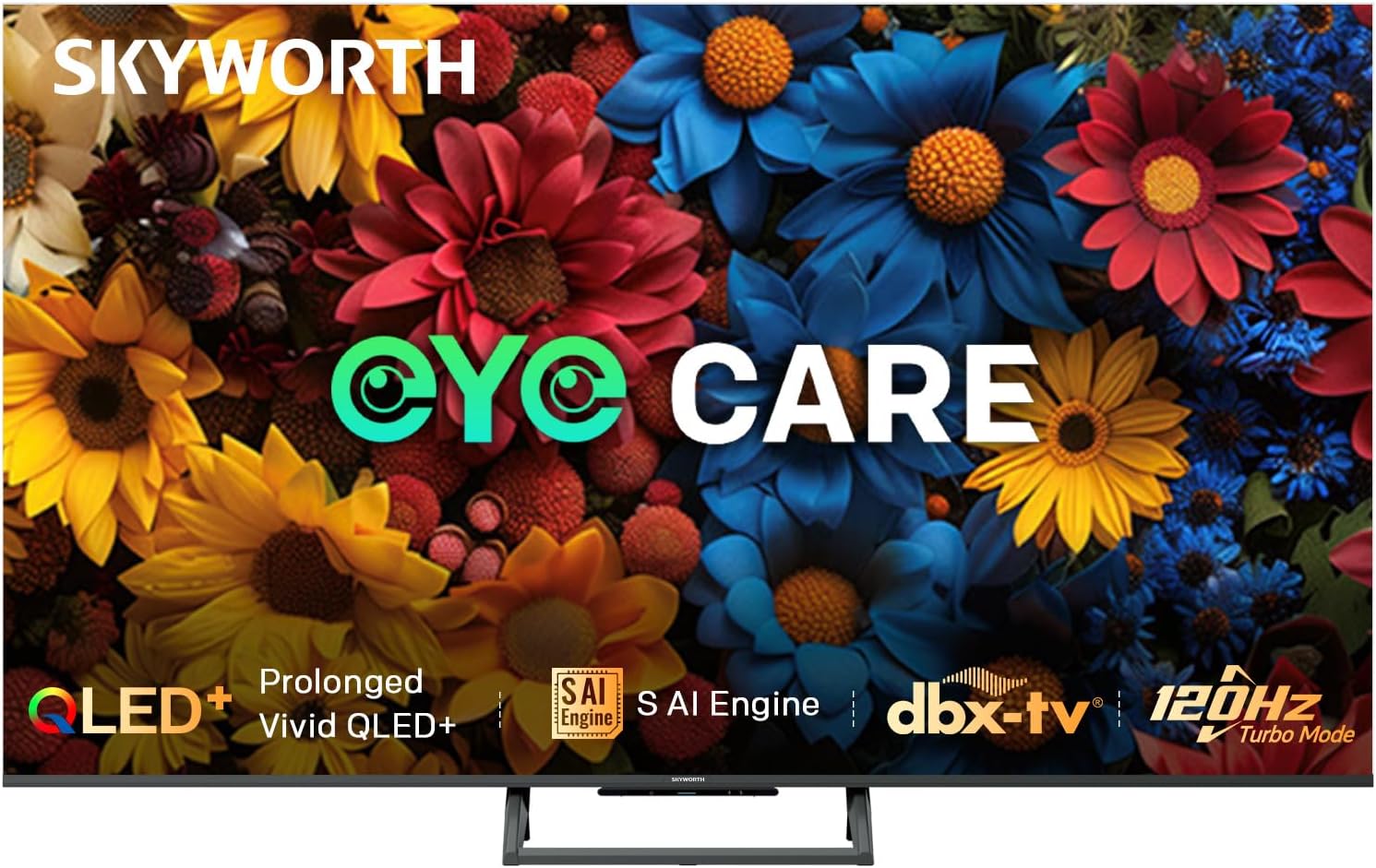
Image: Front view of the SKYWORTH 60Q6700H 4K QLED Google Smart TV, showcasing its slim bezels and stand.
2. What's Included
Verify that all the following components are included in your package:
- SKYWORTH 60Q6700H 4K QLED Google Smart TV
- Remote Control
- Power Cable
- TV Stand (2 pieces)
- User Manual (this document)
- AA batteries (for remote control)
3. Setup
3.1 Unpacking
Carefully remove the TV and all accessories from the packaging. It is recommended to retain the packaging materials for future transport or service needs.
3.2 Stand Assembly
To attach the TV stand:
- Place the TV face down on a soft, flat surface (e.g., a blanket or foam) to prevent screen damage.
- Align each stand piece with the corresponding slots on the bottom of the TV.
- Secure the stands using the provided screws. Ensure they are tightened firmly.
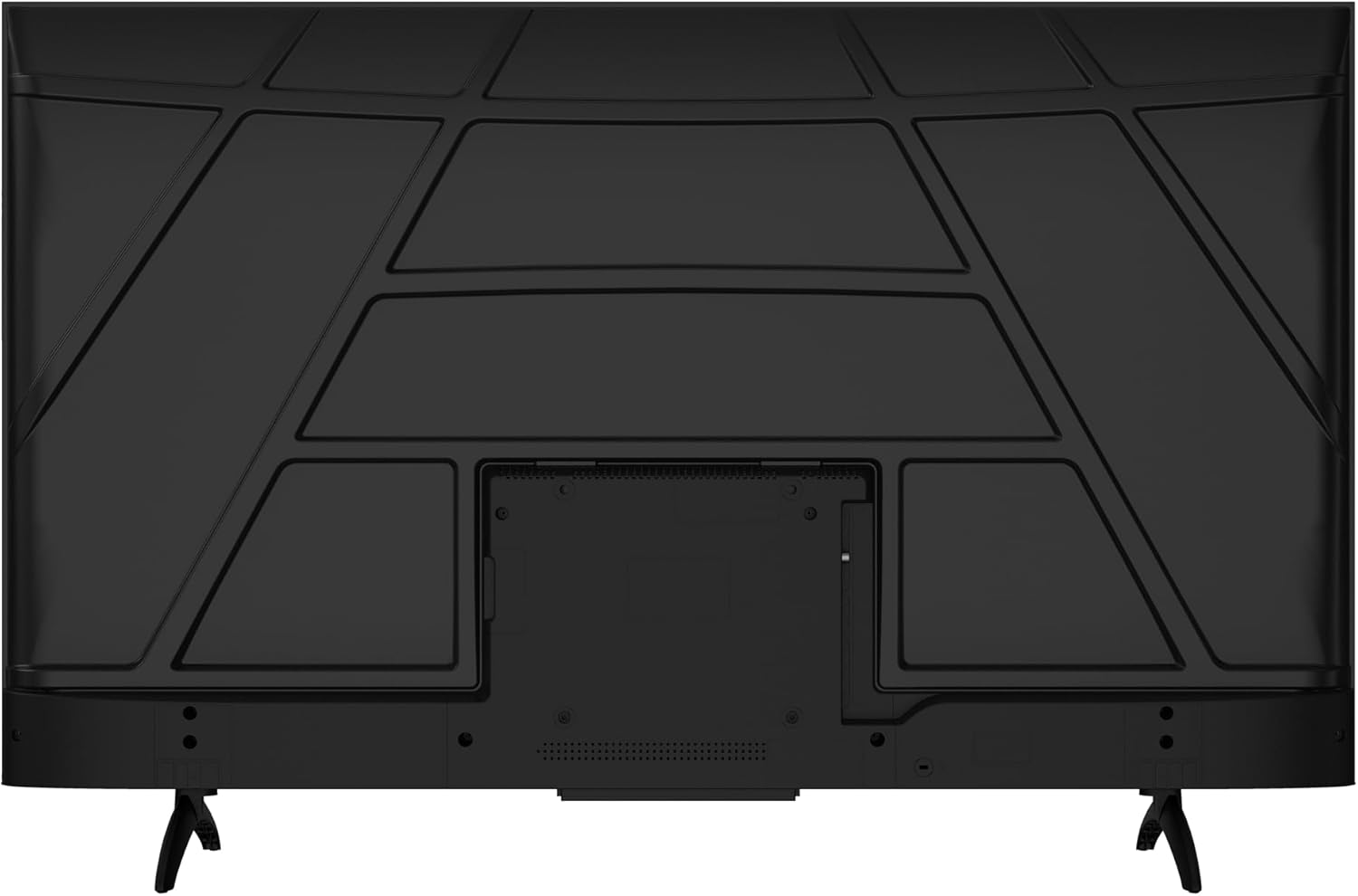
Image: Rear view of the television, illustrating the stand attachment points and various input/output ports.
3.3 Connecting Power
Connect the power cable to the TV's power input port, then plug the other end into a standard electrical outlet (100-240 VAC, 50-60 Hz).
3.4 Connecting External Devices
Your TV is equipped with multiple ports for connecting external devices:
- HDMI Ports (x3): For high-definition audio and video devices like Blu-ray players, gaming consoles, or set-top boxes.
- USB Ports (x2): For connecting USB storage devices to play media files or for software updates.
- Composite-Video Input (x1): For older devices using RCA cables (yellow for video, red/white for audio).
- Audio Out (x1): For connecting external audio systems.
- Antenna/Cable Input: For connecting an antenna or cable TV signal.

Image: Side profile of the television, highlighting the accessible side-mounted input ports.
3.5 Initial Setup Wizard
Upon first power-on, the TV will guide you through an initial setup process. This includes selecting your language, connecting to a Wi-Fi network, and setting up your Google account for Google TV features.
4. Operating Instructions
4.1 Remote Control
The included remote control allows you to navigate the TV's interface, adjust settings, and access smart features. Insert the two AA batteries into the remote control, observing polarity.
- Power Button: Turns the TV on or off.
- Navigation Buttons: Up, Down, Left, Right arrows to move through menus.
- OK Button: Confirms selections.
- Back Button: Returns to the previous screen.
- Home Button: Accesses the Google TV home screen.
- Volume Buttons: Adjusts audio volume.
- Channel Buttons: Changes TV channels.
- App Shortcut Buttons: Direct access to popular streaming services like Netflix and YouTube.
- Google Assistant Button: Activates voice control.
4.2 Google TV Interface
Your SKYWORTH TV runs on Google TV, providing a personalized home screen with content recommendations from your subscriptions. You can access thousands of apps from the Google Play Store, including Netflix, YouTube, and Prime Video. Use the navigation buttons on your remote to browse content and settings.

Image: A visual representation of the Google TV interface, highlighting features like Daily Security, Daily Email, and Daily Channel.
4.3 Picture Settings
Access the picture settings menu to optimize your viewing experience:
- Picture Mode: Select from various presets (e.g., Standard, Vivid, Movie, Game) or customize settings like brightness, contrast, color, and sharpness.
- QLED+ Display: The QLED+ panel delivers vibrant colors and deep blacks with 90% DCI-P3 color gamut and 1200:1 contrast.
- HDR10+/Dolby Vision: Automatically enhances compatible content for improved brightness, contrast, and color accuracy.
- MEMC (Motion Estimation, Motion Compensation): Reduces motion blur in fast-moving scenes.
- Eye Care 5.0: Minimizes blue light and screen flicker to reduce eye strain during extended viewing.

Image: A detailed image showcasing the vibrant color performance and clarity of the QLED+ display technology.
4.4 Sound Settings
Adjust audio settings for an immersive sound experience:
- Sound Mode: Choose from presets like Standard, Music, Movie, or customize equalizer settings.
- Dolby Atmos: Provides multi-dimensional audio for compatible content, creating an immersive soundstage.
- DBX-TV Audio: Enhances sound quality with features like Total Sonics, Total Surround, and Total Volume for clear and balanced audio.

Image: A graphic illustrating the collaboration between Skyworth and dbx-tv for enhanced audio quality, with sound wave patterns.
4.5 Gaming Features
The TV is optimized for gaming with features designed to reduce lag and enhance visuals:
- 120Hz HSR (High Refresh Rate): Provides ultra-smooth motion for fast-paced games, reducing motion blur and ghosting.
- Game Mode: Automatically optimizes picture settings and minimizes input lag for a more responsive gaming experience.
- HDMI 2.1: Supports advanced gaming features when connected to compatible devices.

Image: A dynamic image demonstrating the smoothness of 120Hz refresh rate compared to 60Hz, ideal for gaming and fast-action content.
4.6 Connectivity
- Wi-Fi: Dual-band Wi-Fi (2.4GHz/5GHz) for stable internet connection.
- Bluetooth 5.1: For connecting wireless headphones, soundbars, or other Bluetooth devices.
- Chromecast built-in: Allows you to cast content from your smartphone or tablet directly to the TV.
4.7 S AI Engine
The S AI Engine enhances image quality by analyzing and refining each frame in real-time. It leverages SKYWORTH's extensive picture quality database to deliver vibrant colors and fine details, including AI Skin Detection and AI Motion Clarity.

Image: A visual representation of the S AI Engine microchip, symbolizing the TV's artificial intelligence for image processing.
5. Maintenance
5.1 Cleaning the Screen
To clean the screen, gently wipe it with a soft, lint-free cloth. For stubborn marks, lightly dampen the cloth with water or a specialized screen cleaner. Do not use harsh chemicals, abrasive cleaners, or spray liquids directly onto the screen.
5.2 Cleaning the Cabinet
Wipe the TV cabinet with a soft, dry cloth. Avoid using any liquid cleaners or polishes that could damage the finish.
5.3 Ventilation
Ensure adequate ventilation around the TV. Do not block ventilation openings. Maintain a minimum distance from walls or other objects to allow for proper airflow.
6. Troubleshooting
If you encounter issues with your TV, refer to the following common problems and solutions:
6.1 No Power
- Ensure the power cable is securely plugged into both the TV and the electrical outlet.
- Check if the power outlet is functioning by plugging in another device.
- Press the power button on the TV itself, not just the remote.
6.2 No Picture or Poor Picture Quality
- Verify that the correct input source is selected (e.g., HDMI 1, AV).
- Check all cable connections between the TV and external devices.
- Adjust picture settings (brightness, contrast, sharpness) in the TV menu.
- If using an antenna, check antenna connection and signal strength.
6.3 No Sound or Poor Sound Quality
- Ensure the volume is not muted and is turned up.
- Check audio cable connections to external sound systems.
- If using external speakers, ensure they are powered on and correctly configured.
- Adjust sound settings in the TV menu.
6.4 Remote Control Not Working
- Replace the batteries with new AA batteries, ensuring correct polarity.
- Ensure there are no obstructions between the remote and the TV's IR sensor.
- Point the remote directly at the TV.
6.5 Network Connection Issues
- Ensure your Wi-Fi router is powered on and functioning correctly.
- Try restarting your router and the TV.
- Re-enter your Wi-Fi password in the TV's network settings.
- If possible, try connecting to a different Wi-Fi network or use a wired Ethernet connection.
7. Specifications
| Feature | Specification |
|---|---|
| Model Number | 60Q6700H |
| Screen Size | 60 Inches |
| Display Technology | QLED |
| Resolution | 3840x2160 (4K Ultra HD) |
| Refresh Rate | 120 Hz (HSR) |
| Contrast Ratio | 1200:1 |
| Maximum Display Brightness | 300 Nit |
| Response Time | 9.5 Milliseconds |
| Operating System | Google TV |
| Memory Storage Capacity | 32 GB |
| Audio Encoding | Dolby Atmos, DBX-TV |
| Total Number of HDMI Ports | 3 |
| Total USB Ports | 2 (USB 2.0) |
| Connectivity Technology | HDMI, Wi-Fi (Dual-band), Bluetooth 5.1, Chromecast built-in |
| Power Consumption | 160 Watts |
| Product Dimensions (D x W x H) | 29.9D x 134.5W x 85.8H centimetres |
| Item Weight | 12.1 Kilograms |
8. Warranty and Support
8.1 Manufacturer's Warranty
Your SKYWORTH 60Q6700H TV is covered by a 3-Year Manufacturer's Warranty. This warranty covers defects in materials and workmanship under normal use. Please retain your proof of purchase for warranty claims. The warranty does not cover damage caused by misuse, accidents, unauthorized modifications, or acts of nature.
8.2 Customer Support
For technical assistance, warranty inquiries, or service requests, please contact Skyworth customer support. Refer to the official Skyworth website or your purchase documentation for the most current contact information (phone numbers, email addresses, or online support portals).
When contacting support, please have your TV model number (60Q6700H) and serial number ready, along with a detailed description of the issue.
Related Documents - 60Q6700H
 |
SKYWORTH 4K TV Stick HP46D User Guide: Setup and Features A comprehensive user guide for the SKYWORTH 4K TV Stick HP46D, detailing setup procedures, remote control pairing, Google TV features, app installation, and essential safety and compliance information. |
 |
Skyworth 4K Ultra HD STB HP4500-CL (IPTV) User Manual User manual for the Skyworth 4K Ultra HD STB, model HP4500-CL (IPTV), detailing specifications, unpacking, connections, and safety instructions. |
 |
Skyworth NTUD-U20 Wireless USB Peripheral Operation Manual Operation instructions and FCC compliance information for the Skyworth NTUD-U20 wireless USB peripheral, supporting Wi-Fi and Bluetooth connectivity. |
 |
Skyworth NTUD-T4 Wireless WIFI USB Peripheral Operation Instruction and Technical Details Comprehensive operation instructions, technical specifications, FCC compliance information, and test modes for the Skyworth NTUD-T4 wireless WIFI USB peripheral. Learn how to connect and integrate this device. |
 |
SKYWORTH NTUD-U3 Wireless Wi-Fi USB Peripheral Operation Instruction and Compliance Operation instructions and regulatory compliance information for the SKYWORTH NTUD-U3 Wireless Wi-Fi USB Peripheral, including FCC and ISED Canada certifications. |
 |
SKYWORTH NTUD-U23 Wireless USB Peripheral Operation Instructions and FCC Compliance Comprehensive operation instructions and FCC compliance details for the SKYWORTH NTUD-U23 wireless WIFI USB peripheral. Covers setup, technical specifications, regulatory information, and antenna details. |