
1. Introduction
Thank you for choosing the AJAZZ AJ200P Wireless Gaming Mouse. This manual provides detailed instructions for setting up, operating, and maintaining your new mouse. Please read this guide thoroughly to ensure optimal performance and a seamless user experience.

Image 1.1: The AJAZZ AJ200P Wireless Gaming Mouse and its magnetic charging dock, highlighting key features like triple-mode connectivity, 24,000 DPI, 1K Hz polling rate, 300 IPS, 65g lightweight design, AI-powered interaction, and a 300mAh battery.
2. Key Features
- 65g Ultra-Lightweight Design: Engineered with a high-strength internal structure for durability without added weight, ensuring comfortable extended use.
- Tri-Mode Connectivity: Offers versatile connection options including high-speed 2.4GHz wireless, Bluetooth, and Type-C wired modes for broad compatibility and stable performance.
- High-Performance Sensor: Equipped with a professional 24,000 DPI optical sensor, 300 IPS tracking speed, and a 1K Hz polling rate for precise and responsive control.
- Smart Voice OS Integration: Features an integrated voice interaction system for voice commands, multi-language translation, and content creation, enhancing productivity.
- Subscription-Free Aim Trainer: Includes a complimentary, full-featured FPS training hub to practice tracking, flicking, and precision, with visual data performance reports.
- AI Trigger-Feel Calibration: Utilizes a companion app to analyze click tension and grip behavior, recommending and customizing optimal DPI settings for specific games.
- Magnetic Charging Dock: Comes with an exclusive dual-purpose magnetic charging dock that provides effortless snap-charging for the mouse and integrated charging support for smartphones.
- Durable Microswitches: Features 20-million-click microswitches for long-lasting reliability.

Image 2.1: An exploded view of the AJAZZ AJ200P mouse, showcasing its internal components, including the 300mAh battery, 20-million-click microswitch, and magnetic base for charging.
3. Setup Guide
3.1 Unboxing and Initial Charge
Upon unboxing, it is recommended to fully charge your mouse. Place the mouse onto the magnetic charging dock. The dock features RGB lighting that indicates charging status. Alternatively, connect the mouse directly using the provided USB Type-C cable.

Image 3.1: The AJAZZ AJ200P mouse securely placed on its magnetic wireless charging stand, which also supports wireless charging for smartphones.
3.2 Connecting Your Mouse
The AJAZZ AJ200P supports three connection modes:
- 2.4GHz Wireless Mode:
- Locate the USB receiver stored in the mouse's underside compartment.
- Plug the USB receiver into an available USB port on your computer.
- Switch the mode selector on the bottom of the mouse to the 2.4G position. The mouse will automatically connect.
- Bluetooth Mode:
- Switch the mode selector on the bottom of the mouse to the Bluetooth (BT) position.
- On your computer or device, navigate to Bluetooth settings and search for new devices.
- Select "AJAZZ AJ200P" from the list of available devices to pair.
- Wired Mode:
- Connect the provided USB Type-C cable to the front port of the mouse and the other end to your computer.
- The mouse will function immediately in wired mode and charge simultaneously.

Image 3.2: The AJAZZ AJ200P mouse demonstrating its three connectivity modes: USB-C Wired, Powerful 2.4 GHz, and Bluetooth 5.0, allowing easy switching between multiple devices.
3.3 Installing the AI Client (Web Driver)
To unlock the full potential of the AI features, including voice interaction, aim training, and trigger-feel calibration, you need to download and install the dedicated AI client software (web driver).
- Access the web driver: Hold down the 'Left Click' and 'Back' buttons on the mouse simultaneously for 5 seconds. This action will typically open a browser window directing you to the download page for the AI client.
- Download the software: On the website, locate the download for the AJAZZ AJ200P NL AI MC model. Ensure you download the correct version for your operating system.
- Install the software: Follow the on-screen instructions to complete the installation.
- Configure settings: Once installed, open the AI client to customize button functions, DPI settings, and activate AI features.

Image 3.3: A visual guide on how to access the web driver by holding down the 'Left Click' and 'Back' buttons for 5 seconds, leading to the AI client download for features like simultaneous input and translation.
Video 3.1: This video demonstrates the setup process for the AJAZZ AJ200P Tri-Mode Mouse, highlighting its ease of use for home and office environments.
4. Operating Instructions
4.1 Basic Mouse Functions
The AJAZZ AJ200P features standard left/right click buttons, a scroll wheel, and two side buttons. The scroll wheel also functions as a middle click. The DPI button on the underside allows for quick cycling through preset DPI levels.
4.2 DPI Adjustment
The mouse offers up to 24,000 DPI (expandable to 36,000 DPI via software). You can cycle through different DPI settings using the dedicated button on the bottom of the mouse. For fine-tuning and customizing each DPI level and its corresponding indicator light color, use the AI client software.
4.3 AI-Powered Interaction
Once the AI client is installed, you can utilize the mouse's smart features:
- Voice Input & Commands: Use voice prompts for real-time translation, opening applications, or executing custom commands.
- Content Creation: Leverage AI features to assist with generating presentations (PPT) or creating documents.
- Voice Macro: Program complex actions into simple voice commands.
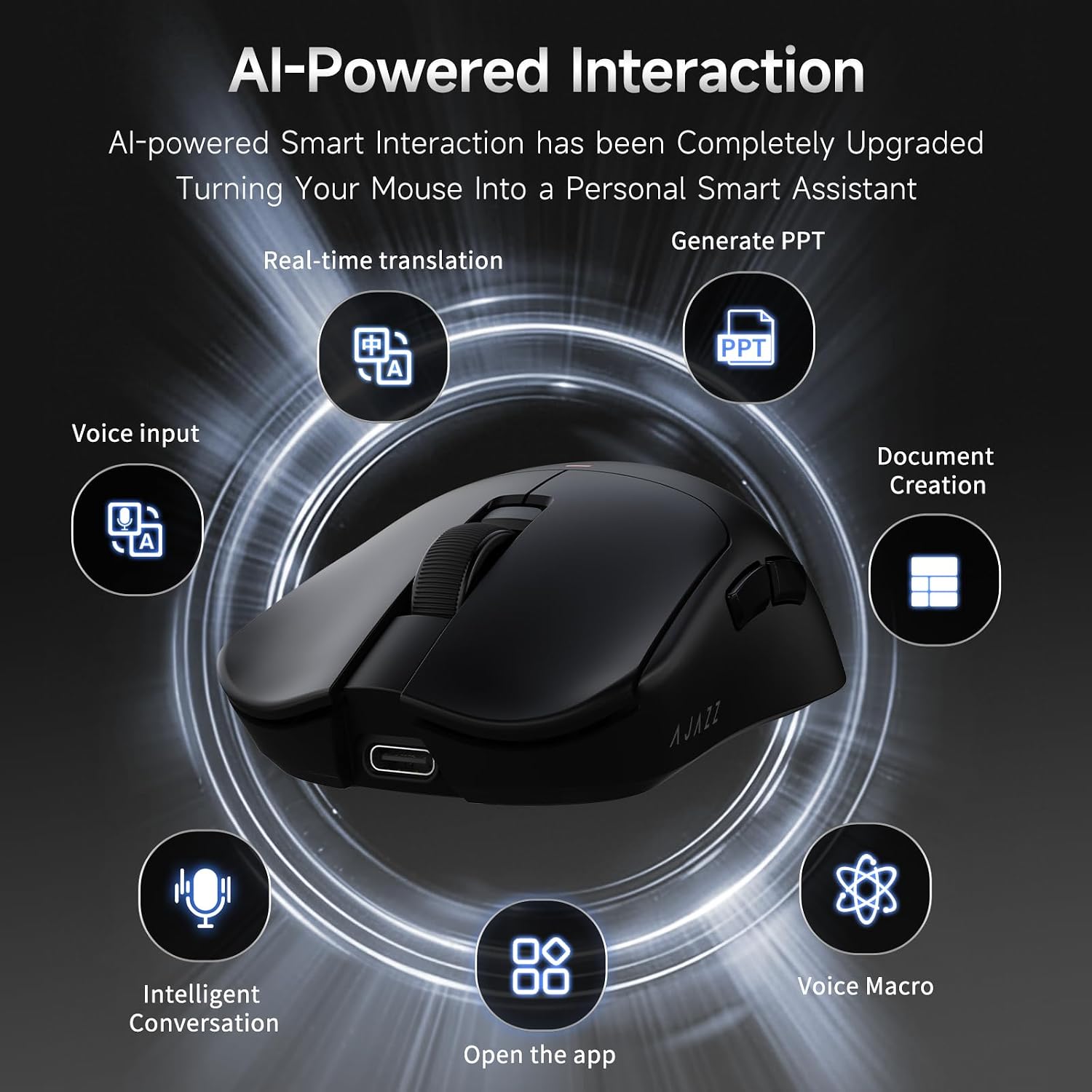
Image 4.1: A visual representation of the AI-Powered Interaction features, including real-time translation, voice input, intelligent conversation, generating PPT, document creation, opening apps, and voice macros.
Video 4.1: This video demonstrates the practical daily computer use of the AJAZZ AJ200P mouse, showcasing its features in a typical workflow.
4.4 AI Aim Trainer & Trigger-Feel Calibration
The AI client includes advanced gaming optimization tools:
- FPS Training Hub: Practice various aiming techniques like tracking, flicking, and precision timing. The software generates visual data performance reports to help analyze and improve your skills.
- Trigger-Feel Calibration: The intelligent tuning system analyzes your click tension and grip behavior to recommend and customize the ideal DPI configuration for your specific games and playstyle.

Image 4.2: A screenshot of the AI Trigger-Feel Calibration interface, showing how the system analyzes user input to recommend optimal DPI settings for various games.

Image 4.3: The AI Aim Expert training interface, providing various training modes like flicking, precision shot, and tracking shot to help users improve their aim.
Video 4.2: This video showcases the smart voice features of the AJAZZ AJ200 NL mouse, demonstrating how it can enhance desktop productivity.
5. Maintenance
5.1 Cleaning
To maintain optimal performance, regularly clean your mouse. Use a soft, dry cloth to wipe the surface. For stubborn dirt, a slightly damp cloth with mild soap can be used, ensuring no liquid enters the mouse. Clean the optical sensor area periodically with a cotton swab to prevent tracking issues.
5.2 Battery Care
The AJAZZ AJ200P is equipped with a 300mAh rechargeable battery. To prolong battery life:
- Avoid fully discharging the battery frequently.
- Charge the mouse using the provided magnetic dock or USB Type-C cable.
- Store the mouse in a cool, dry place when not in use for extended periods.
6. Troubleshooting
| Problem | Possible Cause | Solution |
|---|---|---|
| Mouse not responding in wireless mode. | Low battery, incorrect mode selected, USB receiver not connected, or interference. | Charge the mouse. Ensure the mode switch is set to 2.4G or BT. Re-insert the USB receiver. Move closer to the receiver or clear obstructions. |
| Bluetooth connection issues. | Mouse not in pairing mode, device's Bluetooth off, or interference. | Ensure mouse is in BT mode and discoverable. Check your device's Bluetooth settings. Try re-pairing. |
| AI features not working. | AI client not installed or configured, internet connection issues for voice features. | Ensure the AI client software is correctly installed (refer to Section 3.3). Check your internet connection for voice-activated features. Verify button assignments in the AI client. |
| Mouse tracking is erratic or inaccurate. | Dirty optical sensor, unsuitable mouse pad surface, or incorrect DPI setting. | Clean the optical sensor. Use a clean, uniform mouse pad. Adjust DPI settings via the mouse button or AI client. |
| Magnetic charging dock not charging mouse/phone. | Dock not powered, incorrect placement, or foreign objects. | Ensure the dock is connected to a power source. Verify correct placement of the mouse/phone on the dock. Remove any foreign objects. |
7. Specifications
| Feature | Detail |
|---|---|
| Brand | AJAZZ |
| Model Name | AJ200P NL |
| Connectivity Technology | USB (Tri-Mode: 2.4GHz, Bluetooth, Wired) |
| Movement Detection Technology | Optical (PixArt PAW3311) |
| Mouse Maximum Sensitivity | 24,000 DPI (up to 36,000 DPI via software) |
| Polling Rate | 1K Hz (1000Hz) |
| Tracking Speed | 300 IPS |
| Acceleration | 35G |
| Button Quantity | 6 |
| Hand Orientation | Right |
| Compatible Devices | Desktop Computer |
| Operating System | Windows (and Mac for basic functions) |
| Power Source | Wired / Rechargeable Battery |
| Battery Capacity | 300mAh |
| Item Weight | 65g (0.35 kg with packaging) |
| Item Dimensions (L x W) | 5"L x 2.5"W (approx.) |
| Enclosure Material | Plastic |
| Included Components | Gaming Mouse, USB Type-C Cable, USB Receiver, Magnetic Charging Dock |
8. Warranty Information
AJAZZ products typically come with a limited manufacturer's warranty. Please refer to the warranty card included in your product packaging or visit the official AJAZZ website for detailed warranty terms and conditions. Keep your proof of purchase for any warranty claims.
9. Customer Support
If you encounter any issues or have questions regarding your AJAZZ AJ200P Wireless Gaming Mouse that are not covered in this manual, please contact AJAZZ customer support through their official website or the retailer where you purchased the product. For additional resources and product information, visit the AJAZZ Store on Amazon.


