
1. Introduction
This manual provides detailed instructions for the Eyoyo 2D Barcode Scanner Bundle, which includes the EY-015P Mini Portable Barcode Scanner and a Back Clip 2D Barcode Scanner. Please read this manual carefully before using the devices to ensure proper operation and to maximize their lifespan.
2. EY-015P Mini Portable Scanner Overview
The Eyoyo EY-015P is a compact and lightweight 2D barcode scanner designed for portability and ease of use. It supports multiple connection modes and is compatible with various operating systems.
2.1 Key Features
- Mini & Lightweight Design: Weighs approximately 30g (1.06 ounces) with dimensions of 85mm x 30mm x 20mm.
- Three Connection Modes: Supports Bluetooth, 2.4G Wireless, and USB Wired connections.
- Versatile Decoding: Capable of scanning most 1D, 2D, and QR barcodes from both paper and digital screens.
- Broad Compatibility: Works with Windows XP/7/8/10, MacOS, Linux, and Windows Mobile, as well as mobile phones, tablets, POS systems, and laptops.
- Configurable Settings: Offers instant upload mode, storage mode, sound/vibration toggle, custom prefixes/suffixes, character deletion, and keyboard hotkey combinations (e.g., TAB, CR&LF, Home).

Image: The Eyoyo EY-015P scanner, highlighting its mini size (85mm length, 30mm width, 20mm thickness) and light weight (32g/1.13oz). It is shown held in a hand and fitting into a pocket.
3. EY-015P Setup and Connection
3.1 Charging the Scanner
Before initial use, fully charge the EY-015P scanner. A full charge allows for approximately 10,000 scans. Connect the scanner to a USB power source using the provided USB cable.
3.2 Connection Modes
The EY-015P supports three distinct connection methods:

Image: A visual representation of the three connection options: Bluetooth (wireless to phone/tablet/laptop), 2.4G Wireless (via USB dongle to laptop/desktop), and USB Wired (direct cable connection to laptop/desktop).
- Bluetooth Wireless Connection:
- Turn on the scanner.
- Activate Bluetooth on your host device (e.g., smartphone, tablet, laptop).
- Search for available Bluetooth devices and select the Eyoyo scanner.
- Pair the devices. The scanner will indicate a successful connection.
The Bluetooth mode offers a transmission distance of up to 50 meters (164 feet) in an unobstructed environment and 20 meters (66 feet) with obstacles.
- 2.4G Wireless Connection:
- Plug the 2.4G USB dongle into an available USB port on your computer.
- Turn on the scanner. It should automatically connect to the dongle.
The 2.4G wireless mode provides a transmission distance of up to 30 meters (98 feet) in an unobstructed environment and 15 meters (49 feet) with obstacles.
- USB Wired Connection:
- Connect the scanner directly to your computer's USB port using the provided USB cable.
- The scanner will function as a plug-and-play device, requiring no additional drivers.

Image: Illustration of the wireless transmission ranges. 2.4G Wireless mode reaches 30m/98ft unobstructed and 15m/49ft with obstacles. Bluetooth mode reaches 50m/164ft unobstructed and 20m/66ft with obstacles.
4. EY-015P Operating Instructions
4.1 Scanning Barcodes
To scan a barcode, point the scanner's window at the barcode and press the scan button. The scanner will emit a light beam to read the code. A successful scan is typically indicated by a beep or vibration (if enabled).

Image: The scanner is shown reading various barcode types including QR Code, Data Matrix, Maxicode, Aztec code, Hanxin, UPC/EAN, and PDF417. It demonstrates the scanner's ability to read codes from both paper and digital screens.

Image: This image further illustrates the scanner's robust decoding capabilities, showing it can easily scan various 1D and 2D barcodes, including those that are damaged, distorted, colorful, fuzzy, or reflective, from both paper and screen.
4.2 Scan Button Design
The EY-015P features a versatile scan button design, allowing comfortable operation with either the left or right hand.
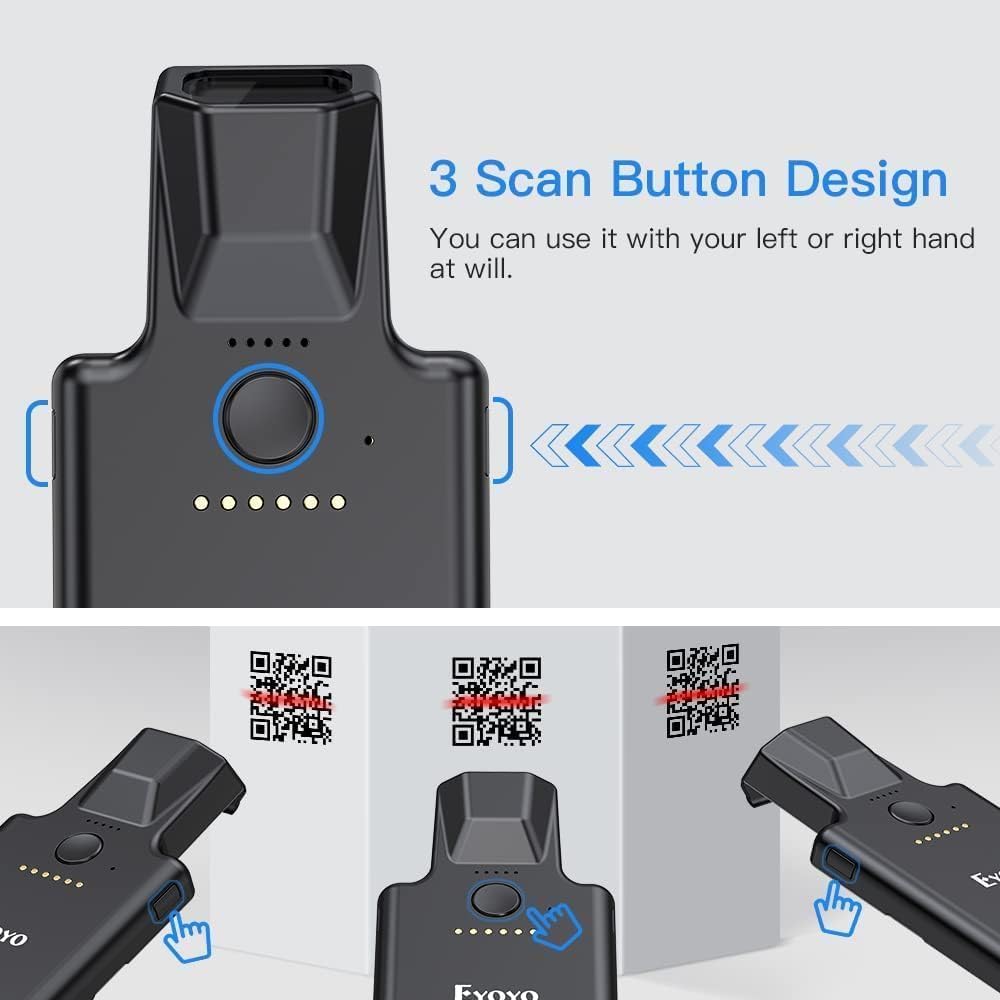
Image: A top-down view of the scanner highlighting its main scan button and indicating that it can be operated with either the left or right hand, suggesting an ergonomic design.
4.3 Configuration Options
The scanner offers multiple configuration options, typically set by scanning specific setup barcodes found in a separate configuration guide (not included in this manual). These options include:
- Instant Upload Mode: Scanned data is immediately transmitted to the connected device.
- Storage Mode: Scanned data is stored in the scanner's internal memory and can be uploaded later.
- Sound/Vibration Toggle: Enable or disable audible beeps and tactile vibrations for scan feedback.
- Custom Prefixes/Suffixes: Add specific characters before or after scanned data.
- Character Deletion: Remove unwanted characters from scanned data.
- Keyboard Hotkeys: Add keyboard functions like TAB, CR&LF (Carriage Return & Line Feed), or Home to the end of scanned data for automated input.
5. Back Clip 2D Scanner Overview
The bundle also includes a Back Clip 2D Scanner, designed to attach to a smartphone, enhancing its barcode scanning capabilities. This scanner features robust construction and advanced scanning technology.

Image: A comparison of the newly upgraded Eyoyo Back Clip 2D Scanner (New Version) with an older version. The new version is described as having more powerful scanning technology and being stronger and less prone to damage. It is presented as an ideal partner for phones.
5.1 Key Features
- Enhanced Scanning Technology: Provides efficient and accurate 2D barcode decoding.
- Durable Construction: Designed to be robust and resistant to damage.
- Smartphone Integration: Attaches to a smartphone to create a mobile scanning solution.
5.2 Setup and Operation
To use the Back Clip 2D Scanner, attach it securely to your smartphone. It typically connects via Bluetooth to your phone. Refer to the specific instructions provided with the Back Clip Scanner for detailed pairing and operation procedures, as these may vary.
6. Maintenance
6.1 Cleaning
To clean the scanner, use a soft, dry, lint-free cloth. For stubborn dirt, slightly dampen the cloth with water or a mild, non-abrasive cleaner. Do not use harsh chemicals or abrasive materials, as these can damage the scanner's surface or optical components.
6.2 Battery Care
- Avoid fully discharging the battery frequently.
- If storing the scanner for an extended period, ensure it is charged to approximately 50% and store it in a cool, dry place.
- Use only the provided charging cable or a compatible USB charger.
7. Troubleshooting
7.1 Scanner Not Connecting
- Check Power: Ensure the scanner is turned on and has sufficient battery charge.
- Verify Mode: Confirm the scanner is in the correct connection mode (Bluetooth, 2.4G, or USB) for your setup.
- Re-pair/Reconnect: For Bluetooth, try unpairing and re-pairing the device. For 2.4G, ensure the dongle is securely plugged in. For USB, try a different USB port or cable.
- Distance: Ensure the scanner is within the effective range of the host device.
7.2 Scanner Not Reading Barcodes
- Barcode Type: Ensure the barcode type is supported by the scanner (1D, 2D, QR).
- Barcode Quality: Check if the barcode is damaged, smudged, or poorly printed.
- Lighting: Ensure adequate lighting. Avoid direct glare or very dim conditions.
- Distance/Angle: Adjust the distance and angle between the scanner and the barcode.
- Screen Brightness: If scanning from a screen, increase the screen's brightness.
7.3 Data Transmission Issues
- Software Focus: Ensure the cursor is in the correct input field on your host device.
- Mode Setting: If data is not appearing, check if the scanner is in storage mode instead of instant upload mode.
8. Specifications
| Feature | EY-015P Mini Portable Scanner | Back Clip 2D Scanner |
|---|---|---|
| Model | EY-015P | Not specified (Bundled Item) |
| Dimensions (L x W x H) | 85mm x 30mm x 20mm (3.35in x 1.18in x 0.79in) | Not specified |
| Weight | Approx. 30g (1.06 oz) | Not specified |
| Connectivity | Bluetooth, 2.4G Wireless, USB Wired | Bluetooth (typically) |
| Wireless Range (Unobstructed) | Bluetooth: 50m (164ft) 2.4G: 30m (98ft) | Not specified |
| Wireless Range (With Obstacles) | Bluetooth: 20m (66ft) 2.4G: 15m (49ft) | Not specified |
| Barcode Types Supported | 1D, 2D, QR (QR Code, Data Matrix, Maxicode, Aztec code, Hanxin, UPC/EAN, PDF417) | 1D, 2D (as per product title) |
| Battery Life (EY-015P) | Approx. 10,000 scans per full charge | Not specified |
| Operating System Compatibility | Windows XP/7/8/10, MacOS, Linux, Windows Mobile | Smartphone OS (iOS, Android typically) |
9. Warranty and Support
For warranty information and technical support, please refer to the documentation included with your purchase or contact the seller/manufacturer directly. Keep your proof of purchase for warranty claims.


