
1. Introduction
This manual provides essential information for setting up, operating, maintaining, and troubleshooting your Packard Bell Prost F116 EvoFlex Rugged Convertible Laptop. The Prost F116 EvoFlex is a versatile 2-in-1 device designed for durability and flexibility, featuring an IP54 rating, Full HD touchscreen, and 360° convertible form factor. It is powered by an Intel N95 processor, 8GB LPDDR5 memory, and a 512GB SSD, running Windows 11 Pro Education.
Please read this manual thoroughly before using your device to ensure proper operation and to maximize its lifespan.
2. Setup
2.1 Unpacking and Initial Inspection
Carefully remove the laptop and all accessories from the packaging. Inspect the device for any signs of damage. If any components are missing or damaged, contact your retailer immediately.
2.2 Charging the Battery
Before first use, fully charge the laptop's 5000mAh battery. Connect the provided power adapter to the charging port on the laptop and then to a power outlet. The charging indicator light will illuminate.
2.3 Initial Power On and Windows Setup
Press the power button to turn on the laptop. Follow the on-screen instructions to complete the Windows 11 Pro Education setup process. This includes selecting your language, region, creating a user account, and connecting to a Wi-Fi network.
2.4 Connecting to Networks
- Wi-Fi: During initial setup or via Windows settings, select your desired Wi-Fi network and enter the password. The device supports Wi-Fi 6.
- 4G LTE: Insert a compatible 4G LTE SIM card into the designated SIM slot. Follow the instructions provided by your mobile network operator to activate cellular data.
2.5 Connecting Peripherals
The laptop features various ports for connecting external devices:
- USB 3.0: For connecting USB devices such as external hard drives, mice, or keyboards.
- USB Type-C (x2): For data transfer, charging, and display output (full function).
- HDMI: For connecting to external displays or projectors.
3. Operating the Device
3.1 Power On/Off and Sleep Mode
- Power On: Press the power button located on the side of the device.
- Power Off: Click the Windows Start button, then Power > Shut down.
- Sleep Mode: Click the Windows Start button, then Power > Sleep, or close the lid.
3.2 Using the Convertible Modes
The Prost F116 EvoFlex features a 360° hinge, allowing it to be used in multiple modes:
- Laptop Mode: Standard laptop configuration for typing and productivity.
- Tent Mode: Fold the screen back to form a 'tent' shape, ideal for presentations or watching videos.
- Stand Mode: Fold the screen back with the keyboard facing down, suitable for touch-based applications.
- Tablet Mode: Fold the screen completely back against the base for a full tablet experience.
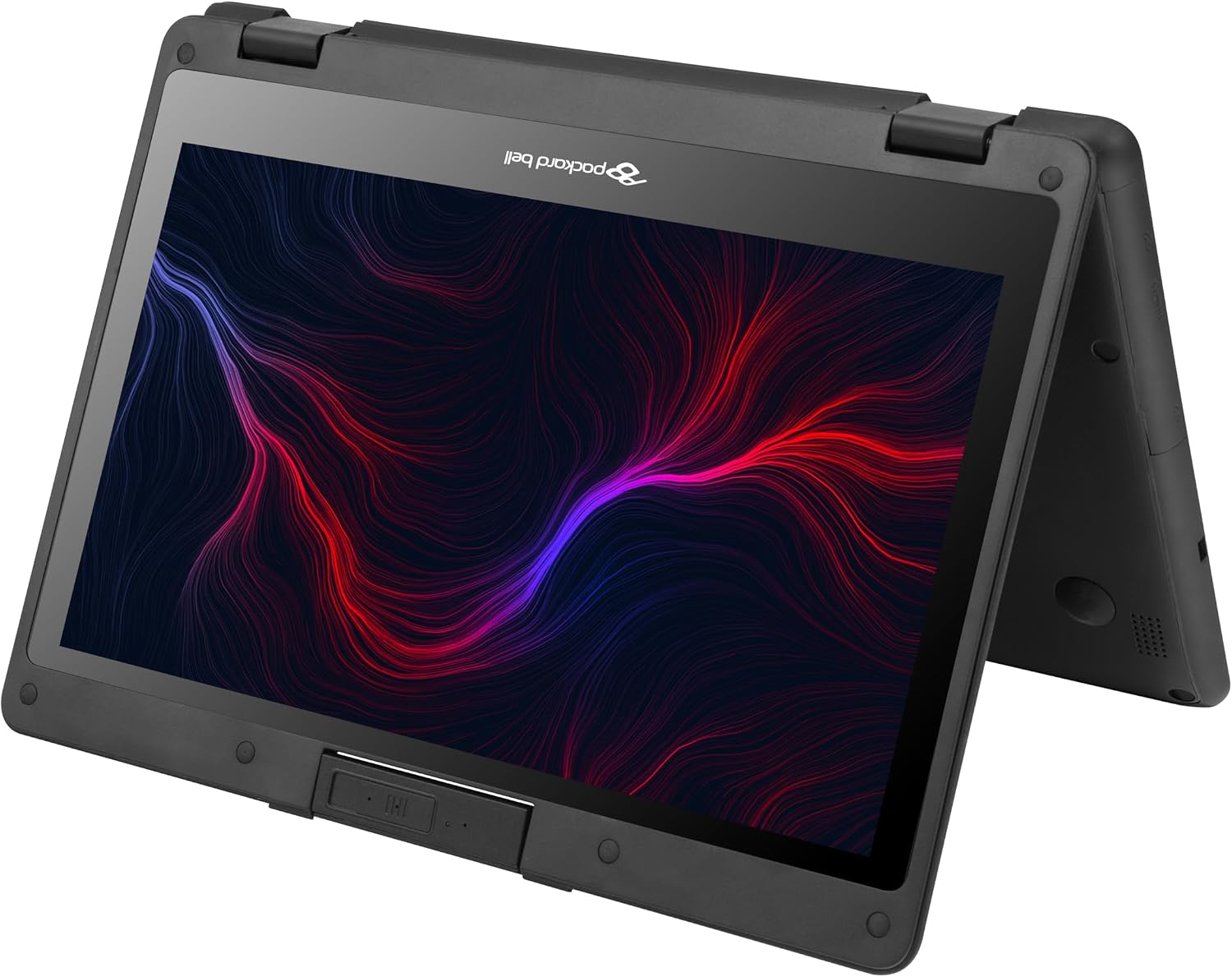
Figure 1: The Prost F116 EvoFlex in tablet mode, showcasing its 360-degree hinge flexibility.
3.3 Touchscreen and Keyboard Usage
- Touchscreen: The 11.6-inch Full HD IPS touchscreen supports multi-touch gestures. Use your fingers for navigation, tapping, swiping, and pinching to zoom.
- Keyboard and Touchpad: Use the integrated keyboard for typing and the touchpad for cursor control.

Figure 2: Front view of the Prost F116 EvoFlex in traditional laptop mode, displaying the keyboard and screen.
3.4 Using the Rotating Camera
The laptop features a 2MP rotating camera. This camera can be swiveled to face the front (for video calls) or the rear (for capturing photos/videos of your surroundings). Gently rotate the camera module to adjust its direction.
4. Maintenance
4.1 Cleaning the Device
- Screen: Use a soft, lint-free cloth slightly dampened with water or a screen cleaner. Do not spray liquid directly onto the screen.
- Chassis and Keyboard: Use a soft, dry cloth. For stubborn dirt, a slightly damp cloth can be used. Avoid harsh chemicals.
4.2 Battery Care
- Avoid fully discharging the battery frequently.
- Store the device in a cool, dry place if not used for extended periods.
- Use only the original or approved power adapter.
4.3 Software Updates
Regularly check for and install Windows updates to ensure optimal performance, security, and access to the latest features. Go to Settings > Windows Update.
5. Troubleshooting
5.1 Device Does Not Power On
- Ensure the power adapter is securely connected and the battery is charged.
- Try holding the power button for 10-15 seconds to perform a hard reset.
5.2 Wi-Fi or 4G LTE Connectivity Issues
- Check if Wi-Fi or cellular data is enabled in Windows settings.
- Restart the laptop and your router/modem (for Wi-Fi).
- Ensure the SIM card is correctly inserted and activated (for 4G LTE).
5.3 Touchscreen Not Responding
- Restart the device.
- Ensure the screen is clean and free from obstructions.
- Check for any pending Windows updates that might include touchscreen driver updates.
6. Specifications
| Feature | Description |
|---|---|
| Brand | Packard Bell |
| Model Name | PROST-F116 |
| Screen Size | 11.6 Inches FHD_IPS Touchscreen |
| Resolution | 1920 x 1080 pixels |
| Processor | Intel N95 (2 GHz, up to 3.2 GHz) |
| RAM | 8GB LPDDR5 (4800 MHz) |
| Storage | 512GB SATA SSD |
| Operating System | Windows 11 Pro Education |
| Graphics | Integrated Intel® UHD Graphics |
| Connectivity | Wi-Fi 6, Bluetooth 5.2, 4G LTE (SIM slot) |
| Ports | 1x USB 3.0, 2x USB Type-C (Full Function), 1x HDMI |
| Camera | 2MP Rotating Camera |
| Battery | 5000mAh, 7.6V (Approx. 4 hours average life) |
| Rugged Rating | IP54 |
| Dimensions (L x W x Thickness) | 32.2L x 1.8W x 20.9Th cm |
| Weight | 1.4 Kilograms |
| Color | Black |
7. Warranty and Support
7.1 Warranty Information
The Packard Bell Prost F116 EvoFlex comes with a 1 Year Manufacturer Warranty. Please retain your proof of purchase for warranty claims. The warranty covers manufacturing defects under normal use conditions.
7.2 Customer Support
For technical assistance, warranty claims, or further inquiries, please refer to the contact information provided with your product packaging or visit the official Packard Bell support website. Ensure you have your product model number (PROST-F116) and serial number ready when contacting support.